Best Methods to Learn How to Remove HDR from a Video
High Dynamic Range, also known as HDR video, has transformed the way we capture and view content. It can even offer a stunning contrast, richer colors, and brighter highlights. However, what happens when this advanced format creates more problems than it solves? Your favorite video appears washed out on standard screens, the file size is too cumbersome, or you're encountering compatibility issues with older editing software. We can still say that SDR, known as Standard Dynamic Range, is more compatible with various devices.
Thus, if you want to have a smooth video playback, turning your HDR video from a lower version is ideal. Fortunately, this detailed tutorial will teach you how to remove HDR from a video using various methods. You will also learn about HDR and some reasons why it is necessary to remove it. Thus, see this article and get to know more about the discussion.

PAGE CONTENT
Part 1. What is HDR
HDR, or High Dynamic Range, in video is a feature/technology designed to more closely replicate the vast range of brightness and color that the human eye can perceive in the real world. Additionally, it expands two key elements. These are the dynamic range and color gamut. Dynamic range is the difference between the shadows and the brightest highlights a screen can display. High Dynamic Range also allows for significantly brighter whites and deeper, more detailed blacks simultaneously, creating a more realistic and immersive image with less 'crushed' detail in dark or bright areas.
Part 2. Reasons to Remove HDR from a Video
There are various reasons why you need to remove the HDR from a video. Some of the reasons are:
Universal Playback and Compatibility
You have to get rid of the HDR from a video to ensure a smooth video playback on various devices. It is because some of the devices, especially the old ones, are incapable of playing videos with excellent quality. The video might also look desaturated, washed out, and overly dark.
Editing Limitations
Not all editing software can handle HDR workflows, especially older versions of editors. If you are using an outdated editor to deal with HDR files, then you won't get an accurate result. It can have a lack of tools for HDR grading, poor color, and more. Turning your HDR video to SDR might be ideal for a better editing process.
Larger File Size
HDR videos contain larger file sizes compared with SDR. If you have a device with a limited storage space, then this type of video is not suitable. To get a video with a smaller file size, it would be better to turn the HDR video to SDR.
Part 3. 3 Methods to Remove HDR from a Video
Want to learn how to take HDR off a video? Worry no more. You can check this section and explore all the best methods to achieve your preferred outcome.
Method 1. Remove HDR from the Video Using Handbrake
Handbrake is a reliable software that can help you achieve your desired goal. It can even help you turn your HDR video into SDR for smoother compatibility and video playback. The good part here is that you can even edit your videos. You can crop, change the color, compress the video, and flip the video on Handbrake. The only drawback here is that its UI is looking outdated, which may not satisfy some users. To learn how to deal with HDR, see the steps below.
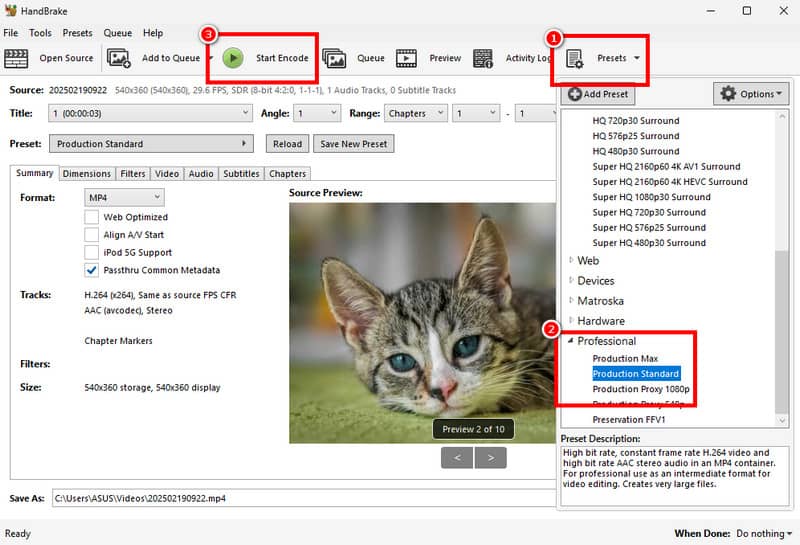
Step 1. Download and launch Handbrake on your computer. After that, click the File button to add the video you want to deal with.
Step 2. Proceed to the Preset > Professional > Production Standard option. With that, you can remove the HDR from the video.
Step 3. Tap the Start Encode button to begin the final process.
Method 2. Remove HDR from the Video Using DaVinci Resolve
If you want a professional-grade program to remove HDR from the video, you can use DaVinci Resolve. In terms of removing HDR, this software is perfect since it can give you a smooth process. You can even access more editing functions to improve the video. The only problem here is that you have to get its subscription plan to enjoy its overall features. Use the steps below to learn how to turn off HDR on a video that has already been taken.
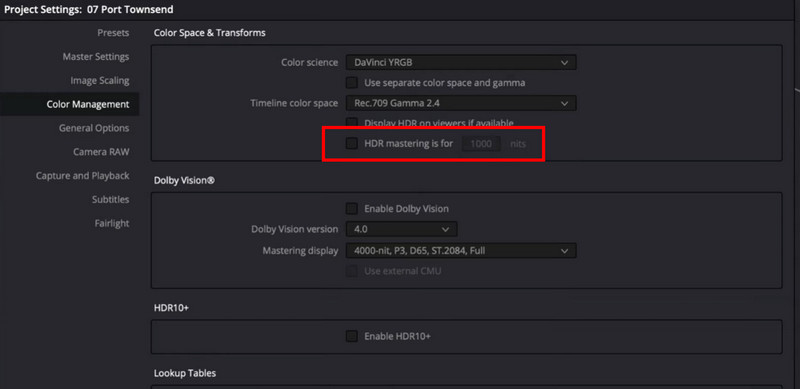
Step 1. Download and install DaVinci Resolve on your computer. After that, you can start adding the video to the main interface.
Step 2. Proceed to the Settings section and uncheck the HDR option. After that, you can also select the DaVinci Resolve RGB option under the Color Science section.
Step 3. Once done, you can now proceed with the saving process to play your videos.
Method 3. Remove HDR from the Video Using Topaz Video AI
Topaz Video AI is an excellent tool that is capable of turning your low-quality video into high-quality. It can even offer almost all the features you need for an effective video editing process. However, if you want to turn your HDR into SDR, we are afraid to say that this tool is incapable of doing that. To get rid of HDR from a video, it would be better to use other programs, like the two software programs that were mentioned above.
Part 4. Bonus: How to Enhance Video to HDR
Are you also looking for an excellent way to turn your poor-quality video into HDR? In that case, the best software you can use is Vidmore Video Enhancer. This program ensures that you can get an excellent video quality for better video playback. What we like here is that its comprehensive UI can lead you to a smooth video quality enhancement. Plus, you can choose your desired quality up to 4K. You can also insert any video types from this software, such as vlog, tutorial, anime, old videos, and more. Thus, if you want a better video quality enhancer, look no further than Vidmore Video Enhancer.
More Features
• The program can offer a fast video quality enhancement process.
• It is powered by AI technology for a better result.
• It can deal with various video types and formats.
• The video denoiser is available.
Use the instructions below to enhance your video to HDR.
Step 1. Download and run Vidmore Video Converter on your computer. After that, you can start turning your video into HDR.
Step 2. Tap the Add Files button above to add the video you want to improve. You can also add as many videos as you want.
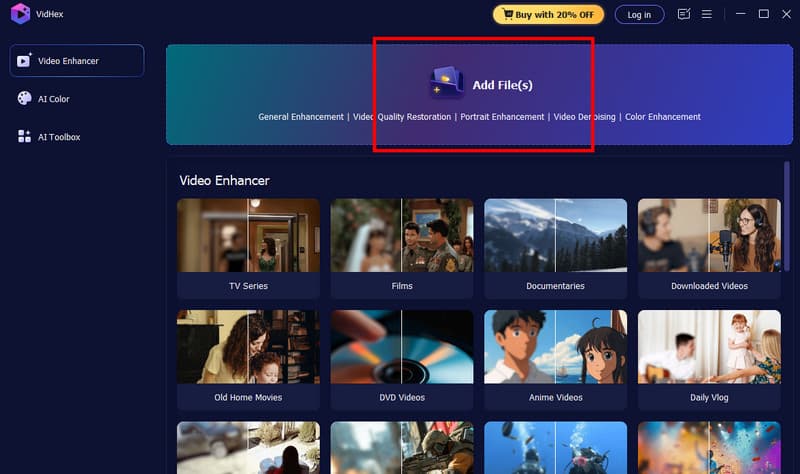
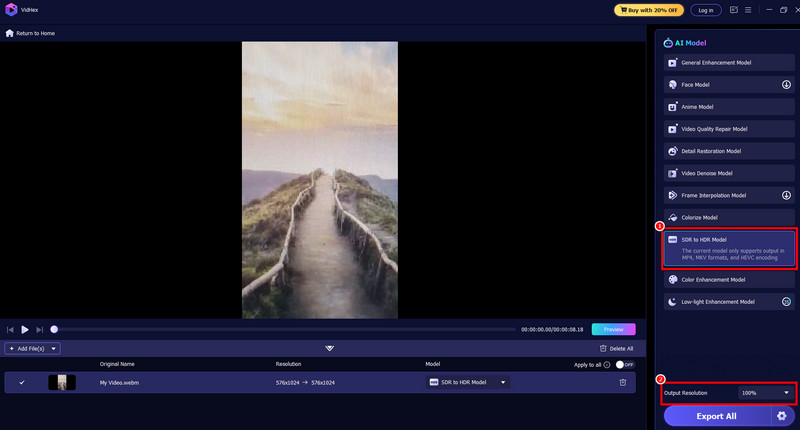
Step 3. Now, click the SDR to HDR feature. You can also go to the Output Resolution option to choose your preferred quality.
Step 4. For the final process, hit the Export button below and save your video.
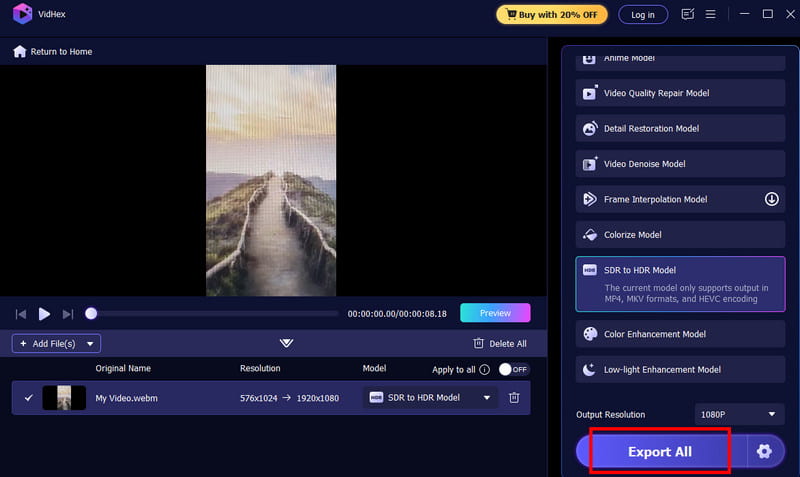
With this process, you can instantly improve your video and turn it into HDR. The best part here is that you can even add various video types, such as vlogs, documentaries, anime, and more. Thus, if you need an excellent video resolution enhancer, you can rely on this program.
Part 5. FAQs about How to Remove HDR from Video
Is HDR better than SDR?
When it comes to quality, there is no doubt that HDR is superior. However, when it comes to compatibility, it is better to access SDR since it won't let you experience any compatibility issues.
Should I keep HDR on or off?
It depends on the device you use. If you have a large monitor that can deal with HDR, then you can turn it on. On the other hand, if you want to watch your video on an outdated device, turning the HDR off is recommended.
Does HDR consider a better quality?
Absolutely, yes. HDR means better quality since it can give you a realistic color and excellent brightness. With that, for a better and smooth video playback, consider dealing with HDR.
Conclusion
This guidepost has shown you the methods on how to remove HDR from a video. With that, all you need to do is follow the instructions to obtain your desired result. Also, if you are planning to improve the quality of your video by turning it into HDR, then we recommend using Vidmore Video Enhancer. It can offer all the features you need, resulting in an exceptional video output.