3 Ways to Learn How to Improve Frame Rates Successfully
Increasing your video's frame rate is necessary to achieve smooth playback. You can also get sharper visuals for a better, more professional viewing experience. Whether you are creating films, editing/modifying content, or streaming online, higher frame rates can reduce motion blur and enhance clarity, making your video more engaging and easier to watch. In addition, boosting the video frame rates is not just about upgrading your content. It also involves selecting efficient codecs, optimizing encoding settings, adjusting resolution, and using software tools designed to improve performance. Are you looking for the best methods on how to improve the frame rates of your video? Then, you must read this tutorial. This article provides practical instructions to enhance your video's frame rate. Thus, take part in this post and learn more.

PAGE CONTENT
Part 1. What is a Frame Rate
Frame rate in video refers to the number of individual frames, or still images, displayed per second to create the illusion of motion. Measured in frames each second (FPS), the frame rate is a basic aspect of video production that identifies how smooth or choppy motion appears. For example, a video running at 24 fps shows 24 frames per second, which is the traditional cinematic standard. On the other hand, 30 fps is common in television and online content. Thus, higher frame rates, such as 60 fps or higher, provide ultra-smooth motion, making them ideal for fast-paced footage such as sports, gaming, and action scenes.
Importance of Frame Rates
- • Smoothness of Motion – Higher frame rates can reduce motion blur. It can also make fast-moving videos clearer.
- • Viewer Experience – A good frame rate can enhance immersion. Cinematic films often feel natural at 24fps, while gaming and sports benefit from higher frame rates.
- • Platform Standards – As we all know, different platforms require different frame rates, especially for consistency. Knowing the optimal FPS can improve video playback.
- • Editing and Production – The frame rate can affect the file size, rendering time, and compatibility with playback devices.
Would you like to see the different frame rates? You can check the table below.
| Frame Rate | Use Case | Effects on Video |
| 24 fps | ●Standard for cinema | Creates a ‘film look’ with slight motion blur, perceived as natural and artistic. |
| 30 fps | ●TV broadcasts ●online video | Smoother than 24fps, widely used for digital content and streaming. |
| 60 fps | ●Sports ●Gaming ●Action footage | Ultra-smooth motion, ideal for fast-paced scenes and immersive experiences. |
| 120fps+ | ●Slow-motion recording | Allows playback at lower speeds while maintaining clarity. |
Part 2. 3 Methods to Improve Frame Rates
How to get a better fps? If you want to improve your video FPS, you can use the methods in this section.
Method 1. Improve FPS Using Vidmore Video Enhancer
When it comes to improving the fps of your video, there is no doubt that Vidmore Video Enhancer is the most reliable software you can use. This program can increase your video's FPS by up to 2× or 4×. With that, whether you want to watch your videos on a TV, in a browser, or in a cinema, you can enjoy smooth video playback. Additionally, increasing the FPS is straightforward. This is because the program offers a simple user interface. It can support AI-powered technology to help you achieve your desired output.
Furthermore, in addition to increasing FPS, the program offers a video enhancer feature. This feature is ideal if you want to upscale your videos up to 4K. You can also save the video in various formats, including MP4, MOV, M4V, MKV, and more. If you need an exceptional program, look no further than Vidmore Video Enhancer.
More Features
- • The program can provide a smooth process for increasing FPS.
- • It supports artificial intelligence for providing accurate results.
- • It can offer various AI enhancement models, such as Face Model, Anime Model, Colorizer Model, and more.
- • The Preview feature is available and ideal for viewing the result before saving.
To learn how to raise FPS for your video, follow the instructions below.
Step 1. First, download Vidmore Video Enhancer on your Mac or Windows. After that, launch it to begin the main procedure.
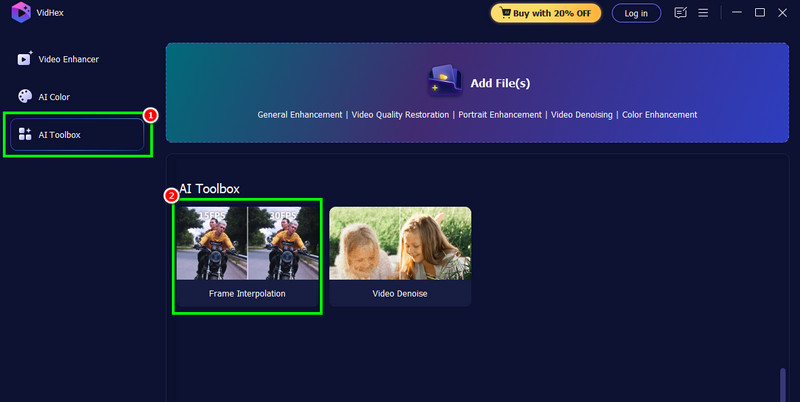
Step 2. From the primary interface, navigate to the AI Toolbox and tap the Frame Interpolation feature to start adding the video you want to process.
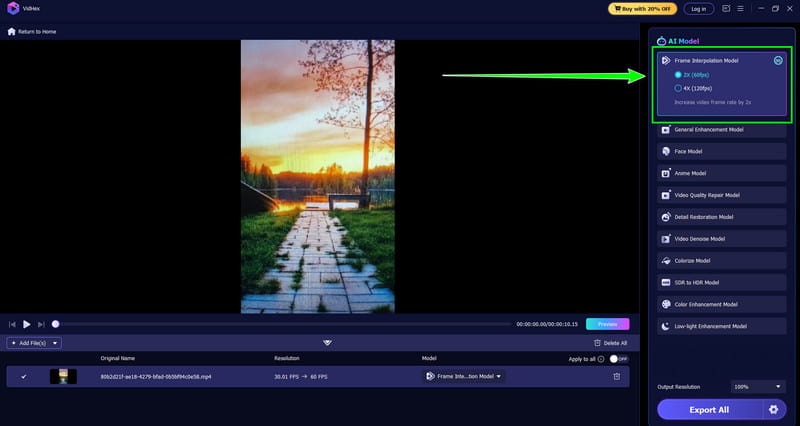
Step 3. You can now start choosing your preferred FPS. You can increase your FPS to 2× or 4×, compared to the original.
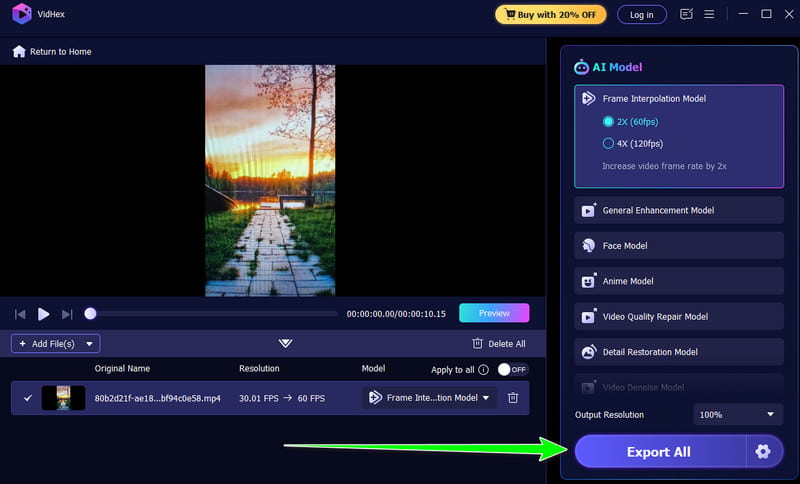
Step 4. Lastly, click the Export All button below to save your video to your device. After that, you can start playing your video at a higher frame rate.
Method 2. Improve FPS Using Adobe Premiere Pro
Another FPS increaser you can use is Adobe Premiere Pro. This high-end video editor offers an FPS booster to help you achieve your preferred results. The good thing about this program is that you can ensure an accurate result, making it eligible and ideal. It can also offer video editing tools to enhance your videos. You can fix out-of-focus video in Premiere Pro, crop, trim, adjust color, and more. The only drawback here is that it is not free. You need to subscribe to the paid version to start improving your videos. To increase the video FPS, follow the instructions below.
Step 1. You have to download and install Adobe Premiere Pro on your computer. After that, run it to begin the process.
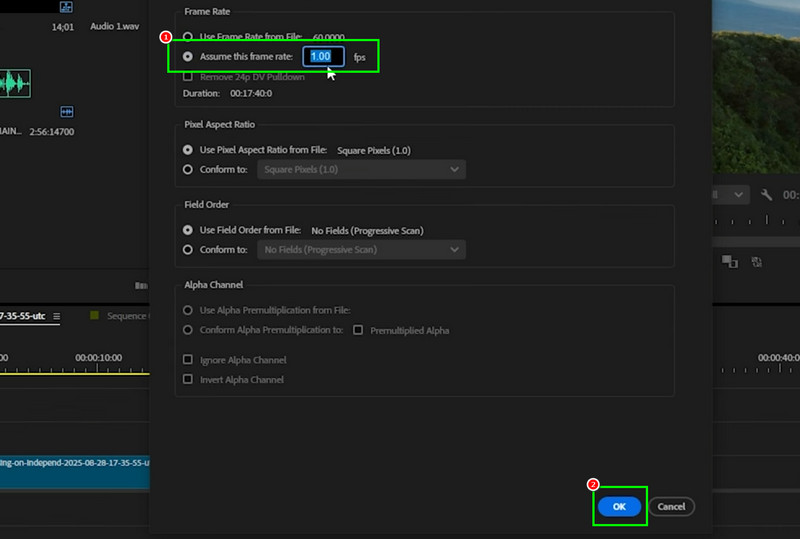
Step 2. Add and right-click your video. Then go to the Modify section and select Interpret Footage.
Step 3. Proceed to the Assume this frame rate section and enter your preferred frame rate for your video. Once done, tap OK. After that, begin saving your video so you can start watching.
Method 3. Improve FPS Using Handbrake
If you still need another program to increase your video FPS, you can try HandBrake. This is a free and open-source software that lets you enhance your FPS based on your preferences. You can increase the frame rate to up to 120 fps. The best part is that it is simple to navigate, thanks to its comprehensive layout. Additionally, you can access various editing features to improve the overall appearance of your footage. You can reduce video noise, deblur the video, apply filters, crop, rotate, and more. You can also save your video in MP4, MKV, or WebM format. The only disadvantage is the program's outdated user interface. Additionally, some advanced features for improving videos are unavailable. If you need a tool to effectively increase the video frame rate, consider this program.
Follow the steps below to increase the video frame rate.
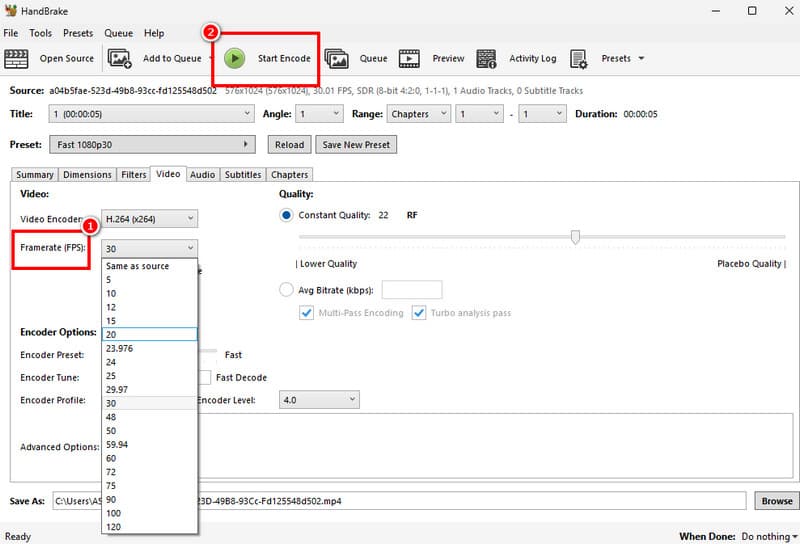
Step 1. First, download and install HandBrake on your Windows or macOS computer.
Step 2. After that, launch and click the File button to insert/add the video you want to edit.
Step 3. Navigate to the Video section and start choosing your preferred FPS under the Frame Rate section.
Step 4. Finally, click the Start Encode button above to begin saving your final video to your device.
You have learned how to increase FPS in your videos using these effective methods. Feel free to follow these tutorials to achieve the best version of your videos.
You can also check: Best way to enhance face in surveillance videos.
Part 3. Performance Comparison of the Best Frame Rate Increasers
Want to learn more about the best frame rate increasers? Then, check all the information in the comparison table.
| Video FPS Increasers | Vidmore Video Enhancer | Adobe Premiere Pro | Handbrake |
| Frame Rate Enhancement Quality | High-quality AI interpolation, smooth motion with fewer artifacts. | Excellent with advanced tools, but depends on user expertise. | Basic conversion may cause stutter or duplicate frames. |
| Ease of Use | Simple, AI-driven automation with minimal setup. | Steeper learning curve, requires manual settings or plugins. | Beginner-friendly interface but limited customization. |
| Performance Speed | Fast | Fast | Standard |
| Supported Formats | MP4, MKV, AVI, MOV, and more. | Wide range including 8K, VR, ProRes, and RAW. | MP4, MKV, and WebM. |
| Best Use Case | Quick AI-powered frame rate boosting for creators. | Professional editing, film production, and advanced workflow. | Simple frame rate conversion and compression. |
Pay a visit: Comprehensive methods to improve videos sent from iPhone.
Part 4. FAQs about How to Improve Frame Rates
How can I enhance frame rates without upgrading hardware?
You can modify in-game or video settings, lower resolution, update drivers, close background apps, and optimize system performance to achieve smoother frame rates.
Does resolution affect frame rate?
Absolutely, yes. Higher resolutions need more processing power, which can lower frame rates. Also, reducing resolution often boosts FPS.
Is a higher frame rate always better?
Not necessarily. Well, we know that higher FPS improves smoothness and increases file size. However, the optimal frame rate depends on your purpose. For cinema, it must be 24 fps; for streaming, 30 fps; and for gaming, 60 fps+.
Conclusion
To learn how to improve frame rates for videos, you can use all the provided methods from this article. You also gained additional insights into the tools. With that, choose your preferred tool and start dealing with your videos. Also, if you want a smooth, fast way to improve your video FPS, feel free to use Vidmore Video Enhancer. You can increase your FPS by up to 4x, making it the best program for users.