How to Convert MP4 to WebM: Desktop & Online Tools for You
MP4 always seems to be the best format, but is that really the case?
If you've ever tried uploading your own videos online, you'll find there are many better options than MP4. WebM, the format we're discussing today, is an excellent example.
WebM may not be as well-known as MP4, but it's actually the format supported and compatible with most browsers.
So what if you've already exported your video as MP4 out of habit?
Don't panic—this guide has you covered with methods to convert MP4 to WebM. Whether you prefer desktop software or lightweight online tools, you'll find the right approach here.

PAGE CONTENT
Part 1. Best Way to Convert MP4 to WebM on Desktop
If you prefer a stable desktop solution for converting MP4 to WebM, congratulations—your perfect assistant has arrived: Vidmore Video Converter Ultimate.
As its name suggests, Vidmore Video Converter Ultimate is a format conversion expert. This software supports converting over 200 audio, video, image, and document formats, covering nearly all commonly used formats today. Additionally, it offers versions for both Mac and Windows systems, meaning you'll rarely encounter compatibility issues.
In fact, Vidmore Video Converter Ultimate is equipped with advanced acceleration technology, achieving conversion speeds up to 50X faster than before. Batch conversion is also effortless for it.
The final piece of the puzzle that makes Vidmore Video Converter Ultimate perfect is its full suite of video editing tools, including trimming, rotating, cropping, merging, and adding special effects. These features allow you to complete everything you want to do in one place. Beginners needn't worry—this software offers user-friendly guidance, so you won't encounter any obstacles.
Here, we provide step-by-step instructions for converting MP4 to WebM files using Vidmore Video Converter Ultimate.
Step 1. Download and install Vidmore Video Converter Ultimate on your computer. Upon entering the main interface, click the + icon to add your MP4 video.
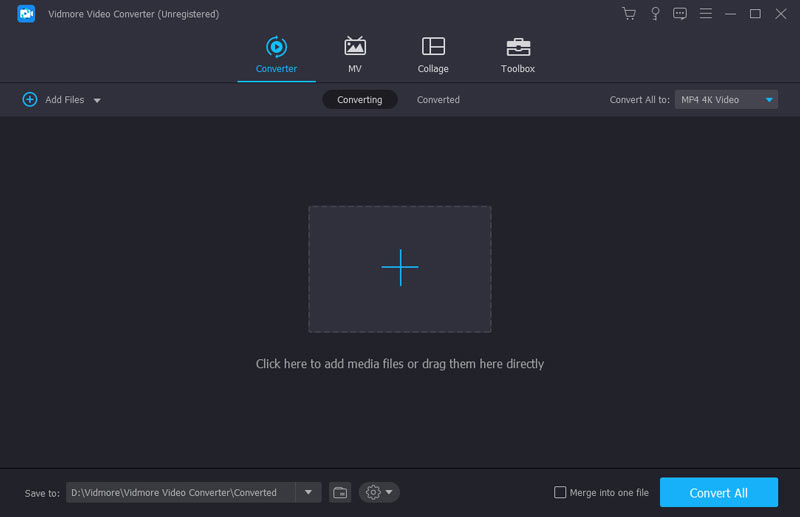
Step 2. After the video uploads successfully, locate the format icon on the right and click it. You'll then see a format list. Select Video > WebM.
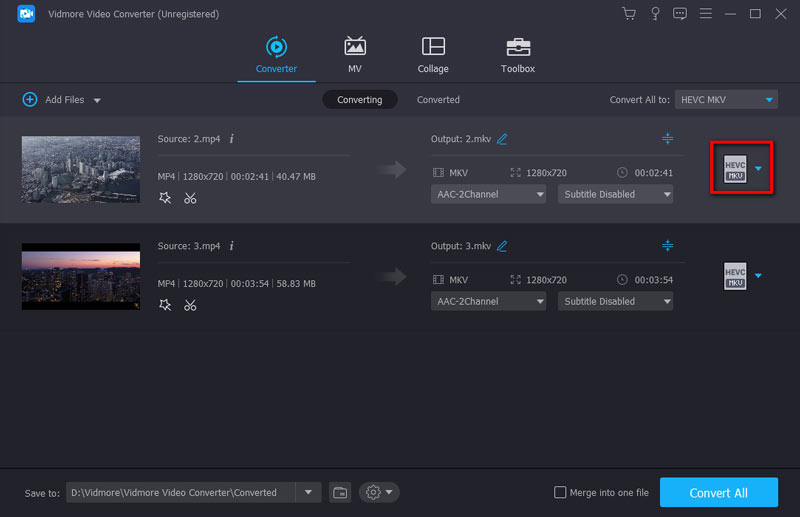
Step 3. Click Save to to select the output path for your converted file. Finally, click Convert All to complete the conversion.
Part 2. How to Change MP4 to WebM Online
After reviewing the previous section, you may have noticed that before starting the conversion process, you must first complete the download and installation step to obtain the software on your device.
If you wish to skip this step, open the converter immediately to begin conversion, and avoid placing any burden on your device, we recommend trying an alternative tool: an online MP4 to WebM converter.
In this section, we will recommend two excellent options for converting MP4 to WebM online.
Aiseesoft Free Video Converter Online
Aiseesoft Free Video Converter Online delivers everything you'd expect from an online converter: lightweight operation, extensive format support, and straightforward video parameter adjustments. Plus, being a web-based solution, it works seamlessly across all devices and operating systems.
But won't online tools be slow when converting MP4 to WebM format?
Aiseesoft Free Video Converter Online says no.
It detects your computer's multi-core processor to determine whether to accelerate conversion speed. Most surprisingly, this converter is completely free, and no watermarks will be added to your output videos.
Tip: Please note that Aiseesoft Free Video Converter Online supports videos under 50MB.
Similarly, let's see how to change MP4 to WebM using Aiseesoft Free Video Converter Online.
Step 1. Access the Aiseesoft Free Video Converter Online official website via your computer browser. Click the prominent Add a File button to upload your MP4 file.

Step 2. After the video uploads, you'll see a toolbar on the right side of the preview page. There, select the output format, encoder, frame rate, output quality, and other parameters.
Step 3. Finally, click the Convert button to complete the conversion.

Convertio
Convertio stands shoulder to shoulder with Aiseesoft Free Video Converter Online in terms of lightness and convenience. Its key feature is handling all processing in the cloud, ensuring it doesn't consume your computer's resources.
Beyond uploading from local folders, it supports cloud services like Dropbox or Google Drive. With over 300 supported formats, the entire conversion process is usually completed within 1–2 minutes. Similarly, you can access customization options like quality, aspect ratio, and codecs, along with basic features such as rotation and flipping.
Rest assured about privacy—Convertio deletes uploaded files immediately after conversion and removes completed files within 24 hours. You can access Convertio from any device: computer, phone, or tablet.
Here's how to use this MP4 to WebM video converter to accomplish your task:
Step 1. Visit Convertio using your browser. Click Select file to upload your MP4 file from your device or cloud storage.

Step 2. Click the button next to Arrive to expand the format menu, then select Video > WebM.
Step 3. Finally, click Convert.

Part 3. MP4 vs WebM: Differences
At this point, your impression of these two formats might still be that MP4 offers broad compatibility while WebM is better suited for browsers.
Alright, let's take a comprehensive look here to see how they perform under each parameter and what sets them apart.
MP4 indeed boasts the best compatibility. It works with virtually any device, operating system, media player, and editing software.
WebM, on the other hand, was primarily designed for the web. It performs well in mainstream browsers but has relatively limited support on some older devices or professional editing software.
At identical resolutions and bitrates, MP4 delivers more balanced visual performance—stable image quality with natural color reproduction—though it may sacrifice some detail to achieve smaller file sizes.
WebM typically preserves more detail, especially in high-resolution or dynamic scenes, maintaining clarity even after compression.
WebM files are generally smaller than MP4s.
This stems from WebM's more efficient encoding algorithms, making it better suited for web transmission and online playback. MP4, prioritizing broader compatibility and easier decoding, often results in larger file sizes.
If you need local playback, video storage, editing, or cross-device sharing, MP4 is usually the better choice.
If you need to embed videos on webpages and prioritize fast loading times, choose WebM.
You may also need: Top WebM Video Converters for Each Platform & Device [Review & Guide]
Part 4. FAQs of Converting MP4 to WebM
Are WebM and MP4 the same?
They are not the same. WebM is a format specifically designed for web videos, offering smaller file sizes and faster loading times, but it lacks broad compatibility. MP4 is a well-balanced format that works across nearly all platforms.
What are the disadvantages of WebM?
The main disadvantage of WebM is that its compatibility is not broad enough. And although it's a format specifically designed for web videos, many online platforms still don't support it.
How to convert MP4 to WebM format?
You can choose desktop software like Vidmore Video Converter Ultimate to complete the conversion, or opt for more convenient online tools such as Aiseesoft Free Video Converter Online and Convertio. The principle is similar: upload your file, select WebM as the output format, adjust parameters if needed, and start the conversion.
Conclusion
Compared to MP4, WebM is a more suitable format for web embedding, which is why you might need to convert MP4 to WebM.
This guide has everything you need: a reliable desktop converter, two lightweight online converters, and step-by-step instructions for each tool. We hope you find the solution here.