6 Best JPEG File Compressors for Windows & Mac Users
Open your photo album and look at the pictures your friends shared with you, or save any random image or screenshot online - you'll find they're almost all in the same format: JPEG.
This format is so widely used that it accounts for over seventy percent of all digital images. You encounter them every day when you open your phone or computer.
Why is it so popular? Besides its broad compatibility, it's because it supports high compression rates, offers flexible file sizes, and is extremely convenient for storage and transmission. But to preserve image quality during compression as much as possible, you still need to choose a reliable JPEG file compressor.
Starting with the most fundamental and robust tools, this article recommends six widely recognized products with outstanding compression results. Detailed step-by-step instructions are provided, along with usability reviews for each method. Read on and see which interface and mode you prefer best.

PAGE CONTENT
Part 1. What Is A JPEG File
You may have encountered JPEG files - or even the .jpeg or .jpg file extensions - in many places, yet only have a vague understanding of what they are.
Therefore, before diving into compressing JPEGs, we encourage you to take a moment to grasp the fundamentals of this format, including its advantages and disadvantages. This will not only help you understand its applications but also clarify why it can be compressed and the relevant compression parameters involved.
The JPEG format was first developed in the 1980s and 1990s. Since then, it has become the most popular and widely compatible image format. This format uses lossy compression, achieving image compression ratios of 10:1 to 20:1. Consequently, its file size can be flexibly controlled to meet the limitations of various platforms. Additionally, it supports 24-bit color with 16 million colors, making it compatible with virtually any image viewing or editing software, email clients, and major image-sharing websites.
However, the trade-off for high compression rates is that JPEG may degrade image quality.
JPEG and the commonly used JPG are essentially the same format. They are simply two names for the same file type.
Common JPEG file extensions include: .jpg, .jpeg, .jpe, .jif, .jfif, and .jfi.
Part 2. 6 Best JPEG File Compressors
After solidifying your foundational theoretical knowledge, it's time to dive into practical application. Let's explore six outstanding JPEG compressors featured in this section.
Vidmore Online Image Compressor
First, we'll examine the most lightweight and intuitively designed JPG size reducer: Vidmore Online Image Compressor.
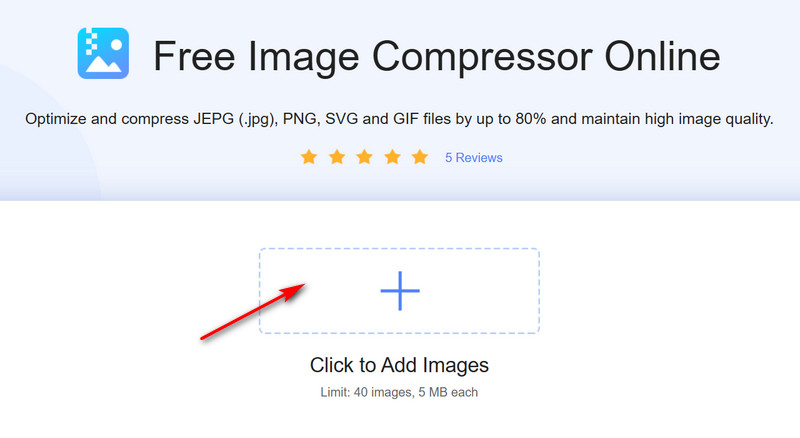
As a free online tool, it boasts fast startup and straightforward steps. It supports compressing image formats including JPG, JPEG, PNG, SVG, and GIF. Impressively, it achieves up to 80% compression, allowing you to reduce files to virtually any desired size.
How does the compressed image quality hold up? You can trust Vidmore Online Image Compressor's capabilities. It employs cutting-edge technology to efficiently reduce file size while preserving all crucial details and features, maintaining image quality to the greatest extent possible.
Additionally, after compression completes, Vidmore Online Image Compressor guarantees immediate deletion of both your uploaded and compressed images to safeguard your privacy.
Let's explore how to process JPEG files using Vidmore Online Image Compressor.
Step 1. Visit the official Vidmore Online Image Compressor website and click the + icon on the homepage to upload your JPEG file for compression.
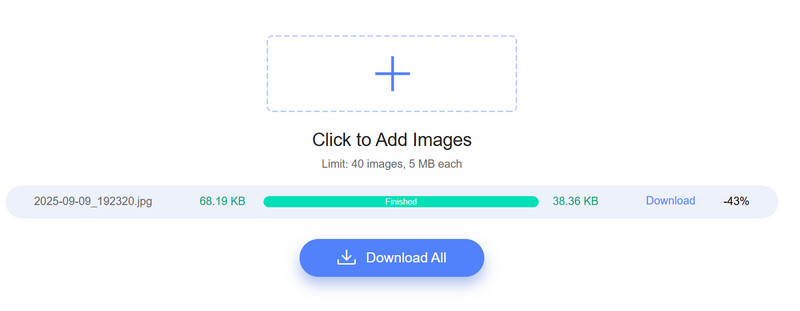
Step 2. Once uploaded, compression begins automatically. After the progress bar completes, you'll see the compressed file size and compression rate.
If satisfied, click Download or Download All to retrieve your images.
Windows Paint
When using a Windows computer, you'll find it comes with several built-in image viewing tools. Do any of them support compressing image file sizes?
Absolutely! One of the most commonly used programs for viewing images, Paint, offers this feature. It provides many simple image editing options - besides compression, you can also crop and resize images. Its interface and steps are quite straightforward.
Here's a step-by-step guide showing you how to use Paint's JPG image compressor.
Step 1. Locate the JPEG file you want to compress.
Right-click on it, choose Open with, and select Paint from the list.
Step 2. Once the image opens in Paint, go to the Home tab and click Resize to access the size adjustment options.
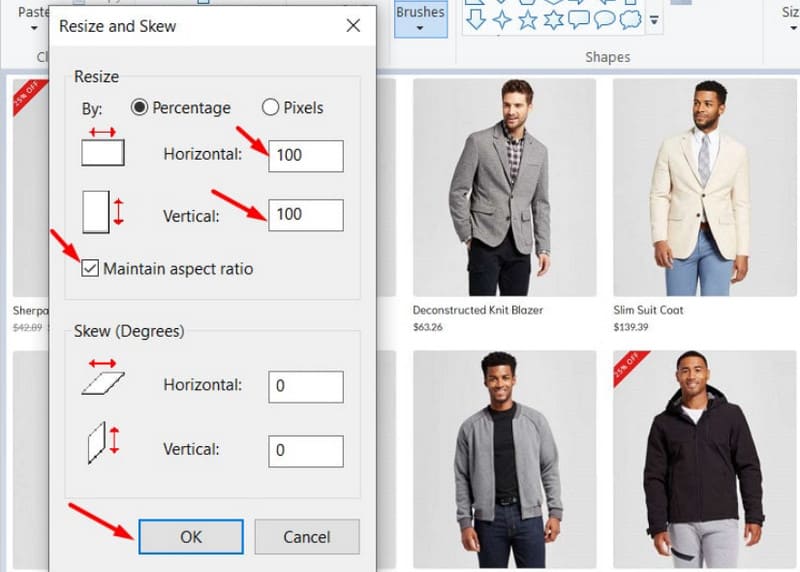
Step 3. In the resize window, choose Percentage and enter smaller values for both Horizontal and Vertical to reduce the image size.
For example, setting both to 50 will scale the image down to half its original size.
Make sure Maintain aspect ratio is checked so the image doesn’t get stretched or distorted. Paint will automatically adjust the other values for you.
Step 4. Click OK to apply the changes. Finally, open the File menu and select Save to store the resized image on your computer.
Pros:
- Offers basic yet excellent image editing capabilities.
- Built-in tool requires no separate download or installation.
Cons:
- Requires manual resizing before compression, which is inconvenient.
Windows Photos
When you follow the previous guide to choose how to open a JPEG image, you'll notice an option below Paint: Photos. Yes, this tool can also help you compress images.
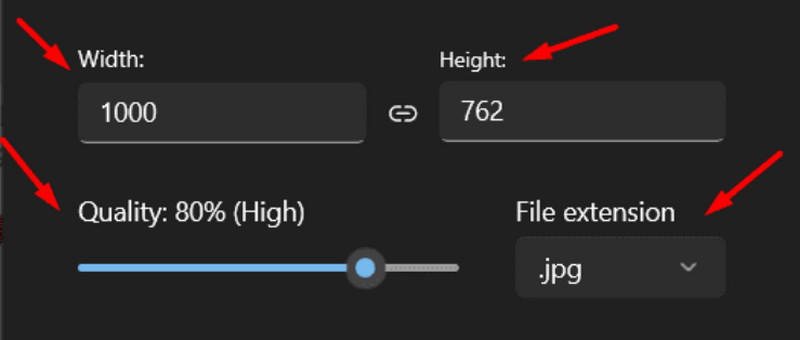
Here, besides reducing size by altering the aspect ratio, you can also select a quality percentage during output, making compression adjustments more intuitive.
Here's how to compress images using Windows Photos.
Step 1. Find the JPEG image you wish to compress on your computer. Right-click the file and select Open with > Photos.
Step 2. Then, click the three-dot icon in the top-right corner. From the dropdown menu, choose Resize image.
Step 3. Now, you can manually set the image width and height as needed, and choose JPEG as the output format.
Adjust the Quality parameter. Lower quality values result in smaller file sizes.
Step 4. Finally, click Save and select a storage location.
Pros:
- In addition to adjusting aspect ratio, it offers an option to specify the output image quality percentage.
- Free and built into the system.
Cons:
- Still somewhat basic compared to professional compression tools.
Mac Preview
If you're a Mac user, we also recommend trying the built-in JPEG size reducer: Mac Preview.
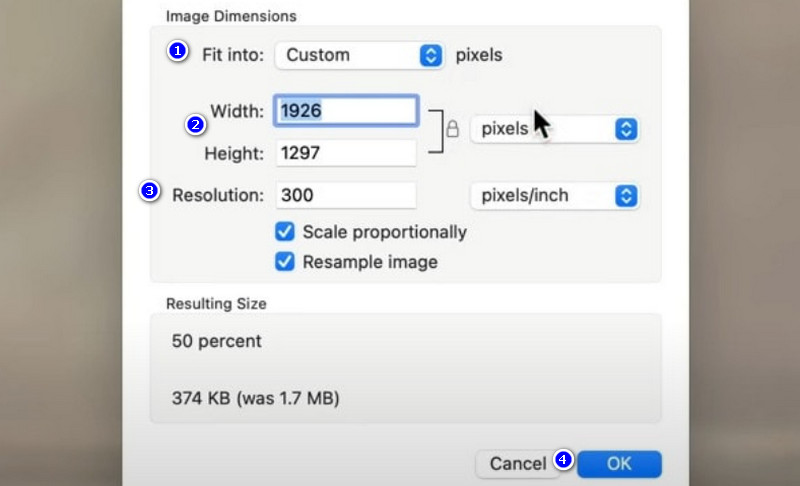
Its image compression principle is similar to the two Windows tools mentioned earlier - both reduce the image's width-to-height ratio. However, it offers new parameter adjustment options: Pixels and Resolution. Lowering either value significantly impacts the compression percentage.
Let's explore how to use Mac Preview.
Step 1. Double-click the JPEG file you want to compress. It will automatically open in the built-in Preview app.
Step 2. Once the Preview app is launched, go to the top menu bar, click Tools > Adjust Size from the dropdown list.
Step 3. The Image Dimensions window will appear.
Here, you can resize the image by selecting preset dimensions under Fit into, entering values in Pixels, or changing the Resolution.
The final file size will be shown under Resulting size.
Step 4. Finally, click File > Save As to save the image as a separate copy.
Pros:
- More adjustable image parameter options have been added.
- Allows you to see the compressed image size in real time.
Cons:
- Changing numbers alone isn't intuitive enough.
Mac Convert
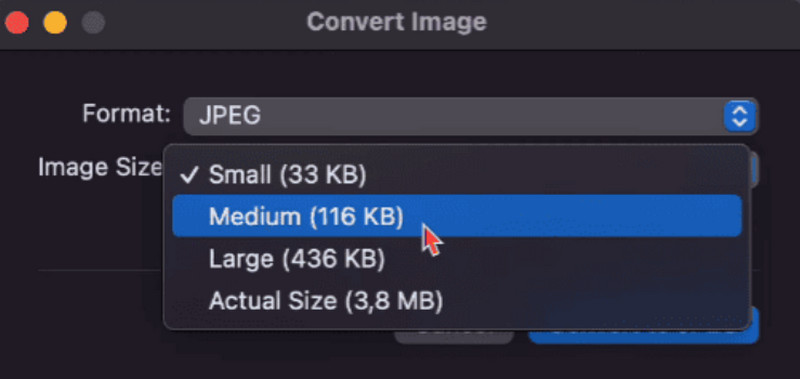
Like Windows, Mac also has another built-in image compression tool called Mac Convert. It provides four different image output size options and is very easy to use.
Here's how to use it:
Step 1. Right-click on the image you want to compress. From the context menu, choose Quick Actions, then click Convert Image.
Step 2. In the conversion window, select JPEG as the output format.
Step 3. Open the Image Size dropdown and pick the size you prefer: Small, Medium, Large, or Actual Size (if no compression is needed).
Step 4. Click Convert to JPEG to apply the changes. The compressed image will be saved automatically.
Pros:
- Simple and quick steps.
- Four preset output sizes available, eliminating manual data adjustments.
Cons:
- No preview of compressed image results.
Wordpress Plugin
Besides the previously mentioned Vidmore Online Image Compressor, another online tool for compressing JPEGs is the plugin from the WordPress website.
The advantage of using a plugin is that it makes your compression tasks much more efficient and automated, saving you time and effort.
Here's how to use it:
Step 1. We recommend using the ShortPixel Image Optimizer plugin from WordPress.
First, locate it in the plugin directory and complete the installation.
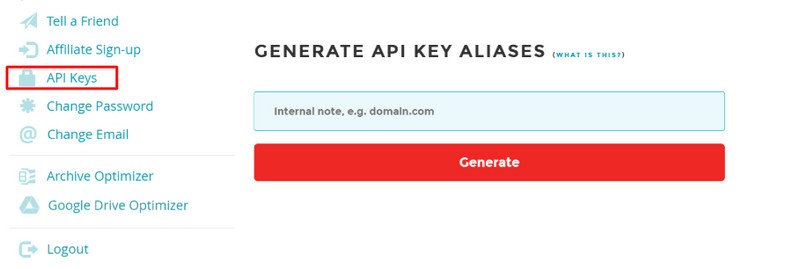
Step 2. Visit ShortPixel's official website to register an account. From the left-hand menu, select API Keys to obtain your personal key.
Step 3. Return to WordPress, navigate to Settings, and activate ShortPixel.
You can then customize compression settings and compression types. Finally, click Save Changes.
Pros:
- Ideal for handling bulk image compression tasks.
- Saves time and effort without compromising image quality.
Cons:
- Less intuitive than traditional image compression interfaces.
If you need a video compressor to reduce the video files’ size, you can read this article: 12 Best Free Video Compressors for 2025 [Offline & Online]
Part 3. FAQs of JPEG File Compressor
How do I compress the JPEG file?
If you prefer to do it locally, you can use Windows Paint and Photos tools, or Mac Preview and Convert; if you want to complete the task online, we recommend Vidmore Online Image Compressor.
Why is my JPG file size so large?
This can stem from two causes. One is excessive image dimensions - too wide or too tall - which can be resolved by resizing. The other is overly complex visuals with too many colors and pixels. In such cases, you'll need to compress the image file.
Are there free photo compressors?
Yes. The web-based Vidmore Online Image Compressor perfectly meets your needs. If you prefer not to use third-party tools, you can also use image viewing software on your computer.
Conclusion
This article introduces the 6 best JPEG file compressors, including the free online tools Vidmore Online Image Compressor and WordPress Plugin, Windows native tools Paint and Photos, and Mac native tools Preview and Convert.
Their step-by-step instructions and respective pros and cons are provided. You can choose the one that best suits your device's operating system and preferred compression method.