Adobe Express Video Enhancer: Features, Plans, & How to Use
Adobe Express Video Enhancer was created to make the video enhancement process simple and accessible. It can offer an instant method to sharpen the visual, resulting in a better video output. The good part here is that the tool is simple to utilize, making it suitable for all users. So, if you are wondering if this tool is an ideal video enhancer, read everything in this post. We will offer an informative review of the tool, including its features, how to use it, and pricing plans. You will also gain insights into Vidmore Video Enhancer as an exceptional alternative for enhanced video quality.

PAGE CONTENT
Part 1. An Introduction to Adobe Express Video Enhancer
Adobe Express Enhancer is an ideal tool for enhancing videos online. It can even help you adjust various parameters, such as brightness, contrast, highlights, saturation, and more. What makes the tool ideal is its intuitive user interface, which makes video enhancement simple and smooth. What's more, the tool offers a free version that lets you test its capabilities. Plus, you can save the enhanced video at up to 4K resolution. If you want a detailed explanation of the tool's features, see the information below.
Key Features
Video Enhancement
One of the core features of Adobe Express is its video enhancement. It lets you change the video brightness, saturation, hue, contrast, and more. It can also ensure that the video enhancement procedure is simple, making it perfect for all types of users.
Transition & Effects
Another good feature the tool can offer is its transitions and effects. These two features are ideal if you want to add flavor to the video. The tool offers a variety of ready-made transitions and effects, so all you need to do is choose what you need for the video.
Trimmer and Resizer
Adobe can also offer the trimmer and resizer features. The trimmer can help you remove unnecessary parts from the video. You can trim the first, middle, and last parts of your clips. In addition, you can resize the video by choosing your desired aspect ratio. This way, you can fit the file to any platform and social media.
Text and Graphics Overlays
What makes the tool powerful is its support for text and graphic overlays. It means that you can attach any elements to your video. You can add text/caption, images, logos, stickers, icons, and more. With this feature, you can ensure your video is more engaging and creative.
Limitations of Adobe Express Video Enhancers
Export Quality Issues
When exporting the edited video in 4K, the file size is sometimes heavily reduced, resulting in quality loss. For better quality, it's best to save the video at 1080p.
Requires Internet Connection
Adobe Express is an online-based video enhancement tool. It means you need a fast, stable internet connection for a smoother enhancement process.
Laggy Playback
Saving the video at higher quality sometimes results in laggy playback. For a smoother viewing experience, it is recommended to download the video to 720p.
Restrictions on Free Version
When using the tool's free version, you might encounter various restrictions. You can't even access some of the advanced features. It's best to use the tool's premium version to access all features without limitations.
Part 2. How to Use Adobe Express Video Enhancer
Adobe Express Enhancer is an ideal tool for enhancing your videos online. With this tool, you can adjust the video brightness, saturation, contrast, hue, and other parameters. The process is also simple and smooth. If you are interested in learning methods to enhance your videos, follow the steps in this section.
Step 1. First, open your primary browser and access the main website of Adobe Express Video Enhancer. Then, you can connect your Gmail account to have an account.
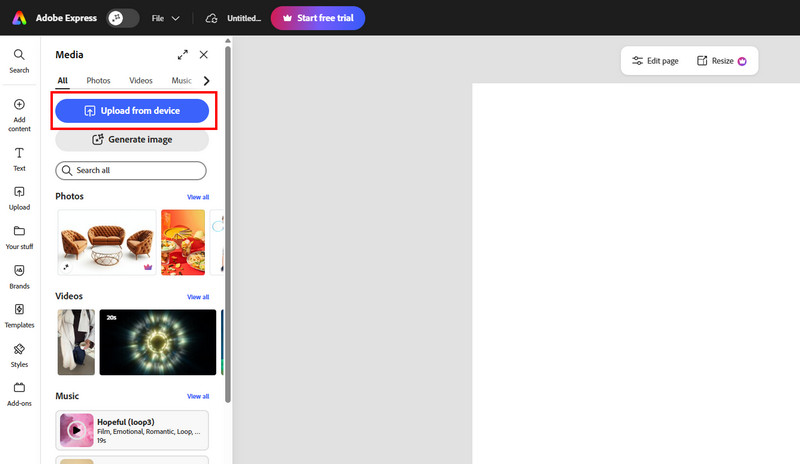
Step 2. From the interface, click the Upload from Device button to start uploading the video you want to enhance.
Step 3. After uploading, you can tap the adjust button to start enhancing your video. You can use the sliders to adjust the video brightness, highlights, shadows, saturation, contrast, and more.
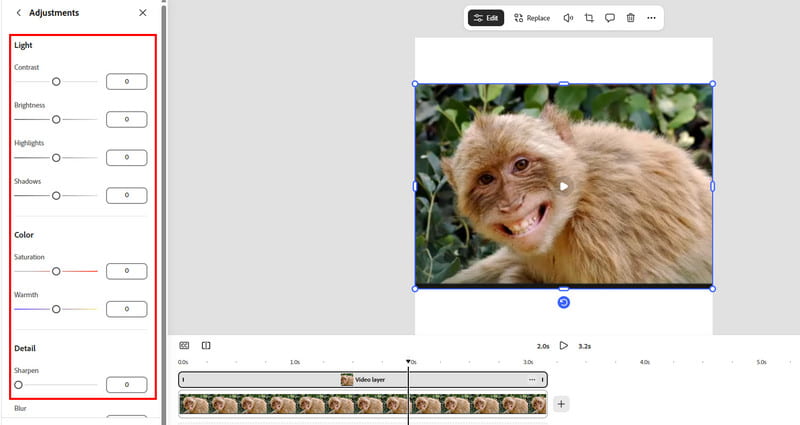
You can also use other editing tools to improve your video.
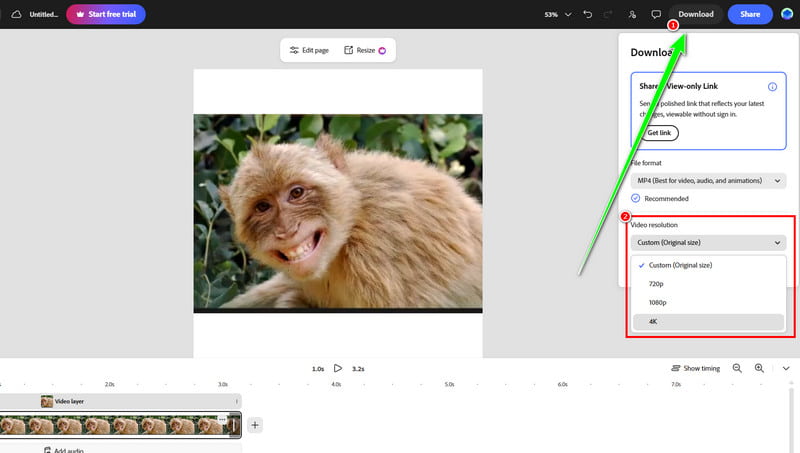
Step 4. Once you're satisfied with the result, tap the Download button above. Then, choose your desired video quality and hit the final Download button.
Part 3. Pricing Plans of Adobe Express Video Enhancer
Do you want to pay a penny to access the tool's full capabilities? In that case, you can check the pricing plans below.
| Plan | Monthly Price | Storage | AI Credits | Best For |
| Free | $0 | 5GB | Limited | • Casual creators • Beginners |
| Premium | $9.99 | 100GB | 250/month | • Freelancers • Social media creators |
| Firefly Pro | $19.99 | 100GB | 4,000/month | • Professionals • Advanced AI workflows |
Part 4. Excellent Alternative to Adobe Express Video Enhancer
After exploring some of the limitations of Adobe Express, you might wonder if there are some tools you can rely on to enhance your videos. Well, if you want an AI-powered offline program that lets you enhance your videos using various AI enhancement models, feel free to try Vidmore Video Enhancer. This tool offers greater control over resolution, brightness, contrast, noise reduction, and more, making it ideal for professional-quality results. It can even offer a simple UI for a smoother, easier enhancement process. Thus, if you are a user who needs both versatility and enhancement, Vidmore Video Enhancer ensures it delivers exceptional results.
AI Enhancement Models
- • General Enhancement Model
- • Face Model
- • Color Enhancement Model
- • Video Quality Repair Model
- • Frame Interpolation Model
- • Colorize Model
- • SDR to HDR Model
- • Low-Light Enhancement Model
- • Detail Restoration Model
- • Video Denoise Model
- • Anime Model
To learn how to enhance your videos with Vidmore, follow the instructions below.
Step 1. Access Vidmore Video Enhancer by clicking the Free Download button below.
Step 2. After you launch the interface, click Add Files to start inserting the video you want to enhance.
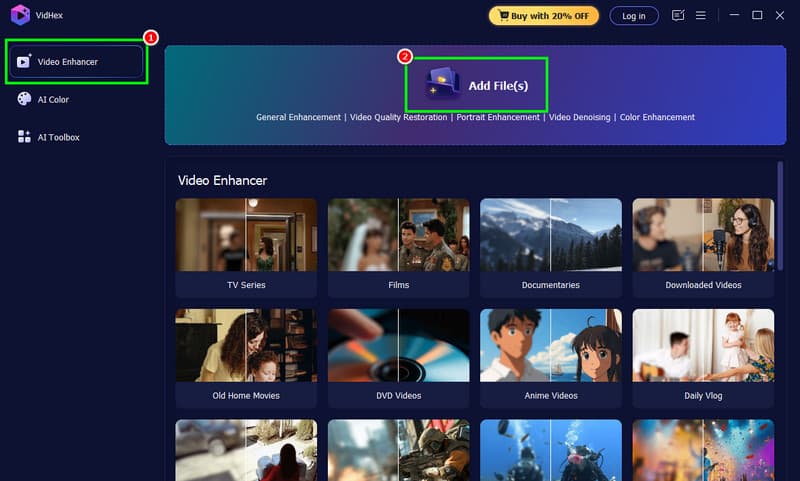
Step 3. Choose the General Enhancement Model, then select your desired resolution under the Output Resolution section.
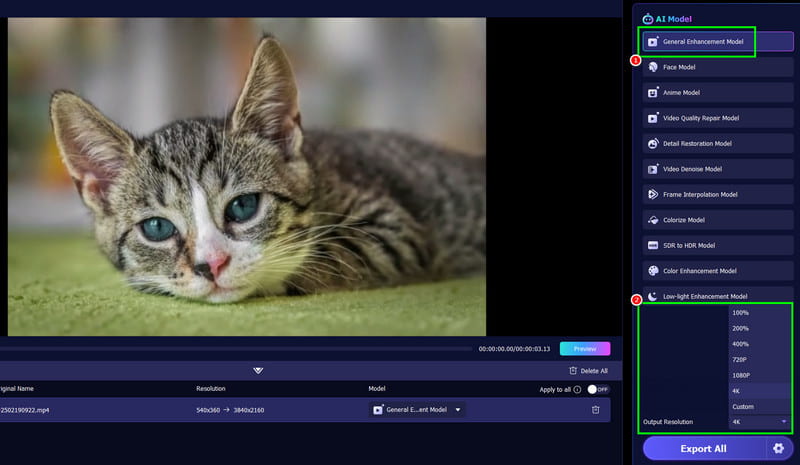
You can also use other editing tools to improve your video.
Step 4. For the final step, click the Export All button. Once done, you can start checking the enhanced video on your computer.
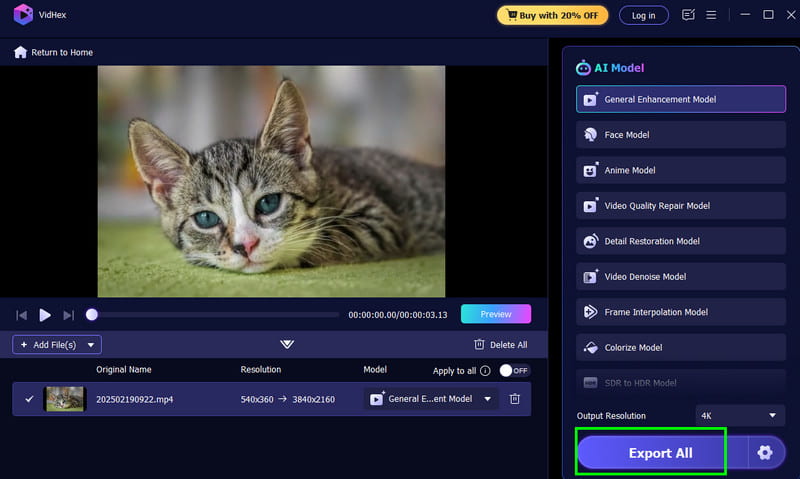
After using this software, we can tell that it offers better performance than Adobe Express. So, if you want a smoother video enhancement process, download Vidmore Video Enhancer right away!
Part 5. FAQs about Adobe Express Video Enhancer
Is Adobe Express an ideal video enhancer?
Definitely, yes. If you are a professional or a casual user, you can rely on the tool. However, to access its full capabilities, you must get its plan. Or, you can try Vidmore Video Enhancer, which is easy to use with various AI models and features.
Are there better video enhancers that offer more advanced features?
If you need a tool that offers various advanced editing features, you can try Vidmore Video Enhancer, CapCut, Premiere Pro, or Filmora. These tools offer various features you can use, such as transitions, overlays, color grading, motion tracking, and more.
Is Adobe Express the best video enhancer?
If you use the tool's plan, it is among the best video enhancers in your browser. It is because it can offer a smooth enhancement process and ensure that your output is of the best quality.
Conclusion
Adobe Express Video Enhancer is definitely the best online video enhancer you can rely on when dealing with your videos. With its helpful features, it ensures you achieve the result you want after the video editing and enhancement process. Plus, if you want an AI-powered offline tool that can help you enhance your videos with the best quality, you can access Vidmore Video Enhancer. This is also a perfect replacement for Adobe Express if you want a smoother, simpler enhancement process.