Easiest Way to Change Frame Rate on Videos [2026 Guide]
Of course, you are one of those who wonder about this frame rate thing in videos and how it affects the way your footage plays. Now, if your video looks off, doesn’t play smoothly, or just doesn’t feel right, no matter how good the footage is, the issue might not be the content at all. It’s something happening behind the scenes.
The good news? You don’t need to be a video expert to fix it. In this guide, you’ll be guided on how you can easily change frame rates on videos. Read on to avoid common mistakes and make your videos look exactly the way they’re supposed to.

PAGE CONTENT
Part 1. What is a Video Frame Rate
A video frame rate, often referred to as FPS or frames per second, describes how many images appear on the screen every second while a video is playing. Although videos appear to be one continuous motion, they are actually composed of many still images displayed quickly one after another. When these images are played back at a certain speed, they create the illusion of movement, and that speed is what we refer to as the frame rate.
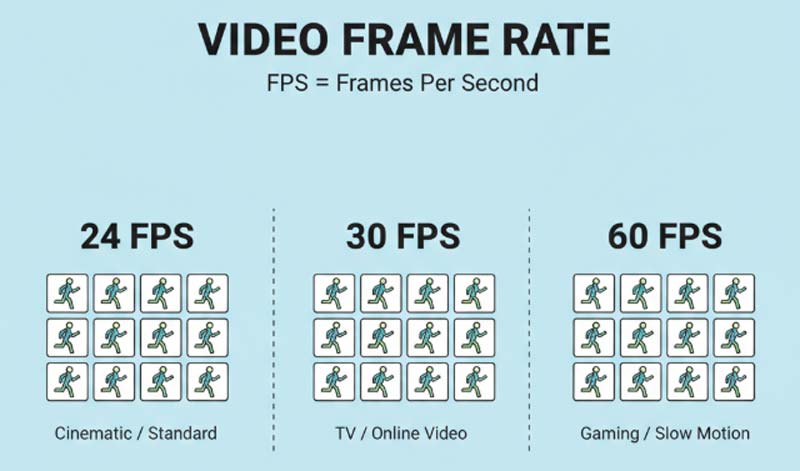
Frame rate has a direct impact on how a video looks and feels. Different frame rates can make a video appear smoother, more cinematic, or more realistic. Because of this, choosing the right frame rate depends on what you want your video to convey and how you want viewers to experience it. The type of content, where it will be shown, and how it will be watched all play a role in determining the best frame rate to use.
There are also moments when changing your video’s frame rate becomes necessary. For example, you may need to adjust it to meet the requirements of specific video-sharing platforms, resolve playback issues, or synchronize footage from different cameras. Some platforms suggest specific frame rate ranges to ensure smooth viewing, typically lower frame rates for a cinematic look and higher ones for smoother motion. Additionally, factors such as content type, recording equipment, and target audience can influence when a frame rate change is necessary.
Understanding when and why to adjust your video frame rate can help you avoid common playback issues and ensure your video appears correctly across various devices and platforms.
Part 2. Best Way to Change Video Frame Rate
Now that you have an idea about frame rates on videos. It’s time to learn the best way to change the video frame rate on videos.
Vidmore Video Enhancer is a reliable and user-friendly tool that allows you to adjust the frame rate of your videos with just a few clicks. Designed for both beginners and experienced users, it simplifies the process while ensuring smooth playback and enhanced video performance. Aside from changing the frame rate, it also offers enhancement features that help refine your video’s overall appearance, making it a practical all-in-one solution for video adjustments.
With its straightforward interface and efficient processing, Vidmore Video Enhancer is an ideal choice for those who want precise frame rate control without dealing with complicated settings.
Main Features:
- • Change video frame rate easily.
- • Supported by AI.
- • Customizable video quality settings aside from FPS.
- • Supports multiple video formats
- • Simple interface suitable for beginners
- • Offers batch processing
Steps on How to Change Frame Rate on Videos Using the Vidmore Video Enhancer:
Step 1. First, you need to download and install the tool on your computer.
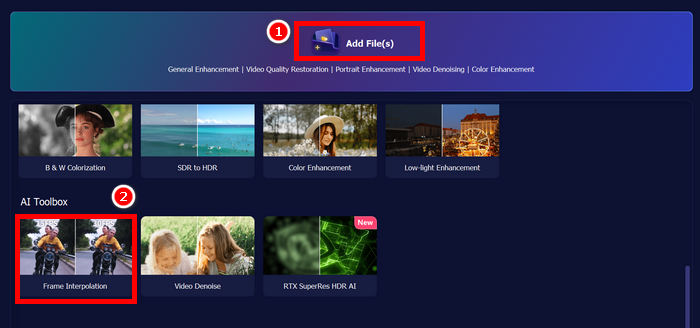
Step 2. Open the tool and click the "Add Files" button to import the video you want to change the frame rate of. After that, choose the Frame Interpolation below.
Step 3. Lastly, select your desired frame rate, and then click the Export All button below.
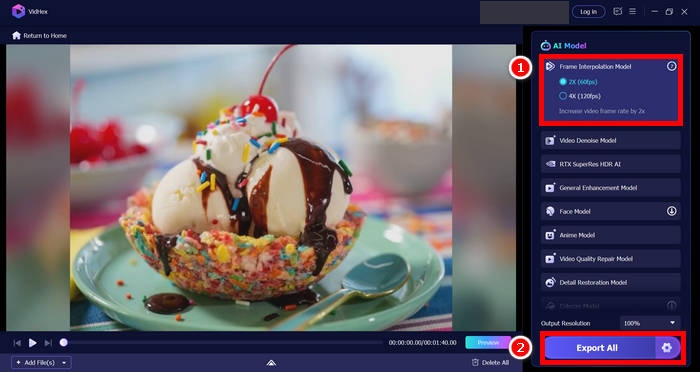
Note: You can customize how you want your video to be exported, like changing its format, video encoder, and bitrate.
With Vidmore Video Enhancer, changing the video frame rate can be easily achieved through a simple and guided process. You only need to upload your video, select your preferred frame rate from the available options, and apply the changes. The tool handles the rest, ensuring smooth playback while maintaining the original video quality. This makes it an ideal choice for users who want quick and reliable results without dealing with complicated settings.
Part 3. Other Methods to Alter Video Frame Rate
Aside from using a dedicated video enhancement software like the Vidmore Video Enhancer, there are also other methods available for changing a video’s frame rate. These options use different tools and approaches, each offering its own way to adjust frame rate settings depending on the software being used. Below, we’ll take a closer look at several commonly used methods and how they handle frame rate adjustments.
How to Change Frame Rate Using VLC Media Player:
VLC Media Player is a popular, free, and open-source media player that works across different platforms and supports a wide variety of video formats. Beyond simple playback, it also offers basic video conversion and adjustment features, including the ability to change the frame rate of a video and other settings. With VLC, users can manually tweak parameters such as frame rate, bitrate, codec, and overall output quality through its conversion settings.
Here’s how to use VLC frame rate converter:
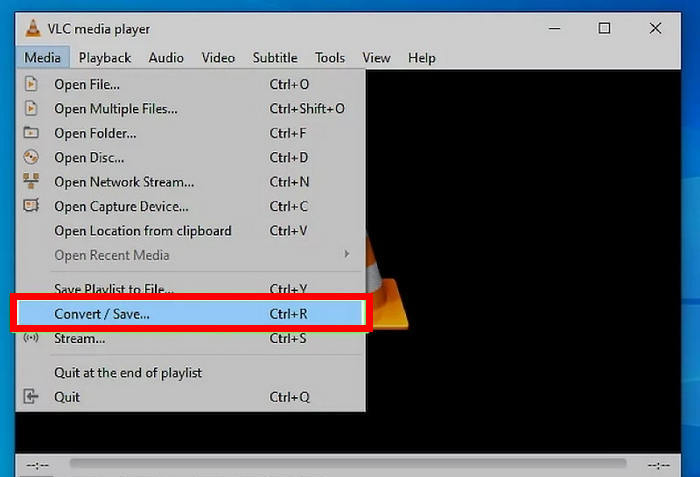
Step 1. Open VLC Media Player on your computer, then click Media, go to the Convert/Save to open the Open Media window.
Step 2. Under the File tab, click Add to upload the video you want to change the frame rate of.
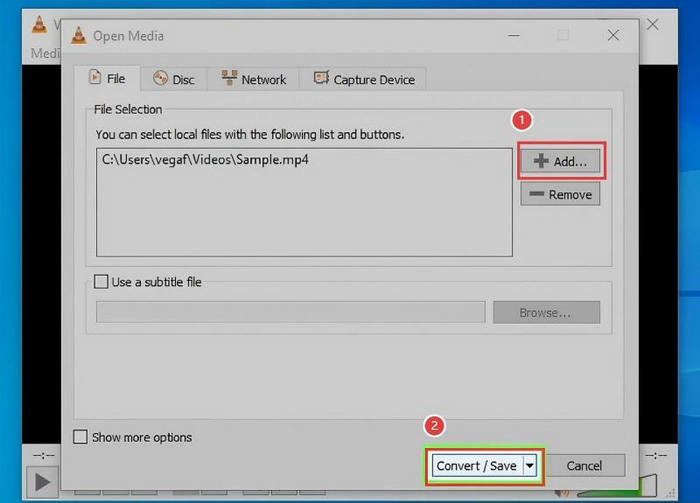
Step 3. Once the video is added, click the Convert/Save drop-down button and select Convert.
Step 4. In the Convert window, go to the Settings section and click the Edit Profile icon next to the selected format.
Step 5. Switch to the Video Codec tab and locate the frame rate option under Encoding parameters. Here, you can either keep the original frame rate or manually enter a new value. You may also adjust other settings like bitrate, codec, and quality if needed. Click Save to apply the changes.
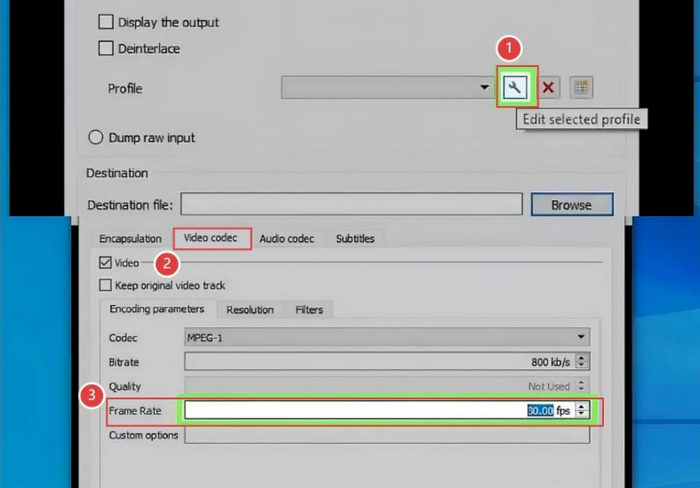
Step 6. Lastly, click Start to begin processing the video with the new frame rate.
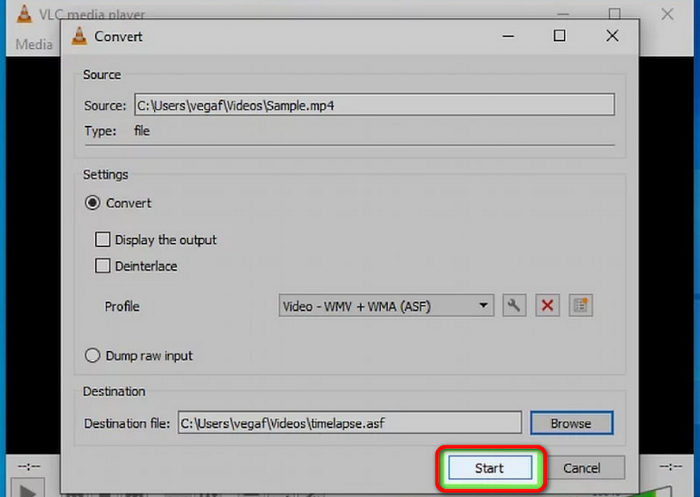
Although VLC can change video frame rates, the process is not very intuitive for beginners. The settings are hidden within multiple menus, and incorrect adjustments may lead to quality loss or playback issues. Additionally, VLC lacks real-time previews and advanced enhancement features, making it less ideal for users who want precise control or higher-quality results
How to Adjust Frame Rate Through HandBrake:
HandBrake is a free and open-source video transcoder that supports a wide range of multimedia files, including videos from DVDs and Blu-ray discs. It is commonly used for video conversion and compression, but it also allows users to fix dropped frames from video files. If a video appears too fast or too slow, HandBrake provides an easy way to adjust the frame rate to achieve smoother playback. The software is available on Windows, macOS, and Linux, making it accessible across different platforms.
Here’s how to change frame rate using HandBrake:
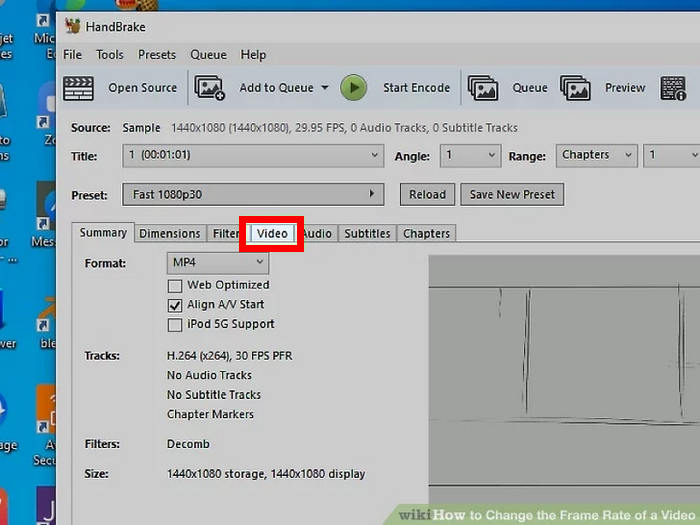
Step 1. Launch HandBrake on your computer, then add the video by dragging and dropping it into the interface. You can also click File and select Open to browse for your video manually.
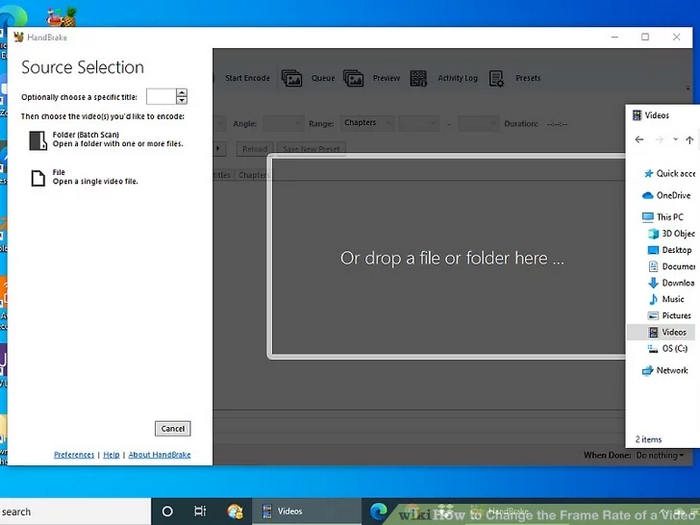
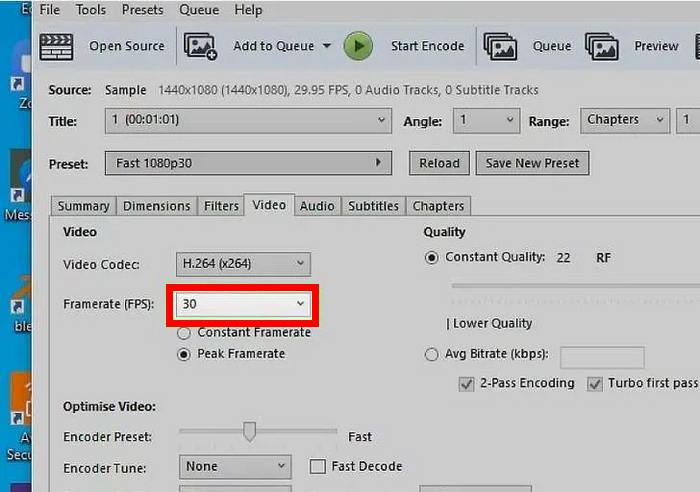
Step 2. Go to the Video tab and locate the Framerate option. Choose your preferred frame rate from the drop-down menu. You can also select whether the frame rate should remain constant or vary based on the video’s peak settings.
Step 3. Once the adjustments are made, enter a file name in the Save As field and select a destination folder for the output video.
Step 4. Click the Preview button in the top toolbar and select Live Preview to check how the video will look with the new frame rate.
Step 5. When everything is set, click Start Encode to begin processing the video with the updated frame rate.
HandBrake is indeed a reliable tool to change the video frame rate. However, the tool is primarily designed for video transcoding rather than enhancement. As a result, changing the frame rate may sometimes affect the video smoothness tool to choppiness or quality if the settings are not configured properly. Additionally, beginners may find some options confusing, especially when choosing between constant and variable frame rates.
How to Change Frame Rate via Video Bolt
VideoBolt is an online video editing platform that lets users create videos using ready-made templates. While it’s mainly designed for making promotional and branding videos, it also allows users to adjust basic video settings, including changing the video frame rate.
Here’s how to change the frame rate of a video using Video Bolt:
Step 1. First, you need to go to their official website. To do this, on your search engine, search for VideoBolt Change FPS in Your Video.
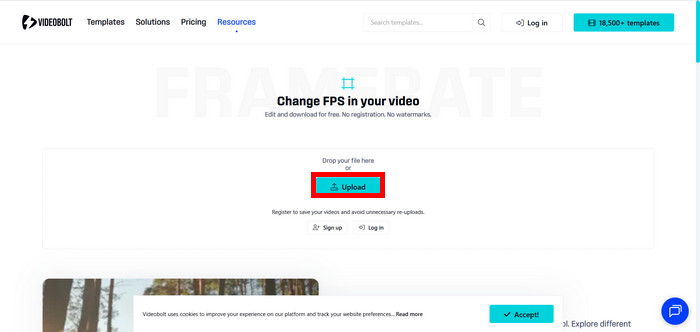
Step 2. Next, once you’re on the interface of the tool, click the Upload Button.
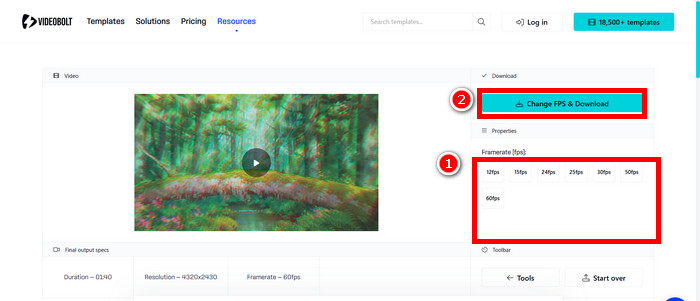
Step 3. Now, select your preferred video frame rate and click the Change FPS & Download button.
Video Bolt is a great alternative if you want to use an online tool to change the video frame rate. However, an online tool is not as optimized as dedicated desktop software. Since VideoBolt runs entirely in a browser, its performance heavily depends on your internet speed and device capabilities. Large or high-resolution videos may take longer to upload and process, and customization options are limited compared to professional video editors.
How to Adjust Frame Rate Using FFmpeg:
This is a free, open-source software package that provides a collection of libraries for processing multimedia content such as video, audio, and other media formats. It allows users to transcode, edit, and carry out many additional operations, including adjusting the video frame rate. When modifying the frame rate, FFmpeg achieves the target value by either removing or duplicating frames as necessary.
The command to change the frame rate using Ffmpeg is as following:
ffmpeg -i <input> -filter:v fps=30 <output>
The above command will change the frame rate of the video to 30fps.
Part 4. FAQs about Changing Video Frame Rate
What is the best frame rate for videos?
The best frame rate depends on the type of video and where it will be shown. For a cinematic look, 24fps is commonly used. For standard online videos and social media, 30fps works well, while 60fps is ideal for fast-moving content like sports or gaming videos. Choosing the right frame rate helps ensure smooth playback and the intended viewing experience.
Does changing the frame rate affect video quality?
Yes, changing the frame rate can affect video quality if not done properly. Increasing the frame rate may require frame interpolation, which can introduce artifacts, while lowering it may cause motion to look less smooth. Using a reliable tool that preserves quality, such as video enhancers with smart processing, can help minimize these issues.
Can I change the frame rate of a video without re-recording it?
Absolutely. You don’t need to re-record your video to adjust its frame rate. Many software tools, including video enhancers, media players, and transcoders, allow you to modify the frame rate after recording. These tools adjust playback by duplicating or removing frames to match your selected frame rate.
Conclusion
Changing a video’s frame rate is a small adjustment that can make a big difference. It can fix choppy playback, improve smoothness, and help your video look right on any platform. The good thing is, you don’t need advanced skills to do it. With the right tool and proper settings, you can easily adjust the frame rate and make your videos play exactly the way they should.