Frame-to-Frame Review to TensorPix Tool [2026 Updated]
TensorPix is an excellent tool that was powered by artificial intelligence for upscaling videos. With this tool, you can restore old videos, turn poor-quality videos into high-quality ones, and denoise videos. With that, this tool is among the best enhancers you can rely on. The good part here is that there are more things you should know about this video enhancer. Thankfully, this post will offer a detailed review of TensorPix. We will include its core features, benefits, user's guide, limitations, and pricing plans. After that, you will also discover the best alternative to the tool. Thus, come here are explore more about the topic.

PAGE CONTENT
Part 1. Features and Benefits of TensorPix
If you want to learn more about the tool's capabilities, check all the information in this section.
AI Upscaling
The core feature of TensorPix is to upscale video to the best quality. It lets you improve your video and turn it into 4K resolution. What we like here is that the tool is powered by AI, allowing you to get an accurate result after the upscaling process. In addition, the procedure of improving your video is smooth and simple, making it ideal for all users.
Video Restoration
Another great feature you can find here is its capability to restore old videos. This is an excellent feature if you want to enhance your video collections. It can even ensure that you can get a brand-new video after the restoration process.
Color Enhancement
TensorPix AI is also capable of enhancing the color of your video. You can improve the brightness, saturation, contrast, hue, correct white balance, and more parameters. This feature is ideal if you want to make your video realistic, engaging, and appealing to the viewer's eyes.
Batch Processing and Format Support
The tool can offer its batch processing feature. This feature is perfect if you want to deal with multiple video files. With that, you can ensure to save more time while upscaling your videos. Another thing, TensorPix can even support various input and output video formats. Some of the formats are MP4, MOV, AVI, PNG, JPG, and more.
Enhance Image
Besides videos, this tool is also capable of upscaling your pictures. You can also upscale the image to 4K for a better viewing experience. Thus, to deal with your video and image files, you can use the TensorPix tool.
Benefits of TensorPix
• You can get an excellent result without encountering any difficulties.
• You can use the upscaled videos on various devices and software, perfect for viewing and editing.
• With its AI-driven technology, you can smoothly get the result you need.
Part 2. How to Use TensorPix
Do you want to use TensorPix AI Video Enhancer to improve your videos? You can check this section as we give the detailed methods to upscale your videos.
Step 1. Go to your main browser and visit the main website of the TensorPix AI tool. After that, you can connect your Gmail account to access the tool.
Step 2. Once done, tap the Video Enhance feature from the interface. After the loading process, another interface will appear on your screen.

Step 3. Now, you can use your cursor/mouse to drag and drop the video you want to upscale. If you are using the plan, you can add multiple videos.

Step 4. Finally, you can choose your preferred video quality. Then, tap Enhance to start the video upscaling process.
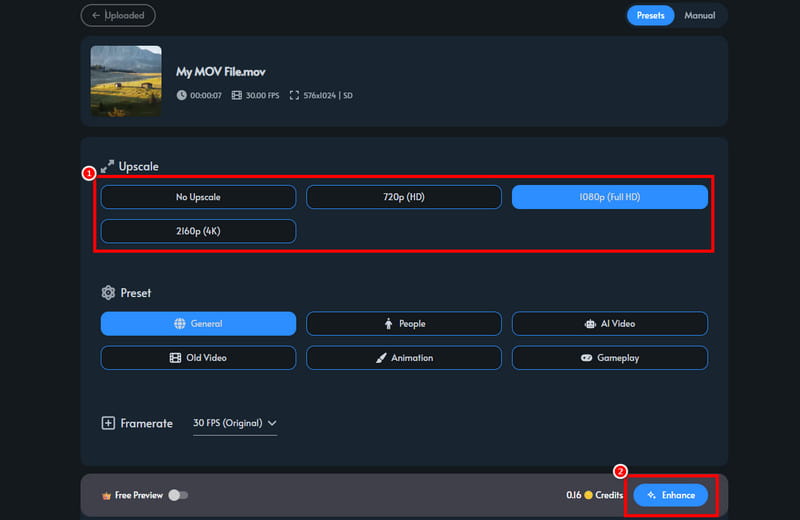
Thanks to this process, you can effectively enhance your videos. You can even get the best quality, leading to a satisfying video playback. With that, you can use this tool to improve your videos online.
Part 3. Limitations of TensorPix
Even though the tool can give you an excellent performance, there are still some limitations you might encounter during the process. Some of them are:
• When using the tool's free version, you can only use the given credits, which are limited.
• You must have a fast internet connection for a smooth video upscaling performance.
• It requires you to create a TensorPix account, which can be a hassle with some users.
• To access the Preview feature, you must obtain the tool's Premium plan.
• There are times when the video enhancer is not performing well.
Part 4. Pricing Plans of TensorPix
In this TensorPix review, we also included its pricing plans. You can check the information from the table below to get more insights about the cost.
| Pricing Plan | Free | Standard | Premium |
| Price | $0.00 | Starts at $5.5 | Starts at $12.42 |
| Video Resolution Limit | Up to 720p | Up to 4K | Up to 4K |
| Video Storage | 2GB | 10GB | 100GB |
| Can Show Preview | No | Yes | Yes |
| Parallel Enhancing | 1 Video at a time | 3 Videos at once | 5 Videos at once |
Part 5. Best TensorPix Alternative
TensorPix is an amazing video enhancer you can use to get a satisfying video quality. However, due to its limitations, you might not enjoy the process of improving your videos. In that case, if you want the best alternative to TensorPix, feel free to use Vidmore Video Enhancer. This video enhancer is perfect since it ensures that gives you all the features you need. You can get a smooth upscaling process, a comprehensive user interface, color correction, and many more. The good part here is that you can improve your video up to 4K. It also supports various video formats, such as MP4, MOV, MKV, AVI, and more. Thus, if you want the best replacement for TensorPix, using Vidmore Video Enhancer is a wise choice.
More Features
• It can offer its batch processing feature.
• The program can deal with various video types.
• It is capable of optimizing video brightness and contrast.
• Its video noise remover is available.
To check the software's capability, see the simple steps below.
Step 1. Download and launch Vidmore Video Enhancer on your computer. When the UI appears, start the upscaling process.
Step 2. Click the Add Files option to insert the video you want to upscale. You can insert multiple videos if you want.
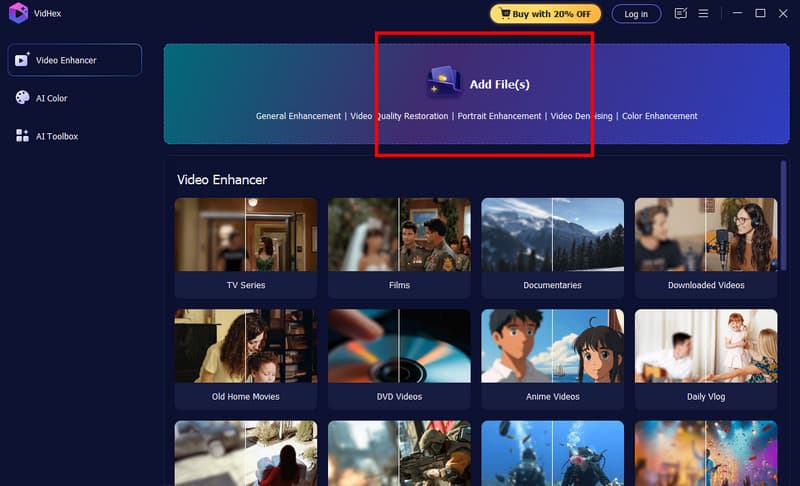
Step 3. Go to the Output Resolution below and select your preferred video quality. You can even upscale your videos up to 4K.

Step 4. For the last process, tap the Export function below to start saving your upscaled video.
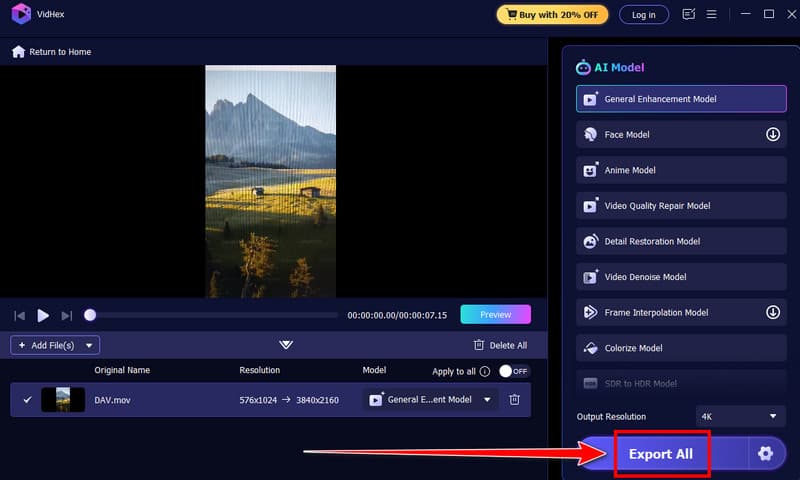
Thanks to this instruction, you can tell that using this program is better than TensorPix. It can even give you all the features you need without any restrictions. Thus, use this video enhancer and obtain your desired outcome.
Pros:
- The program can give you the best enhancement process, thanks to its AI-powered technology.
- The main layout of the software is comprehensive.
- It allows you to deal with various videos, like anime, documentaries, tutorials, and many more.
Cons:
- For more features, try accessing it Premium version.
Part 6. FAQs about TensorPix Review
Is TensorPix safe?
Absolutely, yes. The tool is safe to use. You can upscale your videos without encountering any viruses. It also ensures that your data won't be shared with other users.
Is TensorPix worth it?
Definitely, yes. If you are a content creator, you can rely on this tool to enhance your videos. You can even get a 4K video, leading to better video playback.
How to cancel TensorPix subscription?
All you need to do is proceed to your billing page and tap the Cancel plan option. With that, the premium plan will disappear after the billing period.
Conclusion
TensorPix is ideal for upscaling videos. However, we can't hide the fact that there are various limitations you can encounter during the process. Thus, if you need the best replacement for the tool, we suggest using Vidmore Video Enhancer. This program can provide all the necessary features, leading to a smooth and successful enhancement process.