How to Change Size of GIF: 5 Available Tools for You
Sending your friends a funny GIF during a chat is nothing new. These images might be sourced from short videos, TV shows, or even movie clips, which creators transcribe into animated pictures.
But here's the catch: you can't control the size of the GIF you capture. Obviously, sending an oversized animated image in a chat window or displaying a GIF with effects so heavy it obscures the content on a website is a disaster.
Therefore, you'll likely need to change size of GIFs before uploading them to any platform. Fortunately, many platforms and software have long offered comprehensive GIF tools. This guide has compiled five options covering desktop, online, and user-friendly solutions for all skill levels. Each comes with detailed step-by-step instructions.

PAGE CONTENT
Part 1. Why Should You Change Size of GIF
The necessity of changing the size of GIFs was briefly mentioned in the introduction. However, to help you better understand the benefits this can bring and the limitations it avoids, this guide will provide a concise summary before you begin.
Whether in chat windows or web pages, you certainly don't want GIFs to experience delays - like taking ages to load.
Adjusting GIF file sizes to smaller dimensions not only speeds up loading but also saves you significant bandwidth.
Platforms like Instagram, X (Twitter), and Facebook impose size restrictions on uploaded images.
To avoid compatibility issues when uploading GIFs, we recommend checking the target platform's specifications beforehand and adhering to their standards when resizing animated GIFs.
Email platforms impose file size limits per message. Sending overly large GIFs may cause you to exceed these thresholds. By reasonably downsizing GIFs, you can ensure emails containing animations are delivered and received without issues.
A GIF that looks perfect on a computer screen may not fit well on mobile devices.
To ensure images display flawlessly on phones and tablets, shrinking GIFs is essential.
Part 2. How to Change Size of GIF
By now, you're ready to change the size of your GIF images.
Let's skip the chit-chat and dive straight into the core - here are 5 carefully selected GIF resizers.
You'll find not only their introductions but also detailed usage guides and pros and cons.
Vidmore Video Converter: Best
Whether you're an audio/video/image editing pro or a beginner, Vidmore Video Converter Ultimate is an excellent choice. From the get-go, its homepage features clear beginner guides and well-organized features, letting you quickly find what you need. Its file processing steps are straightforward: upload, adjust settings, output.
As its name suggests, it primarily functions as a format converter. However, within its additional Toolbox features, you'll discover the Video Cropper, which supports resizing GIFs and video frames. Further surprises include a Quality Enhancer, GIF Maker (using images or video clips as source material), watermark addition, and other tools to elevate your animated content.
Next, we'll demonstrate how to resize a GIF using Vidmore Video Converter.
Step 1. Download and install Vidmore Video Converter from the official Vidmore website onto your computer.
Once the main interface launches, select the Toolbox section at the top of the page.

Step 2. A new window will open. Click the + icon to upload your own GIF.
After successful upload, manually adjust the GIF section to retain, or resize by modifying parameters under Crop Area and Aspect Ratio.

Step 3. Once everything is complete, click the Export button to output your edited GIF.
Pros:
- Extremely user-friendly for editors of all skill levels; beginners can quickly adapt to the workflow.
- Beyond the resizer, features like the Quality Enhancer and GIF Maker help you achieve higher-quality GIFs.
- Clear interface with flexible and versatile operation methods.
Cons:
- Some advanced features are only unlocked for subscribers.
Ezgif
Just by the name, you might realize this is a GIF specialist - and indeed it is.
This online platform handles all GIF editing functions, including resize, rotate, crop, optimize, split, and more. The tool is easy to use and, more importantly, completely free.
Additional features like a text adder, video-to-GIF converter, and various preset filters are also available for you to explore.
Tips: Beyond its GIF focus, Ezgif also handles APNG, WebP, MNG, and AVIF file formats.
If you want to learn how to resize GIFs online, follow this step-by-step guide:
Step 1. Open your browser and visit Ezgif's official website to access the interface.
Select Resize from the available functions, then choose Choose File > Upload to upload your GIF image.
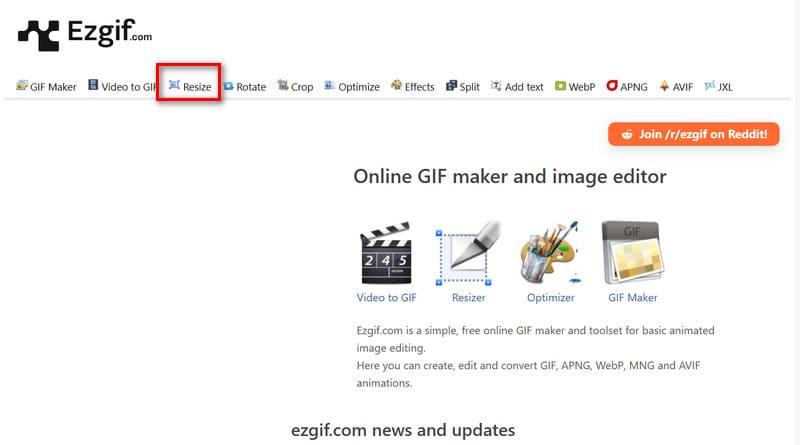
Step 2. After successful upload, you'll see a preview interface. Click the Resize button again and scroll down.
Below the image, you'll find the Width and Height options. Manually enter your desired dimensions, then click Resize image!
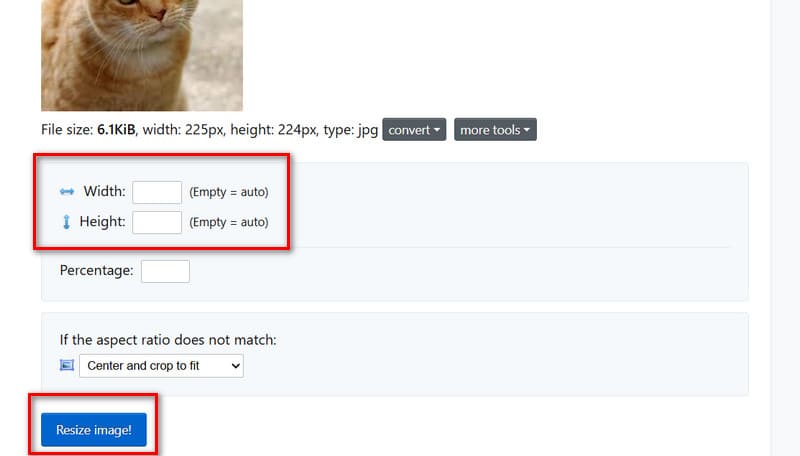
Step 3. Once processing completes, click Save at the bottom to download the optimized file.
Pros:
- Completely free online tool.
- Offers a wide range of GIF editing features.
Cons:
- Has file size limits for uploads.
Photoshop
If editing images is part of your daily routine and you already have Photoshop installed on your computer, why not let this image editing powerhouse handle resizing your GIFs? After all, it's widely regarded as the most versatile and powerful tool in the industry, and of course it supports this feature.
If you're worried about navigating Photoshop's complex interface to find the right section, follow these step-by-step instructions:
Step 1. Open your GIF in the software and make sure it is fully loaded in the workspace before making any changes.
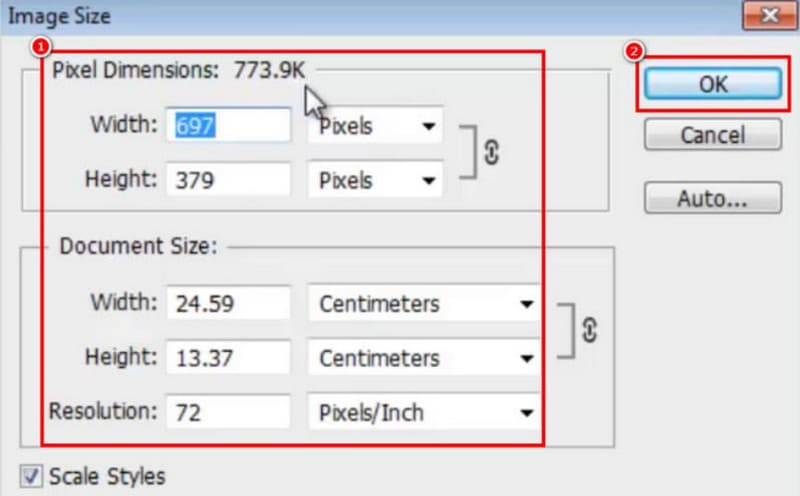
Step 2. Navigate to the Image menu at the top, then choose Image Size. A separate settings window will pop up, allowing you to control the dimensions.
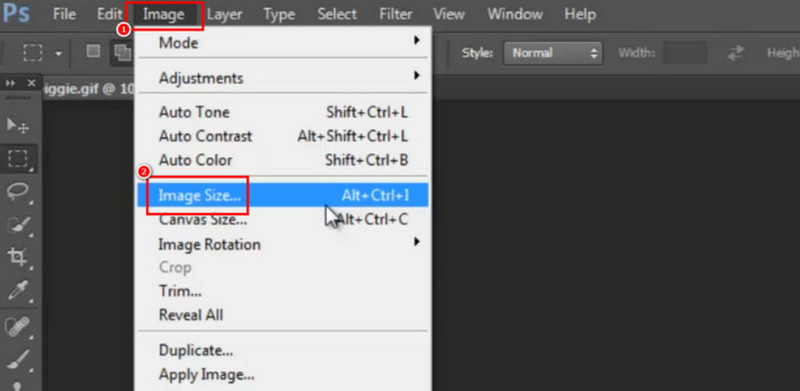
Step 3. Modify the width and height values as needed, along with any other available options. When satisfied, confirm the settings by clicking OK, then export the resized GIF by selecting File > Save As to store the updated file.
Pros:
- Offers highly precise and advanced editing features.
- Resizing does not affect GIF smoothness or image quality.
Cons:
- Subscription pricing is quite expensive.
- Not beginner-friendly.
- Demands high device specifications.
GIMP
You also have a free and open-source GIF resizer option - GIMP. This is a feature-rich desktop application. With no fees or hardware limitations, you can manage the entire state and size of GIFs here, even editing each frame of the animation.
As a desktop tool, GIMP offers far more comprehensive services than online platforms. Plus, since you don't need to edit in the cloud, you won't have to worry about privacy leaks.
Here's how to resize GIFs using GIMP:
Step 1. Download and install GIMP on your computer. Launch the program, then open your target GIF by selecting File > Open and loading the file into the editor.
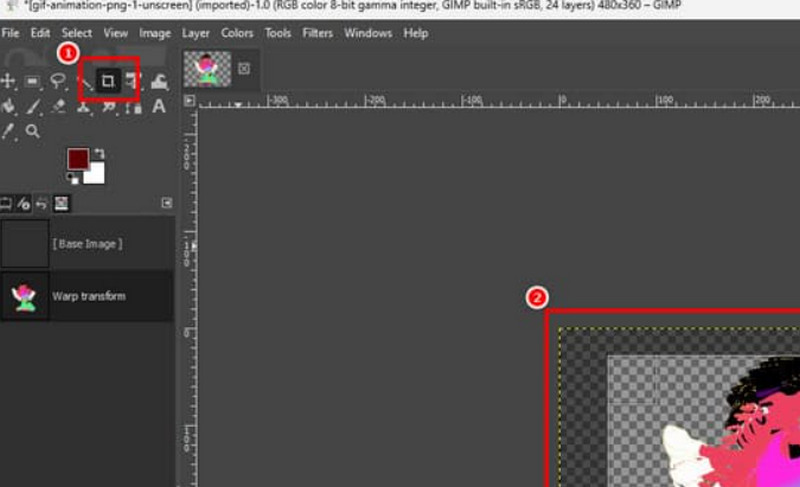
Step 2. Choose the Crop Tool from the toolbar at the top. Adjust the selection area to resize the GIF as needed, and apply any additional edits or enhancements if required.
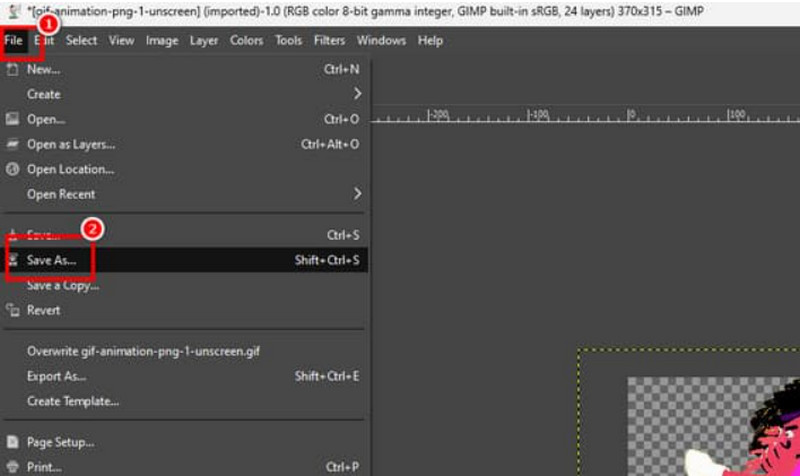
Step 3. Once the adjustments are complete, save the updated animation by clicking File > Save. The resized GIF will then be ready for playback or sharing.
Pros:
- Completely free and open-source.
- Supports not only size control but also frame-by-frame editing.
Cons:
- Complex interface, not suitable for new users.
Gifgit
If the previous two tools proved too complicated for you, look no further. In this section, we introduce the simplest online GIF resizer: Gifgit.
Its interface and operation are remarkably straightforward: upload your file, enter the dimensions, then download the GIF. No additional complexities confuse your workflow, and all steps complete quickly and efficiently.
Here's how to use Gifgit:
Step 1. Open the Gifgit website in your web browser. Select Choose File to upload the GIF you want to resize from your device.
Step 2. Enter the desired dimensions for your GIF in the size fields, then click Resize to apply the changes.
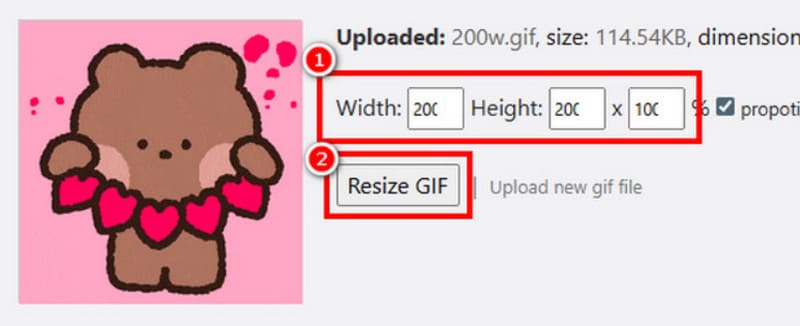
Step 3. Once the process is complete, click Download to save the resized GIF to your computer. The updated file will be ready for smooth playback or sharing.
Pros:
- Simple to use with smooth operation.
- Provides an intuitive editing process.
Cons:
- May contain some advertisements on the webpage.
Part 3. FAQs of Changing Size of GIF
How do I edit an existing GIF?
Use a professional GIF editor or a widely recognized multimedia editing tool with robust features. Ezgif is a highly suitable option.
How to create a small GIF?
You can create a smooth GIF using multiple static images, or opt for a simpler method: extract a short clip from a video and convert it into a GIF file.
What size should GIFs be?
A width of 640 pixels and a height of 480 pixels is generally suitable for GIFs. Aim to stay below the 1200x900 pixel limit. Specific requirements depend on the restrictions of the website you're using.
Conclusion
This article covers changing size of GIF tools suitable for users of all skill levels and preferences.
If you prefer the stability and versatile features of desktop software, Vidmore Video Converter, Photoshop, and GIMP are excellent choices. However, if you want a hassle-free experience, we recommend beginner-friendly tools like Vidmore Video Converter.
For those seeking speed and simplicity, we suggest Ezgif and Gifgit. They work directly in your browser with streamlined steps.