Best Video Upscalers: Upscale Videos up to 4K & 8K
What are the best video upscalers? Well, video upscalers can play a vital role in enhancing the quality of your videos. With these tools, you can ensure excellent video playback. The best part about these tools is that they can enhance the video colors, faces, and other parameters. You can even save your videos in your preferred video format. However, with lots of video enhancers out there, it might be confusing to select one. In that case, we are here to recommend all the best tools you can use on your device, including their features, pros, cons, and a guide to enhance your videos. Thus, read here and explore more about the best tool for upscaling videos.

PAGE CONTENT
Part 1. Vidmore Video Enhancer
If you are looking for the best video upscalers that can help you upscale your videos up to 4K, there is no doubt that Vidmore Video Enhancer is the best choice. With its AI-powered technology and various video enhancement models, you can ensure that you can achieve the result you need. This program also lets you navigate all the features smoothly, thanks to its simple user interface. It also supports various resolution options, including 720p, 100%, 200%, and 400%. You can even use the Custom function to customize and set your preferred resolution for your videos. Thus, if you need an exceptional video enhancer, look no further than Vidmore Video Enhancer.
Key Features
- The software has a smooth and fast video upscaling process.
- It can support various input and output formats.
- The program can handle various video types, such as vlogs, anime, documentaries, and more.
- The Preview feature is available.
You can follow the steps below to start upscaling your videos using the best video upscaling software.
Step 1. Download Vidmore Video Enhancer on your desktop. You can use the buttons below to instantly access the video upscaler. Then, run it to start the process.
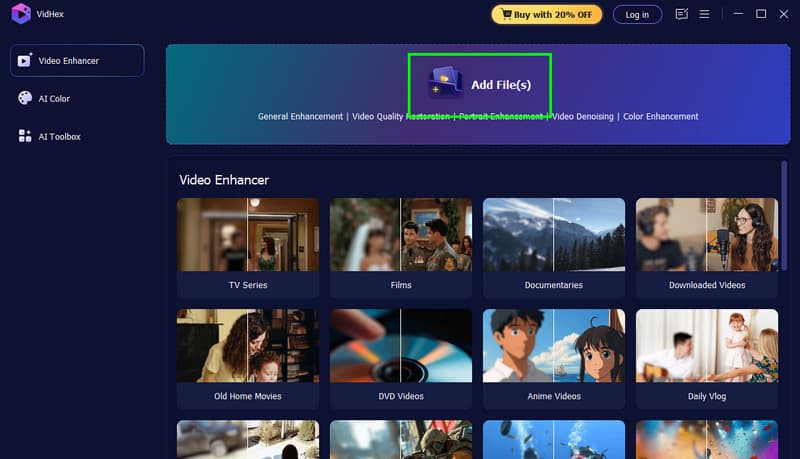
Step 2. Hit the Add Files button above to start inserting the video. Since the program supports batch upscaling processing, you can add multiple videos at once.
Step 3. Now, navigate to the Output Resolution section and choose your preferred video resolution. You can upscale your videos up to 4K.
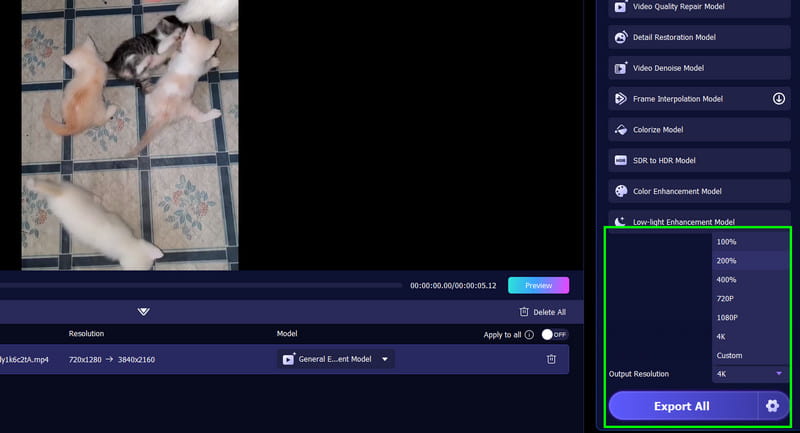
Step 4. Check the video by clicking the Preview feature. Once satisfied, you can now save the video by clicking the Export All button.
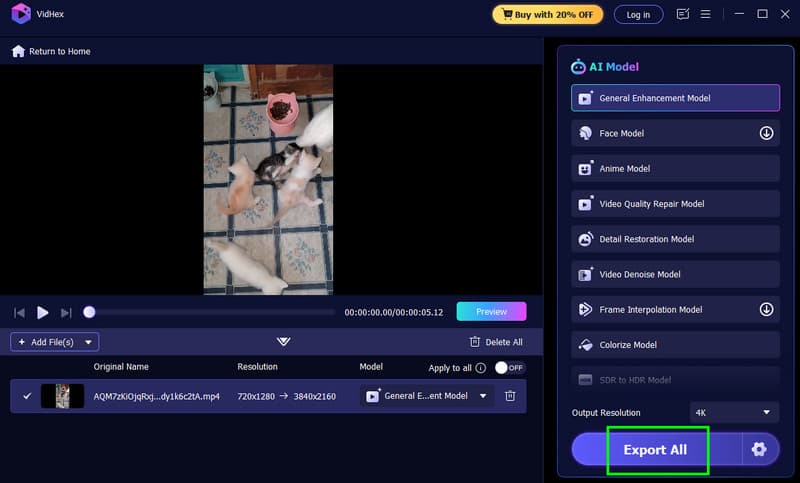
With this process, you can ensure that you get the best resolution for your videos. What makes this software reliable is that it can give you all the necessary features. It also has a simple UI, allowing you to upscale videos smoothly. Thus, use this program and get your desired output.
Part 2. VideoProc Converter AI
Another AI-powered tool you can rely on to effectively upscale your videos is VideoProc Converter AI. This program allows you to choose your preferred video resolution, such as 1080p, 2K, and 4K. What we like about this tool is that it has a simple layout for a smooth process. You can also insert videos with various formats, allowing you to prevent encountering compatibility issues. What's more, you can also adjust various parameters during the process. You can modify the audio and video codec, quality level, and more. The only drawback here is that there are times when the upscaling process takes a long time. You also need to get the paid version if you want to access its overall features. But still, in terms of upscaling videos, VideoProc Converter AI ensures to give you an excellent result.
Key Features
- The software's AI Super Resolution feature can give you a smooth upscaling process.
- The program can offer its video denoiser and deblurer.
- It can offer a simpler user interface.
To use this best AI video upscaler, follow the provided instructions below.
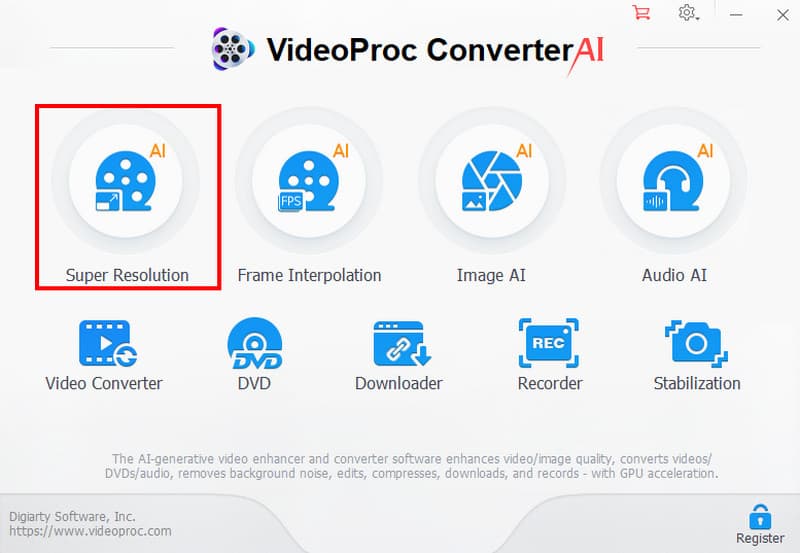
Step 1. Download and install VideoProc Converter AI on your computer. After that, run it and select the Super Resolution feature.
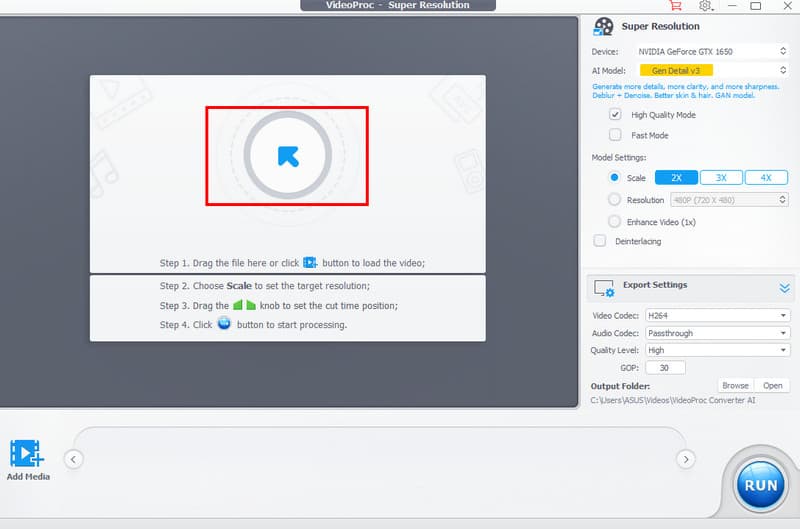
Step 2. Then, click the Arrow or Plus button to add the video you want to upscale.
Step 3. You can proceed to the Resolution section and choose your preferred resolution. Once done, hit the Run button to start upscaling the video.
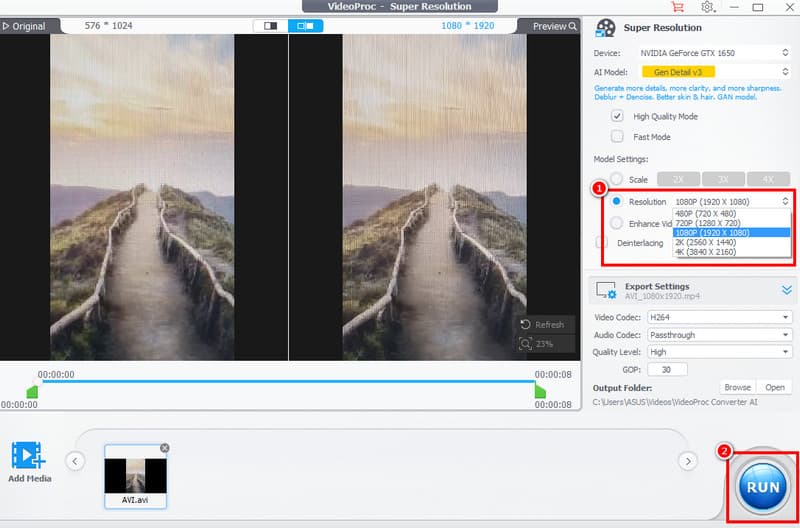
Thanks to this procedure, you can effectively upscale your videos. You can even get the best resolution for better video playback. Thus, rely on this software and get your preferred output.
Part 3. UniFab Face Enhancer AI
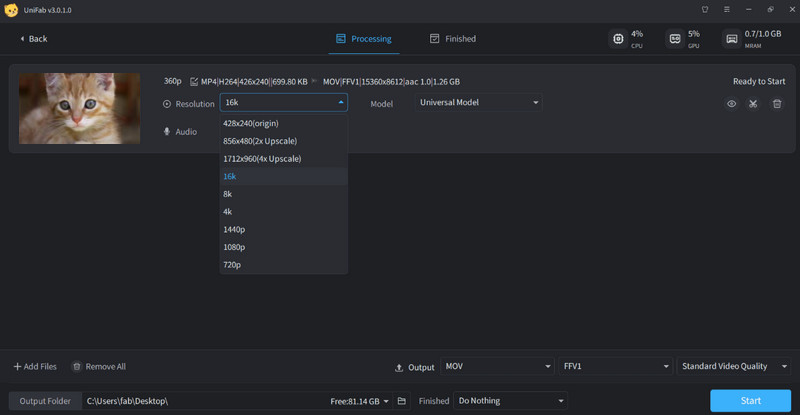
UniFab Face Enhancer AI is like having a digital beauty specialist for your videos. It doesn't just upscale your favorite videos. It breathes life back into faces by sharpening eyes, smoothing skin, and restoring the subtle details that make expressions feel real. With its powerful 2x to 4x resolution boost, it converts low-quality clips into crisp, natural-looking visuals. It can even offer various features, like SDR-to-HDR conversion, deinterlacing, and denoising, which are perfect for polishing the entire frame so everything looks fresh and modern.
Key Features
- The tool can offer a smooth video upsampling process.
- The program can unblur videos while maintaining quality.
- It supports the SDR to HDR converter feature.
Pros:
- The tool's upscaling process is fast.
- The software's layout is simple to understand.
- It can save video to various formats.
Cons:
- The tool has fewer customization features.
- You have to access its paid version to get its advanced features.
Part 4. HitPaw Video Enhancer
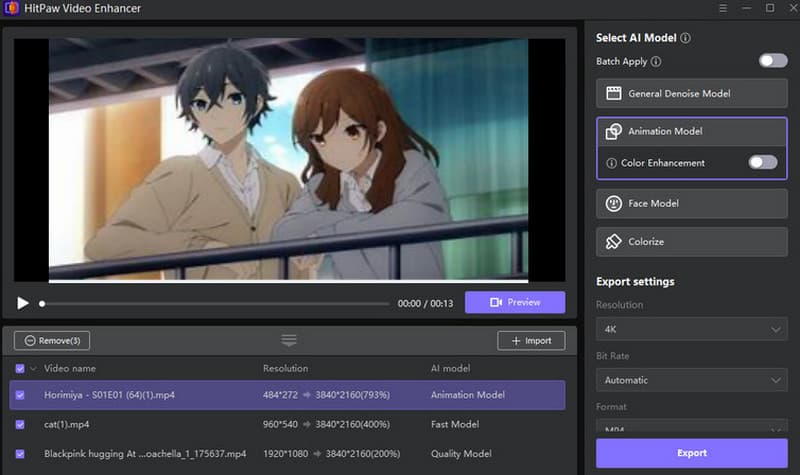
When it comes to simplicity, the HitPaw Video Enhancer is the best option. This tool can offer you a simple user interface with a fast upscaling process. What we like here is that you can deal with multiple videos and upscale them based on your needs. You can colorize the video, denoise, and use a face enhancer. It can also give you a smooth export process, making it a remarkable program.
Key Features
- It supports a one-click upscaling process.
- The video denoiser is available.
- It can offer a fast and smooth export process.
Pros:
- The video upscaler has a simple user interface.
- It can let you choose your desired output format.
- Accessing the software is simple.
Cons:
- It lacks advanced features.
- Its free version has various restrictions.
Part 5. Topaz Video AI
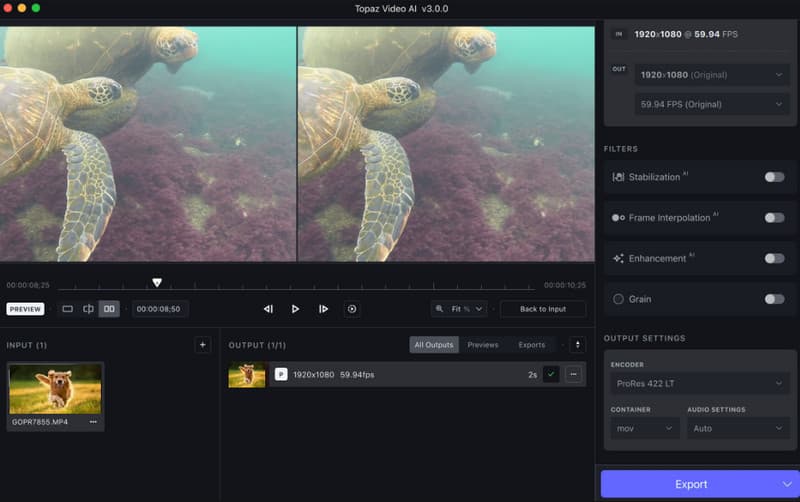
Topaz Video AI is like a master craftsman for your favorite video. This software isn't just for simple upscaling. It meticulously rebuilds every frame with cinematic precision. Whether you're reviving old video or preparing professional content, it can transform grainy clips into crisp HD, 4K, or even 8K visuals that feel brand new. With its wide range of AI models, it smooths motion, stabilizes shaky videos, and eliminates noise without sacrificing detail, almost as if it's breathing new life into your video.
Key Features
- The program can offer numerous AI models for upscaling videos.
- The video stabilizer is available.
- It has a fast upscaling process.
Pros:
- The tool ensures a professional-grade output.
- It is perfect for cinematic projects and video restoration.
- The program's main layout is comprehensive.
Cons:
- The program is resource-intensive.
- Some of the functions are hard to navigate.
Part 6. Comparison of the Best Video Upscalers
See the comparison table below to get more insights about the best AI video upscalers.
| Video Upscalers | Max Output Resolution | AI Models / Focus | Ease of Use | Cost Model | Best For |
| Vidmore Video Enhancer | Up to 4K | General enhancement, denoising, color and brightness optimization | Very Easy | Subscription-based | Everyday users who want fast, high-quality upscaling |
| VideoProc Converter AI | Up to 4K | AI Super Resolution, denoiser, deblurer | Easy | Subscription-based | Users who also need conversion and basic editing |
| UniFab Face Enhancer AI | 2x–4x upscaling | Face enhancement, SDR to HDR, deinterlacing | Easy | Subscription-based | Portrait and face-focused videos |
| HitPaw Video Enhancer | Up to 4K | One-click upscaling, denoising, colorization | Very Easy | Subscription-based | Beginners who want one-click enhancement |
| Topaz Video AI | Up to 8K | Multiple AI models for detail, stabilization, and noise removal | Medium | Subscription-based | Professional restoration and cinematic projects |
Part 7. FAQs about Best Video Upscaler
Do I need a powerful computer to run video upscalers?
It depends on the tool you use. There are some lightweight video upscalers you can use on your low-spec computer to enhance videos. However, if you prefer using a resource-intensive video upscaler, ensure that you are using a powerful desktop.
What is the best video upscaler?
If you want an excellent video upscaler, we recommend using Vidmore Video Enhancer. This software can offer all the features you need. It also has a simple UI, making it an ideal tool for all users.
Why do you need a video upscaler?
Well, you need a video upscaler if you are dealing with low-quality videos. The tool is perfect for enhancing the resolution of your video, which can lead to better video playback.
Conclusion
Thanks to these best video upscalers, you can now get a better version of your favorite videos. With that, use all the recommended programs in this post and start upscaling your videos. In addition, if you are still unsure of the tool to use, we suggest using Vidmore Video Enhancer. With this program, you can achieve your desired video output.