How to Deactivate Amazon Prime: On Desktop & Mobile Device
When you get hooked on a TV series, you might sign up for an Amazon Prime membership without hesitation. But perhaps much later, when you open your bill, you realize you haven't logged in for ages and no longer plan to pay for the subscription.
This is a perfectly reasonable and common request. However, when you actually try to cancel, you might find yourself stuck in a confusing interface, unsure how to deactivate Amazon Prime.
Don't worry - this guide provides the most detailed step-by-step instructions available. Before you begin the cancellation process, we'll also summarize the key reasons you might want to cancel your subscription, helping you move seamlessly from considering the idea to taking action.
We hope the following information proves helpful.

PAGE CONTENT
Bonus: Best Video Player Software on Desktop
If you frequently encounter buffering issues when streaming videos on online platforms, we recommend downloading the content and enjoying it locally with a reliable player.
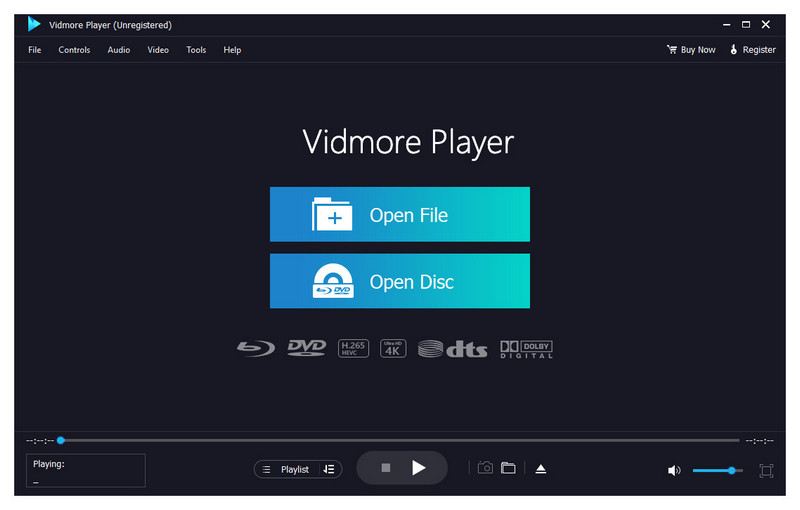
Vidmore Player is an excellent choice. Compatible with both Windows and Mac devices, it supports nearly all multimedia formats, including various video and audio files, Blu-ray discs, DVDs, ISO files, folders, and more.
Beyond basic playback, Vidmore Player offers navigation menus and customizable controls. You can configure video titles, chapters, playback volume, audio tracks, subtitles, and more.
Part 1. Why Canceling Amazon Prime Matters
Before discussing why discontinuing Amazon Prime subscription matters, it's important to briefly understand what Amazon Prime actually is.
Amazon Prime is a membership subscription service offered by Amazon, available through monthly or annual payment plans. Upon joining, members gain access to exclusive benefits, including faster shipping for eligible items and unlocked access to Amazon's streaming, entertainment, and other content offerings.
On the surface, this membership scheme appears quite cost-effective with generous perks. However, in real life, whether it's worth continuing the subscription often requires weighing value for money against one's overall subscription spending.
An increasing number of platforms adopt subscription models, where full functionality often requires payment to unlock. Some subscriptions may be initiated when there's a genuine need at a specific stage, but over time, usage frequency gradually decreases. Yet, due to forgetting to cancel, charges continue to be deducted, ultimately leading to accumulating monthly or yearly subscription bills that bring unnecessary financial and psychological pressure.
If you rarely use Amazon's shopping, delivery, or entertainment services, the benefits of Prime membership may not justify the actual cost. In such cases, reducing unnecessary subscriptions and simplifying spending habits is often the first step toward easing financial burdens - and canceling Amazon Prime is an excellent starting point.
Of course, Amazon's membership system offers flexibility. Should the need arise again in the future, you can always reactivate your subscription.
Part 2. How To Cancel Amazon Prime
If, after reading the above information, you find that you meet the criteria - rarely using Amazon services and wanting to save on subscription costs - then you can come here to learn how to cancel Amazon Prime across various platforms. Your phone or computer can serve as the operating device.
On Desktop Browser
The simplest and most direct method is to visit Amazon's official website via your browser and cancel the subscription.
Here's a step-by-step guide on how to cancel Amazon Prime membership:
Step 1. First, open your browser on your computer and visit Amazon's official website. Ensure you're logged into your Amazon Prime account on the homepage.
Step 2. At the top of the page, locate the Account & Lists option. Hover your mouse over it to reveal a dropdown menu. Select Prime Membership from the options.
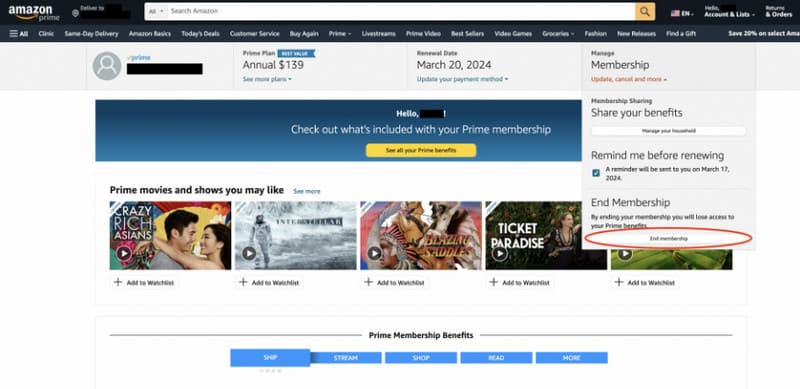
Step 3. You'll then enter your personal membership interface, displaying information about your membership and subscription status. Click Manage Membership in the window.
Next, select End Membership. A pop-up window will appear, guiding you through the confirmation process to cancel your subscription.
Amazon also offers the option to pause your membership subscription. You can choose to either completely end or temporarily pause your membership based on your needs and usage frequency.
Tips: If you want to watch a movie or TV show on Amazon Prime, you can also choose to subscribe first, download the video file locally, and then use an MP4 player to watch it. Once the download is complete, you can cancel the subscription
On iOS Devices
Canceling your Amazon Prime subscription from a mobile device is also perfectly straightforward. Simply complete the process within the Amazon app. Let's first look at how to complete the steps on iOS mobile devices, such as iPhones and iPads.
Here are the specific steps for how to deactivate Amazon Prime account.
Step 1. Ensure the Amazon app is installed on your phone. Then, log in using the account associated with your Prime membership.
Step 2. At the bottom of the app, you'll find the Account option. Tap it.
Step 3. You'll enter a new interface. Scroll down manually, locate, and select Manage Prime Membership.
Step 4. Finally, select End Membership. Then follow the platform's instructions to complete the process.
On Android Devices
The process on Android devices is largely similar, though the location of the unsubscribe option may differ slightly from iOS. Please refer to the following guide for specifics.
Here is how to deactivate Amazon Prime on Android Device.
Step 1. Open the Amazon mobile app on your phone. Make sure you're logged in with the account associated with your subscription.
Step 2. Tap the three horizontal lines icon in the top-left corner of the screen. This will open a new menu.
Step 3. Scroll down the menu, locate, and select Your Account.
Step 4. Select Manage Prime Membership > End Membership.
On Amazon Customer Service
If you encounter issues while using the above three methods, or if none of them apply to your situation, we recommend contacting the technical support team or customer service through the app or Amazon's official website.
Ask them, How do I unsubscribe from Amazon Prime? They will address questions about pausing or canceling your subscription and assist you with the process.
Part 3. FAQs of How to Deactivate Amazon Prime
How do I deactivate an Amazon Prime account?
You can do this from either a computer or a mobile device. Simply open the Amazon interface and log in to your account. Then locate the My Account option on the page and click the End Subscription button.
Can we cancel Amazon Prime anytime?
Yes, you can cancel your subscription at any time. You may also choose to stop auto-renewal at the end of the current billing cycle or pause your membership.
What happens if I delete my Amazon Prime account?
You will no longer be able to access this account, view orders, purchase history, or receipts. Services on other Amazon sites linked to this account will also be affected.
Conclusion
How to deactivate Amazon Prime? This guide has summarized the steps for computers, iOS, and Android mobile devices. If you find none of the existing methods work, we recommend contacting Amazon's official customer service for professional assistance.
Don't worry about canceling affecting your future experience. You can cancel anytime, and of course, reactivate anytime.