How to Enhance Videos Sent from iPhone
We have all been there. You capture a stunning, high-definition 4K video of a concert, a baby’s first steps, or a beautiful sunset on your iPhone. You excitedly send it to your friend or family member, only to realize they use an Android device. Moments later, you receive a confused text: "Why does this look like it was filmed on a toaster?"
The "green bubble" divide between iOS and Android is more than just a color difference; it is a significant barrier to media quality. While iPhones shoot some of the best mobile video in the world, the default messaging protocols often reduce that footage to a pixelated, unwatchable mess.
However, you do not have to settle for grainy footage. Whether you are looking to upscale a video you have already received or seeking the perfect method to transfer files without quality loss, this guide covers it all. We will explore the technical reasons behind the blur, review powerful software solutions like Vidmore Video Enhancer, and walk through cloud-based alternatives to enhance videos sent from iPhone.

PAGE CONTENT
1. Why Are iPhone Videos Blurry When Sent to Android?
To solve the problem, we must first understand the technology behind it. The core issue lies in the messaging protocols used by Apple versus the rest of the mobile industry.
When you send a video from an iPhone to another iPhone, the Messages app uses Apple’s proprietary iMessage system. This uses your cellular data or Wi-Fi to transfer large files, supporting high resolutions and file sizes.
However, when you text an Android user, your iPhone detects that the recipient does not have iMessage. It automatically reverts to MMS (Multimedia Messaging Service), a standard from the early 2000s.
The Compression Bottleneck: Cellular carriers place strict size limits on MMS messages, typically ranging from only 600KB to 3.5MB. Since a modern 10-second 4K video can easily exceed 50MB, the iPhone’s operating system must aggressively compress the file to fit through this tiny "pipe."
This compression involves:
- • Lowering Resolution: Dropping from 1080p or 4K down to as low as 176×144 pixels.
- • Reducing Bitrate: Removing color data and detail to save space.
- • Frame Rate Drops: Making the video look choppy.
The result is a blurry, blocky video that ruins the viewing experience. Until RCS (Rich Communication Services) is fully adopted across both platforms, MMS remains the default, low-quality bridge.
2. The Ultimate Method to Improve Blurry Videos
If you have video footage that suffers from low lighting, noise, or lower resolution - or if you want to ensure your video is in the absolute best condition before sharing it via a cloud link - desktop software is your best bet.
Vidmore Video Enhancer is a professional-grade tool designed to upgrade video quality using advanced algorithms. Unlike simple converters, this software focuses on restoration and enhancement, making it the ultimate solution for fixing videos that look grainy or dark before you send them out.
Key Features:
- • Upscale Resolution: It can take lower-resolution SD videos and upscale them to HD or even 4K, adding clarity to pixelated edges.
- • Optimize Brightness and Contrast: If your iPhone video was shot in a dim restaurant or at night, this feature automatically adjusts the exposure and shadows to reveal hidden details.
- • Remove Video Noise: It eliminates the dirt-like "noise" often found in low-light mobile recordings.
- • Video Stabilization: iPhones have great stabilization, but if you were moving fast, the footage might still shake. Vidmore reduces this shakiness (deshaking).
How to Use Vidmore Video Enhancer:
Step 1. Download the Vidmore Video Enhancer software on your Windows or Mac computer. Launch the program after installation.
Step 2. Click the Add File button in the center of the interface and select the iPhone video you wish to enhance.
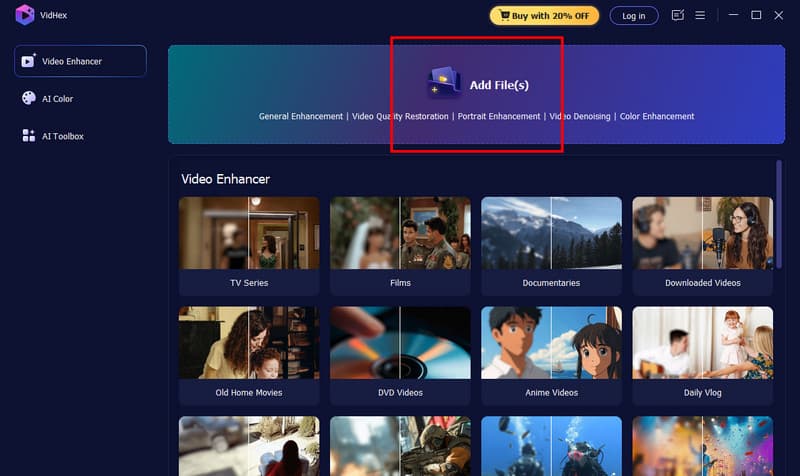
Step 3. Then, in the right list, choose the AI models. We offer General Enhancement Model, Face Model, Anime Model, Video Quality Repair Model, etc. And click Output Resolution to choose your preferred one.
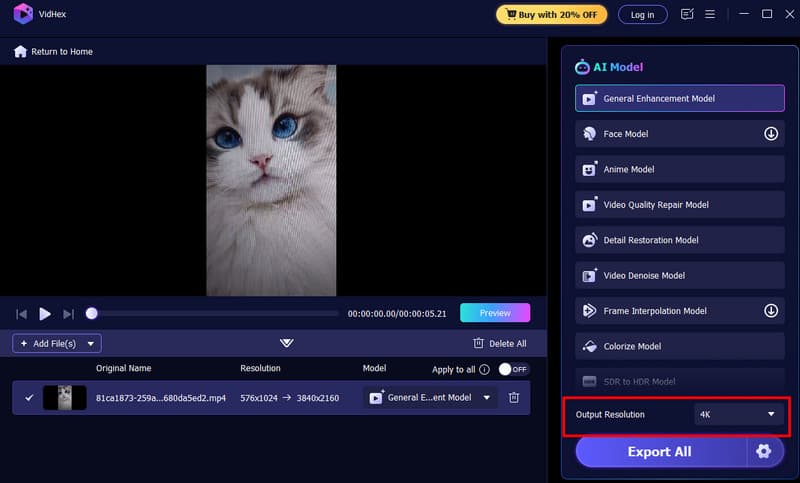
Step 4. Click the Preview button to see the comparison between the source and the enhanced version. If you are satisfied, select your output format and click Enhance All to save the high-quality file.
3. Other 3 Ways to Fix Blurry Videos Sent from iPhone
While software enhances the source file, the method of delivery is equally important. To bypass the MMS compression trap described earlier, you must stop sending videos via direct text message. Here are the three most effective alternatives.
Option 1: Google Drive (The Lossless Method)
Google Drive is arguably the best method for cross-platform sharing because it preserves the exact binary file of your video. It doesn’t matter if the video is 10 seconds or 10 minutes long; the quality remains 100% original.
How to use it:
Step 1. Ensure you have the Google Drive app installed on your iPhone and sign in.
Step 2. Open the app, tap the large "+" (plus) icon, select Upload, then Photos and Videos. Select your video from the gallery.

Learn more details about uploading videos to Google Drive.
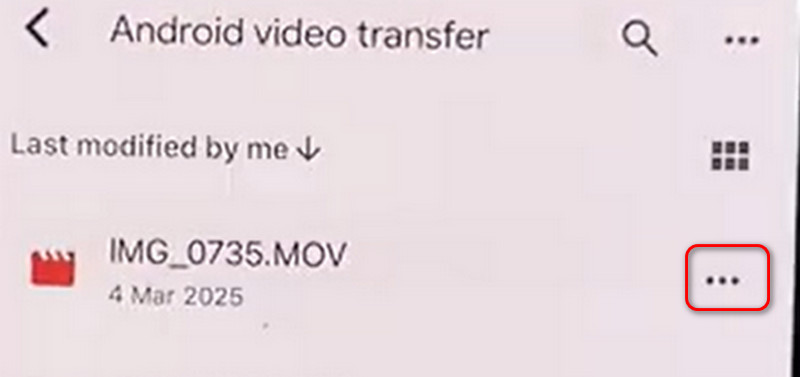
Step 3. When the upload is finished, locate the uploaded file in your Drive. Tap the three dots (...) next to the file name. Select Share or Copy Link. Note: Make sure to change access settings to "Anyone with the link" so your Android friend can view it.
Step 4. Paste this link into your text conversation. The recipient clicks the link and watches the video in full HD.
Option 2: WhatsApp (The Convenient Method)
WhatsApp is the world’s most popular messaging app specifically because it works identically on iOS and Android. While WhatsApp does compress videos slightly to ensure speed, the quality is significantly higher than carrier MMS.
How to use it:
Step 1. Open WhatsApp and go to the chat with your Android contact.
Step 2. Tap the + icon (or paperclip) to attach a video.
Step 3. Drag the right side of the video timetable to the left side to create shorter clips. Choose Photo & Video Library and pick your clips.
Step 4. Tap the blue arrow to send.
Limits: WhatsApp generally limits video sizes to 16MB for media sent automatically, though the document trick allows up to 2GB. Therefore, if your video file is large, repeat the operations until the whole video has been shared.
Option 3: Email (The Classic Method)
For shorter clips, email remains a reliable standard. Most email providers allow attachments up to 25MB. If your video is under this limit, it is a quick fix. If it is over the limit, Apple’s Mail app has a built-in feature called Mail Drop.
How to use it:
Step 1. Open your Photos app and select the video.
Step 2. Tap the Share icon and choose the Mail app icon.
Step 3. Enter the Android user’s email address and press Send.
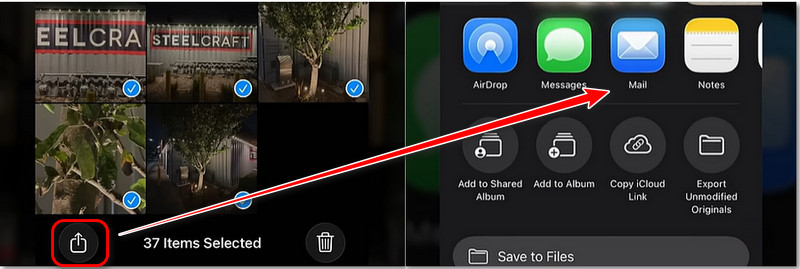
Tips: If the video is too large (over 20-25MB), a pop-up will appear asking if you want to use Mail Drop. Just select Use Mail Drop. This uploads the video to iCloud temporarily and sends the recipient a download link. The recipient has 30 days to download the full-resolution video before the link expires.
4. FAQs on Enhancing Videos Sent from iPhone
Q1: Will iOS 18 and RCS support fix blurry videos?
Yes, largely. Apple has announced support for RCS (Rich Communication Services) in upcoming iOS updates. RCS is the modern standard replacing SMS/MMS. Once implemented, iPhones and Androids will be able to share high-resolution videos directly in the text app over data/Wi-Fi, similar to how iMessage works. However, until the update is universal, the methods above are necessary.
Q2: Why does the video look good on my phone but bad on theirs?
The video file on your phone is the original source. The blurriness happens during the transit process. The carrier strips away data to make the file small enough to transmit over the legacy cellular voice network.
Q3: Can I change my iPhone settings to fix MMS quality?
Unfortunately, no. There is no setting in iOS to increase the MMS size limit because this limit is set by the cellular carriers (Verizon, T-Mobile, AT&T, etc.) and the limitation of the MMS technology itself. You cannot force an MMS to be High Definition.
Q4: Is it better to send videos via Facebook Messenger or Instagram?
Social media apps are better than MMS, but they still compress video aggressively to save server space. For the absolute best quality, file-sharing methods like Google Drive, Dropbox, or WeTransfer are superior to social media chat apps.
Conclusion
The frustration of sending blurry videos from iPhone to Android is a technical headache caused by outdated MMS protocols, but it is entirely avoidable. You no longer have to apologize for "potato quality" clips.You can enhance videos sent from iPhone using the above ways.
To ensure your memories are shared in the quality they deserve, avoid standard text messaging for video. Use Vidmore Video Enhancer to upscale and perfect your footage if the source is weak. Then, utilize Google Drive for lossless transfer, the WhatsApp document trick for convenience, or Mail Drop for ease of use. By adopting these simple workflows, you bridge the gap between operating systems and keep your videos sharp, clear, and professional.