Upload Video to Google Drive: Store, Manage, and Share Files
Do you wish to upload your videos to Google Drive but are unsure how to do that? Regardless of whether you are using a computer, iPhone, or Android device, uploading your videos to Google Drive is quite an easy process. This tutorial aims to guide you through the process and offers three ways to upload videos to Google Drive, with a bonus to upscale your videos. Let’s start!

PAGE CONTENT
Part 1. How to Upload Video on Google Drive from Computer
Google Drive is primarily a cloud-based storage service for storing, managing, and sharing various files. This includes videos, audio, images, and even documents. Uploading files to Google Drive is convenient for accessing them across various devices, backing up, and sharing them with others. For good measure, it supports uploading and keeping files up to 5 terabytes. However, free users have a limited storage capacity of up to 15 GB only.
Here’s how to upload videos to Google Drive from a computer:
Step 1. On your computer, access Google Drive by going to its official website. Sign in your account credentials if you are not yet logged in.
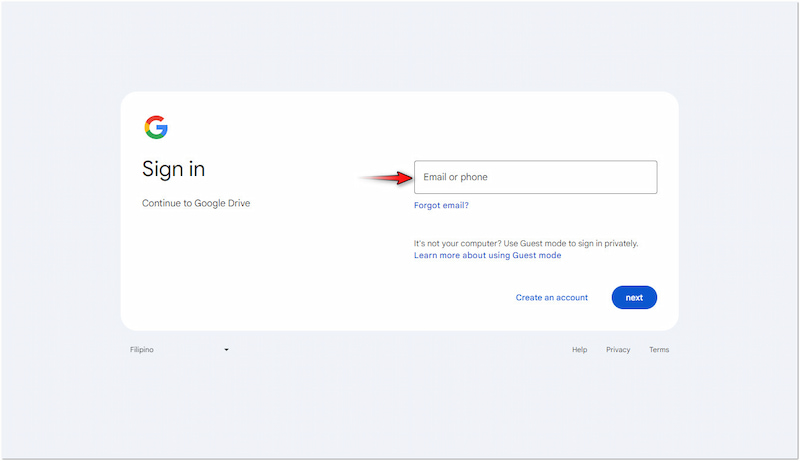
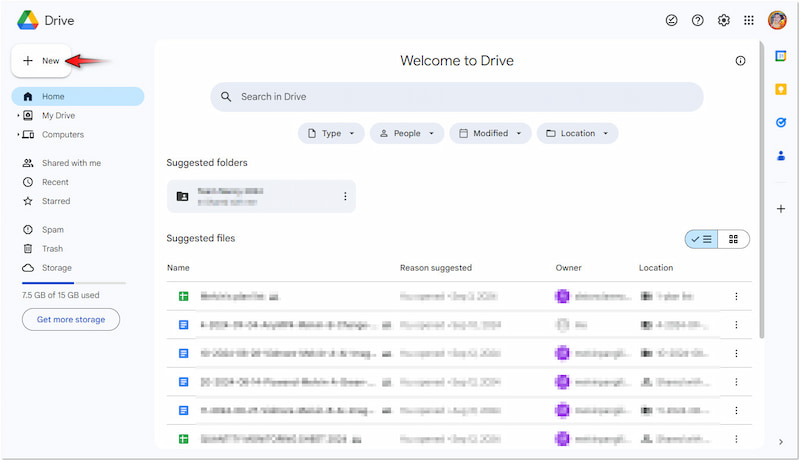
Step 2. Proceed to the top left, click + New, and select New Folder to create a new destination for your video. If the destination is readily available, select File Upload or Folder Upload.
Step 3. Once that is done, locate the video file you want to upload from your local drive. A progress bar will be displayed at the bottom right for the upload status.
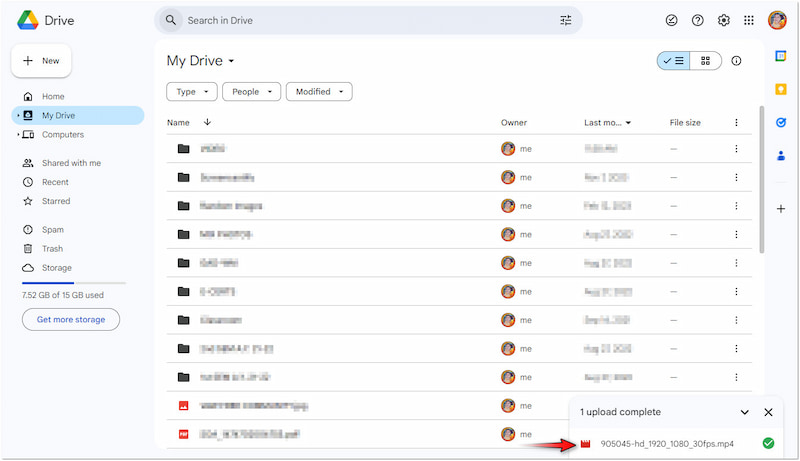
Tip
Part 2. How to Upload Videos on Google Drive from iPhone
iPhones, particularly the newer models, tend to consume a large amount of space quickly. Without proper storage management, you may find yourself running low on storage capacity. As a result, you have to delete files or offload apps to maintain your device’s performance. Fortunately, Google Drive provides a favorable option for uploading and storing video files from your iPhone. This allows you to free your iPhone device from cluttered media files.
Here’s how to upload a video on Google Drive from an iPhone:
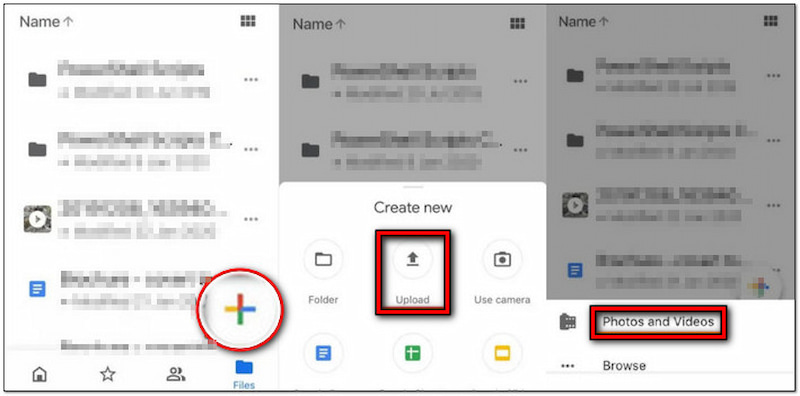
Step 1. Get the app from the App Store, open it, and sign in with your account credentials.
Step 2. On the main display, tap + at the bottom-right and select the Upload option.
Step 3. Then, you will need to tap the Photos and Videos button to select your video.
Step 4. Browse through your camera roll to find the video you want to upload in Drive.
Step 5. Once you have found it, tap the video to select it, then tap Upload afterward.
Note: Google Drive supports batch upload, meaning you can select multiple videos to upload them once. Now, a small heads-up. If the upload is incomplete, Google Drive won’t be able to play it. In case the upload process is complete yet you cannot play it, your video might be corrupted. Check this one to learn how to fix videos.
Part 3. How to Upload Videos on Google Drive from Android
Most Android devices, mainly newer models, come with a set of pre-installed Google applications, including Google Drive. Not to mention, Google’s services are integrated into the Android operating system. This means you can instantly access Google Drive without having to download the app separately. This allows you to easily upload videos, backup photos, store files, and manage your storage.
Here’s how to upload a video to Google Drive from a phone:
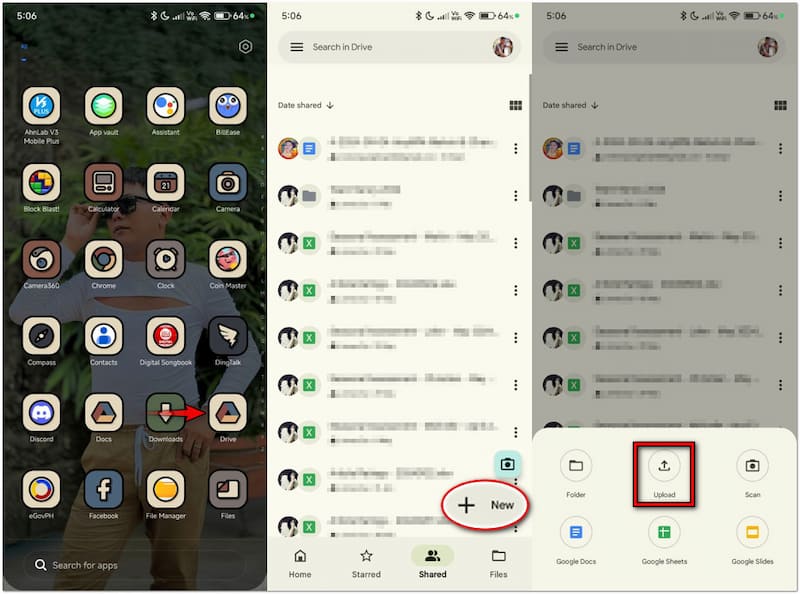
Step 1. Install the app from the Google Play Store, launch it, and sign in to your account.
Step 2. On the main screen, tap + New at the bottom-right and select the Upload option.
Step 3. Browse your device’s gallery and look for the video you want to upload to Drive.
Step 4. After locating your video, simply tap it and it will be automatically uploaded on Drive.
Note: Upon uploading, and Google Drive video is not playing, try to connect your device to an uncongested internet connection. A poor connection can prevent the video from playing. Try restarting your mobile data or switching to a more stable network.
Part 4. BONUS: Can You Upload 4K Video to Google Drive
Can you upload a 4K video to Google Drive? Yes, you can upload 4K videos to Google Drive.
As long as your video file does not exceed the size limit, you can store it on Google Drive. For good measure, Google Drive supports uploading videos in various resolutions, including 4K. Once uploaded, you can play the video in different resolutions. However, the available playback quality may vary depending on the video format, processing status, device, and connection.
But if your original video is low-resolution, uploading it to Google Drive won't improve its quality. Want to enhance the video before uploading? You can use VidHex Video Enhancer to upscale its resolution and reduce noise.
Step 1. Download and Install VidHex
First, click the Free Download button below to get VidHex Video Enhancer. Then, install it on your computer. Once the installation is complete, launch it.
Step 2. Add Your Videos
Then, click the Click or drag & drop file(s) here part to add low-quality footage and enter the AI model processing window.

Step 3. Choose an AI Model
Now, choose an AI model on the right side to apply the effect. You can choose the General Enhancement Model or the Video Denoise Model. Then, VidHex will automatically process your video. In the lower-right corner, you can choose 4K resolution.

Step 4. Export the 4K video.
Finally, click the Preview button to compare the effect. If you are satisfied with it, click the Export Full Video button to send the result to your computer.
Part 5. FAQs about Uploading Video to Google Drive
Why won’t my video upload to Google Drive?
If you find that videos cannot be uploaded to Google Drive, see if the service is running properly. Consider checking your internet connection’s stability, verify the size of your video files, and determine the file format. In case the video is in an incompatible format, like MKV, you can convert the MKV to MP4 or any other supported format.
How do you send large videos through Google Drive?
First, follow the instructional guide provided earlier to upload the video to your Google Drive. Once it is uploaded, right-click the video and select Get Link. Essentially, configure the sharing settings to Anyone with the link to access by anyone or add a specific email address. Copy the link and share it with someone through messaging apps or email.
How do I mass upload a video to Google Drive?
For mass uploading video to Google Drive, the process is slightly different. Instead of selecting a single file, hold the Ctrl or Cmd key and click each video to select multiple files at once. On smartphones, tap all the video files you want to upload to select them.
Conclusion
That’s how you upload videos to Google Drive! Uploading video files is easier than you think. Whether you’re storing, managing, or sharing your video files, you can use any device, including a PC, iPhone, and Android. As a bonus, if you want to upscale videos before uploading, we've introduced VidHex Video Enhancer to improve the quality of low-quality videos.