Full Review of CapCut Video Editor: The Best Editor for 2026
CapCut Video Editor is among the best video editing platforms you can access on desktop, mobile, tablet, and browser. It offers various editing tools you can use to improve your videos. It includes a video cropper, trimmer, transitions, effects, and more. So, are you interested in learning more about the overall capabilities of CapCut? Then you are in the right place. In this article, we will provide a detailed review of CapCut. You will get to learn more about its features, pricing plans, limitations, and other information. You will also discover the best video editing platform that can replace CapCut for better editing and conversion. Therefore, to learn more about the topic, read this review immediately!

PAGE CONTENT
Part 1. Overview of CapCut Video Editor
CapCut video editing tool is an exceptional tool you can rely on when it comes to improving and enhancing your videos. It can offer all the features you need and save your final project in the best quality. What we like about the tool is that it offers a simple and neat user interface, ensuring that editing videos is a simple task.
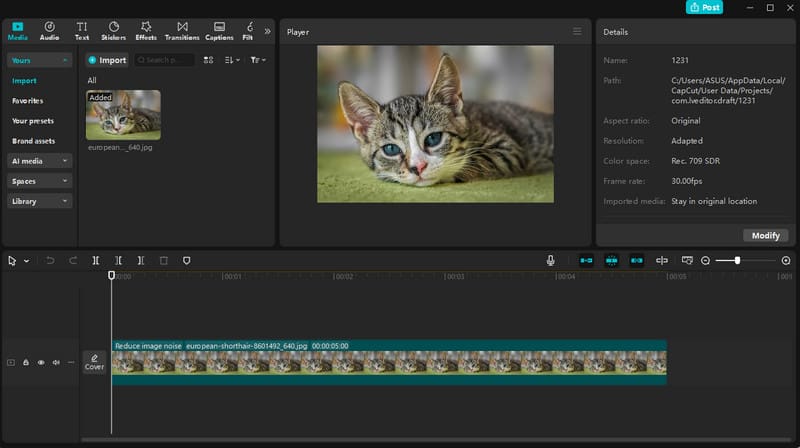
Now, if you are interested in learning more about the capabilities of CapCut, see all the details below as we provide its overall video editing features.
Video Cropper and Aspect Ratio
CapCut offers some basic video editing tools, like a video cropper. With this feature, you can crop the video based on your preferences. It is also ideal if you want to remove unnecessary parts from the video. Plus, you can also select and change the aspect ratio of the footage, making it compatible with any screen and social media posts.
Video Trimmer
The video trimmer feature is also available on CapCut. This feature is perfect if you want to trim and separate video parts without any issues. It ensures that you can get the part you want and remove the unnecessary ones.
Ready-made Templates
CapCut video editing app is also capable of providing various templates. It lets you create videos and photo collages, making the editing process simple and engaging. This is also perfect for various uses, such as presentations, ads, tutorials, and more.
Video Transitions
What makes the editing platform ideal is its capability to offer various transitions. This is ideal if you want to move from one clip to another video smoothly. It lets you control the flow, mood, and pacing of the videos. Some of the transitions you can use are fade, beat, cut, glitch, zoom, and more.
Multiple Timeline Sections
There are multiple timelines you can access when editing videos on CapCut. This is good when dealing with multiple media files, such as videos, images, and audio. It can even help you organize your files, making the editing process smoother and better.
Large Library of Effects
CapCut has a library that contains numerous effects, animations, stickers, captions, etc. It helps you choose and add any elements to the video, resulting in a better viewing experience.
AI-Powered Technology
The CapCut video editing software is also powered by AI. With this feature, you can do a lot of things, such as adding auto captions to the video, removing the background accurately, face swap, generating content, improving low-resolution footage, text-to-video generation, and more. It helps you achieve the result you need automatically, making it the best AI video editor for desktop, browser, and mobile.
High-Quality Output
After the editing process, you can save the video in the best quality, up to 1080p and even 4K. It can even offer a smoother export process. However, you must know that the paid version is required to get the best video quality output.
Comprehensive User Interface
What we like about CapCut is its simple and neat user interface. With its understandable layout, you can easily access all the features you need to improve your videos. It can even be operated by non-professionals, making it more ideal and reliable.
Part 2. CapCut on Different Platforms
CapCut video editor is accessible on almost all platforms, such as Windows, Mac, Android, iOS, and browsers. This ensures that you can improve and enhance your videos anytime and anywhere. For more details about CapCut for desktop, mobile, and browser, check the table below.
| Platform | Features | Best For |
| Desktop (Windows/Mac) | ● More stable performance ● Larger screen workspace ● Advanced timeline editing ● Supports heavier projects ● Longer videos | ● YouTube content ● professional workflows |
| Mobile (iOS/Android) | ● Full editing suite ● AI tools (auto captions background removal, beat sync) ● Direct TikTok/Instagram integration | ● Quick edits ● Social media creators ● on-the-go editing |
| Web (Browser) | ● Lightweight editing ● Cloud storage ● Templates ● Collaboration features | ● Fast edits without installing apps ● Team projects ● Chromebook users |
Key Differences
- Desktop - It is ideal for handling larger files. It is also perfect for YouTube and cinematic projects.
- Mobile - It is the most convenient. However, you might encounter lag, especially when dealing with heavy projects.
- Browser - Accessible anywhere. But it has fewer advanced features compared with the desktop version.
Choosing the Best Platform
Want to learn how to choose the right platform when dealing with videos? Then, use the guide below.
- You can use the CapCut online video editor if you want quick edits and collaboration.
- If you are handling short-form social content, it would be best to use the CapCut mobile version.
- For professional, long-form, and complex projects, you can use the CapCut desktop version since it gives you more control and features.
Part 3. Pricing Plans of CapCut
The CapCut video editing app is not 100% free. So, if you want to get its paid version to access more features, you can check the table below, as we offer all the information you need.
| Plan | Free Plan | Standard | Pro | Team |
| Price | $0 | Starts at $9.99 | Starts at $19.99 | Contact Sales |
| Export Quality | Up to 1080p (with watermark) | 1080p, no watermark | 4K + HDR, no watermark | 4K + HDR, no watermark |
| Storage | Minimal | 100GB | 1TB | 1TB |
| AI Credits | Limited | 550/month | 1,200/month | Shared credits |
| Best For | Beginners and casual creators | Mobile creators needing watermark-free exports | Influencers, professionals, advanced AI workflows | Agencies and marketing teams needing collaboration |
Part 4. Limitations of CapCut Video Editor
CapCut video editing tool is among the best video editors you can use on any platform. However, you must know that there are also some limitations or drawbacks you might encounter when editing videos. To explore some of them, you can check the details in this section.
Watermark on the Free Plan
The video editor inserts a watermark on the video when using the free version. This makes the video look unprofessional to the viewer's eyes. To remove the watermark from the video, it would be better to access a subscription plan.
Performance Issues when Dealing with Heavy Projects
There are times when you might encounter lags or crashes, especially when dealing with large or complex projects on mobile. If you are dealing with large files, it is better to use an appropriate video editor version.
Limited Offline Functionality
When using the offline version or the desktop version, you might encounter some limitations. Some advanced features, such as cloud sync, templates, and AI tools, require an internet connection to access.
Limited Output Quality
When using the free version of CapCut, you can only save the edited video up to 1080p. If you want to export videos up to 4K, you must use the paid version. This ensures that your videos are high quality and gives you a satisfying video playback.
Part 5. Bonus: Good Alternative to CapCut Video Editor
CapCut is an ideal tool since it is available on any platform. However, there are still some limitations you might encounter when editing your videos. So, if you are looking for an alternative to the editor that can help you edit and convert your videos smoothly, we recommend using Vidmore Video Converter.
This video editor and converter can give you almost all the features you need to edit your videos. You can access its video trimmer, cropper, merger, metadata editor, transitions, effects, rotator, filters, and more. The good thing about this editor is that it has a simple user layout and can save your video in the best quality for you, up to 4K, without spending a penny. You can also enhance the video by optimizing the brightness and contrast, reducing video noise and shakiness, increasing the resolution, and more. The best part is that you can convert your videos to hundreds of output video formats, ensuring that you won't encounter any compatibility issues during playback. Thus, if you need a video editor that is superior to CapCut, look no further than Vidmore Video Converter.
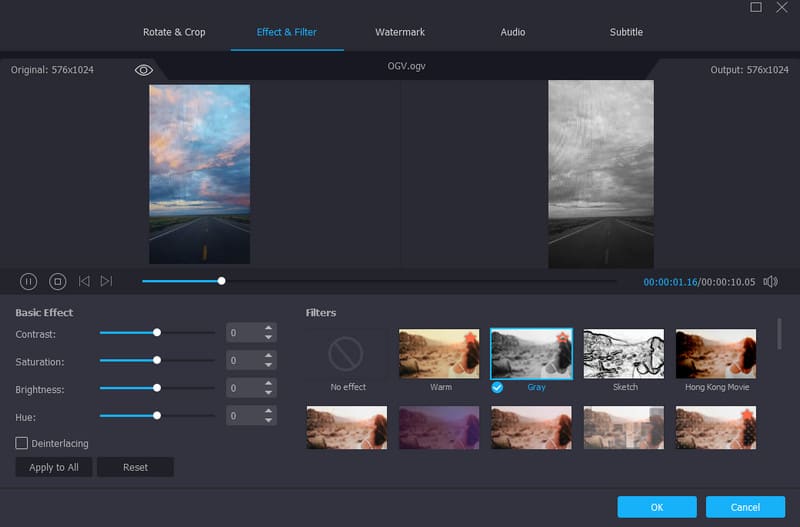
More Features
- The video editor supports hundreds of formats, including MP4, WMV, MKV, FLV, M4V, and more.
- It can offer ready-made templates for creating collages.
- The conversion process is fast, reaching 50× faster compared with other converters.
- The program can offer a smooth and fast export process.
- It offers free-to-use themes for creating Music Videos.
Pros
- Operating the video editor and converter is easy.
- It is available on both Mac and Windows Operating Systems.
- The software can provide a Toolbox section that contains various media editing functions.
- It can also convert audio files.
Cons
- If you want to enjoy more features, we suggest using its paid version.
Part 6. FAQs about CapCut Video Editor Review
What makes CapCut popular?
The video editor became popular thanks to its enjoyable features, like AI-powered background remover, video noise reducer, auto-caption, templates, and more. With its numerous functions to offer, there is no doubt that users can choose this tool as their video editing platform.
Does CapCut support 4K?
The video editor supports 4K. However, you must use the paid version to get the result you need. The free version can only let you save the video up to 1080p.
Is CapCut the best video editor you can use?
CapCut can be considered one of the most reliable editing platforms you can access. However, you must know that there are times when it performs poorly, especially when dealing with complex projects. If you want to edit videos smoothly, you can try using Vidmore Video Converter since it has better performance, ideal for continuous editing.
Conclusion
CapCut Video Editor is an excellent tool you can utilize to effectively edit and improve your videos. Thanks to this review, you have learned everything about the video editor, including its features, pricing plans, and limitations. Plus, you also discovered Vidmore Video Converter as the best alternative to CapCut when it comes to editing videos. This program can offer better performance and enjoyable features, making it the best video editing software for users.