How to Make a Boomerang Video: On Platform, iPhone & Desktop
If you want your work to grab viewers' attention right away, you might need a special playback format - like the boomerang video we're discussing today.
These short videos loop forward and backward, creating an effect powerful enough to make viewers pause, click, and explore further. If you've ever come across one, you know its impact.
Want to try creating one of these addictive videos yourself? Then this how to make a boomerang video guide is an absolute must-read. It covers methods for producing videos optimized for various short-form platforms. For those unfamiliar with boomerang videos, we also provide detailed explanations of the concept.

PAGE CONTENT
Part 1. What Is Boomerang Video
You may often see boomerang videos on social media platforms, but you might not have a clear understanding of what this format entails. Before diving in, let's first explore its specific concept and how it works.
A boomerang video is a very short, looping video format. Typically lasting only a few seconds, it plays an animation forward once, then backward once, repeating in a loop.
Why Do We Love Looping Moments
This creates the illusion of an action bouncing back and forth. These videos are fast-paced and dynamic, making them perfect for capturing a single moment or action - like a jump, a blink, a smile, or a wave.
This trend first gained popularity on Instagram before spreading to other platforms.
The good news is creating a boomerang video isn't difficult. With the right tools and techniques, you can make one in minutes.
Different Boomerang Types And Formats
The most classic boomerang video captures a few seconds of footage that automatically loops in forward and reverse playback. Its lighthearted rhythm makes it perfect for capturing naturally occurring moments.
The second type is the accelerated boomerang video. This style emphasizes speeding up playback to create a more impactful visual effect. It works best for content with a strong rhythm, such as dance or sports.
Additionally, there are slow-motion boomerang videos. This type slows down playback to emphasize the atmosphere and details of an action, such as hair flowing in the wind or snowflakes drifting down.
Generally, boomerang videos use the MP4 format. This format offers broad compatibility and works seamlessly across all platforms.
Part 2. How to Make A Boomerang Video
Alright, time to get down to business. Now, we'll show you how to make a video into a boomerang on Instagram, TikTok, and iPhone, plus recommend the best video creation and editing tool for you.
Vidmore Video Converter
First, we recommend the most reliable and compatible boomerang video maker: Vidmore Video Converter.
This software excels at video conversion, editing, and enhancement. Within its Toolbox section, you'll easily find the Video Reverser tool. It's specifically designed to reverse video clips. Combine this feature with Vidmore Video Converter's video trimming and merging capabilities, and you can effortlessly create a sequence where the video plays forward first, then reverses - perfect for making boomerang videos.
No need to worry about format compatibility. Vidmore Video Converter supports nearly all popular video formats, allowing you to save your creations in any format and transfer them to various platforms.
Main Features
- • Supports conversion between over 200 formats for video, audio, and image files.
- • Comprehensive video trimming, merging, cropping, and compression capabilities.
- • A versatile Toolbox featuring various functions, including Video Reverser.
- • Create photo collage music videos.
Now let's explore how to make a boomerang from an existing video using Vidmore Video Converter.
Step 1. Download and install Vidmore Video Converter on your computer.
On its homepage, select Toolbox and locate Video Reverser.
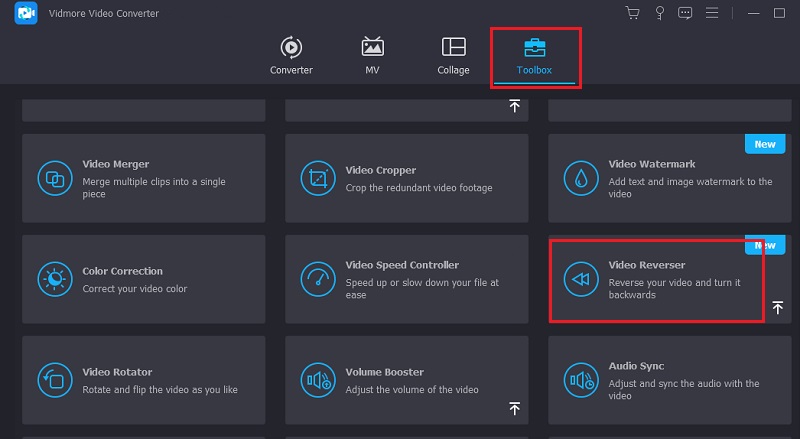
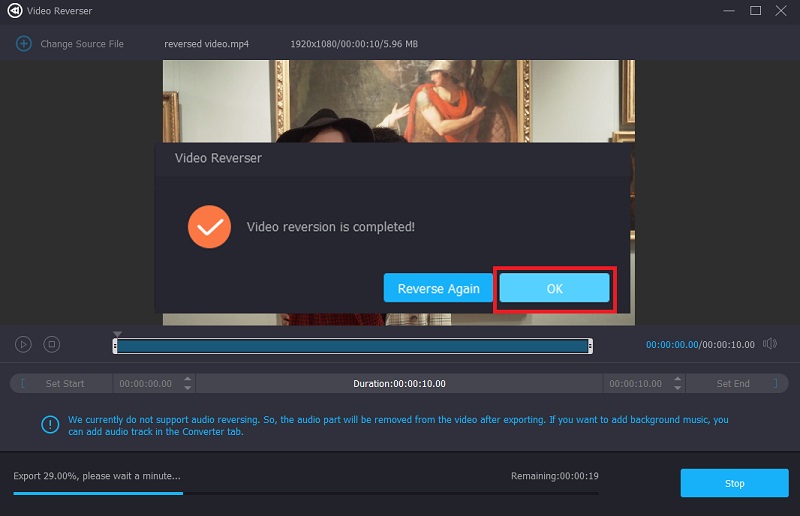
Step 2. Click the Add button to upload your prepared video footage. The system will automatically reverse the clip. Select a save location, then click Export > OK to export the finished video.
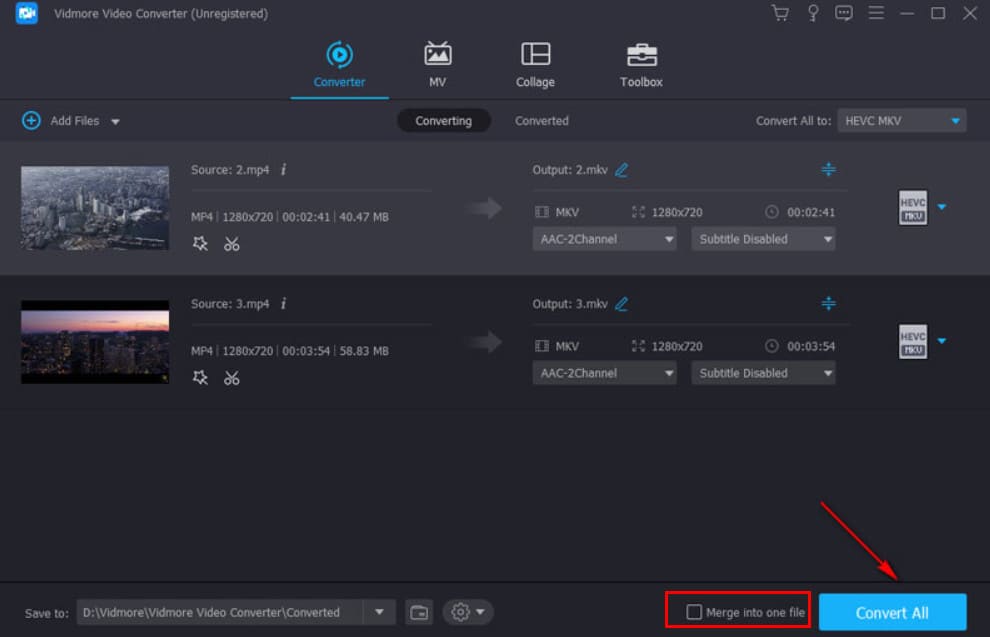
Step 3. Return to the Vidmore Video Converter homepage. Click the Add button to upload both the forward and reverse videos. Select both clips simultaneously, then check the Merge into one file box next to Convert All.
Finally, click Convert All to export your project.
On TikTok
Although TikTok is also a popular platform for boomerang videos, unfortunately, it doesn't yet offer built-in creation tools.
So for everyone, the most cost-effective option is to first create a complete video on Instagram, save it locally, and then upload it to TikTok. This is the least troublesome method. Don't worry - you'll soon see how to boomerang a video with Instagram.
On Instagram
As the birthplace of boomerang videos, Instagram naturally gives you plenty of creative freedom.
Without further ado, let's dive into how to do a boomerang on snap on Instagram Stories.
Step 1. Enter Instagram Story mode
Launch Instagram and go to the Story creation screen. You can do this step by swiping right from your main feed or tapping the + button and choosing Story from the menu.
Step 2. Turn on the Boomerang feature
When you're on Instagram's Story camera screen, look for the infinity (∞) icon along the side of the interface. Tapping it activates Boomerang mode.
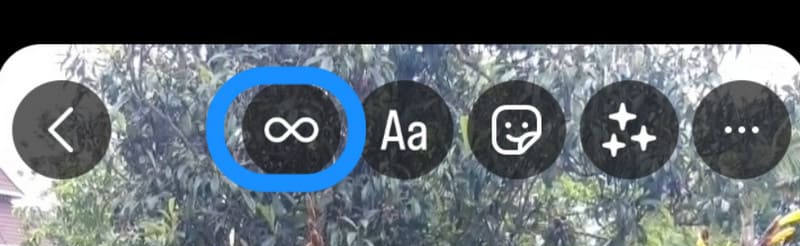
If you want to turn a video into a Boomerang on Instagram, swipe up to open your gallery and select a compatible photo or short video. You'll see the infinity symbol on eligible videos.
Step 3. Frame and capture your clip
Now, frame your subject and press the record button. Keep your hand steady during recording to ensure a smooth looping animation.
To emphasize motion effects, you can add platform-specific motion filters. Instagram will automatically convert your footage into a Boomerang video.
Step 4. Customize the Boomerang effect
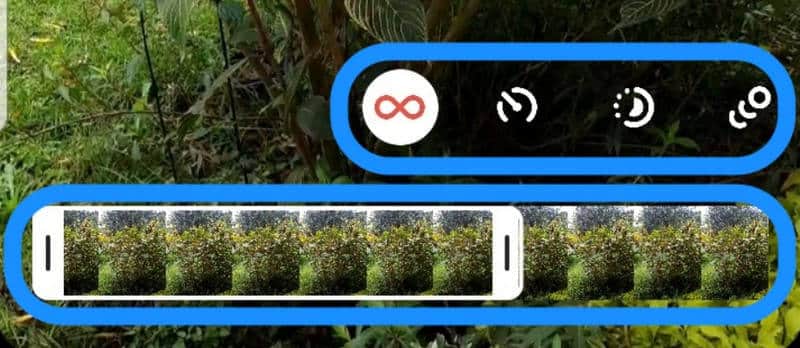
After filming, if you're not entirely satisfied, use Instagram's tools to trim segments, add slow-motion, speed-up, and other effects.
Step 5. Enhance and share
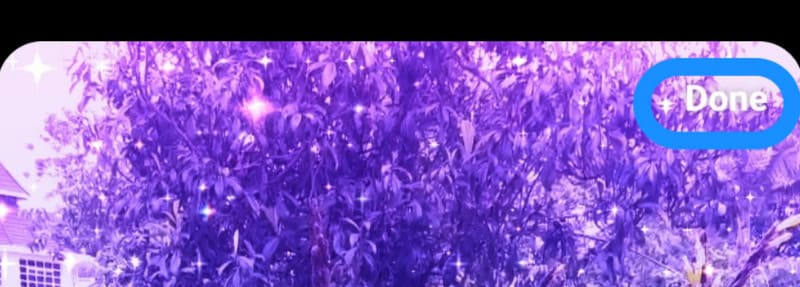
To make your creation more engaging, try adding text, stickers, or filters to your video.
When everything is ready, tap Done, then choose where to post - such as Your Story, Reels, or save it to your device for later use.
From iPhone's Live Photo
When watching the first half of the boomerang video, you might recall similar formats like GIF animations or Live Photos captured with an iPhone - which is precisely what we're about to discuss.
Yes, as long as you're using an iPhone 6S or newer model running iOS 9 or later, you can create boomerang videos using the Live Photos feature on your phone.
The principle is simple: capture a short sequence of motion, then apply the Bounce effect to it.
Here's how to turn video into boomerang with iPhone Live Photos.
Step 1. First, ensure you've captured a Live Photo.
Open the Photos app on your iPhone and navigate to Albums.
Filter all Live Photos using the Media Types option.
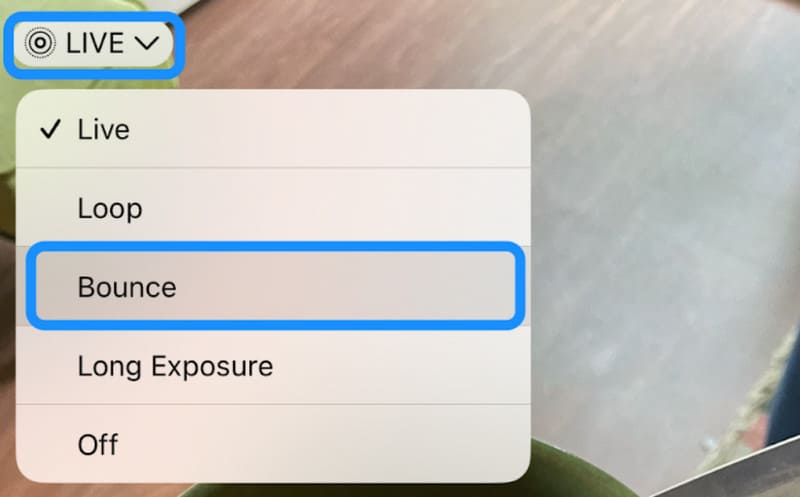
Step 2. Open the target Live Photo. You'll find the LIVE label in the top-left corner of the preview page. Tap it to reveal a small menu. Select Bounce.
Step 3. If needed, trim your finished creation.
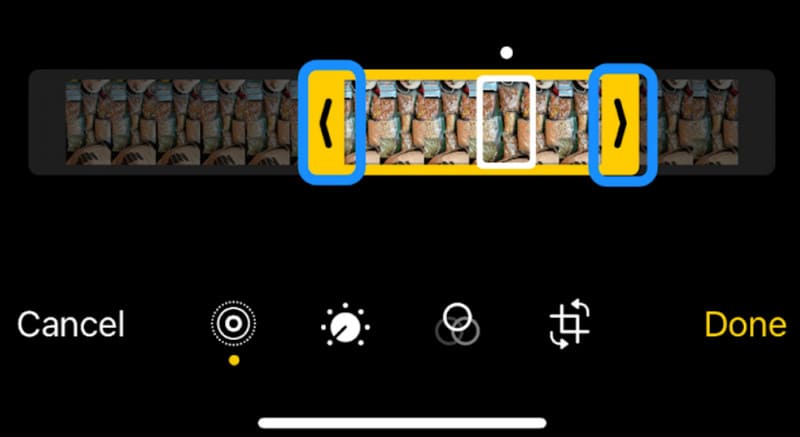
Locate your Live Photo again and select Edit. A progress bar and editing tools will appear at the bottom of the image. Use these to customize your creation.
Step 4. After completing all steps, tap Done to save your new creation.
Part 3. FAQs of How to Make A Boomerang Video
How to turn a video into a boomerang?
Absolutely. You can use a video editing tool like Vidmore Video Converter. Utilize its Video Reverser feature to create a reverse-play effect on your footage, then use the video merger combine it with the original forward-play video to produce a boomerang video.
How to make a boomerang video on iPhone?
First, capture a Live Photo using your iPhone. Then, navigate to your Photos app and locate the LIVE > Bounce feature. This will generate your boomerang video.
How to make a boomerang video on TikTok?
You can create your boomerang video using Vidmore Video Converter or Instagram. Save it locally, then upload it to TikTok.
Conclusion
How to make a boomerang video? Generally, you can choose reliable platforms like Vidmore Video Converter or Instagram for creation. Save your work locally, then upload it to any platform you prefer.
If you're working on a mobile device, we recommend using the Bounce feature under LIVE Photos on iPhone. It can also produce a similar effect.