Does FPS for Animation Matter? What FPS Should Be Used?
When creating animation, one of the most important factors that can affect how it looks and feels is FPS, or frames per second. It might sound technical, but FPS directly affects how smooth, realistic, or even stylistic animation appears.
In this article, you’ll learn what FPS really means and why it matters in animation. Moreover, be guided by the most common FPS standards used today, show you how different frame rates impact motion, and teach you how to adjust or increase FPS based on your needs. By the end, you’ll have a clearer idea of what FPS is best for your animation projects and how to achieve it effectively.

PAGE CONTENT
Part 1. What is FPS and Why Does it Matter
FPS, or frames per second, refers to the number of individual images or frames displayed in one second of a video or animation. Since animation is essentially a sequence of still images shown rapidly, FPS on animation plays a huge role in how smooth, realistic, or stylized your final output looks.
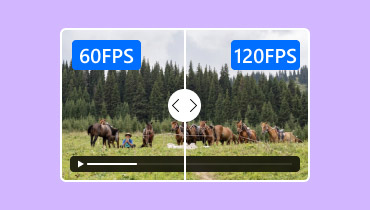
The higher the FPS, the more frames are shown each second, which results in smoother motion. On the other hand, a lower FPS means fewer frames, which can make movement appear choppy or intentionally stepped, depending on the style you’re going for.
Why Does FPS Matter?
- • Higher FPS for animation, like 60 FPS, creates fluid, lifelike movement, while lower FPS, like 12 or 24 FPS, gives a more traditional or cinematic feel.
- • Different FPS levels can change the entire tone of your animation. For example, many classic animations use 24 FPS to achieve that film look, while some stylized animations intentionally use lower FPS for artistic effect.
- • More frames mean more data. Higher FPS can lead to larger file sizes and require more processing power, especially when editing or rendering videos.
Note: the best FPS often depends on where your animation will be used, whether it’s for social media, film, games, or presentations.
In short, FPS for animation matters because it balances quality, performance, and artistic intention. Choosing the right FPS isn’t just about making your animation smoother but also making it feel right.
Part 2. Common FPS Standards in Animation
When it comes to animation, there’s no single FPS that fits everything. Different frame rates are used depending on the style, purpose, and platform of the animation. Understanding these common FPS for animation will help you choose what actually works best for your project.
12 FPS: Often used in traditional or stylized animation. Instead of drawing every frame, animators create fewer frames and let each one hold longer. This results in a slightly choppy but artistic look, something you’ll notice in many classic or hand-drawn animations. It’s also lighter to produce, making it ideal for beginners or projects with limited time and resources.
24 FPS: Considered the classic animation and film standard. It strikes a balance between smooth motion and that familiar movie-like feel. Many animations, even today, are created at 24 FPS because it feels natural without being too heavy in terms of workload or file size.
30 FPS: Commonly used for digital videos, TV, and online content. It looks smoother than 24 FPS and is often preferred for content that needs clarity, such as tutorials, presentations, or web animations.
60 FPS: Delivers very fluid and detailed motion. It’s commonly used in video games, high-quality motion graphics, and action-heavy scenes. However, it requires more frames, more effort, and more processing power, so it’s not always necessary for every animation project.
What is the Average FPS for Animation?
The most commonly used FPS in animation is 24 FPS. It has become the industry standard because it offers a natural look while still being efficient to produce. Many animators also work on twos or the drawing one frame for every two frames, which effectively uses 12 unique drawings within a 24 FPS timeline.
Part 3. How to Increase Animation FPS
The best and easiest way to increase animation FPS is by using a dedicated tool that helps enhance or adjust FPS.
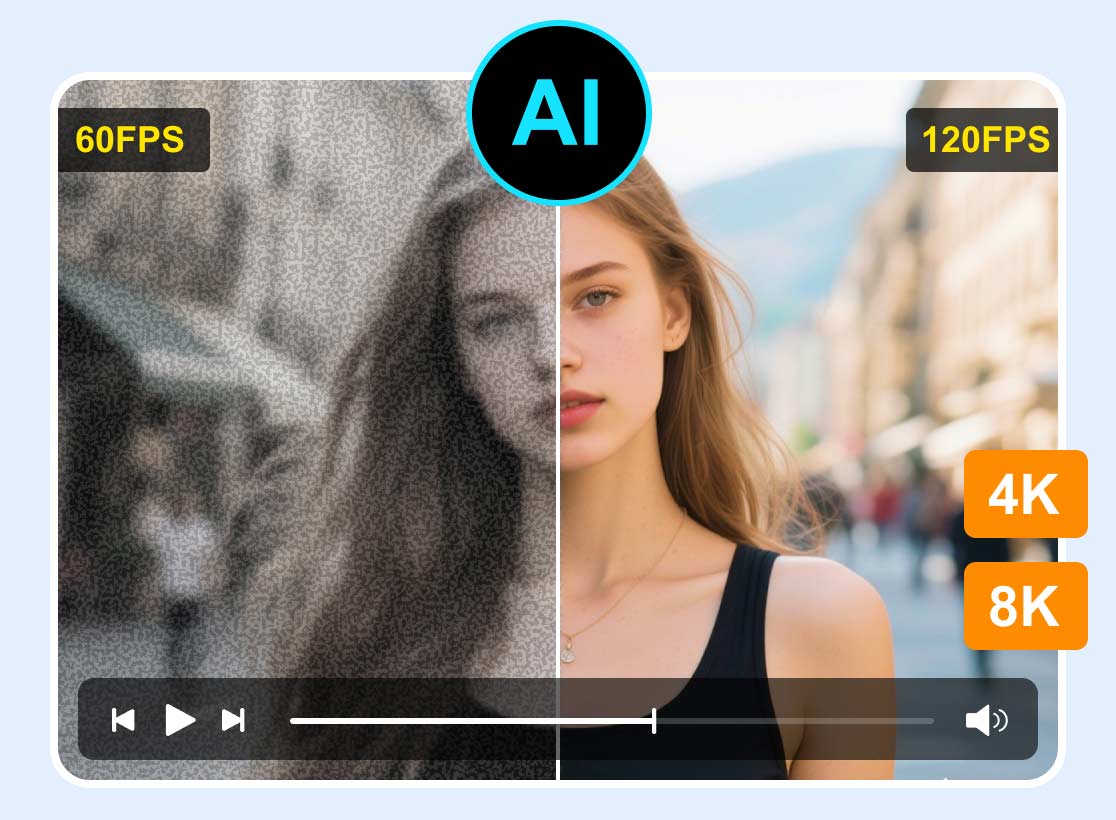
One of the best tools that can help you increase animation FPS is Vidmore Video Enhancer. This tool is known for integrating AI to effectively and accurately fix or enhance videos, especially its Videx Frame Interpolation Model feature, designed to smoothly increase FPS by generating additional frames between existing ones.
Main Features:
- • Increase frame rate naturally without making motion look forced.
- • Enhance blurry or low-quality animations with better clarity.
- • Supports high-resolution playback for a more professional result.
- • Works on multiple file formats and sizes.
How to Increase Animation FPS with Vidmore Video Enhancer:
Step 1. First, you need to download and install the Vidmore Video Enhancer or the Vidmore VidHex on your computer.
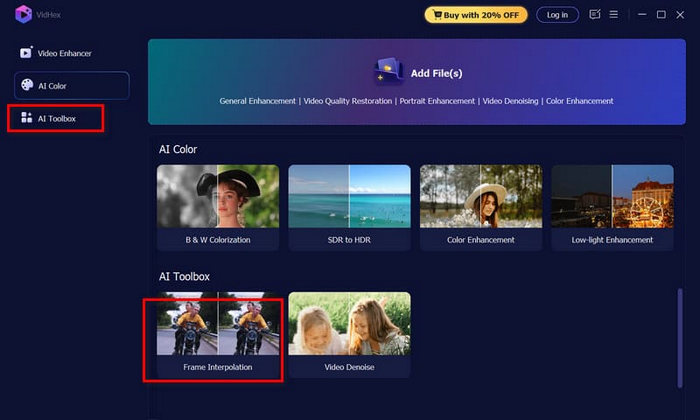
Step2. Next, on its main interface, go to AI Toolbox, select Frame Interpolation, and click Start Now.
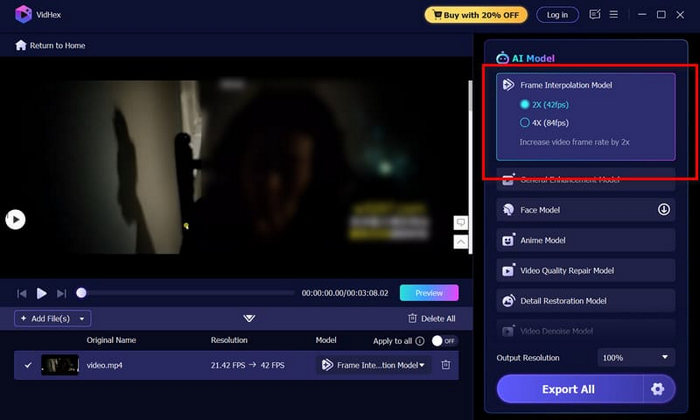
Step 3. Now, under the Frame Interpolation Model in the top-right corner, select the frame rate that you need for your animation. Lastly, click Preview to check the results, and if you’re satisfied, click Export All to save your video.
With Vidmore Video Enhancer, increasing the animation’s FPS can be done easily. Also, with its AI integration, users can guarantee a smoother and more natural result without making the motion look forced. Lastly, with its simple and intuitive interface, any user can use the tool and enhance their animation without needing complicated steps or advanced skills.
Part 4. FAQs about FPS for Animation
Does higher FPS always mean better animation?
Not always. While higher FPS, like 60 FPS, can make motion smoother, it doesn’t automatically mean better animation. The best FPS for animation still depends on your style and purpose. For example, 24 FPS is often preferred for cinematic animations, while lower FPS, like 12, can be used for artistic or stylized effects.
Can I increase FPS after the animation is already created?
Yes, you can still increase the animation’s FPS even after it is created. Using tools like Vidmore Video Enhancer, you can apply AI-based frame interpolation to generate additional frames and make your animation smoother without redoing the entire project.
What FPS should I use for different types of animation?
It depends on where and how your animation will be used. For films or storytelling, 24 FPS works best. For online videos or presentations, 30 FPS is a good choice. Meanwhile, 60 FPS is ideal for fast-paced or highly detailed animations like games or action scenes.
Conclusion
Understanding FPS is essential if you want your animation to look and feel right. From knowing what FPS is, exploring common standards like 12, 24, 30, and 60 FPS, to learning how each one affects motion and style, you now have a clearer idea of how to choose the right frame rate for your project. Remember, there’s no defined best FPS for all animations. The best choice will always depend on your purpose, platform, and the kind of experience you want to create.
And if your animation needs improvement, the good news is you don’t have to start over. With tools like Vidmore Video Enhancer, you can easily adjust and increase FPS for animation to achieve smoother and more polished results.