4 Proven Methods to Improve Frame Rates for Smoother Gaming and Video
Does increasing frame rate really improve video quality?
It’s common to improve frame rates, especially for gaming. Frame rate can be the heartbeat of any video.
Low frame rates will easily lead to stutter, judder, and a frustrating viewing experience. So, whether you are a gamer, a content creator, or a general user, you want to fix and increase your low frames per second (FPS). The good news is that modern AI-powered tools can dramatically improve frame rates without related technology skills or expensive hardware upgrades. This guide explains why frame rates matter and shares four proven solutions to ensure you get smoother video.

PAGE CONTENT
Part 1. Why We Need to Improve Frame Rates
For different reasons, you may want to improve frame rates. As mentioned above, low frame rates will cause interpolation problems.
In gaming, a consistent 60 FPS (now 120 FPS is recommended) is considered the baseline for smooth play. Running at 30 FPS on a 60 Hz display causes the eye to perceive multiple exposures of a single frame. That will produce noticeable flickering and blur on moving objects. You can increase FPS to reduce noticeable flickering and blur on moving objects. Higher frame rates can effectively improve aiming accuracy and target tracking in first-person shooters.
In video content, low frame rates often show up as judder, stuttering, and an overall lack of polish. Many old videos often suffer from this. Frame interpolation can insert new intermediate frames and turn 24/30 FPS footage into smoother 60 FPS or even 120 FPS.
Part 2. Quick Check - Four Ways to Increase FPS at a Glance
This section gives a comparison table to walk you through four proven solutions: Topaz Video AI, VidHex Video Enhancer, DaVinci Speed Warp, and Flowframes RIFE. You can quickly pick the right tool for your workflow.
| Tool | Ease of Use | FPS Supported | Best For | Price |
| Topaz Video AI | Moderate (AI model selection required) | Up to 16x slow motion 60/120 FPS output | Professional editors wanting advanced AI model control | $45/month (Topaz Studio) $79/month (Pro) |
| VidHex Video Enhancer | Easy (select AI model, export) | 60, 120, 240 FPS and beyond | Social media creators and beginners | Free trial $12.45/month $49.95/Lifetime |
| DaVinci Speed Warp | Moderate (requires DaVinci Resolve Studio) | Project-dependent Best for retiming | Filmmakers already in the DaVinci ecosystem | $295 one-time (Studio) |
| Flowframes RIFE | Complex (open-source GUI setup) | Any integer/float multiple 240 FPS+ | Power users and budget-conscious users | Free |
Part 3. Learn Four Tested Ways to Improve Frame Rate
Wondering how to improve frame rate? We tested Topaz AI, VidHex, Speed Warp, and Flowframes on the same video file to see which tool delivers truly smoother video.
1. Topaz Video AI
Best For: Serious content creators, filmmakers, and professionals who prefer the best possible frame interpolation quality.
Score: 9/10
Topaz Video AI (Topaz Video) offers 20+ AI enhancement models to upscale, sharpen, denoise, and increase FPS. It offers multiple interpolation models to improve frame rates, including Apollo (up to 8x slow motion), Apollo Fast, Chronos, Chronos Fast, and Aion. Topaz Video requires a Personal, Pro, or Topaz Studio subscription to use the software. It currently does not offer a trial version.

Step 1. To improve frame rate in Topaz Video, you can simply add your video file, go to the Frame Interpolation module, then select a desired AI model.
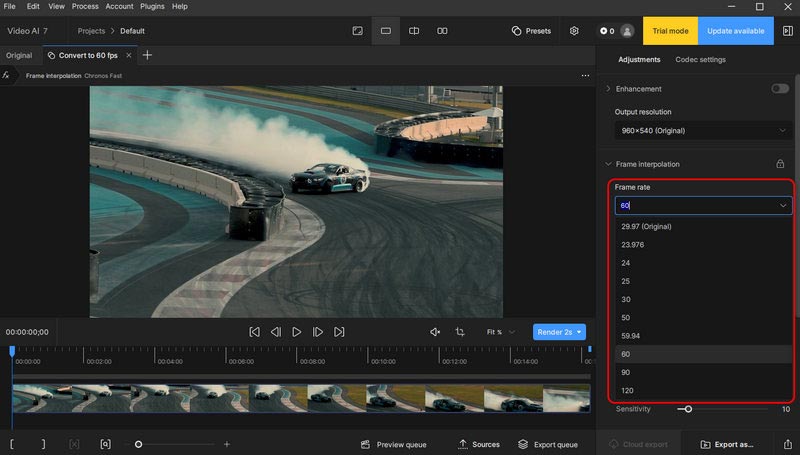
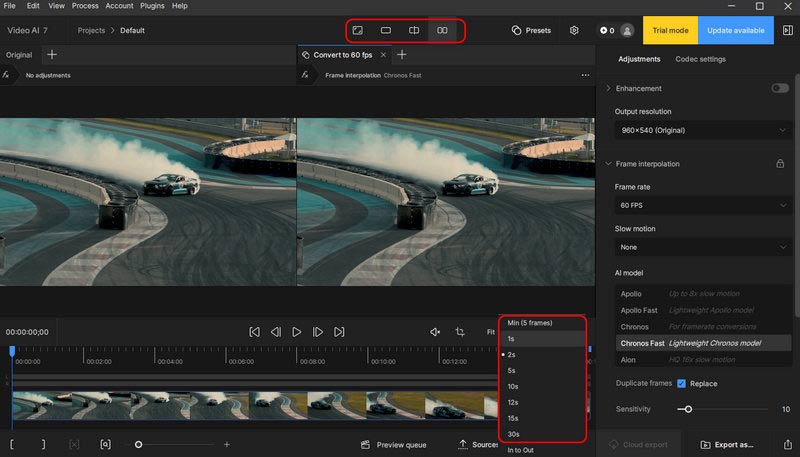
Step 2. Set your slow-motion multiplier or target frame rate. Turn on scene detection if your footage has cuts. Preview to evaluate quality, then export when you are satisfied.
2. VidHex Video Enhancer
Best For: Social media creators, most casual users, and beginners who want a one-click way to increase FPS and get high-quality results.
Score: 8.7/10
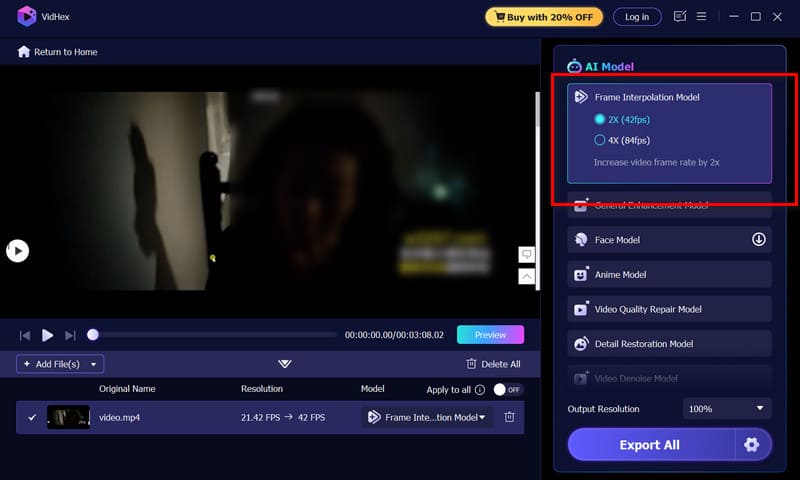
VidHex Video Enhancer (AI Video Enhancer) is a dedicated video enhancement tool that specializes in AI frame interpolation. It can boost video frame rates by 2x or 4x, supporting outputs of 60 FPS, 120 FPS, 240 FPS, and beyond. It uses advanced AI models (the latest algorithms) to generate frames. What’s more, this AI-powered video interpolation tool supports batch processing and hardware acceleration.
Step 1. Download and open VidHex on your computer, then add the video you want to improve the frame rate of.

Step 2. Select the Frame Interpolation Model under the right AI Model section. Choose your multiplier (2x or 4x). Preview the result to confirm smoothness. When you are satisfied with the result, export the enhanced video.
3. DaVinci Resolve Speed Warp
Best For: Filmmakers and professional editors already using DaVinci Resolve Studio.
Score: 9.3/10
Speed Warp in DaVinci Resolve Studio is an AI-powered motion estimation engine designed to deliver high-quality retiming and frame interpolation. Like Topaz Video, it can produce high-quality results, even though it is computationally intensive and can be slow to render.
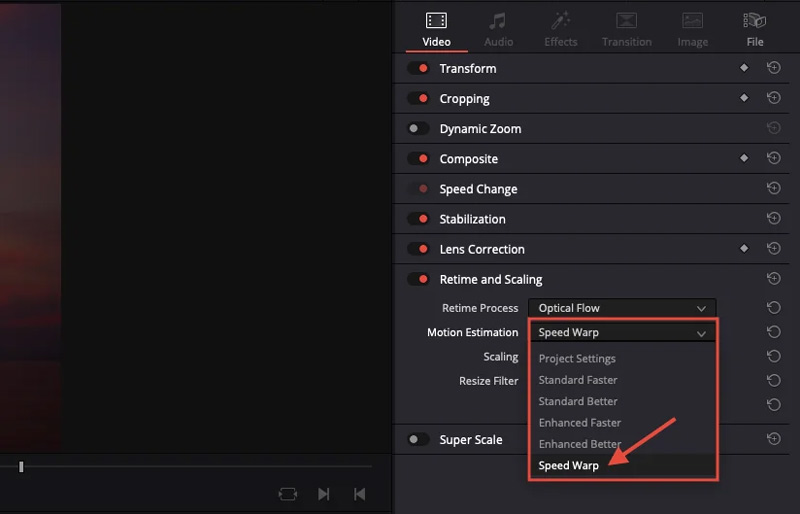
Step 1. Download and launch DaVinci Resolve. Right-click a clip and select Clip Attributes > Video tab.
Step 2. Set Retime Process to Optical Flow. Set Motion Estimation to Speed Warp (Studio only). You can use Enhanced Better for editing. Switch to Speed Warp for final export. Render the timeline in the Deliver page.
4. Flowframes RIFE
Best For: Power users with the necessary technical skills who want a free, open-source solution with GPU acceleration.
Score: 8.1/10
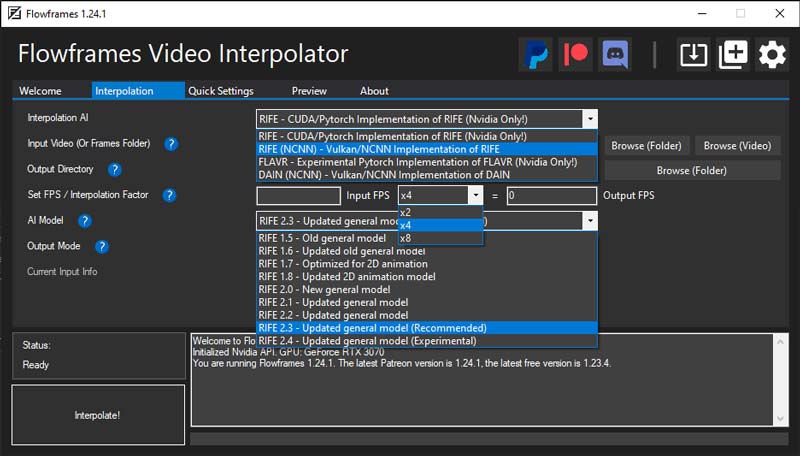
Flowframes is a Windows-only GUI that uses RIFE and other AI interpolation models to create smoother, higher-frame-rate video. It automatically selects between RIFE, DAIN, and other models, supports batch processing, scene detection, and can turn 24 or 30 FPS footage into fluid 60, 120, or 240 FPS. However, it requires a steeper learning curve. It can also produce occasional artifacts if scene detection fails.
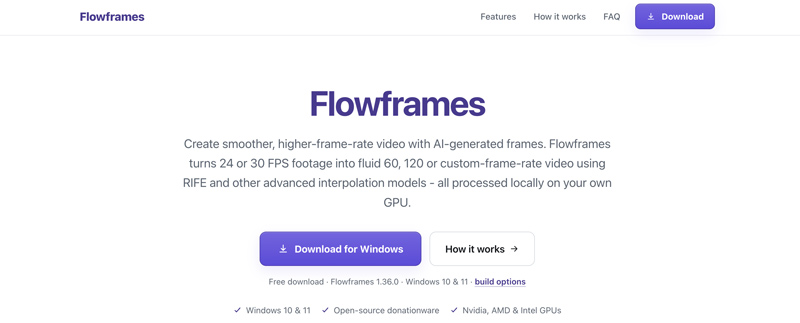
Step 1. Download Flowframes on your Windows PC from the official site. Import your video and select the RIFE model (CUDA for NVIDIA, NCNN for AMD).
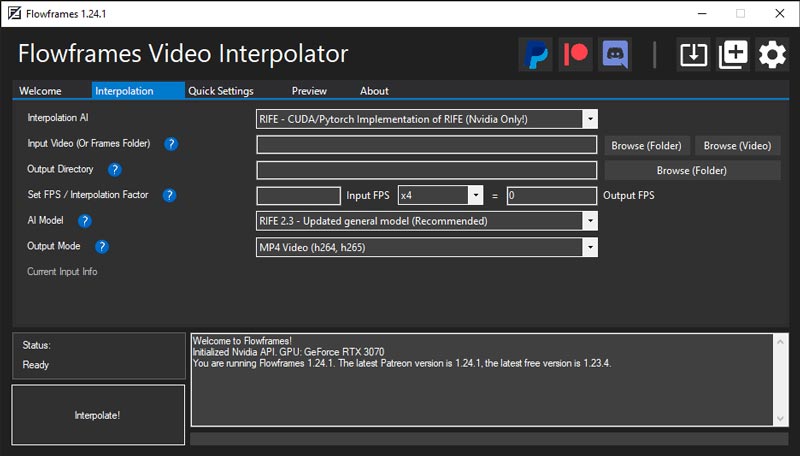
Step 2. Choose your interpolation multiplier (2x, 4x, 8x, etc.). Adjust the scene detection threshold and run the interpolation.
Part 4. FAQs on How to Improve Frame Rates
Question 1. What is frame interpolation?
Frame interpolation is a video-processing technique that can analyze consecutive frames and generate new frames (between existing ones) to increase the frame rate and smooth motion.
Question 2. Can I improve frame rates for free?
Yes. Flowframes RIFE is completely free and open-source. DaVinci Resolve’s free version offers Optical Flow (though Speed Warp requires Studio).
Question 3. Do I need a powerful GPU to improve frame rates?
Yes. AI interpolation is often GPU-intensive. You need a modern, powerful computer to get good performance.
Conclusion
This guide covers four efficient ways to improve frame rate. Compare them and choose the FPS-boosting tool you prefer. Start with VidHex Video Enhancer for its simplicity. For advanced model control, consider Topaz Video AI or DaVinci Speed Warp. Pick the tool that best matches your workflow and specific needs.