9 Best Frame-by-Frame Video Editors for You to Choose From
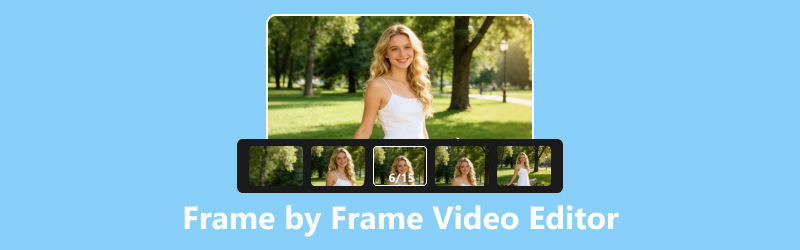
I know that to your eyes, a video appears as one continuous moving image. In reality, however, it is made up of countless still frames. The higher the frame rate, the smoother the video looks. Today's video frame rates have evolved from 60 FPS to 120 FPS, which is a significant improvement. However, for editors handling detailed video projects, creating a polished video has become even more demanding.
When editing, creators often need to move through a video frame by frame to find the exact cut point, ensuring the remaining clip contains neither ghosting from the previous scene nor missing frames from the next. That's why a frame-by-frame video editor is an essential tool for precise editing.
If you're about to turn your raw footage into a complete video but find that the timeline in ordinary editing software isn't accurate enough, this guide is for you. Here, you'll discover nine excellent video frame editors that are worth exploring and trying.
PAGE CONTENT
Part 1. How to Choose a Frame-by-Frame Video Editor
Before we dive into the details of the product, we'd like to share with you the criteria we used to select and recommend the best frame-by-frame video editor. Please read through these criteria and see if they align with your vision of an ideal product. If you find they do, the selection process you'll undertake next will be much easier.
Here are our reference criteria:
• Precision of Frame-by-Frame Editing
The key to determining whether a frame-by-frame video editor is up to par lies in its core functionality: specifically, whether it offers high precision in frame-by-frame editing. This is reflected in features such as Frame Step Forward/Back and Frame Interpolation, which ensure you can easily and precisely synchronize video, audio, and subtitles, retain necessary frames, and remove all unnecessary ones.
• Work Efficiency
Video editing is undoubtedly a very time-consuming and labor-intensive task. It's even better if the tool you choose is designed to help you improve efficiency and make operations more convenient. For example:
Does it support batch processing?
Considering that you may need to shoot a lot of footage to produce a single video, if the editor supports batch trimming, your work will be much easier.
How are the rendering and response speeds?
Do the buttons and features respond promptly while you're editing? How efficient is the rendering and merging of the remaining clips after editing? Only when both of these aspects are satisfactory will you avoid getting stuck in the editing process and growing increasingly frustrated.
• Compatibility
Of course, a good frame-by-frame video editor should support as many video formats as possible, so you won't have to scramble to find ways to convert video formats before you even start editing.
• Ease of Use
Not everyone is a professional video editor. A frame-by-frame video editor should be user-friendly for everyone; its interface and workflow should be designed to be intuitive, and navigation should guide users to the desired features.
Additionally, users may not know what the final result will look like before exporting the edited video. Therefore, it's essential for a frame-by-frame video editor to include a preview feature.
Part 2. Quick Comparison: Top 9 Video Frame Editors
Instead of overwhelming you with long, complicated text right from the start, we'll first present the key information for all nine products in a table so you can quickly complete your initial screening.
| Software | Best for | Frame-by-Frame Editing Feature | Supported Platforms | Pricing |
| VidHex | AI frame interpolation and video enhancement | AI-powered frame interpolation and automatic frame enhancement | Windows | Free trial / Paid |
| DaVinci Resolve | Professional video editing | Precise frame navigation, frame-by-frame trimming, and professional tracking | Windows, macOS, Linux | Free / Studio Paid |
| Adobe After Effects | Frame-by-frame masking and visual effects | Roto Brush, Content-Aware Fill, and frame-level object removal | Windows, macOS | Subscription |
| Adobe Premiere Pro | Comprehensive video editing | Frame-accurate editing, keyframe effects, and precise timeline control | Windows, macOS | Subscription |
| Stop Motion Studio | Organizing and rearranging frames | Thumbnail-based frame editor with drag-and-drop frame management | Windows, macOS, iOS, Android | Free / Paid |
| Final Cut Pro | Mac users | Frame Accuracy editing with Magnetic Timeline | macOS | One-time purchase |
| Krita | Hand-drawn animation | Animation Timeline, Onion Skin, and frame-by-frame animation editing | Windows, macOS, Linux | Free |
| Blender | 2D and 3D animation | Video Sequence Editor with frame-level editing for videos and animations | Windows, macOS, Linux | Free |
| CapCut | Quick social media editing | Zoomable timeline, frame preview, and freeze-frame effects | Windows, macOS, iOS, Android, Web | Free / Paid |
Part 3. 9 Best Frame-by-Frame Video Editors
All right, now that you're ready to dive deep into each product, we'll officially walk you through them.
Top 1. VidHex
Best for: Fully automated quality enhancement and frame insertion
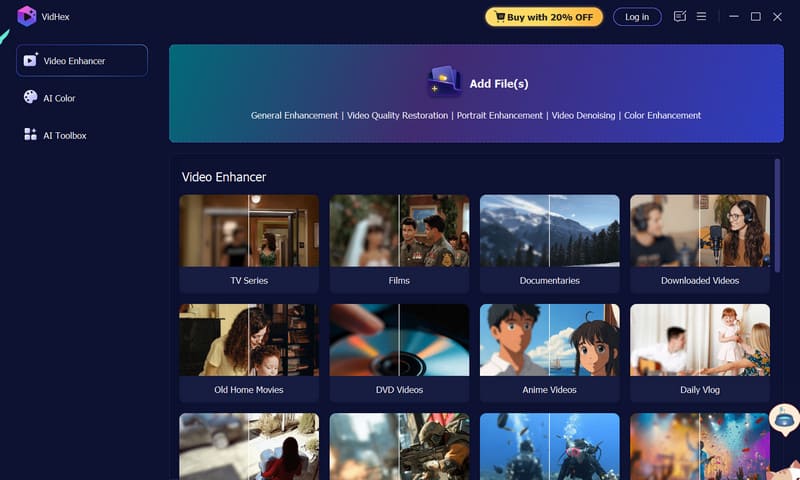
The first product on our list, VidHex, is sure to impress you. As we mentioned earlier, one of the biggest pain points in video editing and enhancement is that editors must carefully drag the progress bar and select frames one by one to ensure no unnecessary frames are included and no essential frames are missing. Going back and forth manually like this is incredibly time-consuming. But what if VidHex could automatically enhance the resolution and color correction of every single frame - and even increase the video's frame rate to make it smoother?
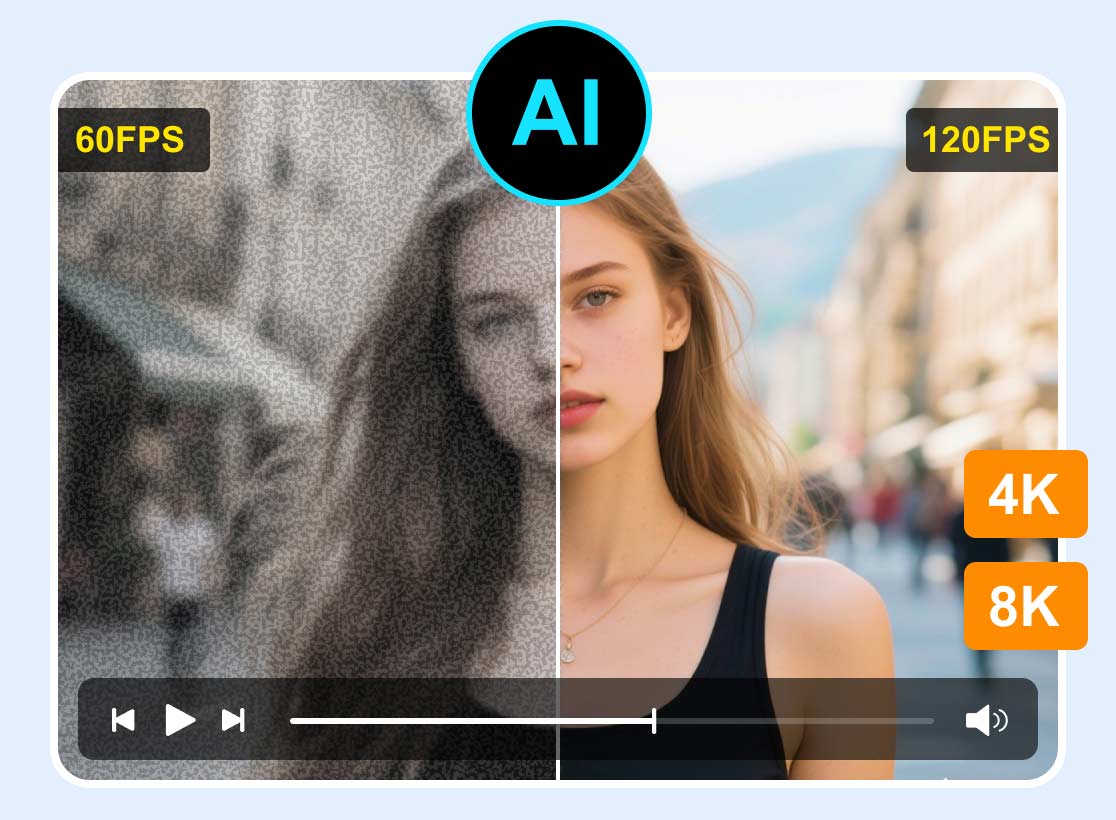
Let's start with a brief overview of VidHex: It's a desktop-based, AI-powered video restoration and enhancement tool. Its key feature is that users simply select their desired function to receive an edited video - including, but not limited to, noise reduction, quality enhancement, color correction, colorization of black-and-white videos, and facial enhancement. The Frame Interpolation Model in its toolkit is precisely what makes it the best video editor for frame interpolation. The AI analyzes your video and seamlessly inserts frames based on the surrounding content, making your video's motion appear smoother.
Pros
- Extremely time- and effort-saving; no manual intervention required.
- The AI automatically inserts frames to seamlessly smooth out the video.
- Comprehensive video enhancement features included.
Cons
- Some features are not free.
Top 2. Davinci Resolve
Best for: High Professionalism
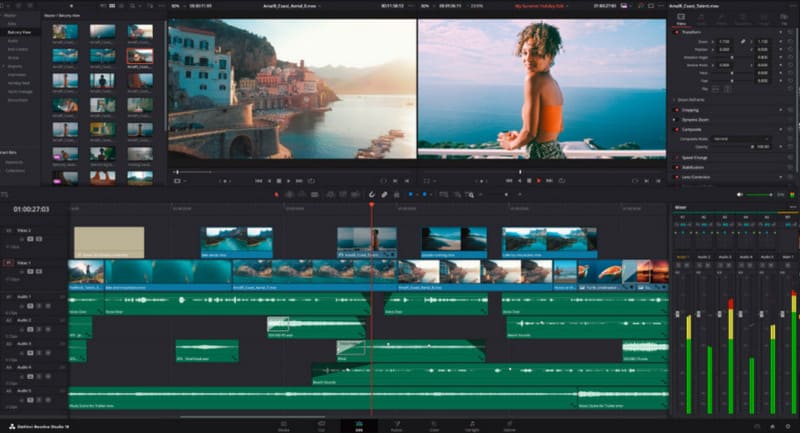
Next up is a truly professional choice - DaVinci Resolve. You'll find that many professional video editors use this software, as it's renowned for its exceptional professionalism, attention to detail, and master-level color grading capabilities.
But when it comes to the frame-by-frame editing features we're discussing here, it holds its own. On its timeline, you can move to any frame by adjusting the playhead or entering a specific frame number. If you want to move to the next frame in the current clip, you can also try the shortcut keys Alt + Left/Right Arrow keys (or Comma and Period). These operations help you precisely navigate and control video frames.
However, for beginners, this software does seem a bit complex.
Pros
- Ultimate professionalism.
- Extremely precise control over frame navigation.
- Offers professional tracking features.
Cons
- Requires a paid subscription.
- Relatively complex to use; not suitable for beginners.
Top 3. Adobe After Effects
Best for: Fast Frame-by-Frame Image Masking
Adobe After Effects excels at frame-by-frame video editing: removing unwanted objects from video frame by frame. This feature is called the Roto Brush Tool, which is located in the Layers panel. Simply follow the on-screen instructions to draw lines of different colors over the relevant areas to apply it. Adobe After Effects automatically removes all content and uses Content-Aware Fill to fill in the empty areas in each frame, ensuring that the selected object is removed cleanly and seamlessly.
Pros
- High precision and professional-grade performance.
- Includes many new plugins to help users access advanced features.
- Offers a rich selection of special effects and animation assets.
Cons
- Requires a computer with relatively high specifications.
- Not particularly easy to learn.
Top 4. Adobe Premiere Pro
Best for: The most comprehensive set of tools; adding effects frame by frame
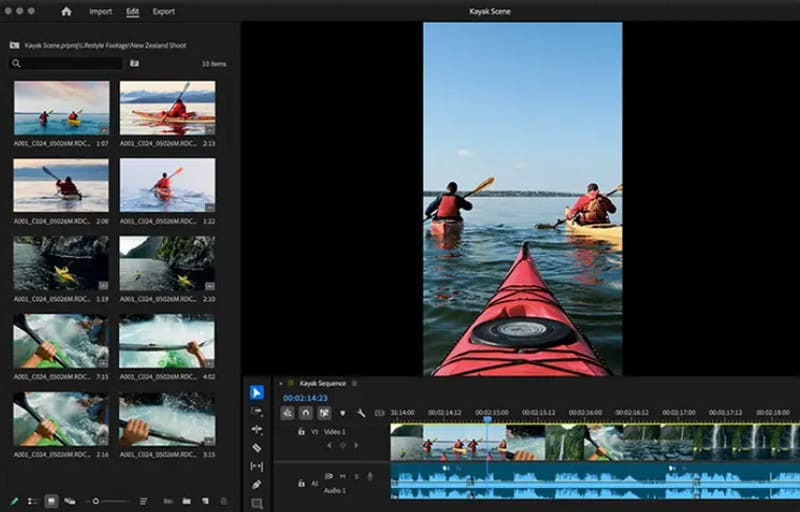
If you've ever dabbled in video editing, you're surely familiar with Adobe Premiere Pro. It's renowned for its comprehensive and advanced features. We've included it on our list of recommendations not only because of its popularity, but also to highlight its ability to add effects to keyframes.
Not only can you edit video frame by frame, but you can also apply effects to specific objects in selected frames. Adobe Premiere Pro provides ample timeline space to let your creativity run wild. If there's anything else you'd like to try, we also recommend using plugins to enhance your video editing.
Pros
- Offers virtually every editing feature you'll need.
- Powerful special effects capabilities.
- Integrates seamlessly with a range of Adobe products.
Cons
- It's quite complex to use.
- Requires high system specifications.
Top 5. Stop Motion Studio
Best for: Rearranging Frames
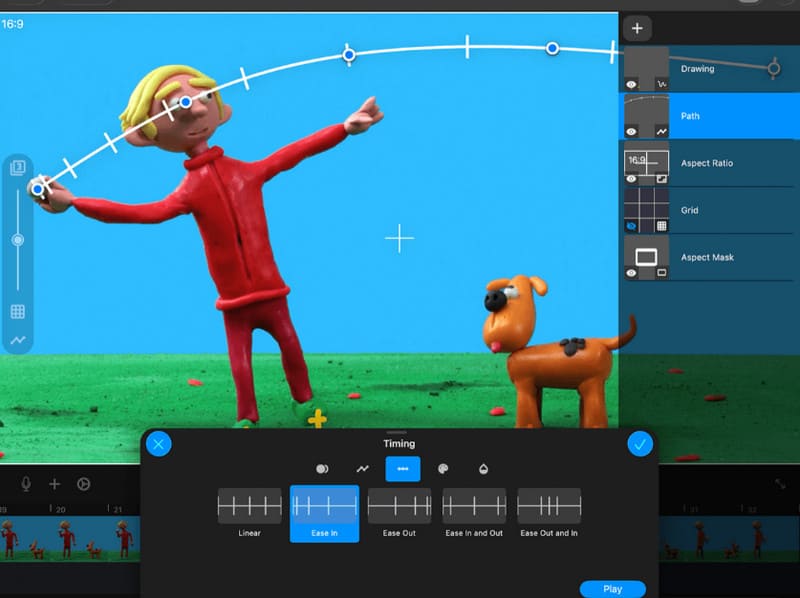
If your main goal is to organize and rearrange your footage to edit a complete video, we highly recommend trying Stop Motion Studio.
First, Stop Motion Studio's built-in frame-by-frame editor is optimized for maximum user convenience: all frames are displayed in chronological order, making it easy to view and organize them; the platform provides a thumbnail for each frame, allowing you to preview them by dragging the mouse and easily lock onto the target frame; want to edit a specific frame? Just click on its thumbnail with the mouse.
Additionally, you can use the Shift key in combination with the mouse to rearrange frames and move some of them to new positions.
Pros
- Offers a very convenient frame-by-frame editor.
- Easy-to-use frame rearrangement feature.
- Available in both mobile and desktop versions.
Cons
- Occasionally experiences issues with blurry exports.
- Relatively limited audio editing capabilities.
Top 6. Final Cut Pro
Best for: Ideal for Mac users
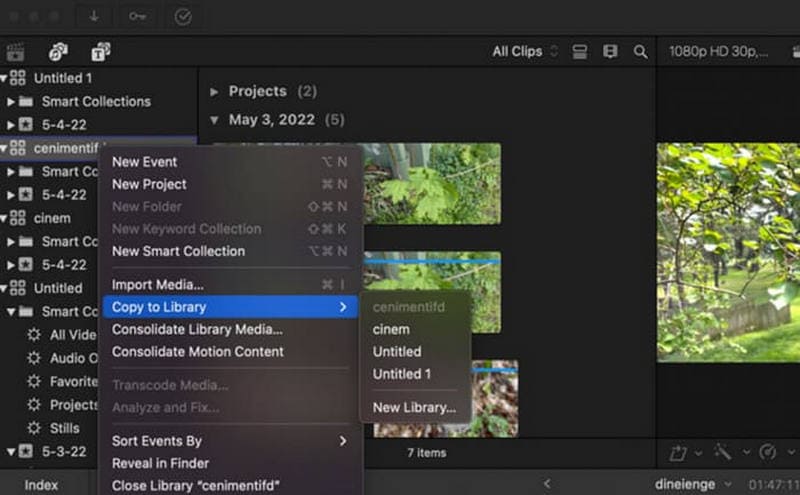
If you're using a Mac, Final Cut Pro might be the video editor for you. Its proprietary Magnetic Timeline not only helps you pinpoint the exact position of a frame but also helps you avoid issues with misaligned footage. And you don't have to worry about a lack of precision - Frame Accuracy ensures you can edit down to any single frame.
Pros
- Supports precise frame positioning to prevent misalignment issues.
- The preview feature is very user-friendly.
- Fully compatible with the Apple ecosystem.
Cons
- Not available for Windows users.
- High price.
Top 7. Krita
Best for: Frame-by-Frame Animation Editing
You might be wondering: I'm deeply involved in the animation industry - is there a frame-by-frame animation editor that's right for me?
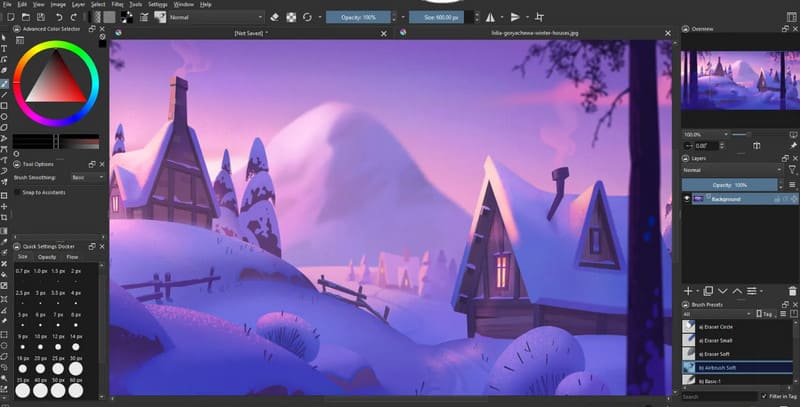
As a digital painting software, Krita has always focused on frame-by-frame animation. Combined with its frame-by-frame editing features, it might just be the tool you're looking for. We'd like to emphasize that Krita is particularly well-suited for users who enjoy hand-drawn animation.
Krita's Animation Timeline helps you create and edit frames one by one, while the Onion Skin feature ensures you can reference the content of both the previous and next frames simultaneously. Once you've completed the initial production, you can also preview each frame individually to check for any overlooked details.
Pros
- Completely free and open-source.
- Ideal for animation production.
- Features a special Onion Skin function.
Cons
- Limited to animation creation; not suitable for general video editing.
Top 8. Blender
Best for: Editing 3D videos
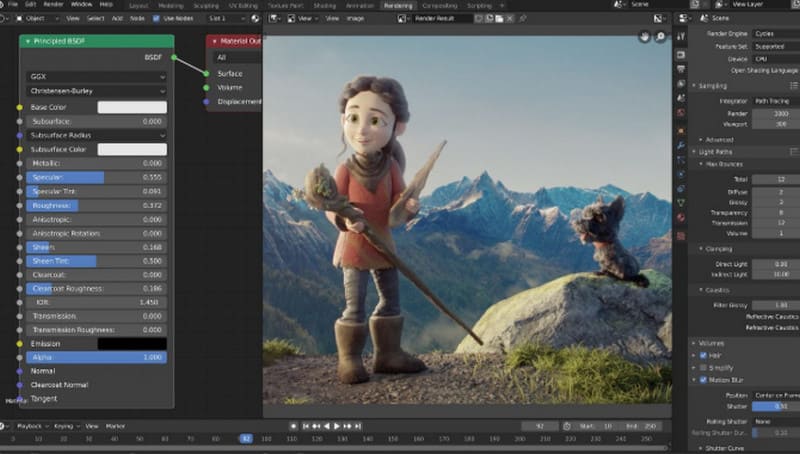
This guide doesn't just cover 2D content - it also includes Blender, a platform capable of editing 3D videos.
Blender has always been known for modeling and creating 3D animations, but it also offers frame-by-frame editing for both 2D and 3D videos, just like a standard video editor, through its Video Sequence Editor.
Pros
- Free and open-source
- Can create both 2D and 3D content
- Excels at fine-tuning.
Cons
- The user interface is complex.
- The editing features aren't as user-friendly as those in standard video editors.
Top 9. Capcut
Best for: Zooming in on the Timeline
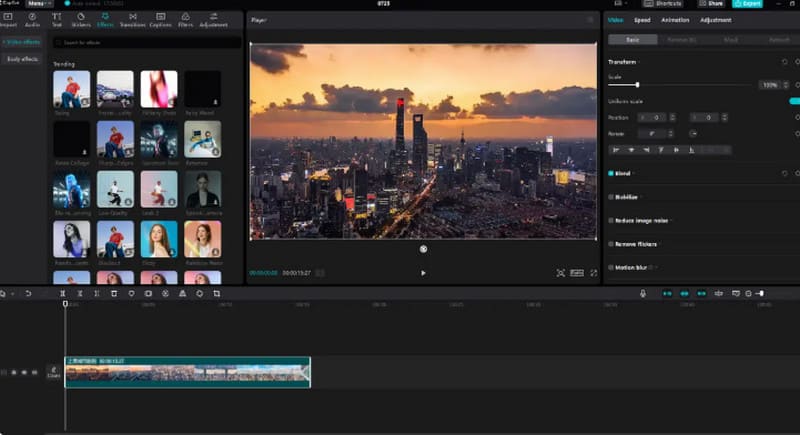
Like Adobe and DaVinci Resolve - mentioned earlier - CapCut is a veteran in the video editing world. As an all-in-one video editing platform, CapCut offers a wide range of features that enable frame-by-frame editing.
What we'd like to highlight in this article is CapCut's video frame zoom feature. Not only can you preview the content of each frame on the timeline, but you can also zoom in on the timeline by scrolling the video wheel to view frames with greater precision. Additionally, the platform offers unique freeze-frame effects, allowing you to create stop-motion animations that highlight a specific moment.
Pros
- Highly compatible; works on both computers and mobile devices.
- Offers a wide variety of trendy templates and effects.
- The timeline can be zoomed in.
Cons
- Can be a bit challenging to produce complex, long videos.
Conclusion
This guide introduced nine frame-by-frame video editors, including powerful options that offer precise frame-level editing, support both desktop and mobile platforms, and excel at creating 2D and 3D animations. We've outlined the key strengths and drawbacks of each editor to help you find the one that best suits your editing needs.