4 Simple Ways to Turn DivX to MP4 Format: Methods for 2026
DivX was among the reigning champions of digital video in the early 2000s due to its efficient compression. However, as video players evolve, so do our standards for quality and compatibility. There are also some programs that don't support the format anymore. Thus, if you want to play your DivX on all media players, the best thing to do is to convert it first to the MP4 format. MP4 is the most popular format you can access for better video playback. It can even offer good quality. If you are looking for the best methods to convert DivX to MP4, you must visit this guidepost. We will offer the best online and offline methods you can check and follow to achieve your desired result. Thus, read this article and learn more.

PAGE CONTENT
Part 1. What is a DivX Format
DivX is a digital video codec. It is a compression technology based on the MPEG-4 Part 2 standard, which gained fame in the early 2000s for enabling high-quality video at small file sizes, allowing full movies to fit on a single CD-R. While often considered to be a 'format,' DivX is typically stored within an AVI container file. It became synonymous with ripped DVDs and early internet video sharing, but has since been rendered largely obsolete by more efficient and universally compatible modern codecs like H.264 and HEVC, commonly seen in MP4 files.
Part 2. 3 Free Ways to Convert DivX to MP4
Do you want to learn how to convert DivX to MP4? If so, you can check all the methods from this post, as we give the best conversion process online and offline.
Method 1. Convert DivX to MP4 Using Vidmore Free Video Converter Online
If you prefer an online converter to turn your DivX file into MP4 format, you can use Vidmore Free Video Converter Online. This web-based converter is perfect if you want a smoother conversion process. What we like here is that you can get the best video quality after the procedure. You can also modify some parameters of the video. You can change/modify the frame rate, sample rate, bitrate, resolution, zoom mode, and more. What's more, the tool can also support various output formats, including MP4, FLV, M4V, VOB, MKV, AVI, WMV, etc. If you want to convert DivX to MP4 online, see the simple instructions below.
Step 1. Go to your primary browser and visit the main website of Vidmore Free Video Converter Online.
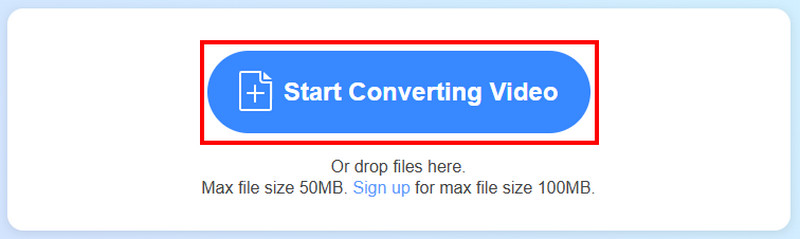
Step 2. After that, click the Start Converting Video to upload the DivX video you want to convert.
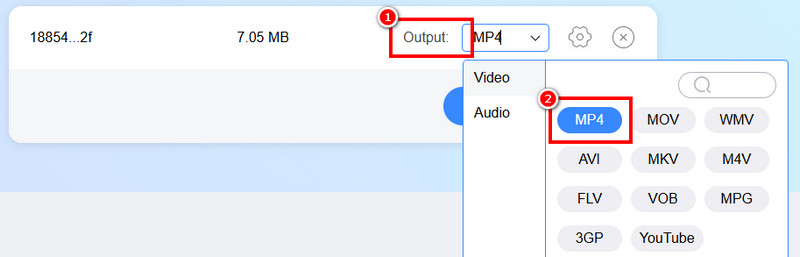
Step 3. Proceed to the Output section to select and click the MP4 format. You can also tick the Settings option to adjust some parameters, like sample rate, bitrate, frame rate, and more.
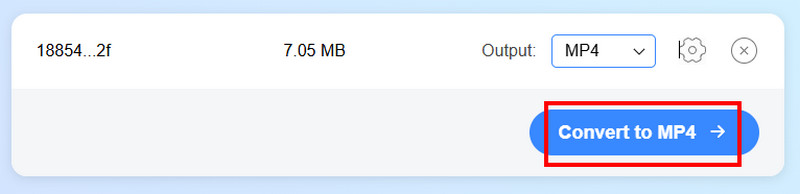
Step 4. To begin the final conversion process, click the Convert to MP4 button below. Once done, you can now save the video on your device.
Method 2. Convert DivX to MP4 Using Convertio
Another online converter you can rely on to effectively convert your DivX file into MP4 format is Convertio. It is among the most powerful converters you can access, thanks to its fast conversion speed, simple layout, and capability to convert multiple video files at once. In addition, the tool can offer its video resizer function to resize the video based on your references. You can also modify the frame rate, codec, quality, flip the video, and more. So, to check its capability, you can follow the steps below and convert a DivX file into MP4.
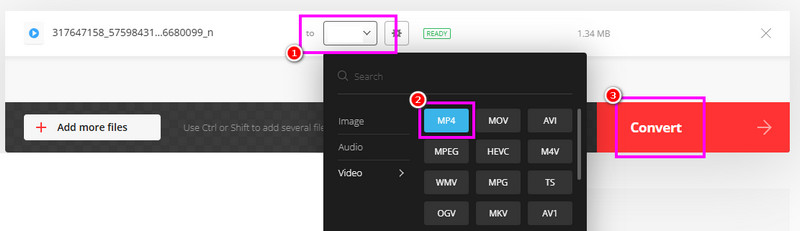
Step 1. Proceed to the main website of Convertio. After that, tap the Choose Files button to upload the DivX from your device.
Step 2. Then, go to the Output format section and choose MP4 as your main format.
Step 3. Finally, tap the Convert function to start the DivX to MP4 conversion process. Once done, hit Download to save the video on your computer.
Drawbacks
• Since it is an online tool, you must have a fast internet connection.
• The free version can only convert two files at once for batch conversion.
• The layout is looking outdated.
Method 3. Convert DivX to MP4 Using Handbrake
Handbrake is a free and open-source program you can use to smoothly convert DivX to MP4. The good thing about this software is that you can use all the functions easily since it has an understandable layout. Plus, it has a fast conversion process, so you can ensure that you can obtain your preferred result in just a moment. Moreover, there are various basic editing tools you can use to improve your file. You can flip the video on Handbrake, crop, insert filters and effects, and much more. See the steps below to start converting a DivX into MP4 on Handbrake.
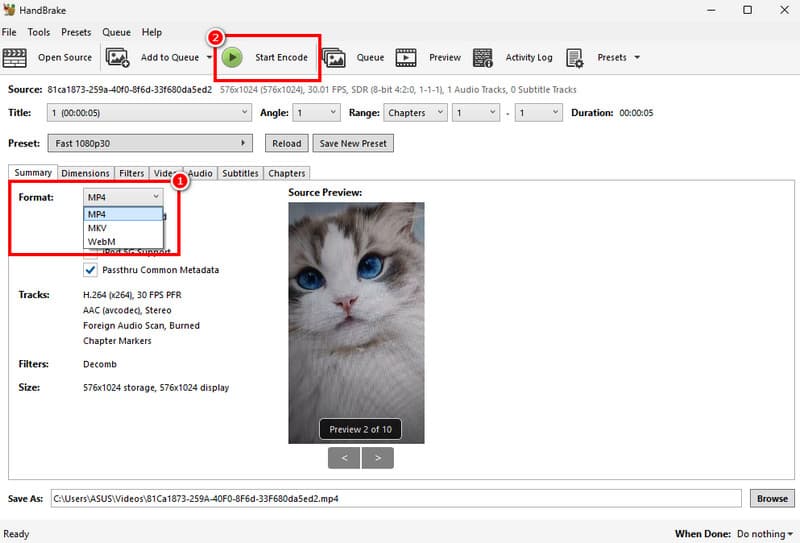
Step 1. Download and install Handbrake on your computer. Then, after you launch it, start inserting the DivX file by clicking the File button.
Step 2. Navigate to the Summary > Format section and hit MP4. After that, proceed to the next step.
Step 3. For the final step, tap the Start Encode button above to turn your DivX into MP4 format.
Drawbacks
• The interface of the tool is looking outdated.
• There are times when the conversion process is too slow.
• It only supports a few output formats.
Part 3. The Ultimate Way to Convert DivX to MP4
Are you still looking for the best video converter? In that case, you can try using Vidmore Video Converter. This software is ideal since it has all the features you need. You can convert the Divx smoothly and easily. It can also offer its fast conversion process up to 50× faster. Plus, you can select/choose your preferred video quality, like 1080p and even 4K. The best part here is that it offers its batch conversion feature, allowing you to convert more than two files simultaneously. It also supports hundreds of formats, including M4V, MKV, VOB, WMV, FLV, MOV, AVI, and more. Thus, if you need a powerful DivX to MP4 converter, look no further than Vidmore Video Converter.
To convert DivX to MP4 for free, use the procedure below.
Step 1. Download Vidmore Video Converter on your Mac or Windows. Then, install it to start the DivX to MP4 conversion process.
Step 2. Navigate to the Converter section and start inserting the DivX file by hitting the Add Files button.

Step 3. From the Output Format section, choose the MP4 format. You can also pick and tap the video quality you want, such as 720p, 1080p, and even 4K.
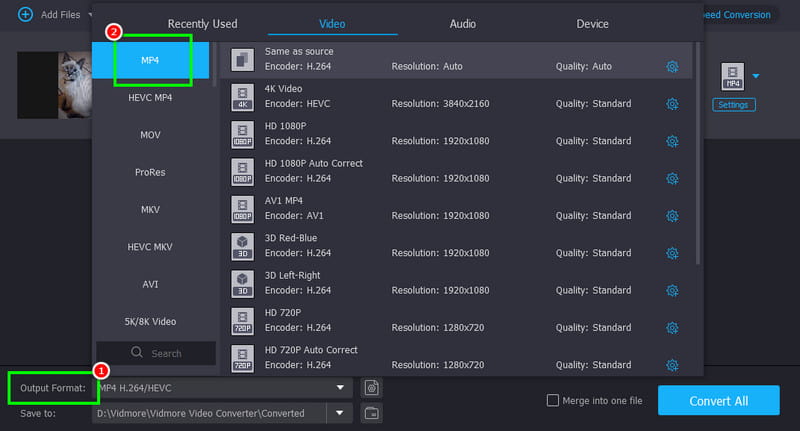
Step 4. You can now tick the Convert All button to start converting the file. After the process, the program will automatically save the video on your computer.
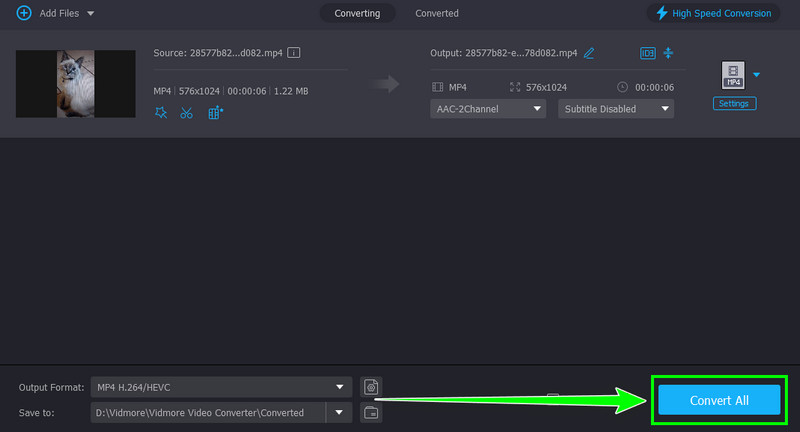
With this method, you can now play your video in any multimedia format. Thus, use Vidmore Video Converter and transcode your videos to any format for a satisfying video playback.
Part 4. FAQs about DivX to MP4
Is DivX a better format?
It was among the best formats before. However, since some latest media players don't support the format anymore, we can conclude that DivX is not considered a better format.
What is DivX commonly used for?
This type of format is widely used for sharing and streaming video files on a DivX-supported platform.
Is MP4 the best format?
Nowadays, MP4 is considered the best format since it is playable on all media players. Thus, if you want a smooth video playback, always use the MP4 format.
Conclusion
Converting DivX to MP4 is a wise decision if you want to play your video on any platform. Thanks to this tutorial, you have learned how to convert your DivX files into MP4 easily and effectively. Thus, if you need the best converters, you can use both Vidmore Video Converter and Vidmore Free Video Converter Online to achieve the result you need.