How To Shorten A Video On iPhone: Two Available Ways for You
If you've ever tried shooting short videos with your phone and posting them to video platforms, you'll know the process isn't as straightforward as it seems.
Just hit record, get your footage, and publish? No way - few people capture usable material on the first try. Plus, you have to consider whether there's any unnecessary footage before or after your main content. That's why learning how to shorten a video on iPhone is essential. You need to trim away the underwhelming parts from each clip and seamlessly blend the footage together to achieve your desired result.
We've recognized your need and prepared two methods for shortening a video on iPhone that anyone can use: no extra software downloads required - everything can be accomplished using your phone's built-in tools.

PAGE CONTENT
Bonus: Best Method to Shorten Video
When dealing with longer or more complex video editing and merging tasks, it's still more convenient to complete them on a computer. Not only does it allow for more precise control over details, but dragging and clicking are also much easier.
If this is what you need, we recommend trying Vidmore Video Converter Ultimate.
First, Vidmore Video Converter supports nearly all popular audio and video formats, meaning you'll likely encounter no compatibility issues when uploading your clips to this platform. Plus, imagine this: even if your uploaded materials are in different formats, you can use this platform to output them uniformly in a standard format.
Now, let's address the most crucial question: Does Vidmore Video Converter perform well in video editing?
Yes, and quite impressively. Right on the format conversion interface, you'll find a wealth of editing options - including trimming length, of course. Others include merging, rotating, cropping, adding watermarks and text, applying filters, and more. Beyond these, the software offers a Toolbox for additional utilities.
In short, this platform is perfectly suited for your video shortening needs.
Let's see how to use Vidmore Video Converter to shorten videos.
Step 1. Download and install Vidmore Video Converter on your computer.
On the main interface, you'll see a + button. Click it to upload your prepared video footage.
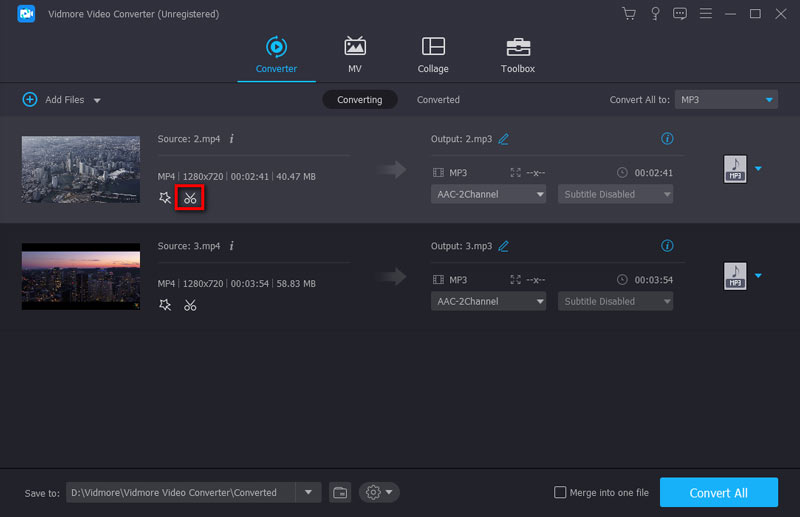
Step 2. After successful upload, locate the scissors-shaped Cut button in the bottom-right corner of the preview window. Click it to enter the Trim page.
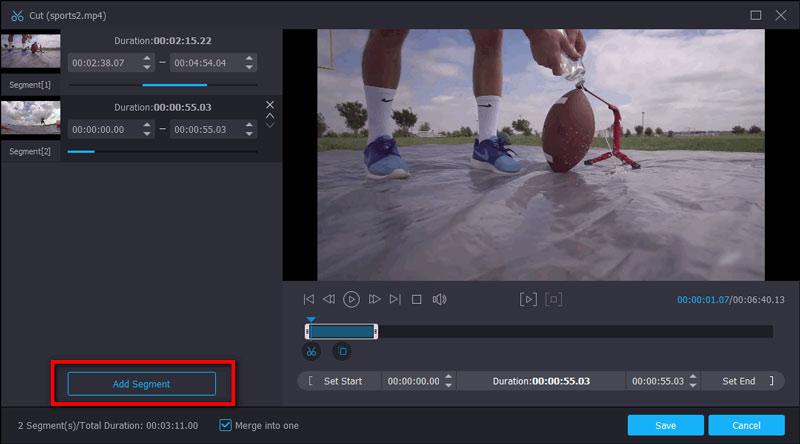
Step 3. Now, in the box below the video preview window, select the start and end timestamps for the segment you wish to keep. You can also set these directly by dragging the progress bar.
Then, click Add Segment to add your selected clip to the list on the left.
Once you have all the segments you need, click Save > OK.
Part 1. How to Shorten A Video on iPhone with Photos App
Typically, videos you shoot with your iPhone are automatically saved to the Photos app on your device.
The good news is that this app isn't just a platform for viewing videos and photos - it also offers basic trimming and editing features.
Using the Photos app to trim your videos is undoubtedly the most convenient and effortless method. We've prepared detailed step-by-step instructions below.
Here's how to trim video on iPhone using Photos.
Step 1. After filming your video, open the Photos app on your device, locate the video you want to edit, and tap to open it.
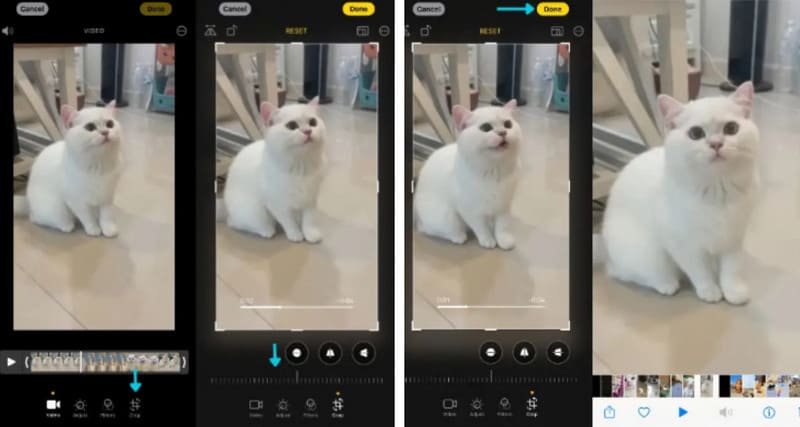
Step 2. In the video preview window, you'll see an Edit button in the top-right corner. Tap it to enter video editing mode.
Step 3. A toolbar will appear at the bottom of the screen. Locate and select Crop. Now, drag the sliders on either side of the timeline to select the portion you wish to keep.
Step 4. Tap Done on the screen to save your changes and exit editing.
Under the three-dot icon in the top-right corner, choose Save Video or Save As New Clip.
After completing these steps, you'll find your trimmed video in Photos.
Part 2. How to Trim Video on iPhone with iMovie
The Photos app's features are too basic for my needs. What should I do?
No worries - your device also comes with a pre-installed tool: iMovie, the expert for editing video projects. Find it in your app list and try using it to solve the problem of how to shorten videos on iPhone.
If you haven't tried it yet, follow the step-by-step guide below. We'll show you how to shorten a video on iPhone 14 with iMovie.
Step 1. Launch iMovie on your phone to enter the main interface.
Step 2. You'll see a prominent Start New Project button. Tap it, then select Movie from the menu below. Next, choose the video you want to edit from your Camera Roll or other accessible sources.
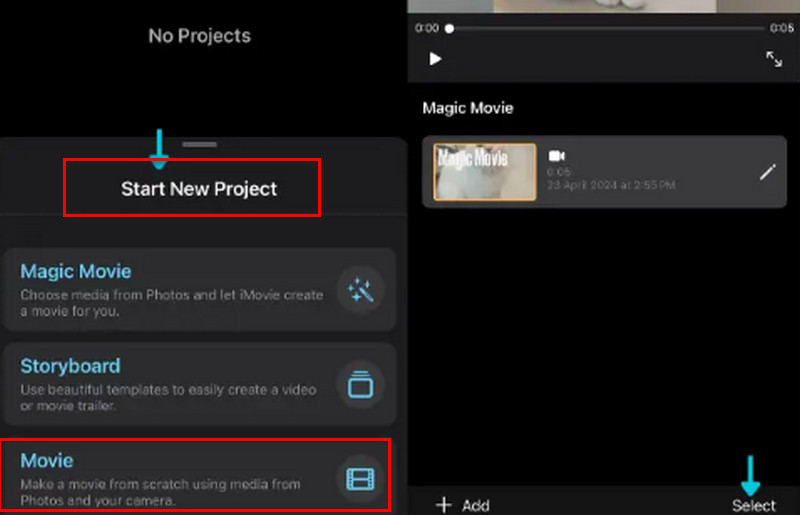
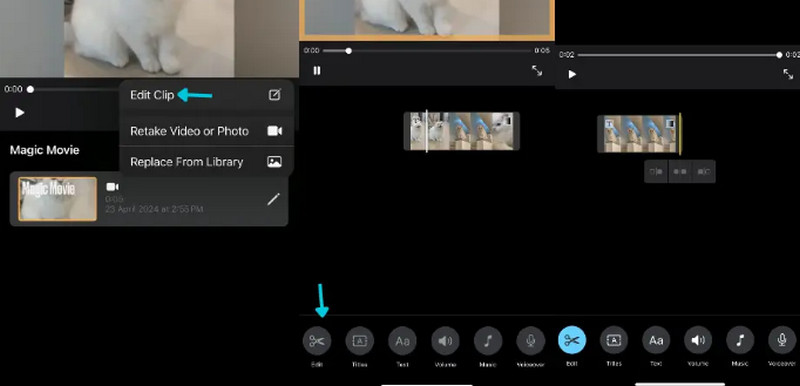
Step 3. Your selected video will automatically load into the new project. Tap to select it. A new preview window will appear on the right side of the screen. Below the window, locate and select Edit from the control menu.
Step 4. An editing interface will open. Drag the sliders at either end of the video timeline to select the portion you wish to keep.
Once editing is complete, tap Done.
Step 5. Select the Share icon, then choose to save the video to the Photos app.
Part 3. Tips to Shorten Video Perfect
Now that the question of how to make a video shorter on iPhone has been addressed, we'd be happy to explore another topic with you: how to ensure your edited video captures more viewers' attention?
Based on current online trends and shared experiences, we've summarized the following key points for your consideration:
• Identify your video's audience
Different viewer types have varying expectations for video content. It's essential to research existing works within your video's theme and analyze audience feedback to understand what segments they value most and what they wish to avoid. Use these insights to decide what to cut and what to keep.
• Retain key scenes
No one enjoys watching aimless rambling. When editing, ensure you preserve segments that convey the core theme or deliver essential information - such as pivotal dialogue, emotionally charged moments that build tension, or scenes that advance the plot.
• Ensure smooth transitions
Make your video watchable in one sitting with seamless continuity.
First, add transition effects between different scenes to bridge the gaps.
Second, maintain consistent color and lighting throughout the entire video.
• Consider platform standards
Different platforms have varying requirements for video length, format, and aspect ratio. Research the specifications of your target platform beforehand to ensure full compliance.
Part 4. FAQs on How to Shorten A Video on iPhone
How do I reduce the length of a video on my iPhone?
On your iPhone, there are two built-in tools that can help you trim MP4 or other video formats: Photos and iMovie. Simply select the footage you want to edit, then drag the slider on the video timeline to choose the portion you wish to keep.
Is it better to compress video or shorten it?
It's generally better to try trimming out unnecessary parts first. Compressing video may cause quality loss, making it look significantly worse.
How do I decrease the size of a video?
Two methods are most effective: shortening the video's length and compressing the video file.
Conclusion
How to shorten a video on iPhone?
If you only need to trim the beginning and ending parts you don't want, we recommend doing it directly within the Photos app. It provides the necessary editing features, and using it means you'll hardly need any file upload steps - just select your footage and start editing.
For more extensive editing capabilities and advanced features, iMovie is the better choice. This app is typically pre-installed on your device as well.
For more complex tasks, you may need to turn to desktop software like Vidmore Video Converter for professional assistance.