2 Best Ways to Transcode AMV to MP4 Formats [2025]
Have you ever tried playing your AMV file on your video player only to see the 'file not supported' error? Well, you are not alone. AMV is an excellent format that can offer a compact file size. However, there are some video players that don't support the format, which can lead to video playback errors. In that case, to play your video smoothly, the best thing to do is to convert AMV to MP4 format. Well, MP4 is the most popular format you can play on almost all video players. Thus, check this tutorial and explore various methods to transcode your videos offline and online.

PAGE CONTENT
Part 1. What is AMV Format
The AMV file format is a proprietary video container. This format is primarily associated with low-cost, older-generation MP4 players and action cameras, most notably those from manufacturers like AEE. Unlike other common formats, like AVI and MP4, AMV is not a standard codec but rather a specific implementation. It typically contains video compressed with a variant of the Motion JPEG codec and audio in the ADPCM format. In addition, this technical combination was designed for a specific purpose, which is to enable basic video playback on devices with very limited processing power and storage, achieving small file sizes at the expense of visual quality and compatibility.
Part 2. AMV vs. MP4
Are you interested in learning about the differences between AMV and MP4? In that case, check all the information below and get more insights about the two formats.
Encoding and Compression
The AMV format uses a modified version of the Motion JPEG codec for video and ADPCM for audio. It compresses each frame individually as a JPG image. On the other hand, MP4 is a container that typically utilizes modern and advanced codecs like H.264 or HEVC. These codecs use a complex inter-frame compression to store the changes from one frame to the next.
Resolution
When it comes to resolution, AMV has limitations. Almost all MV files are always capped at low resolution, such as 320×240 and 640×480, known as SD, with a low frame rate. If you want an excellent format that can offer great quality, MP4 is superior. This format can support a vast range of resolutions, from low-quality to 4K, 8K, and beyond. Plus, the advanced HEVC encoding delivers a smooth and high-fidelity video at high frame rates with clear audio.
Compatibility
In terms of compatibility, we can tell that MP4 is the best. This format is perfect since almost all video players can play MP4 files smoothly and easily. You can use the format on smart TVs, consoles, smartphones, major OS, and more. However, AMV is not as widely supported as MP4. You can only play AMV files on AMV-supported media players, like VLC Media Player. Thus, if you want to play your videos on various platforms, choosing MP4 is the best.
File Size
The AMV format contains a smaller file size per minute of recording. However, this is a misleading advantage. We all know that a small size is a direct result of the extremely low resolution, low frame rate, and inefficient but simple compression. You get a small file because it contains very little visual information. When it comes to MP4, it has a more efficient file size-to-quality ratio. For an equivalent resolution, an MP4 (H.264) will be much smaller than an AMV file because its compression is far more advanced. The best part here is that you can adjust MP4 file size through bitrate settings, balancing quality and storage needs effectively.
Part 3. Best AMV to MP4 Converter Online
Do you want an excellent AMV to MP4 converter? In that case, we recommend using Vidmore Free Video Converter Online. What we like about this tool is that it can instantly convert your AMV videos to MP4. It can even ensure that you can get an excellent quality, resulting in better video playback. Plus, the layout of the tool is simple, making it ideal for all users. The best part here is that you can convert multiple files, allowing you to save more time during the procedure. It can also support various formats, such as M4V, WMV, MKV, AVI, FLV, etc. Thus, if you are looking for a remarkable online converter, access Vidmore Free Video Converter Online. You can check the instructions to convert files using this AMV to MP4 converter online.
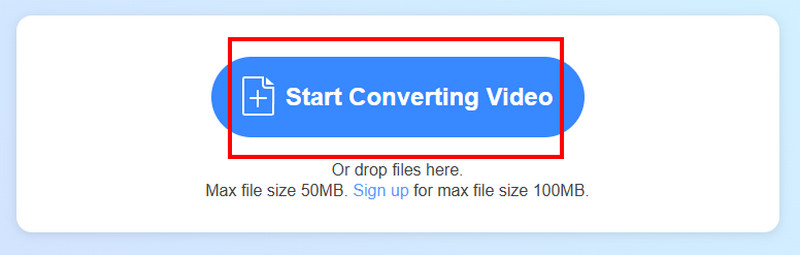
Step 1. Go to your browser and proceed to the main website of Vidmore Free Video Converter Online. After that, click the Start Converting Video option to upload the AMV video you want to convert.
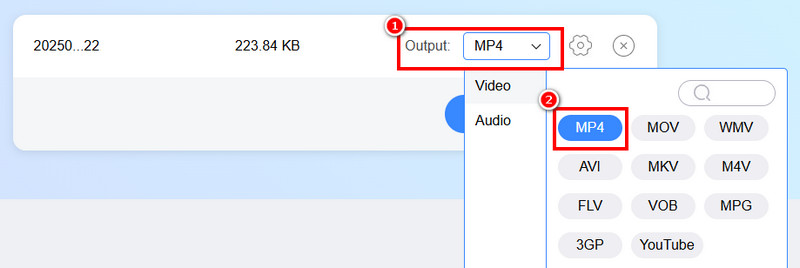
Step 2. For the next process, you can go to the Output options and select the MP4 format.
Step 3. For the final process, hit the Convert to MP4 button below. After the conversion process, click Download to save it on your computer.
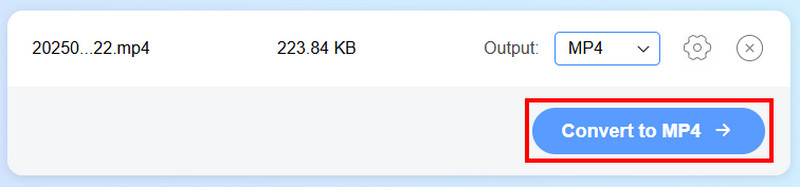
Thanks to this online method, you can instantly convert your AMV to MP4 videos. The good part here is that you can convert more files. You can convert MP4 to FLV, MP4 to AVI, AVI to MKV, and more. Thus, access this tool on your browser for an effective conversion process.
Part 4. Best AMV to MP4 Converter Offline
If you want to convert AMV to MP4 offline, it is better to use Vidmore Video Converter. This offline converter is ideal if you want to smoothly transcode your AMV file to MP4 format for better compatibility. It can give you an excellent user interface and a fast conversion process for up to 50 times faster. The converter can also offer its batch conversion feature, perfect for dealing with more than one video file. What we like here is that the program is free, so there is no need to purchase any plan. To check the program's capability, follow the process below.
Step 1. Tap the buttons below to download Vidmore Video Converter on your Mac and Windows.
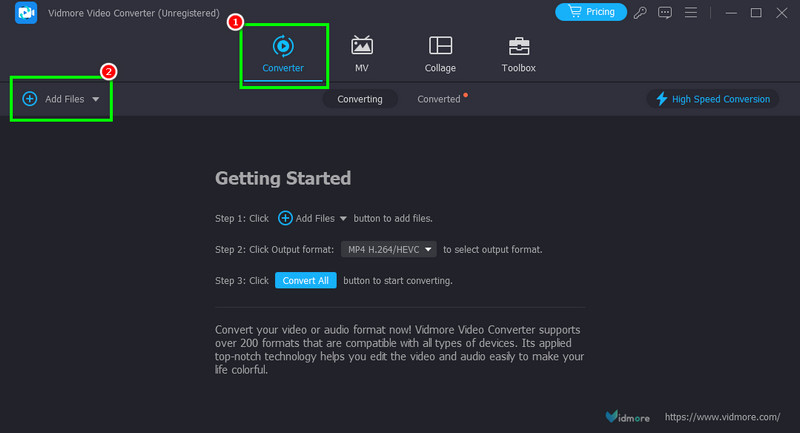
Step 2. Go to the Converter section and add the AMV file by clicking the Add Files button.
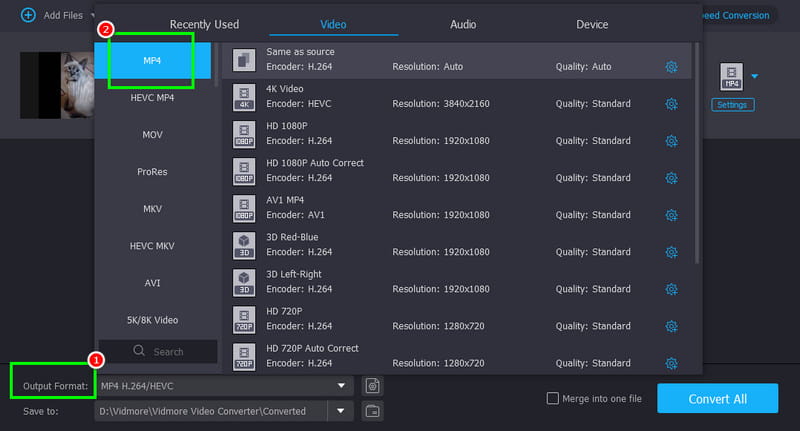
Step 3. Navigate to the Output Format section and select the MP4 format. You can also choose your desired video quality.
Step 4. After choosing the format and quality, start hitting the Convert All button to begin converting and saving the video on your device.
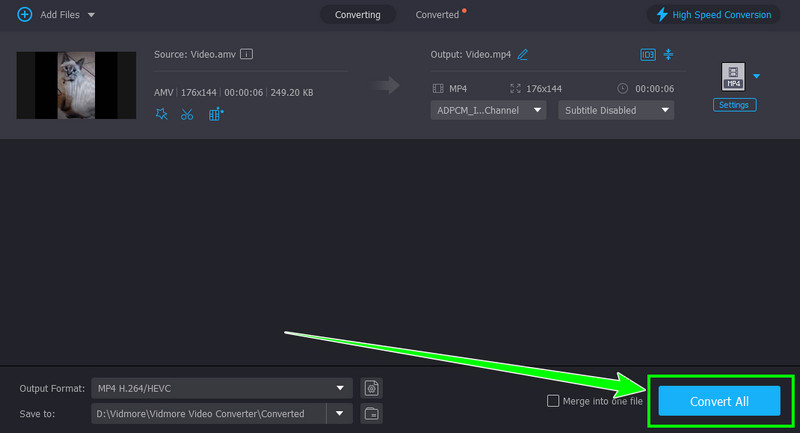
With this method, you can instantly transcode your AMV to MP4 smoothly. The best part here is that it can give you all the necessary features for an effective conversion process. Thus, use this program for a successful procedure.
Part 5. FAQs about AMV to MP4
Is MP4 better than AMV?
Definitely, yes. MP4 is superior since it is compatible with various media players. It can even give you an excellent video quality, making it an ideal format.
How long does it take to convert AMV to MP4?
It depends on the tool you use. If you want a fast conversion process, access Vidmore Video Converter since it can let you convert videos 50 times faster.
What are the benefits of using MP4?
You can play MP4 files on any multimedia player. Plus, it has a reasonable file size, making it ideal for storing purposes.
Conclusion
To convert AMV to MP4, it would be best to read this article since it has all the methods you need to transcode files online and offline. Thus, for an effective conversion process, we recommend using Vidmore Free Video Converter Online and Vidmore Video Converter. These converters ensure that you can achieve the result you want after the process.