A Full-Aspect Review of Cisdem Video Converter: Pros & Cons
Do you often need to handle various types of video editing tasks in your daily workflow? For example, simple video trimming, format conversion, or even more advanced operations like DVD ripping and other complex processes? Each of these tasks can easily consume a significant amount of time on your computer.
However, all-in-one software solutions have emerged to combine these common needs into a single, user-friendly platform. One such option is Cisdem Video Converter.
If you've already learned about this software and want to evaluate its real-world performance before deciding whether to download it, this Cisdem Video Converter review is exactly what you need.
Based on hands-on testing, research, and analysis, this article will provide a comprehensive overview of its features, pros and cons, pricing, and step-by-step usage guide. If you're also interested in exploring similar products, an alternative option will be introduced for comparison as well.

PAGE CONTENT
Part 1. Overview: Cisdem Video Converter
Let's start at the beginning: First, let's examine what Cisdem Video Converter actually is.
Cisdem Video Converter (now renamed Cisdem VideoPaw) is a desktop digital media file format converter compatible with Windows and Mac computers. It currently supports over a thousand digital formats and the latest video codecs. Building on this foundation, the developers have added more video processing and production features, such as traditional video trimming, enhancement, compression, and the latest AI-powered enhancement capabilities.
For other video-related scenarios like downloading videos, screen recording, or DVD ripping, the official solution also provides dedicated tools.
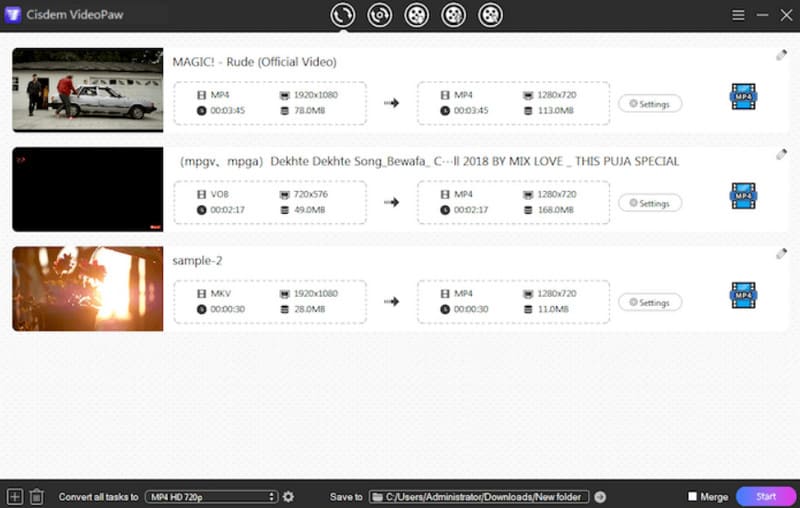
Let's now break down the services it currently offers users:
Main Features
- • Supports conversion between 1000+ video and audio formats.
- • Integrates a full suite of basic video editing functions including playback, editing, and merging.
- • Download videos and music from over 10,000 websites including YouTube, Facebook, and TikTok.
- • Bypass encryption and regional restrictions to rip DVDs and Blu-ray discs with a single click.
- • Simultaneously or separately record computer screen and webcam footage, along with microphone or system audio.
- • Efficiently compress video files with highly customizable output settings.
- • Enhance videos to HD and 4K resolution powered by AI technology.
Overall, you'll find Cisdem Video Converter truly covers the entire video production process:
For source material collection, you can use it to download existing videos, re-record videos, or even extract videos from discs. During video production, it helps you adjust various parameters, enhance quality, edit, merge, and more. Finally, during export, it supports compressing video size and selecting output formats.
Of course, every tool has its strengths and weaknesses. To maintain objectivity, we've summarized its key advantages and drawbacks:
Pros
- Strong compatibility. Supports over 1000 formats and the latest codecs.
- High-quality output. Built-in features ensure lossless video quality.
- Versatility. The addition of a compressor and downloader makes it more complete.
Cons
- Occasional lag when processing larger files.
- Some users report occasional crashes in the Windows version.
- Limited free trial. Subscription pricing is slightly high.
Part 2. Pricing Plans of Cisdem Video Converter
When determining whether a 4K video converter suits your needs, functionality is undoubtedly the most critical factor. However, we must also consider a more practical question: Is the price within my budget?
In this section, we'll primarily outline the subscription plans offered by Cisdem Video Converter and the corresponding unlocked features to help you make an informed decision.
First, it's important to clarify that obtaining the Cisdem Video Converter full version for free download is entirely possible. The platform also offers every new user a trial experience: you can convert half of any selected file, up to a maximum of 5 minutes. To continue using the full capabilities, consider the following plans:
• One-Year Subscription
1 PC: $49.99
2 PCs: $69.99
5 PCs: $124.99
• One-Time Purchase
1 PC: $69.99
2 PCs: $97.99
5 PCs: $174.99
• Business License
1 PC: $89.99
2 PCs: $125.99
5 PCs: $224.99
Part 3. How to Use Cisdem Video Converter
Without seeing the actual interface, it's hard to judge whether this software is user-friendly for newcomers or if the steps are complicated. Therefore, this section will walk you through the entire process of performing a basic video format conversion using Cisdem Video Converter.
If you've already downloaded the software, you can also use this section as a beginner's guide.
Step 1. First, download and install Cisdem Video Converter on your computer.
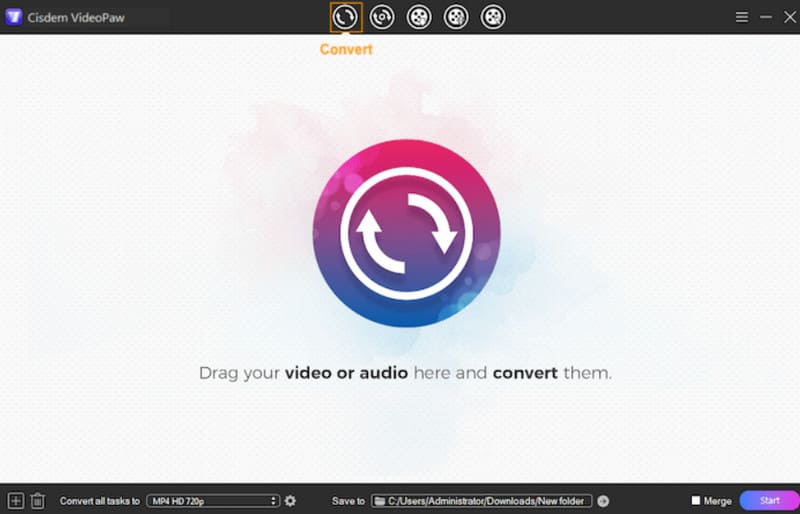
Launch it and click the first icon at the top of the page—the Convert option. Now you can drag and drop the video you want to process into the current window.
Step 2. After successfully uploading the video project, you'll see a blue icon representing the format on its far right. Click it to expand the menu and select your desired output format.
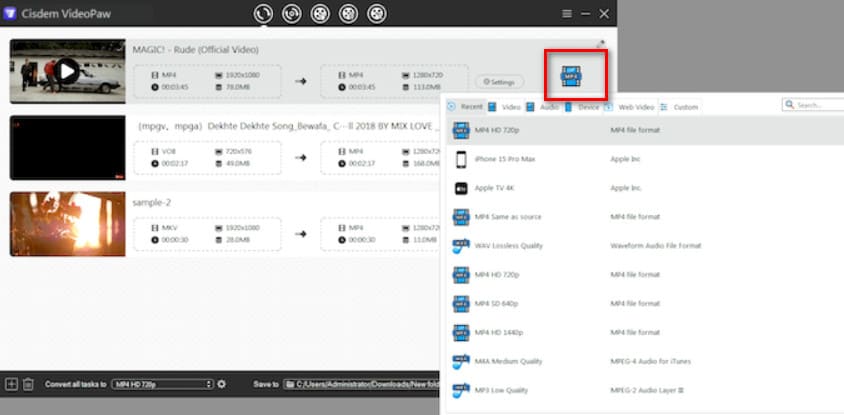
If you need to modify parameters like the video encoder, resolution, or frame rate, click the Settings icon.
To edit the current video, click the brush icon in the top-right corner of the project to open the Video Editor interface.
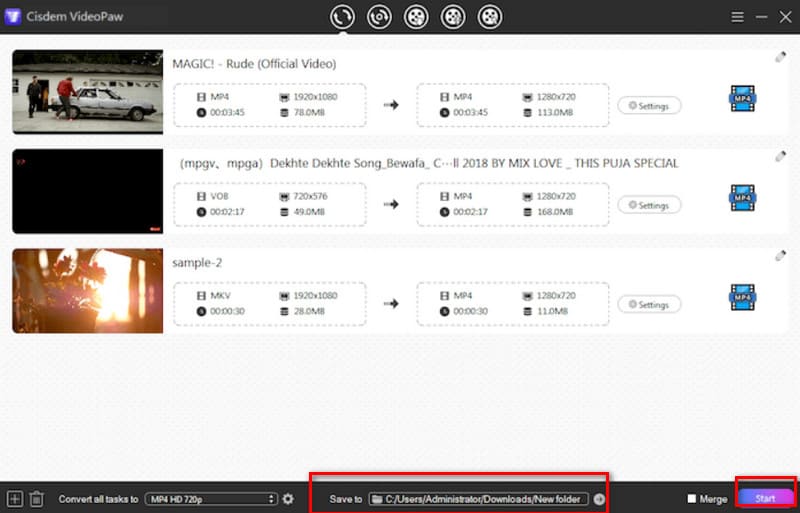
Step 3. Click Save to at the bottom of the page to select an output path for your converted file.
Finally, click Start to begin the conversion.
Part 4. Best Cisdem Video Converter Alternative
If you appreciate all-in-one video processing tools like Cisdem Video Converter but are deterred by its expensive subscription fees or other factors, we recommend trying a more cost-effective alternative with similar functionality: Vidmore Video Converter.
Vidmore Video Converter is also a desktop software that combines video format conversion, editing, and creation, compatible with both Windows and macOS systems. It supports over 200 formats and offers more than 100 presets optimized for popular devices. Here, you'll also enjoy lossless quality and efficient, high-speed service. Even more impressively, thanks to technological advancements, Vidmore Video Converter now achieves conversion speeds up to 50X faster, effortlessly handling batch processing of multiple files or converting large files.
Main Features
- • Supports conversion between 200+ common audio, video, and image formats.
- • Provides a full suite of video editing tools, including trimming, cropping, enhancement, compression, and more.
- • Equipped with diverse video filters, effects, and transitions for application.
- • Creates professional-grade films or music videos using image or video fragments.
Here is how to convert a video with Vidmore Video Converter.
Step 1. Download Vidmore Video Converter to your computer. Launch it and enter the main interface.
Click Add Files to import your video files.
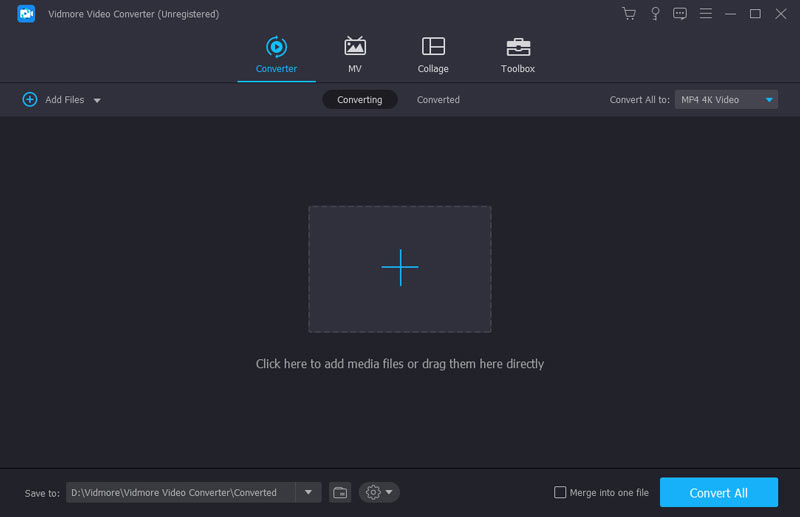
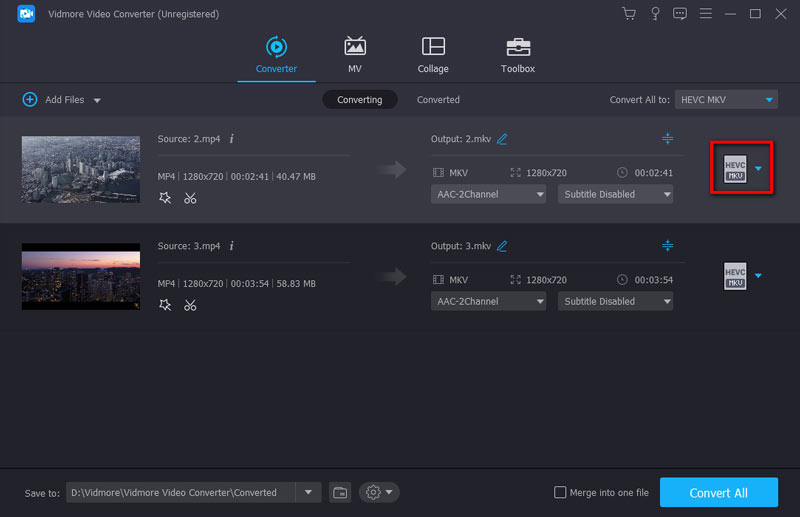
Step 2. Click the format icon next to the uploaded video item. When the menu expands, select Video, then choose your desired output format.
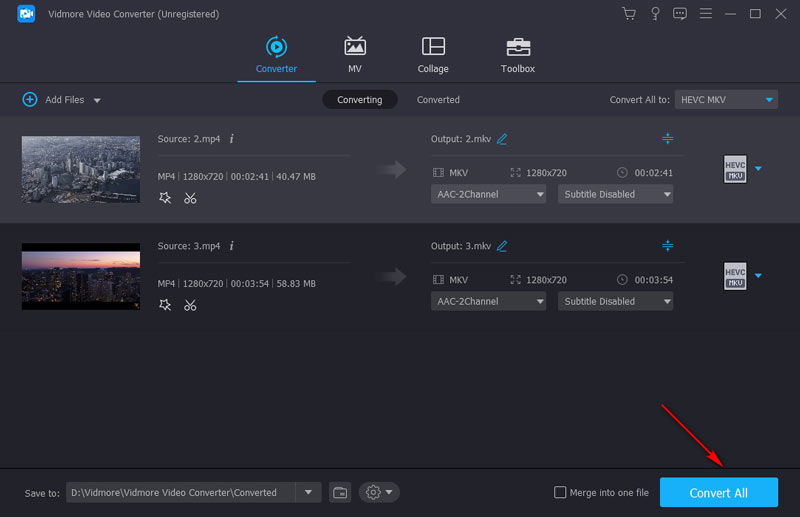
Step 3. Click Convert All to start the conversion.
Part 5. FAQs of Cisdem Review
Is Cisdem free to use?
No. Cisdem Video Converter only offers a very limited trial experience. If you want to edit and output videos normally, you need to subscribe to a paid plan.
Is it safe to use Cisdem?
Yes. Cisdem Video Converter has undergone numerous updates and maintenance cycles and has been recognized by users worldwide. It contains no ads or viruses, so you can use it with confidence.
Is Cisdem Video Converter good?
Yes. In terms of feature diversity, compatibility, and user experience, Cisdem Video Converter performs exceptionally well. However, its subscription pricing is somewhat expensive.
Part 6. Final Verdict
After reviewing Cisdem Video Converter, you'll find it truly excels for users needing to create or edit videos. From sourcing footage to merging, trimming, and ensuring output quality, it provides all the necessary features to keep everything running smoothly. If you're looking for an all-in-one solution to handle everything, choosing it is a solid decision.
If your current budget is tight or you want to avoid potential crash risks, trying its alternative, Vidmore Video Converter, is also a great option.