How to Change MOV to M4V on Mac: Best MOV to M4V Converters
Have you captured a perfect video on your iPhone or other professional camera, only to find it stubbornly refuses to play on your tablet, television, and other media players? The chances are you are dealing with an MOV file. Even if the format can offer you excellent quality, you may encounter compatibility issues since some of the multimedia players don't support it. With that, for wider compatibility and smooth video playback, we are here to give you the best methods to convert MOV to M4V on Mac and other platforms. Thus, to give you more insights about the best MOV to M4V conversion process, instantly read everything in this tutorial.

PAGE CONTENT
Part 1. Convert MOV to M4V on Mac and Windows
To convert MOV to M4V on your Mac, you must use an excellent program that can offer a smooth conversion process. In that case, we recommend using Vidmore Video Converter. This software is perfect in all ways. It can offer a simple user interface for the easiest process. In addition, you can get a fast conversion process for up to 50 times faster compared with other converters. You can also convert multiple MOV files, thanks to the program's batch conversion features. What we like here is that you can also choose your desired video quality, such as 720p, 1080p, and 4K. It can also support hundreds of formats, including MP4, WMV, MOV, AVI, FLV, VOB, and more. Thus, if you need the best MOV to M4V converters on Mac and Windows, consider using Vidmore Video Converter.
Core Features
• The program can offer a smooth and fast conversion process.
• It can provide various editing functions to improve the video.
• The video converter can offer a smooth export process.
• It supports high-quality video processing features.
To start the MOV to M4V conversion process, check the steps below.
Step 1. Tic the Free Download button below to access and download Vidmore Video Converter on your Mac. After the installation process, launch it to start the MOV to M4V conversion procedure.
Step 2. From the UI, proceed to the Converter section and hit the Add Files button to insert the MOV file.

Step 3. Navigate to the Output Format section below and start clicking the M4V format. You can also pick/choose the video quality you want.
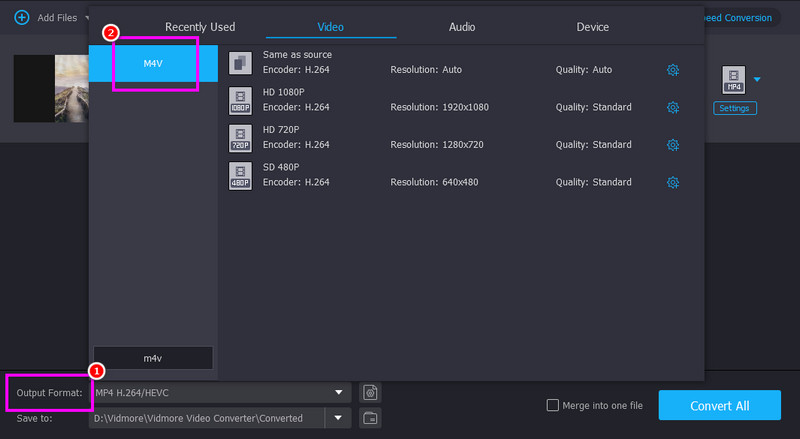
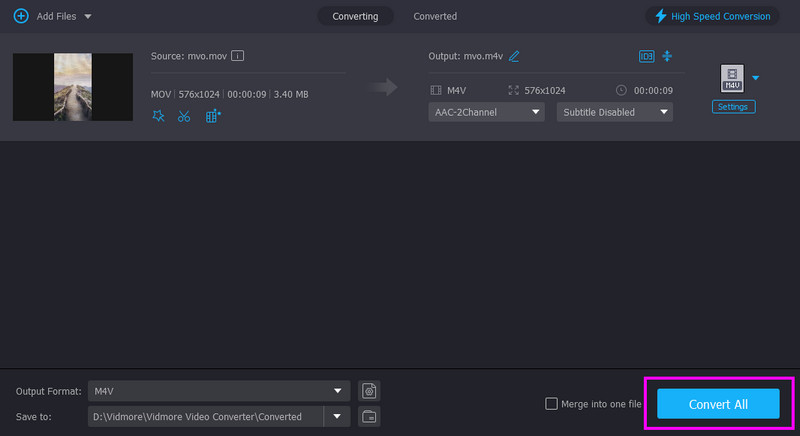
Step 4. For the final process, tap the Convert All button below. Once done, start watching your M4V file on your Mac.
Part 2. Change MOV to M4V Online
Want to convert MOV to M4V online? If so, feel free to access Vidmore Free Video Converter Online. With this online-based converter, you can transcode your MOV file into M4V format. The best part here is that you can use this tool for free. You can even expect an excellent experience after the conversion process. You can also change some parameters, including resolution, bitrate, sample rate, zoom mode, and more. Plus, you can use this tool on various browsers, making it accessible to all users. Therefore, if you want to transcode your MOV files into M4V, consider using this tool. Follow the detailed steps below to start converting your MOV files.
Step 1. Go to your main browser and proceed to the main website of Vidmore Free Video Converter Online. Then, click the Start Converting Video to upload the MOV file you want to convert.

Step 2. Proceed to the Output > Video section and select the M4V format. Once done, go to the next step.

Step 3. Hit the Convert to M4V button to start the conversion process. Once done, save it on your Mac.

Part 3. Transcode MOV to M4V Using QuickTime
On your Mac, you can also use QuickTime Player for an effective conversion process. Well, this software is not just an excellent media player. You can access its video converter feature to change your MOV to an M4V file. What we like here is that it has a smooth conversion feature and a simple interface. Plus, you don't have to download QuickTime since it is a pre-built program for Mac. Thus, to transcode your MOV files to M4V, use the software right away.
Limitations
• There are times when QuickTime is not working well.
• It lacks video editing tools to improve the video.
• It is only accessible on Mac.
To convert MOV to M4V on QuickTime, see the steps below.

Step 1. On your Mac, launch the QuickTime Player and add the MOV file. After that, proceed to the File option and tap the Export button.
Step 2. When various options show up, select the iPad, iPhone, or Apple TV to change MOV to M4V.
Step 3. Finally, click the Save button to keep the converted video on your Mac.
Part 4. Convert MOV to M4V Using Handbrake
Handbrake is another offline program that can instantly turn your MOV file into M4V format by changing the file extension. The good part here is that you can finish the process without any difficulties since it can offer a simple layout. You can also use various editing functions to enhance your videos. You can compress video on Handbrake, flip, crop, add filters, and more. Thus, try using this software to check its overall capabilities.
Limitations
• The program's layout is not that appealing.
• There are times when it is not performing well.
• Some of its functions are confusing to access.
To change MOV to M4V, see the instructions below.
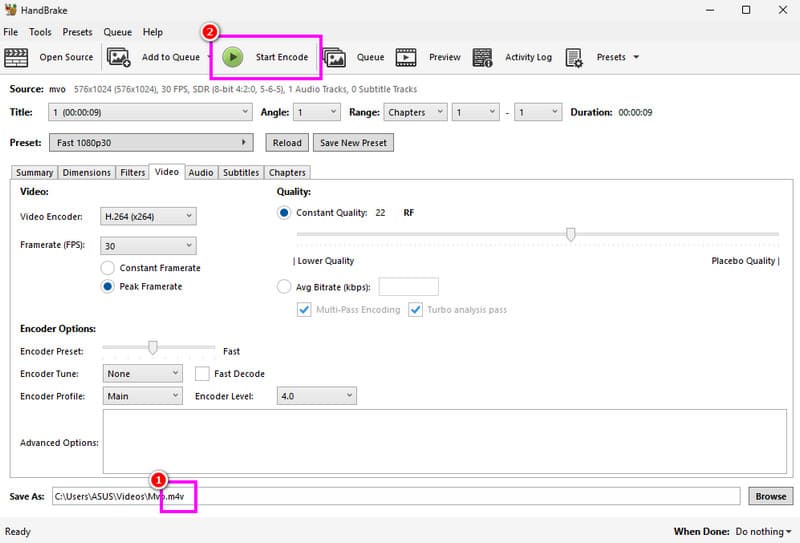
Step 1. After you download the Handbrake software, launch it and tap the File button to insert the MOV file.
Step 2. Then, go to the bottom interface and change the file extension to .m4v.
Step 3. For the last step, go to the top interface and hit the Start Encode button. Once the conversion process is done, you can now play the M4V file on your media player.
Part 5. FAQs about Converting MOV to M4V
What is the best format to convert MOV to?
You can convert MOV to an M4V file for better compatibility. However, if you want the best format for better quality and smoother video playback, it is best to use the MP4 format.
How to turn MOV to M4V without losing quality?
To transcode your files while preserving the quality, you can use Vidmore Video Converter. This program ensures that you can get the result without losing the quality. You can even enhance the quality for a better video playback, making it the best video converter.
What are the disadvantages of MOV?
MOV has a large file size, which is not ideal if you are using a desktop that doesn't have enough storage space. Plus, it is not widely supported by some media players. With that, it would be better to convert it to another format for better compatibility.
Conclusion
If you want to convert MOV to M4V using a Mac, it would be better to use all the methods we have recommended above. Those methods ensure that you can get your desired result after the conversion process. Plus, if you need an excellent video converter, we suggest using both Vidmore Video Converter and Vidmore Free Video Converter Online. These two programs can give you a smoother conversion process, making it one of the most remarkable converters for everyone.