Best 3 Desktop & 2 Online Tools for Converting Video to 4K
If you frequently watch videos, you may have noticed that video clarity has undergone a dramatic transformation in recent years. While 720p was once considered sufficiently sharp, the advent of 1080p brought another noticeable leap in visual quality. The emergence of 4K, however, has allowed us to witness scenes nearly indistinguishable from real life: more intricate details, crisper lines, and more lifelike colors.
But what if some videos are only available in lower native resolutions? The solution is to use a video enhancer to convert video to 4K. Numerous desktop and cloud-based tools exist to accomplish this task. This guide recommends five such tools, complete with detailed step-by-step instructions to help you achieve your goal.

PAGE CONTENT
Part 1. Differences: 1080P vs 4K vs 8K
Currently, the highest standards for video clarity are represented by 1080p, 4K, and 8K. Their quality progressively increases. If you want to understand what elements distinguish these three resolutions, please refer to this section.
First, we will use a table to illustrate the differences in their specifications:
| Resolution | Pixel Dimensions | Total Pixels | Clarity Comparison |
| 1080P (Full HD) | 1920 × 1080 | Approx. 2.07 million | Baseline |
| 4K (UHD) | 3840 × 2160 | Approx. 8.3 million | 4× that of 1080P |
| 8K (Full UHD) | 7680 × 4320 | Approx. 33.18 million | 16× that of 1080P |
Now, let's break down the visual differences between the three.
• 1080p is currently the most mainstream resolution, meeting your needs for clear video viewing on computers and mobile devices. Standard online videos or live streams typically use this standard.
However, when transferred to a large screen, 1080p starts to feel a bit stretched.
• 4K quality delivers noticeably sharper images without graininess, along with more vibrant colors. It's commonly found on subscription TV services and video streaming platforms. 4K also strikes the best balance between quality, file size, and cost.
• 8K represents the highest standard, characterized by delivering extreme visual detail that approaches real-world perception. It's ideal for massive screens like cinema theaters or visual exhibitions.
However, 8K files are enormous and require relatively expensive equipment to fully utilize.
Part 2. How to Convert Video to 4K via Powerful Software
If you find that 1080p is no longer sufficient for your current needs, take action and start converting now.
Let's start with desktop video converters to 4K.
Vidmore Video Converter
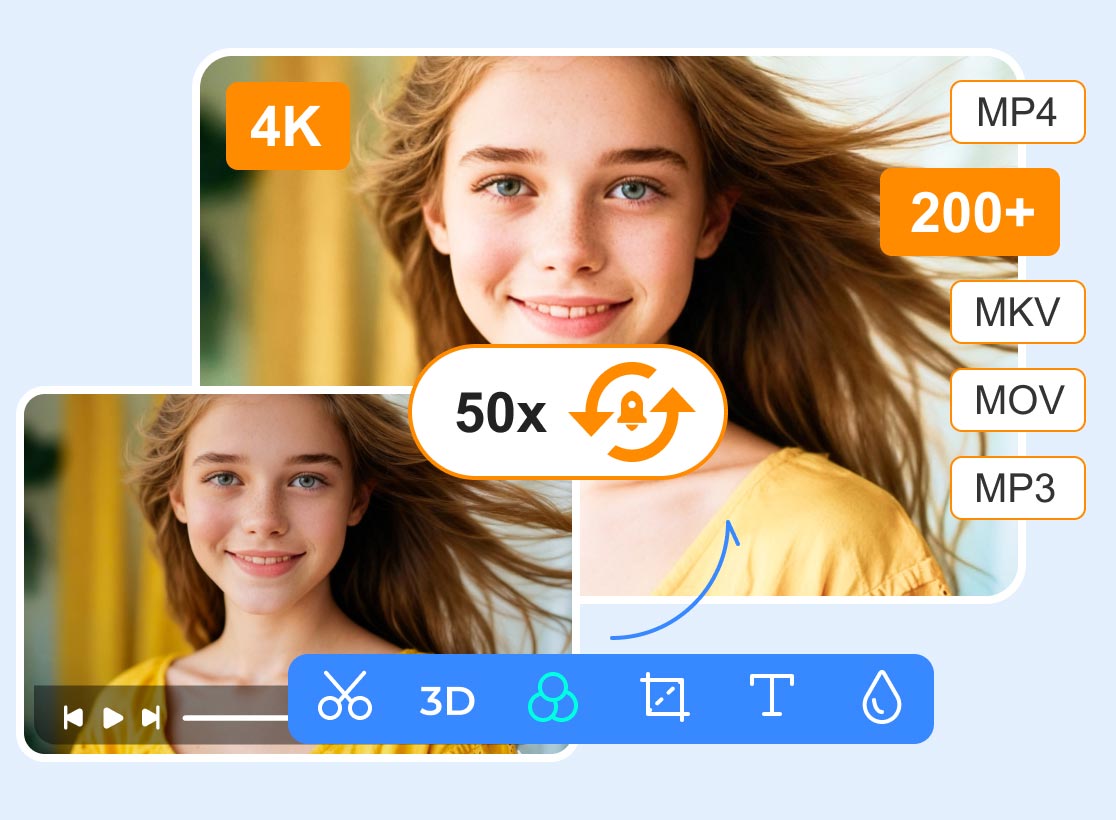
First, let's look at one of the most versatile video converters: Vidmore Video Converter. This converter not only supports converting multimedia files across 200+ formats but also lets you choose different encoders for higher-quality output. Upload, select parameters, export - and you'll get videos enhanced from 1080p to 4K.
Vidmore Video Converter features a beginner-friendly interface with straightforward steps. Its Toolbox offers advanced enhancements like resolution boost, noise reduction, brightness/contrast enhancement, and motion stabilization. Preview results before final output.
Here's how to convert 1080p video to 4K using Vidmore Video Converter:
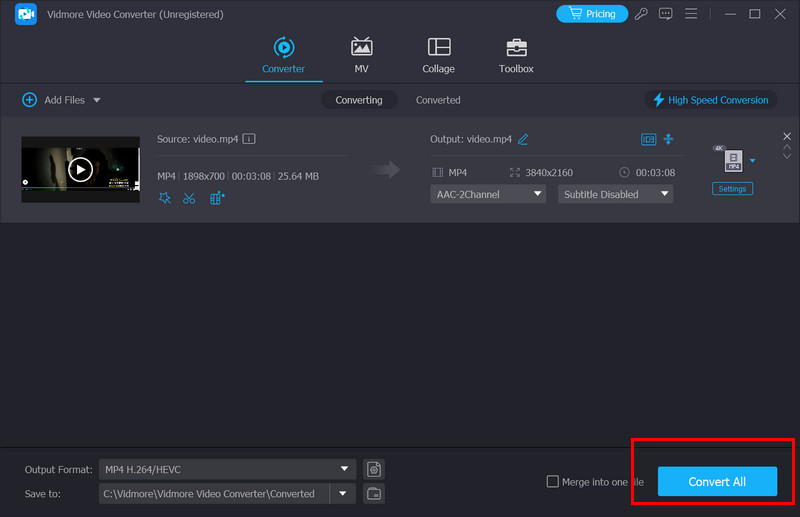
Step 1. Download and install Vidmore Video Converter on your computer. Once in the interface, select Add Files to upload your 1080p video.
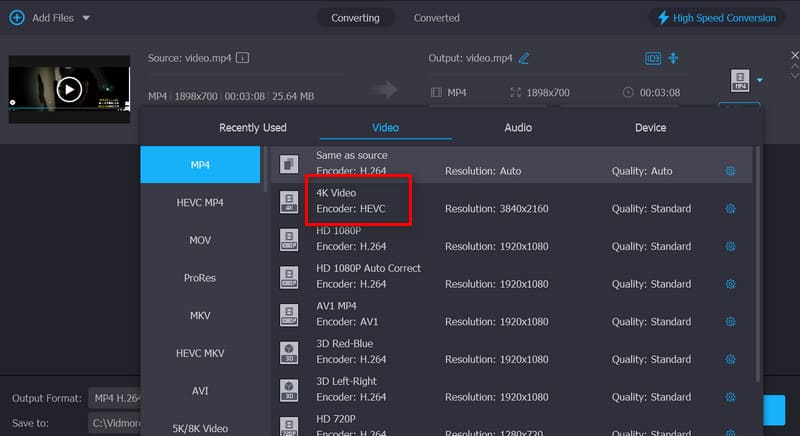
Step 2. After successful upload, click the format icon next to the project to expand the available output formats menu. Select the one labeled 4K Video.
Step 3. Click Convert All to output the enhanced video.
VidHex AI Video Enhancer
On the Vidmore platform, there's also an expert designed specifically for upgrading video quality: VidHex. It can upscale videos to 720p, 1080p, and even 4K resolution. Except that, it has everything you need to enhance an old video: video repair, video upscaler, colorizer, video brightener, FPS booster, video sharpener, and more.
Powered by AI technology, it automatically enhances visual details, sharpens blurry areas, and boosts resolution to ensure your videos deliver the best viewing experience.
Step 1. Get Vidmore Video Enhancer on your device. Launch it to access the workspace.
Step 2. Choose Add File to load the 1080p video you’d like to enhance.
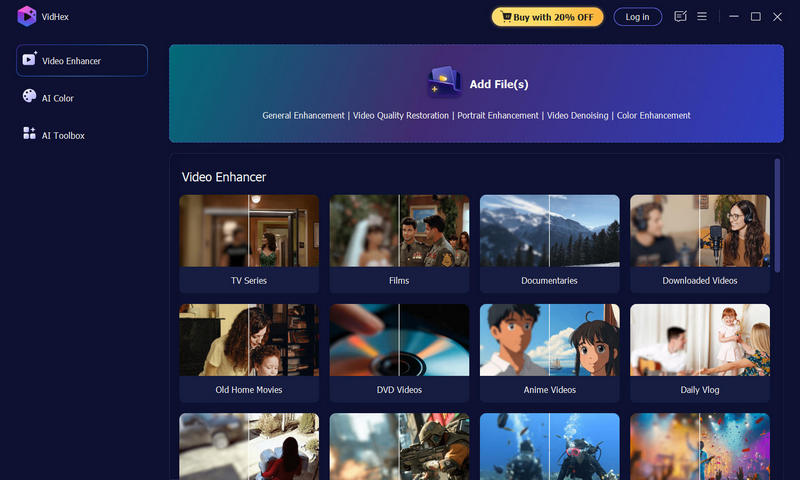
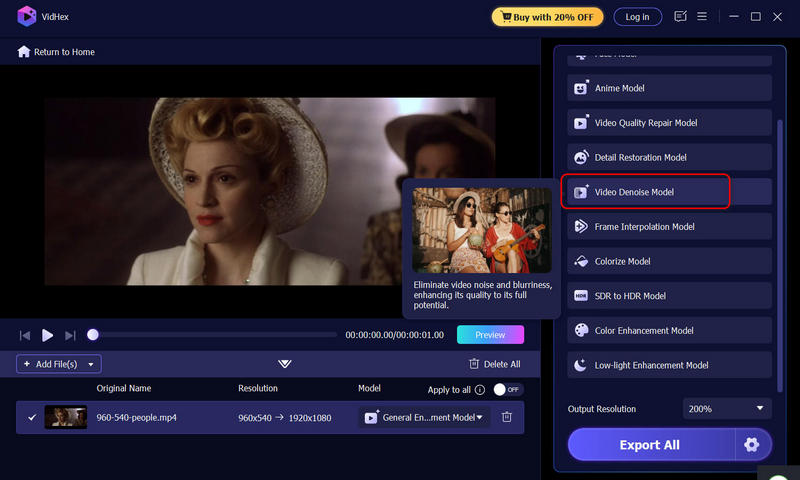
Step 3. From the AI Model list on the right, select one of the following options to enhance video quality as needed. For clear resolution, you can simply choose General Enhancement Model.
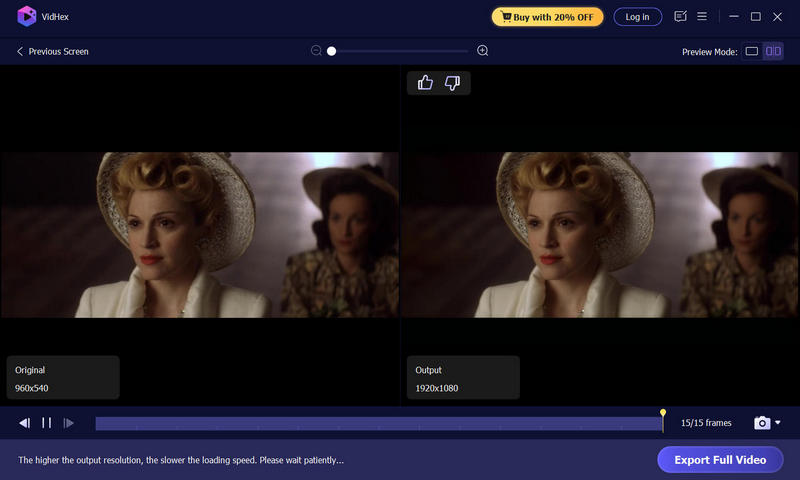
Step 4. Next, under the AI Model list, click the Output Resolution to set your ideal quality. VidHex can enhance your footage to 100%, 200%, 400%, 720P, 1080P, 4K, and even 8K. Also, at the bottom-right corner, click the gear icon to customize your ideal format, encoder, bitrate, and output location.
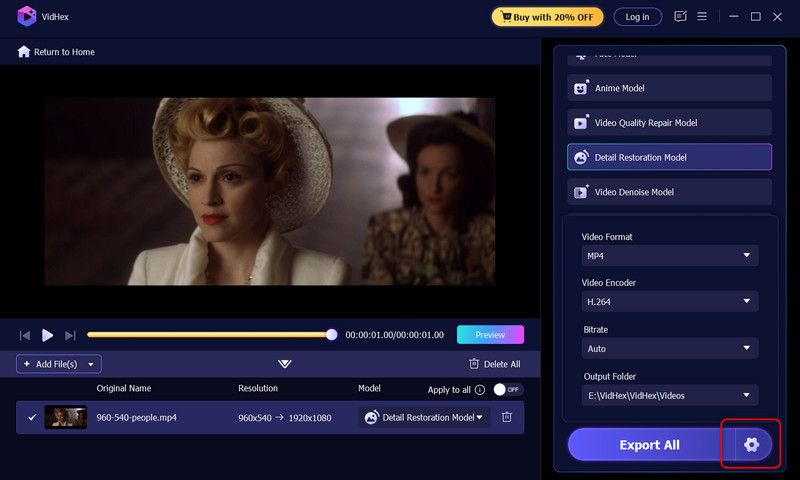
Step 5. When settings are done, click the Preview button to view the effect. If satisfied, click the Export Full Video button to send your result.
Topaz Video Enhancer
Next, we'd like to introduce you to an expert in restoring portrait quality and enhancing landscape video footage: Topaz Video Enhancer.
Powered by AI models, this video enhancer analyzes each frame individually to optimize image quality while preserving original textures and details. It corrects color and lighting, and reduces noise (note that its noise reduction capabilities are truly outstanding).
Here is how to convert 1080p to 4K with Topaz Video Enhancer.
Step 1. Get the Topaz Video AI software on your computer. Open it, and click Browse Video to add your 1080p video.
Step 2. After Uploading your video, click the AI model section and choose one fits your needs.
Step 3. Go to the Output Resolution section, choose a preset resolution option or enter a custom resolution.
Before exporting the video, you can use the preview pane to check the result.
Step 4. Now, select an output format for your video. Then, choose Save to start enhancing.
Part 3. How to Convert Video to 4K Via Online Tools
If you're looking for a simpler, hassle-free video enhancement experience, we recommend trying an online video to 4K converter.
Fotor 4K Video Converter
Fotor 4K Video Converter is an ideal choice. Not only does it support quickly restoring blurry videos to 4K quality, but it also boasts exceptional compatibility. Beyond the desktop web version, it offers apps for both iOS and Android.
Additionally, every new user can enjoy free access to the enhancement features daily, and the output videos are completely watermark-free.
Here's how to convert video to 4K online for free using Fotor 4K Video Converter.
Step 1. Visit the official website of Fotor 4K Video Converter. Click Upscale Videos to 4K.
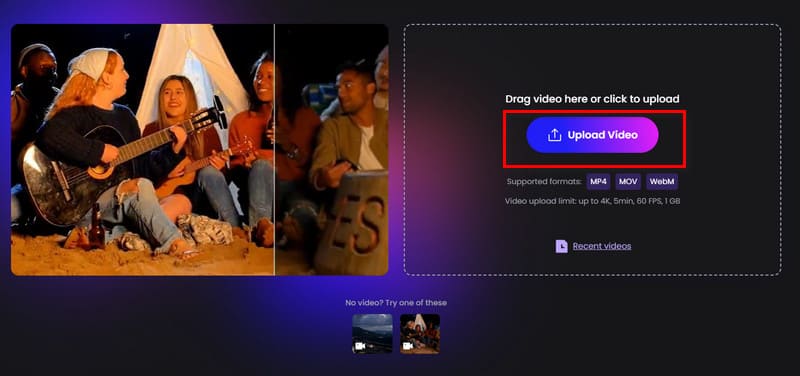
Step 2. A new page will open. Click Upload Video to upload your file.
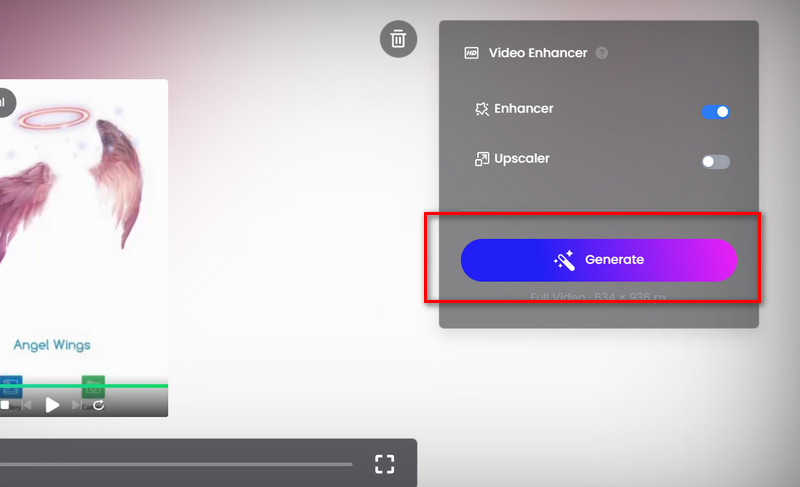
Step 3. After uploading, enable both the Enhancer and Upscaler switches. Click Generate.
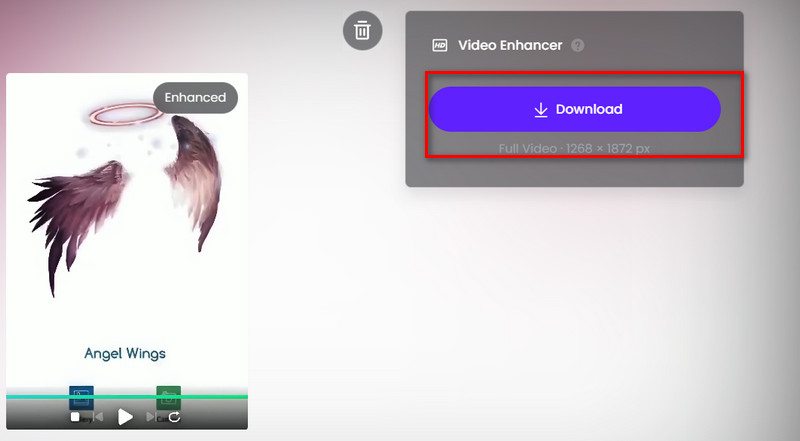
Finally, click Download.
Vmake 1080P to 4K Converter
Vmake 1080P to 4K Converter supports enhancing 1080p videos to 2K or 4K resolution on your computer's web browser. It also features brightness, contrast, and sharpness optimization. Additionally, you'll be pleased to find it supports batch processing, allowing you to enhance the quality of up to 3 videos simultaneously.
Here's how to use Vmake 1080P to 4K Converter.
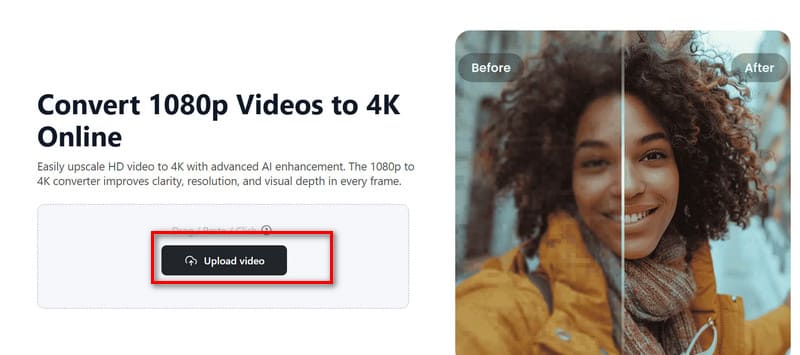
Step 1. Visit the official Vmake 1080P to 4K Converter website. You'll see an Upload video button. Click it to upload your 1080p video.
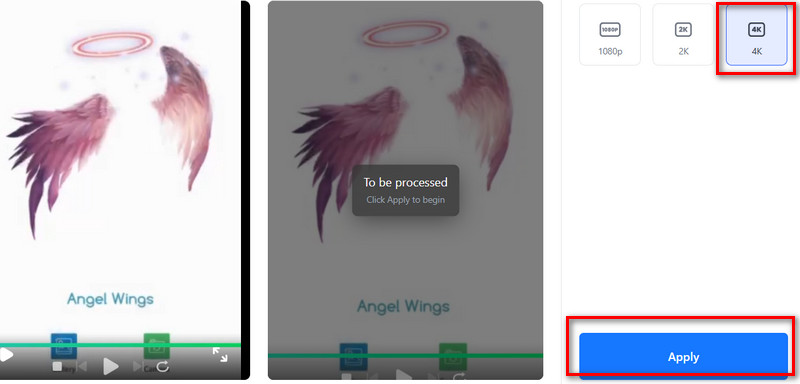
Step 2. After the video uploads, select 4K as the output quality on the right side. Then click Apply.
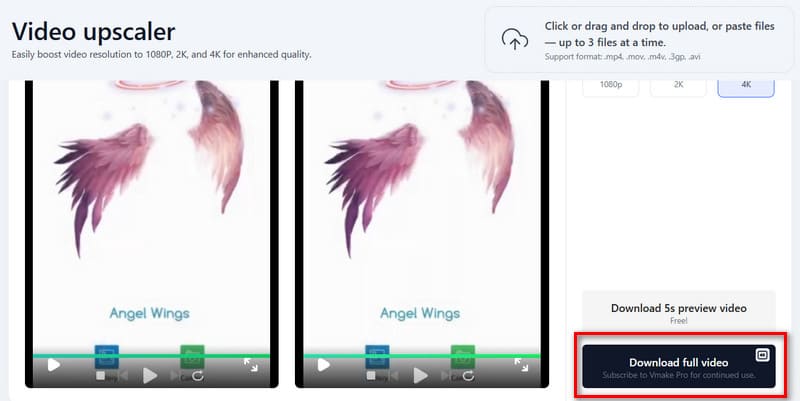
Step 3. The platform will take a moment to complete the enhancement. Finally, click Download full video.
For more video enhancers, you can click here.
Part 4. FAQs of Converting Video to 4K
Can I convert 1080p video to 4K?
Absolutely. You can use format converters and adjust the output quality to 4K; or directly use video enhancers to upscale the resolution to 4K.
How to convert 1080p to 4K on PC?
We recommend desktop software like Vidmore Video Converter or VidHex. If you prefer not to download additional software, online enhancers like Fotor and Vmake are also viable options.
Is 4K exactly 4 times 1080p?
Yes, 4K resolution is precisely four times that of 1080p, meaning both image quality and detail are quadrupled. This results in not only sharper video but also superior suitability for larger screens.
Conclusion
Five tools for converting video to 4K are now at your disposal. For the fastest and simplest operation, we recommend Vidmore Video Converter. For the most comprehensive, professional, and stable resolution enhancement, VidHex is the better choice. If you want to reduce the load on your computer, cloud-based tools like Fotor and Vmake are your perfect solution.