How to Convert H.264 to MP4: 5 Best tools & Steps for You
H.264 is actually a very common video compression method. It may be included in many popular video formats. However, when considering H.264 on its own, its compatibility isn't great. Especially when you try to open such files on older devices, you'll encounter playback failures.
At this point, you need to take one step: convert H.264 to MP4, changing the video's codec.
The process is straightforward and only requires a professional converter - either online or desktop - based. We've prepared five options for you in this article, complete with detailed step - by - step instructions.
Continue reading to understand the theoretical concepts behind converting H.264 to MP4 and learn the practical steps involved.

PAGE CONTENT
Part 1. What Is the H.264
H.264 appears quite frequently, sometimes alongside other video formats. to avoid confusion with other concepts, we'll start by explaining what H.264 is and how it differs from MP4. Additionally, we'll provide supplementary information on the H.265 concept.
What is H.264
H.264 is an extremely common video compression codec standard (arguably one of the most popular today), typically used to compress high - definition video content. Its key feature is the ability to maintain high image quality while minimizing file size as much as possible.
It is also commonly referred to as AVC, standing for Advanced Video Coding.
H.264 VS H.265
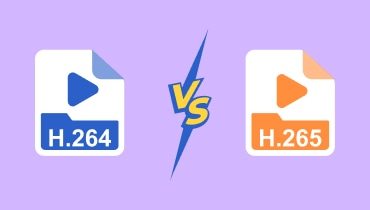
As the name suggests, H.265 is an iteration of H.264. It is also commonly known as HEVC. While its core functions and purposes closely align with H.264, it offers significant improvements across the board, such as higher compression efficiency and smaller video file sizes.
Furthermore, due to its newer version, H.265 offers better compatibility with updated devices and features greater encoding complexity than H.264.
The final distinction is that while H.265 achieves higher compression efficiency, it places greater demands on devices. H.264 remains more fundamental, universal, and stable.
H.264 VS H.265 VS MP4
As mentioned earlier, it's easy to confuse H.264, H.265, and MP4. In reality, the first two are not the same concept as MP4.
H.264 and H.265 are video compression standards, while MP4 is a video container format.
To put it more simply: H.264 and H.265 determine how a video is compressed, while MP4 is responsible for packaging video, audio, subtitles, and other content into a single file. When describing a file, we typically say it's an MP4 file (the container) using H.264/H.265 encoding (the content).
After reading the above explanations, you might be wondering: since H.264 is contained within MP4, when would I need to convert H.264 to MP4?
Here's the answer:
- The container isn’t MP4 for H.264: Your file uses the H.264 compression standard but is packaged in another format, such as AVI, MKV, etc.
- The file extension is H.264: Such files have extremely poor compatibility and must be converted.
Part 2. How to Convert H.264 to MP4 On Desktop
Alright, now you're ready to dive in with a solid foundation of knowledge.
Let's start by exploring the top 3 desktop H.264 to MP4 converters and how to use them.
Vidmore Video Converter
When it comes to the most versatile video format converter, Vidmore Video Converter takes the crown. First off, it supports over 200 conversion formats - more than enough to cover all the file types you'll encounter daily. Additionally, you can use it to convert 2D video files into 3D effects.
Vidmore Video Converter doesn't stop at format conversion. It offers nearly all basic video editing features, such as trimming, cropping, rotating, adding text, filters, effects, and subtitles.
No need to worry about poor MP4 output quality. Vidmore Video Converter supports high - definition video resolutions like 4K, 1080p, and 720p, paired with lossless transcoding to ensure no quality loss in the converted videos.
- Convert video and audio files to over 200 multimedia formats.
- Trim, crop, and enhance your uploaded videos.
- 50X faster file conversion speed.
- Includes a toolbox with numerous trending audio/video and image editing features.
Here's how to use this H.264 to MP4 converter free:
Step 1. Download and install Vidmore Video Converter on your device.
Open the main interface and click Add Files to upload your H.264 video.
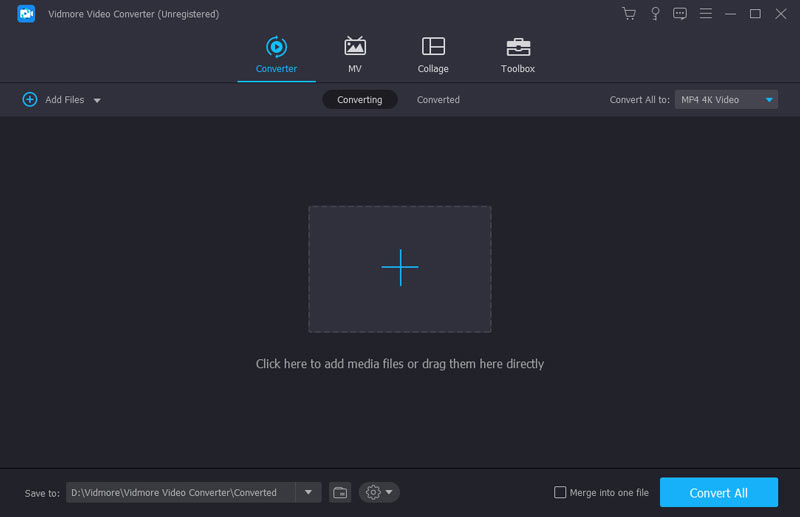
Step 2. After uploading the video, click the format icon to the right of the item to expand the format selection menu. Click Video, then choose MP4. Be sure to select the MP4 option labeled H.264 for the encoder.

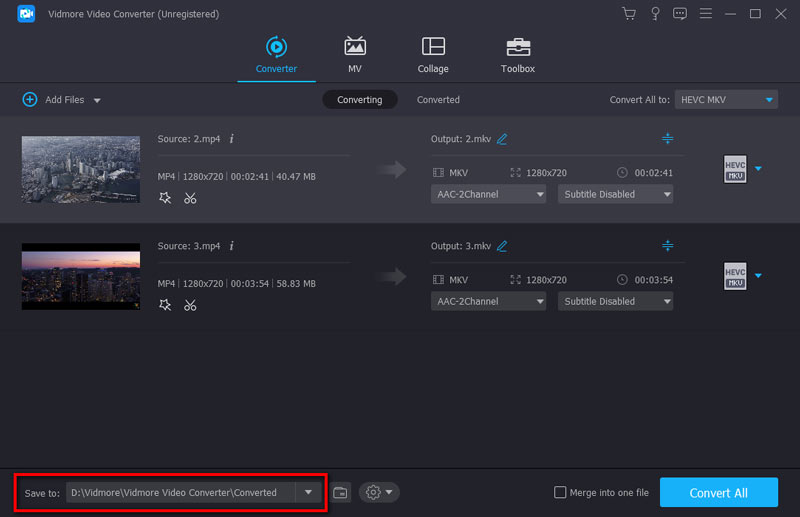
Step 3. After selecting the format, click Save to choose the output file's storage path.
Finally, click Convert All.
Handbrake
If you're a Linux user, HandBrake might be a better fit for you. It's a free, open - source MP4 HD converter compatible with Windows, Mac, and Linux operating systems, and it's also known for supporting a wide range of conversion formats.
Additionally, HandBrake offers a substantial set of video editing features, such as noise reduction, color correction, and grayscale adjustments. If you have DVDs, this versatile software can handle them too.
Here's how to convert H.264 to MP4 using HandBrake.
Step 1. Download and install HandBrake on your device.
Once in the interface, click Open Source and upload your video.
Step 2. You'll see multiple tabs in the middle of the page. Select Summary.
The first option is Format. Expand the dropdown menu and choose MP4 as the output format.

Step 3. Switch to the Video tab and ensure H.264 is selected under Video Encoder.
Finally, click Start Encode to begin the conversion.

Cons:
- Its user interface design feels outdated.
VLC Media Player
If you frequently watch videos online, you're probably familiar with the name VLC Media Player. This video player is renowned for being open - source, free, and highly compatible - it also serves as a basic video editor and converter.
Whether you're a Windows, Mac, or Linux user, you can try using it to convert H.264 to MP4.
Here are the specific steps:
Step 1. Get the latest version of VLC Media Player on your computer.
Next, click Media > Convert/Save.

Step 2. A new window will pop up. Click File > Add to load the H.264 file you want to convert.
Next, click Convert/Save.

Step 3. Locate the Profile section. From the list of available formats, select Video – H.264 + MP3 (MP4).

Step 4. Select a destination folder for the converted file, then click Start.
Cons:
- The conversion interface is quite unintuitive.
- The video editing features provided are very basic.
Part 3. Change H.264 to MP4 Online
Vidmore Free Video Converter Online
If you find downloading and installing software too cumbersome, or if it places significant strain on your computer's memory, you can try a lightweight online format converter like Vidmore Free Video Converter Online. With extensive format support and flexible customization options, it's more than sufficient for converting H.264 to MP4.
Here are the steps:
Step 1. Visit the official website of Vidmore Free Video Converter Online.
Click Start Converting Video to upload your source video.

Step 2. Select MP4 under the Output option.
You can also click the Settings icon to check the video encoder.

Step 3. Click Convert to MP4.

Anyconv
Another online converter we recommend trying is Anyconv. This is also an all - in - one solution for converting videos, audio, files, images, and more. Plus, it's completely free and ready to use right away.
Here's how to use it:
Step 1. Visit the official website and click CHOOSE FILES on the page to upload your file.

Step 2. After the file uploads successfully, select the output format.
Finally, click CONVERT.

Cons:
- ·The page contains numerous advertisements.
- ·No customizable settings for various parameters.
Part 4. FAQs of H.264 to MP4
Is H.264 the same as MP4?
No. H.264 is a video codec, while MP4 is a container format for complete video files.
How to convert H.264 files to MP4?
Simply choose a professional format converter. Vidmore Video Converter for desktop or Vidmore Free Video Converter Online are both excellent options.
What are the disadvantages of H.264?
Its compatibility is quite limited, making it unusable on many older devices. Additionally, compared to H.265, it offers lower compression efficiency. Click here to learn more differences between H.264 and H.265.
Conclusion
If you need to convert H.264 to MP4, this article will definitely help you. Here, you'll first understand the differences between H.264 and MP4, when you might need to convert, and the most comprehensive conversion guide: 3 desktop converters that can assist you, 2 online converters, and their step - by - step instructions.