Transcode MP4 to HEVC Using Online and Offline Methods
While MP4 is a versatile and widely compatible container format, the video inside it is typically encoded with older codecs like H.264/AVC. With that, transcoding to HEVC, also known as H.265, is actually ideal since it is a process of upgrading the compression technology within the video file, offering tangible advantages for both everyday users and professionals. It can even offer a better video quality, suitable for sharing, future-proofing, and many more. If you want to convert MP4 to HEVC, you can take a peek at this post. We are here to provide all the best methods you can follow for an effective conversion procedure. Now, check here and learn more about the discussion.

PAGE CONTENT
Part 1. What is HEVC
HEVC or High Efficiency Video Coding (H.265) is a modern/advanced video compression standard. This compression was created to enhance encoding efficiency over its predecessor, H.264. It achieves double the compression ratio, meaning it can offer the same video quality at about half the file size, or higher quality at the same file size. It makes HEVC especially valuable for 4K, 8K, HDR (High Dynamic Range) content, and streaming, as it reduces bandwidth and storage demands while supporting advanced video features.
You can check/view the comparison table below and learn more about HEVC and MP4.
| HEVC | Comparison Aspect | MP4 (H.264) |
| Highly efficient. 50% smaller files at the same quality as H.264. | Compression Efficiency | Less efficient. Requires about double the bitrate for similar quality. |
| Superior at the same bitrate. Better detail preservation, especially in 4K/HDR. | Video Quality | Good quality, but can show artefacts at lower bitrates. |
| Much lower; ideal for saving space and streaming high-res content. | Storage and Bandwidth Use | Higher. Consumes more storage and bandwidth for equivalent quality. |
| Growing but not universal. May not play on older devices/browsers without hardware support. | Software Compatibility | Near-universal. Plays on almost all devices, browsers, and software. |
| 4K/8K video, HDR content, archiving, modern streaming, and space-constrained storage. | Ideal Use Cases | Maximum compatibility, web streaming, general-purpose video, and older devices. |
Part 2. Comparison of the Best MP4 to HEVC Converters
If you want to take a peek at the capabilities of the best MP4 to HEVC converter, see the table below.
| Converters | Vidmore Video Converter | Handbrake | Free Vidmore Video Converter Online | Convertio |
| Conversion Speed | 50 times faster | Standard | Fast | Standard |
| Platform | Windows and Mac | Windows and Mac | Browser | Browser |
| Offers Batch Conversion | Yes | No | Yes | Yes |
| Supported Video Quality | Up to 8K | Up to 4K | Up to 8K | Up to 4K |
| User Interface | Simple | Simple | Simple | Simple |
Part 3. Convert MP4 to HEVC on Desktop
After knowing that HEVC can give you more benefits than MP4, you might wonder how to convert your files. In that case, use the methods below and learn to convert MP4 to HEVC offline.
Method 1. Convert MP4 to HEVC Using Vidmore Video Converter
If you need the best video converter that can help you convert MP4 to HEVC, look no further than Vidmore Video Converter. This program is ideal since you can get the result you need after the conversion process. You can also select your preferred quality for up to 4K. It can also offer a fast conversion process for up to 500 times faster compared with other converters. Plus, it has a simple interface and video editing tools, allowing you to improve the video before the export process. With that, if you want an excellent MP4 to HEVC converter, try using this software.
More Features
- The video converter can provide a fast and smooth conversion procedure.
- It can support various input and output formats.
- The program can offer various video editing functions to enhance videos.
- It is downloadable on both Mac and Windows.
Use the steps below to start converting your MP4 file into HEVC.
Step 1. Download and run Vidmore Video Converter on your computer. Once done, you can start with the MP4 to HEVC conversion process.
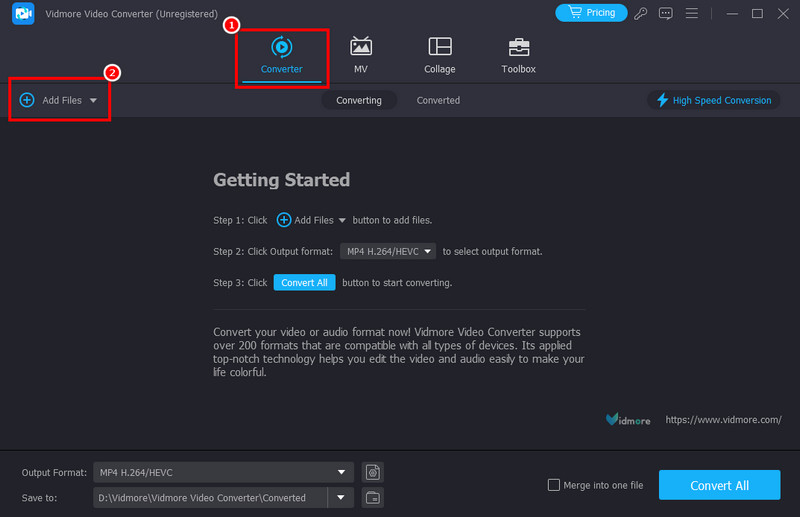
Step 2. From the main interface, you can proceed to the Converter section and add the MP4 file by clicking the Add Files option.
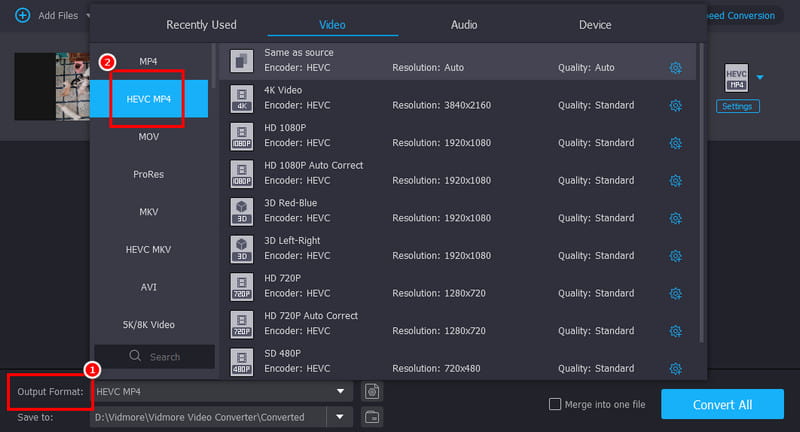
Step 3. From the Output Format section, hit the HEVC options. You can even tap your desired output quality.
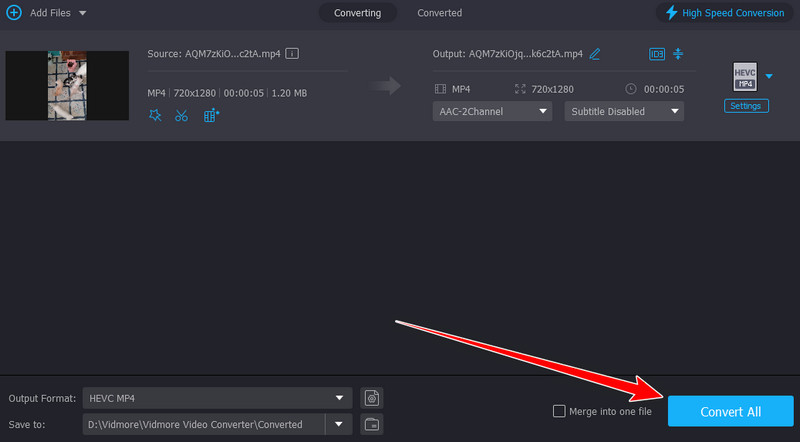
Step 4. Finally, hit the Export All button to start converting and saving the final output on your computer.
Method 2. Convert MP4 to HEVC Using Handbrake
Handbrake is another helpful desktop-based converter you can use to turn your MP4 into HEVC. The good part here is that this software is free to use, making it accessible to all users. It also has a simple layout suitable for a smooth conversion process. Plus, you can use some editing tools to improve the final video. You can flip the video on Handbrake, rotate, crop, add filters, and more. With that, consider using this program for an effective conversion process. You can start following the steps below and convert MP4 to HEVC for free.
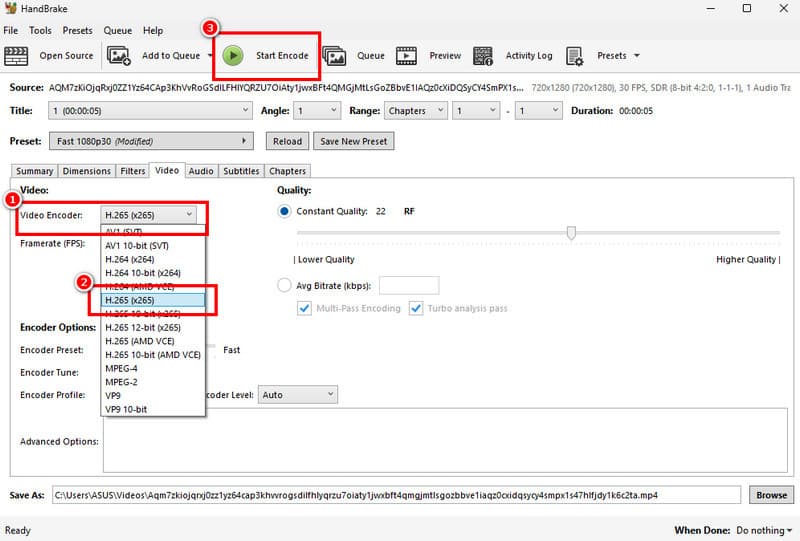
Step 1. Download and install the Handbrake program on your computer. After that, click the File button to add the MP4 file.
Step 2. Then, from the interface, proceed to the Video > Video Encoder section and select the H264 (x265) option.
Step 3. For the last step, click the Start Encode option above to start the MP4 to HEVC conversion process.
Drawbacks of Handbrake
- The layout of the video converter is not appealing enough.
- Some of the functions are not working well.
- There are times when it crashes during the conversion process.
With these methods, you can effectively transcode your MP4 file into HEVC format. Thus, to convert files on your desktop, rely on these methods.
Part 4. Convert MP4 to HEVC Online
Do you prefer converting MP4 to HEVC online? If so, you can use the methods from this section.
Method 1. Change MP4 to HEVC Using Vidmore Free Video Converter Online
For a smoother online MP4 to HEVC conversion process, there is no doubt that Vidmore Free Video Converter Online is the top choice. With this video converter, you can change the encoder of your video to HEVC smoothly. The good thing about this tool is that you can get an instant conversion process since it can offer a clean and comprehensive user interface. What's more, you can adjust various parameters, such as sample rate, bitrate, frame rate, resolution, and more. It can also support various formats, such as MKV, WMV, MOV, AVI, FLV, etc. Thus, if you need the best online tool to convert your MP4 to HEVC, consider using Vidmore Free Video Converter Online.
You can follow/check the detailed steps below to learn how to convert MP4 to HEVC.
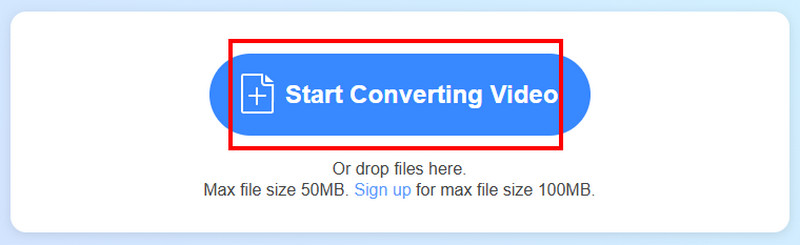
Step 1. You can go to the main website of Vidmore Free Video Converter Online. Then, click the Start Converting Video to upload the MP4 video.
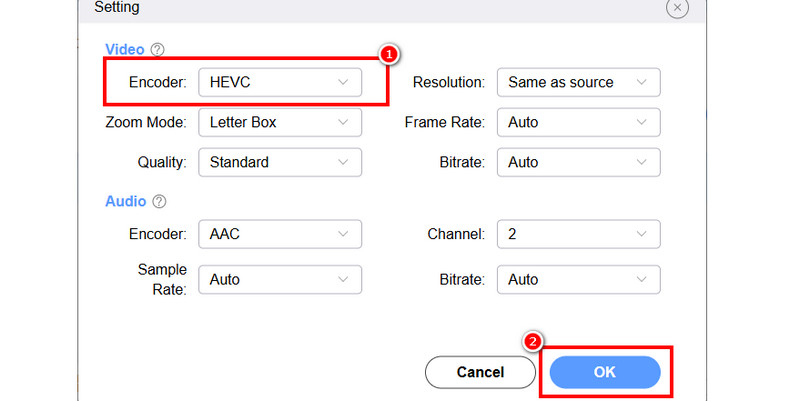
Step 2. After that, you can click the Settings options and select the HEVC option from the Encoder section.
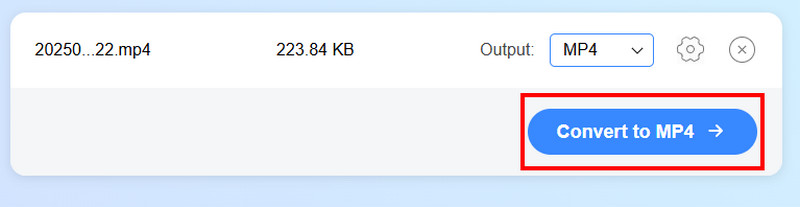
Step 3. Finally, tap the Convert button below to begin the MP4 to HEVC conversion process.
Method 2. Change MP4 to HEVC Using Convertio
Convertio is another perfect online converter that can help you achieve the result you need. It can even offer a smooth conversion process since it does not show any annoying ads during the procedure. The best part here is that it has a simple layout and can convert various files. It can transcode MP4 to WEBM, MP4 to MKV, AVI to MP4, and more. Thus, to check its capabilities, see the steps below.
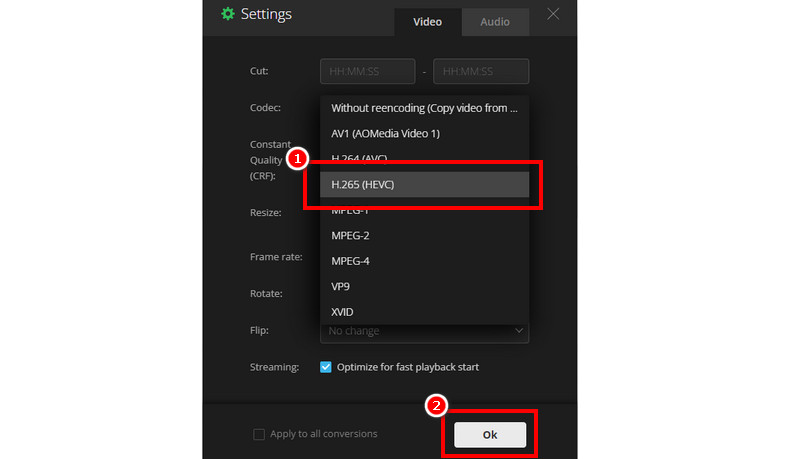
Step 1. Go to your browser and proceed to the main website of Convertio. After that, hit the Choose Files button to upload the MP4 file.
Step 2. Then, click the Settings option and choose the HEVC option under the Codec section. Once done, tap OK.
Step 3. Finally, tap the Convert function to start the MP4 to HEVC conversion process.
With these methods, you can effectively convert MP4 to HEVC online. Thus, to achieve your desired result, it would be better to use these best methods. You can even use Vidmore Free Video Converter Online for a better result.
Part 5. FAQs about MP4 to HEVC
Why does MP4 need HEVC?
MP4 requires HEVC since it is the most advanced video compression standard. It enables you to use a relatively small amount of bitrate.
Is HEVC better than MP4?
Definitely, yes. It is because HEVC can offer better quality and compression. However, it requires more processing power. On the other hand, in terms of compatibility, MP4 is superior.
Can I convert HEVC back to H.264?
Yes, you can. However, you must expect that it will degrade the quality. It is only recommended to convert back if your concern is a compatibility issue.
Conclusion
If you want to transcode MP4 to HEVC for better quality and compression, you can do so. You can use all the offline and online methods we have provided in this article to get your desired outcome. Thus, use Vidmore Video Converter and Vidmore Free Video Converter Online for a perfect MP4 to HEVC conversion process.