A Full Adobe Express Image Enhancer Review to Know the Online Photo Editor
When you search for a way to edit photos online quickly, you may get the recommendation of Adobe Express Image Enhancer. It lets you easily remove unwanted backgrounds or objects in your pictures using AI. Moreover, this free, web-based photo editor provides a simple way to improve images.
Even though Adobe Express image enhancer promises one-click rescue for low-resolution and blurry photos, many users still wonder if it’s worth trying. This article gives you a full review of this web-based image enhancer, telling everything you need to know about Adobe Express and its image enhancement features, such as photo upscaling, sharpening, retouching, and background removal.

PAGE CONTENT
- Part 1. Overview of Adobe Express Image Enhancer
- Part 2. Limitations of Adobe Express Image Enhancer
- Part 3. Adobe Express Image Enhancer Pricing Plans
- Part 4. How to Use Adobe Express Image Enhancer
- Part 5. Bonus: A Powerful Video Enhancer – Vidmore VidHex
- Part 6. FAQs of Adobe Express Image Enhancer
Part 1. Overview of Adobe Express Image Enhancer
Adobe Express has emerged as a popular, web-based design platform that brings professional-grade editing tools to everyone, from social media creators to casual users. Its free AI image enhancer stands out as a quick and accessible way to improve the overall quality of photos without needing advanced technical skills.
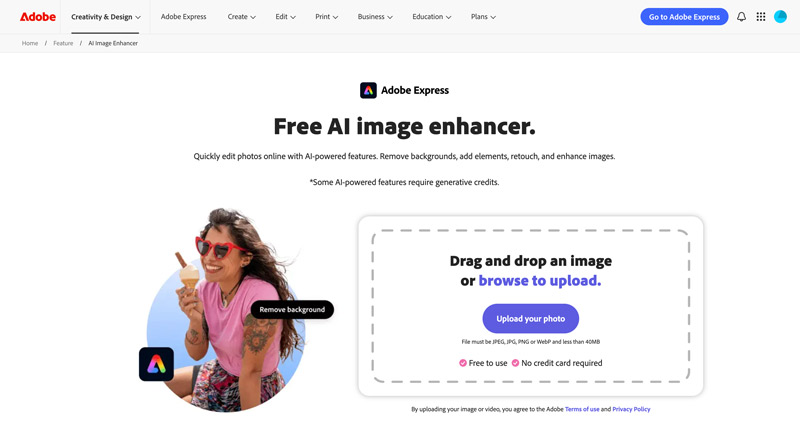
Like other online image enhancers, Adobe Express is designed for fast and easy design work. As mentioned, it lets you quickly edit photos using its AI-powered features. For instance, this online photo enhancer enables you to perform auto enhancements, make manual adjustments, remove backgrounds, add and remove elements, and more.
The image enhancer allows you to upload JPEG, PNG, JPG, or WebP files up to 40MB and enhance them with one-click AI tools. It focuses on fast, beginner-friendly edits or enhancements, such as auto-enhance, background removal, object removal, and color corrections. Also, you can manually make various adjustments, including contrast, brightness, saturation, sharpening, and blur.
Part 2. Limitations of Adobe Express Image Enhancer
While Adobe Express offers several powerful features, it does have notable limitations.
First, it will take a really long time, like it gets stuck, to complete the file uploading and analyzing process. The annoying thing is, through my tests, this online image enhancer often fails to load my photo after uploading, especially for some large files over 30MB. I have to refresh the page and re-upload the image. When you want to try using its advanced functions, this online enhancer will freeze.
Some AI-powered features like Erase are limited to the paid version. In my tests, it still gets stuck and cannot deliver a smooth user experience. You can start a free trial to access all the advanced functions, templates, and design elements in Premium.
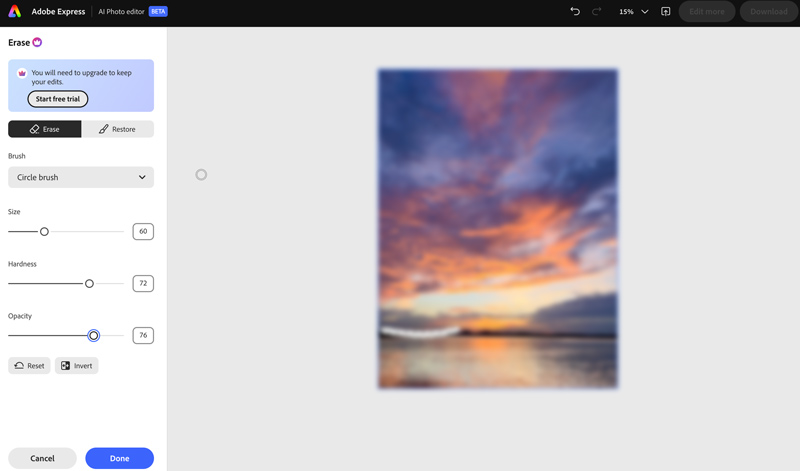
Compared to dedicated image enhancement tools, Adobe Express lacks advanced functions. The AI tools, while convenient, can sometimes fail to output high-quality results. The really frustrating thing is still the current freeze bug. It prevents nearly all features from working properly.

Part 3. Adobe Express Image Enhancer Pricing Plans
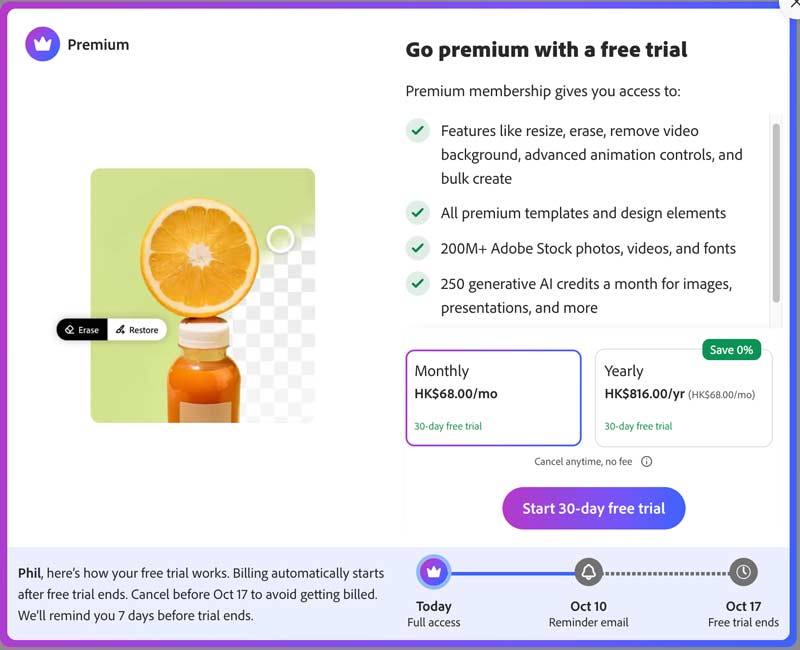
Adobe Express offers a free version to use its most image enhancement features. Some AI-driven tools are limited to the Premium version. But it allows you to use them with a 30-day free trial. When you are prompted to upgrade, click the Start free trial button to check the current pricing plans.
Part 4. How to Use Adobe Express Image Enhancer
Using the Free AI image enhancer in Adobe Express is straightforward. You can navigate to the dedicated page or select “Enhance images” on the Adobe Express Photos Home.
Click Upload your photo and browse to upload a photo from your device. You can start with a small file to test its capabilities. You will be required to sign in to an Adobe account.
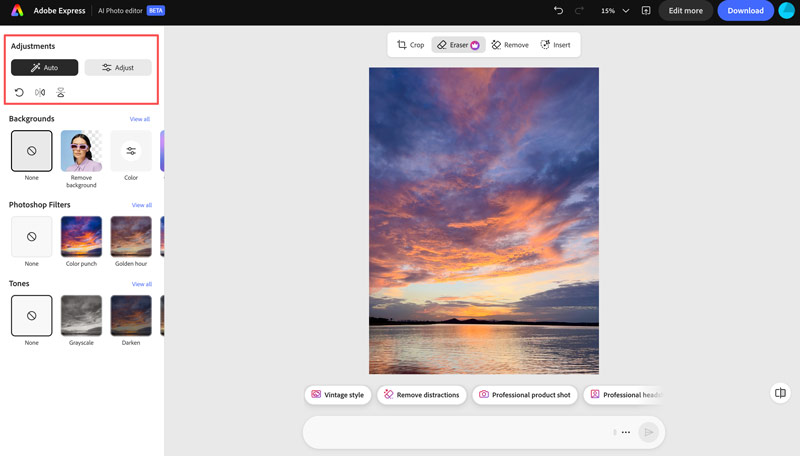
Once uploaded, click the Auto button under Adjustments to enhance the picture using AI automatically. The auto-enhance feature applies one-click adjustments to improve exposure, contrast, saturation, and clarity. Also, you can click Adjust and use sliders to fine-tune settings across several categories, such as Light, Color, and Detail.
As mentioned, you can remove backgrounds in one click using AI, apply Photoshop filters, tones, and more. You can also crop your image file, remove unwanted elements, add text, and do other edits. As you can see, this Adobe Express image enhancer allows you to directly describe what you want to edit or create.
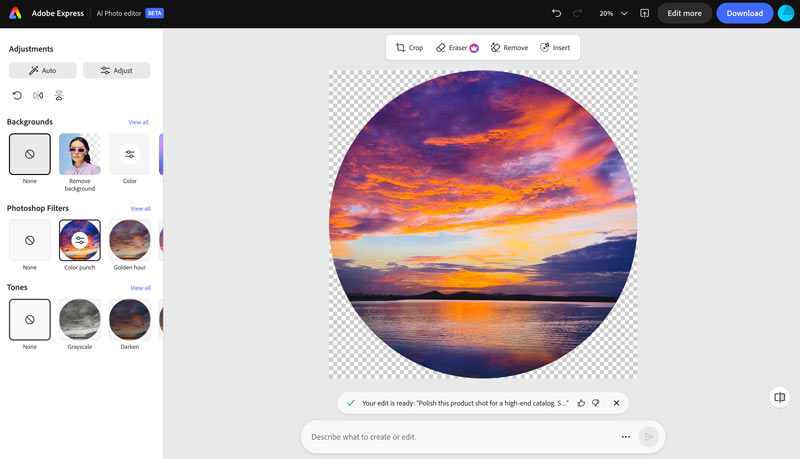
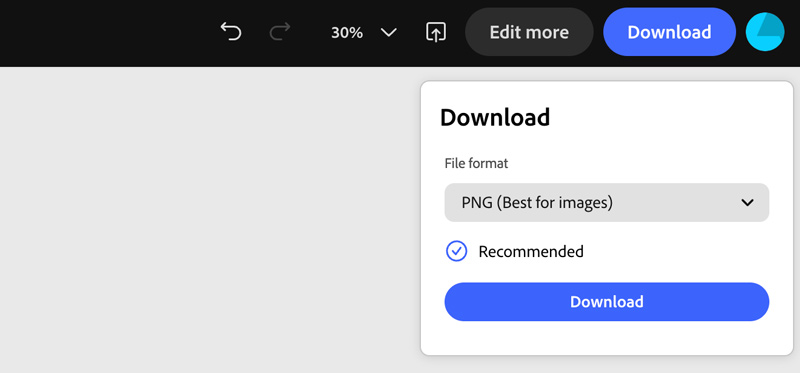
For advanced AI actions such as generative fill or object insertion, you will need Adobe generative credits, which are included with Express Premium. After editing, you can save changes to the original image and then click Download to save as a copy as PNG or JPG.
Part 5. Bonus: A Powerful Video Enhancer – Vidmore VidHex
Vidmore VidHex is a famous AI-powered video enhancement tool designed to upscale low-resolution footage to high resolution, adjust brightness and contrast, and eliminate video shake and noise. It can upscale your video to 100%, 200%, 400%, 4K, and even 8K resolution with enhanced quality.

VidHex AI Models
- General Enhancement Model removes video noise and enhances clarity
- Face Model restores facial details in portrait videos
- Anime Model converts low-resolution animated videos to high definition
- Video Quality Repair Model for repairing compression damage
- Detail Restoration Model for sharpening blurry frames
- Video Noise Reduction, Frame Interpolation for smoother motion
- Colorize Model for bringing black-and-white videos to life
- SDR to HDR conversion model for more vivid colors
- Color Enhancement for improved vibrancy and balance
- Low-Light Enhancement for night-time footage
Steps to Enhance Videos Using VidHex
To use Vidmore VidHex, download the latest version of the program, then install and launch it on your computer.
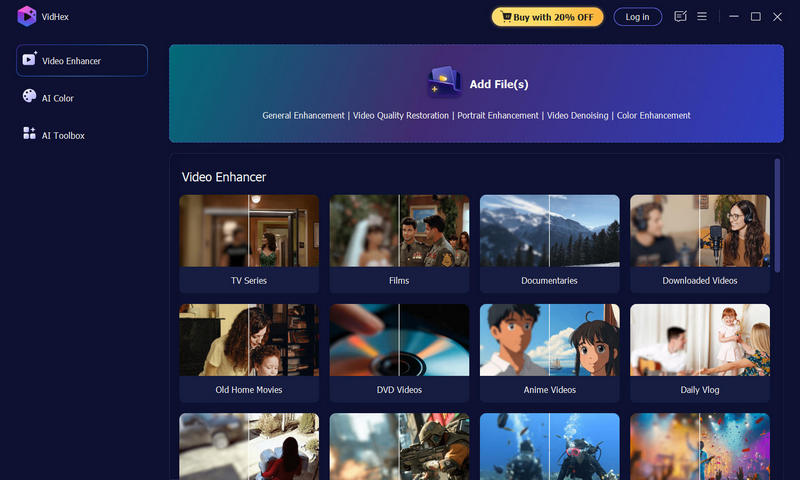
Step 1. Click Add File(s) to import your blurry or low-quality video.
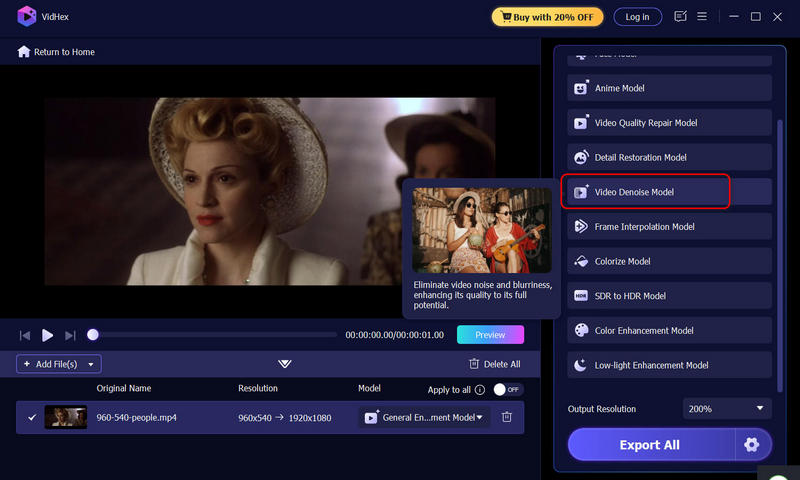
Step 2. From the AI model list on the right, select the enhancement option that best suits your needs. Next, set your desired output resolution and customize the format, encoder, bitrate, and output location.
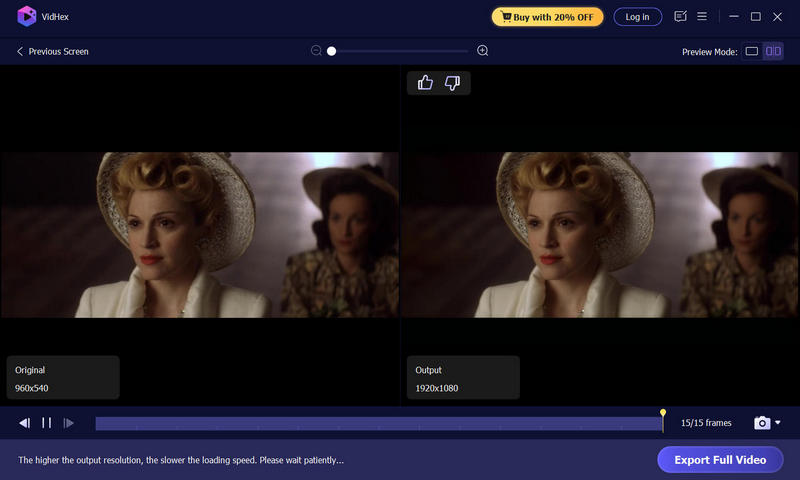
Step 3. Click Preview to see the improved effect, and when satisfied, click Export Full Video to save your enhanced footage.
You may also like
The Best Video Resolution Enhancer
Part 6. FAQs of Adobe Express Image Enhancer
Question 1. Is Adobe Express image enhancer free to use?
Yes, Adobe Express offers a free plan that includes most features of the image enhancer. You can use core features like photo editing tools, auto-enhance, brightness and contrast adjustments, and background removal at no cost. The free mobile app also supports AI-powered enhancement. However, some advanced AI features, such as erase, generative fill, or object addition/removal, require the Premium plan.
Question 2. What file types and sizes are supported for image enhancement?
Adobe Express image enhancer supports JPEG, JPG, PNG, and WebP files under 40MB.
Question 3. Can I enhance photos using Adobe Express image enhancer on my phone?
Yes, the free Adobe Express mobile app for iOS and Android supports AI enhancement, sharpening, and other tools directly on your device. Besides, you can directly use the web-based version on any browser.
Conclusion
For quick, basic image enhancements, you can give the popular Adobe Express image enhancer a try. It is mainly designed for making professional-quality photo editing available to users of all skill levels. Considering that it is a free online tool, you can directly access it in any browser and start a trial. For video enhancement needs, Vidmore VidHex provides a specialized solution with a range of AI models for upscaling, denoising, and improving video quality.