Adobe Express Slideshow Maker: Features and Limitations
Adobe Express Slideshow Maker is an excellent tool designed to let users create appealing image and video slideshows. It can offer all the functions you need, such as customizable templates, basic editing features, drag-and-drop functionality, and more. So, do you want to learn more about Adobe Express Slideshow Maker? Luckily, this review will give you all the information you need. We will let you explore its descriptions, features, limitations, pricing plans, and method for creating a slideshow. Without anything else, read everything in this post and learn more about the slideshow maker.

PAGE CONTENT
- Part 1. An Overview of Adobe Express Slideshow Maker
- Part 2. Limitations of Adobe Express Slideshow Maker
- Part 3. Pricing Plans of Adobe Express Slideshow Maker
- Part 4. How to Use Adobe Express Slideshow Maker
- Part 5. Best Alternative to Adobe Express Slideshow Maker
- Part 6. FAQs about Adobe Express Slideshow Maker
Part 1. An Overview of Adobe Express Slideshow Maker
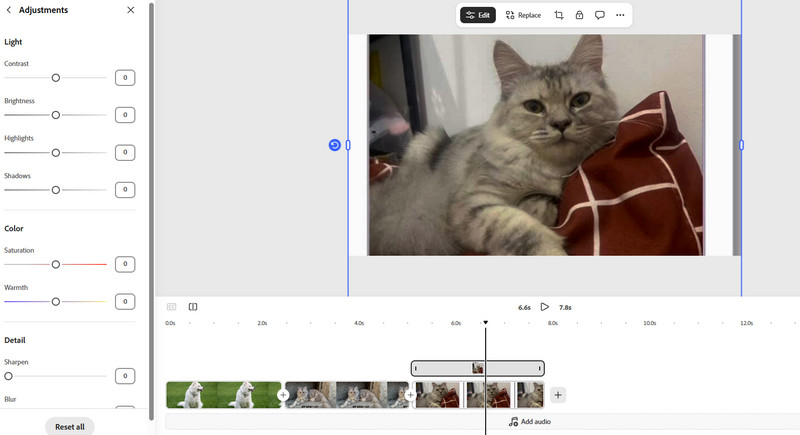
Adobe Express Slideshow Maker is among the most exceptional features you can find in Adobe Express. This tool is perfect if you want to merge multiple images to create a single video file. What we like here is that the tool can offer a simple layout, making it ideal for both beginners and skilled users. The slideshow maker ensures you can create an appealing slideshow by cropping images, adding text, making the background transparent, applying effects, and more. It is also accessible, as you can use it on any web platform, making it a must-have tool without any installation.
Key Features of Adobe Express Slideshow Maker
Want to learn more about Adobe Express Slideshow Maker? See all the details below, as we cover the overall capabilities of the tool.
Customizable Templates
Adobe Express can offer its customizable templates. It offers various themes and purposes, ensuring you can get the result you want during the slideshow-making process. You can even adjust the fonts, colours, layouts, and other elements in the templates. This feature ensures that your slideshow is unique and perfectly created for the right audience.
Offer Stock Photos and Videos
If you want to check the tool's capabilities, you can access its provided stock images and videos. These media files are always available for editing and enhancement. However, some stock images and videos are available only in the tool's paid version.
Multimedia Integration
What we like about the tool is that you cannot just insert images. You can also insert GIFs, music, videos, and text. It is perfect if you want to combine videos and images easily and effortlessly. You can even adjust the timing for each file, giving you full control over your work and helping you get your desired result.
Support Collaboration Feature
With Adobe Express' collaboration feature, you can work on your content with your team after inviting them. This feature is helpful if your team is in different places, making it a convenient tool for groupwork/collaboration.
Support High-Quality Export and Easy Sharing
After creating your slideshow, the tool lets you save and export it in the best quality. YOu can save the content up to 1080p and 4K. With this supported high-quality format, you can watch your slideshow smoothly and satisfyingly. The best part here is that you can share the slideshow on various platforms. You can share it on Google Drive, Dropbox, OneDrive, and more.
Part 2. Limitations of Adobe Express Slideshow Maker
Adobe Express Slideshow Maker is an ideal tool for making slideshows. It offers many features that can help you achieve the output you prefer. However, you must know that it also has various drawbacks. To explore some of them, you can check this section.
Free Plan Restrictions
The tool is not 100% free. There are various restrictions when using the tool's free version. Storage is limited to 5GB, which isn't ideal for lengthy videos. It also has limited templates and stocks assets, such as images and videos.
Requires Stable Internet Connection
Adobe Express is an online-based tool. It needs a stable or fast internet connection to perform well. So, if you have a poor internet connection, it would be hard to get the result you need on time.
Limited Output Formats
After creating a slideshow, you can only save it as an MP4 file. This limits you to playing the slideshow on some platforms. You will even be forced to convert the file using another tool, which can be a hassle for some users.
Part 3. Pricing Plans of Adobe Express Slideshow Maker
As mentioned, Adobe Express is not completely free. If you want to explore its pricing plans, check the table below.
| Pricing Plan | Price | Storage | Features |
| Free | $0.00 | 5GB | • Basic editing tools • 4,000+ fonts • Schedule posts to 1 account • 10-day version history • Works on desktop & mobile. |
| Premium | $9.99/month | 100GB | • Advanced editing (remove video background, animations), brand kits, one-click resize • Schedule posts to 3 accounts • 30-day version history. |
| Teams | $4.99/user/month | 1TB | • Collaboration tools, co-editing, template locking, and brand management • encryption & security logs • 180-day version history. |
Part 4. How to Use Adobe Express Slideshow Maker
Do you want to learn how to make a slideshow in Adobe Express? Then, you can check the steps we have provided in this part.
Step 1. Go to the main website of Adobe Express Slideshow Maker. Create an account by inserting/connecting your Gmail.
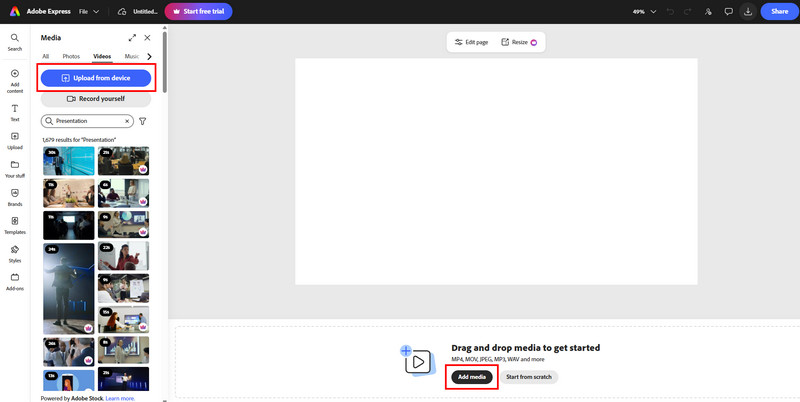
Step 2. From the interface, click the Add Media or Upload from Device button to start adding all the images you want.
Step 3. After adding the files, you can start editing and arranging your images. Click the Edit function above to start the process. You can add text, insert effects, attach transitions, and more.
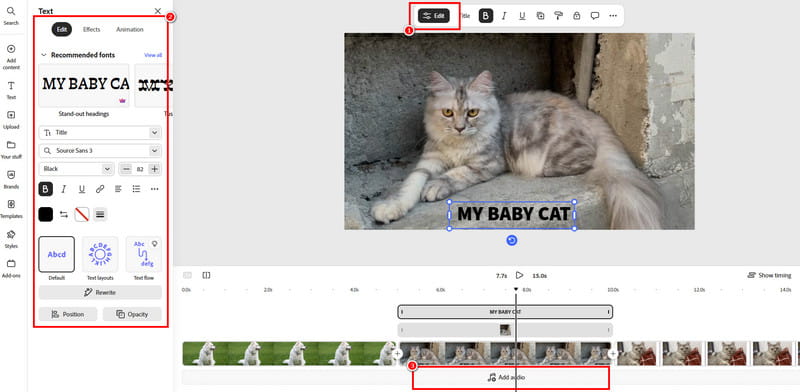
You can also tap the Add Audio button to insert background music.
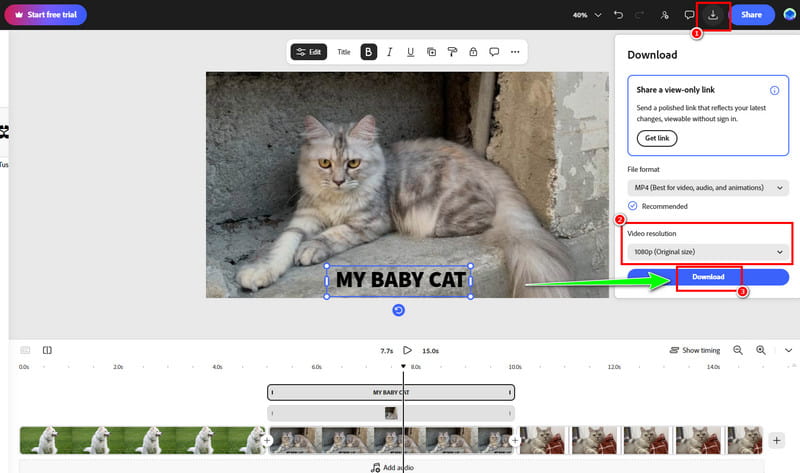
Step 4. Once you are done making your slideshow, tap the Download symbol above. Then, choose your preferred resolution. Lastly, tap Download to complete the download.
Part 5. Best Alternative to Adobe Express Slideshow Maker
Adobe Express Slideshow Maker is useful for making slideshows. However, there are various restrictions when using the free version. So, if you are looking for an exceptional alternative to Adobe Express that can help you create a slideshow for free without limitations, you should use Vidmore Video Converter.
The program offers its MV feature that lets you create an engaging slideshow. You can even merge multiple images, videos, GIFs, and more. It also offers various ready-to-use themes to make the slideshow appealing to viewers. The best part here is that you can organize your files using the drag-and-drop process, add effects, insert background music, and more. You can even save the slideshow to various output formats, such as MP4, WMV, MOV, AVI, and more, making it superior to Adobe Express. So, if you want a better slideshow maker, feel free to access Vidmore Video Converter. You can also follow the methods below to learn how to create a slideshow using this program.
Step 1. Download Vidmore Video Converter on your Windows or Mac computer. After that, run it to start the slideshow-making process.
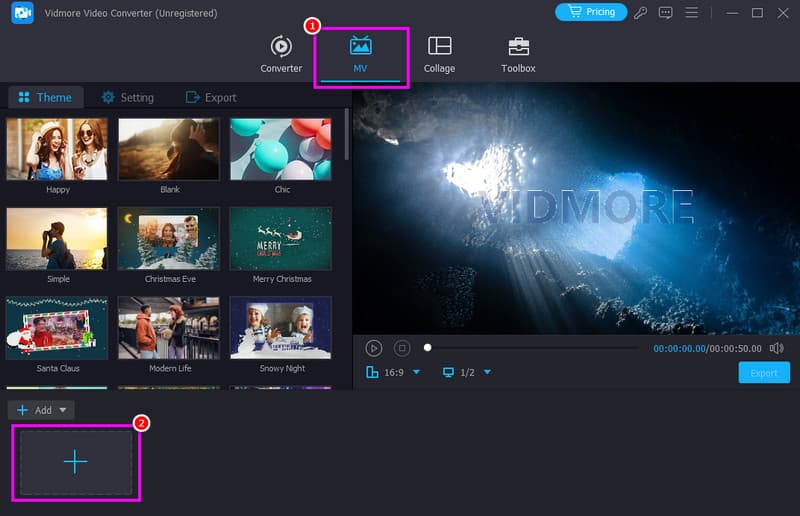
Step 2. From the interface, click the MV feature and tap Plus to add media files from your device.
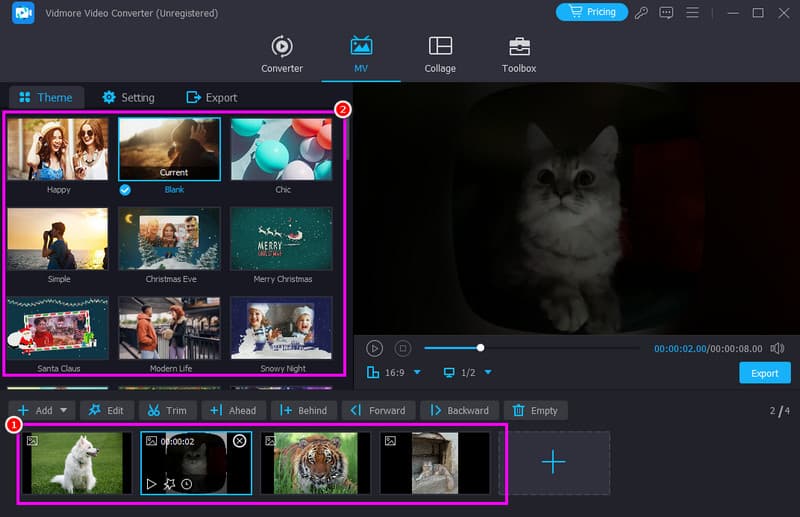
Step 3. You can now start organizing the files in your preferred order. You can also choose your preferred themes for your content if you want to.
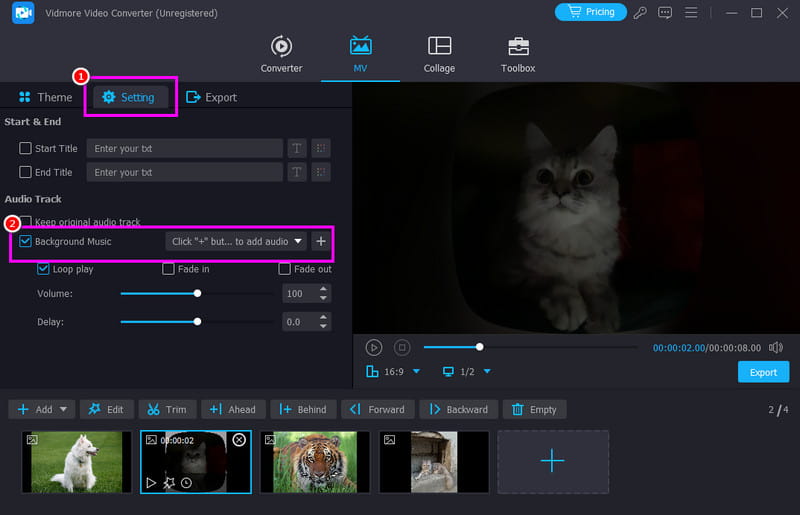
Step 4. If you want to attach background music to your slideshow, go to the Settings tab and click the Plus button in the Background music section.
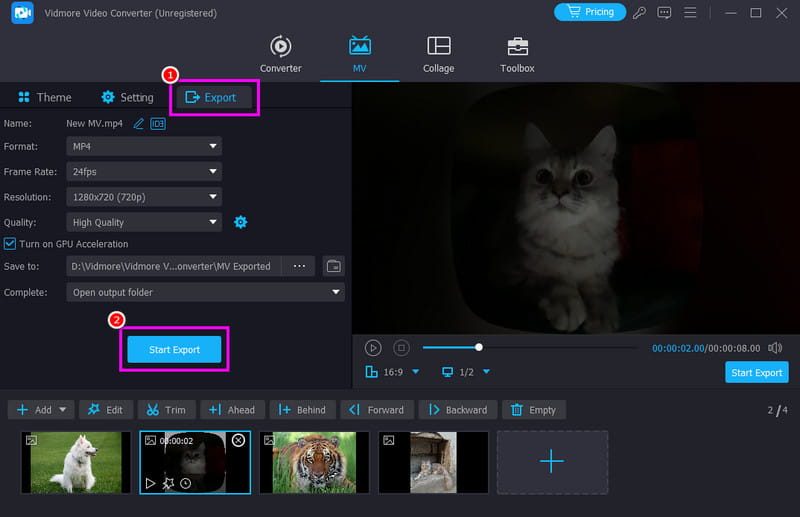
Step 5. After making your slideshow, proceed to the Export tab and select your preferred output format, frame rate, resolution, quality, and other necessary parameters. Once done, tap Start Export to save your slideshow on your computer.
Part 6. FAQs about Adobe Express Slideshow Maker
Is Adobe Express Slideshow Maker easy to use?
After using the tool, we can tell that it is simple to use. It lets you create an appealing slideshow without any hassle.
What output format can I export my slideshow in?
When using Adobe Express, you can only export your slideshow in MP4 format. It is good since the format is universal. However, if a certain platform doesn't support the format, you must convert the video using a separate video converter.
Is Adobe Express Slideshow available on mobile?
Definitely, yes. You can access the tool even when using your mobile. So, access the tool and start creating your own slideshow.
Conclusion
Adobe Express Slideshow Maker is among the tools you can use to craft an engaging slideshow. You can customize templates, organize images, and edit them to get the best result. However, since it has various limitations on the free version, you might need a better replacement. If so, you can use Vidmore Video Converter. With its MV feature, you can create a slideshow more easily and faster since it offers all the features without any restrictions. You can even save your content in various formats, making it the best alternative to Adobe Express.