What is Blender Video Editor: Detailed Review for 2026
What is Blender Video Editor? It is free, open-source video editing software. It can offer a powerful suite of editing features alongside its renowned 3D creation capabilities. It offers essential functions such as cutting, transitions, splicing, and audio mixing, making it ideal for beginners and skilled users. If you want to learn more about the video editor, check out everything in this review. We will cover a comprehensive description, key features, limitations, pricing plans, and how to use it. So, start reading to learn more!

PAGE CONTENT
Part 1. Overview of Blender
Blender is an exceptional 3D creation software that integrates video editing, animation, modeling, rendering, simulation, and compositing into a single platform. It is free, open-source, and licensed under the GNU GPL. A global community of developers and artists also supports the software. The software also runs on Windows, macOS, and Linux, offering a stable OpenGL-based user interface across platforms. It also suits studios and large-scale productions, thanks to its flexibility and Python scripting for customization.
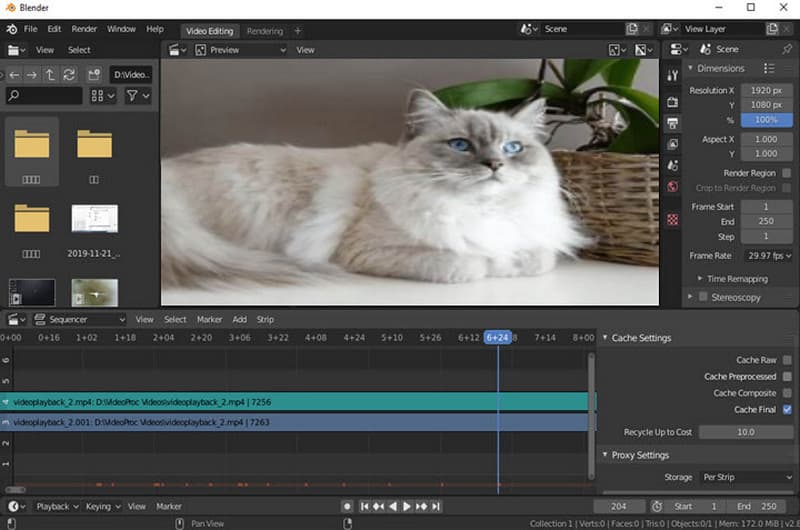
Main Features of Blender
Want to learn more about Blender's overall capabilities? Then read below as we outline its main features.
- Video Editing - One of Blender's core features is its range of video editing tools. The Video Sequence Editor supports cutting, transitions, splicing, and audio mixing. It also lets creators edit footage directly within the same environment used for 2D animation and rendering. This integration makes the software a versatile choice for projects that combine video editing with 3D content creation.
- Modeling - The platform also offers a powerful set of 3D modeling tools. It includes sculpting, polygon modeling, curve editing, and retopology. These tools let creators craft intricate, high-precision models for everything from initial concepts to final production assets. Functionalities such as dynamic subdivision, edge sliding, and N-Gon support further enhance flexibility and streamline the overall modeling workflow.
- Rendering - Blender also includes a rendering engine. It includes Cycles, a physically based path tracer. It can produce photorealistic results with support for GPU/CPU rendering, PBR shaders, and HDR lighting. Besides Cycles, there is Eevee. It is a real-time rendering engine. It enables fast previews, making it ideal for quick visualization and interactive projects.
- Visual Effects (VFX) - Blender also offers a range of visual effects, also known as VFX. It offers masking, tracking, and compositing tools to integrate 3D elements into live-action clips. The upside is that it rivals commercial software, making it a powerful option for independent studios.
- Simulation - The software supports physics-based simulations, including cloth, fire, rigid body dynamics, fluids, and smoke. Libraries like MantaFlow and Bullet provide industry-standard accuracy for realistic effects.
- Animation and Rigging - Another key feature Blender offers is animation and rigging. The software supports professional animation, inverse kinematics, rigging, and non-linear animation editing. Professionals can create complicated character movements, dynamic simulations, and facial expressions.
- Scripting and Customization - Blender also features a powerful Python API. It lets users automate workflows, extend functionality, and build custom tools. The program integrates various community-developed add-ons in future versions. This scripting flexibility helps the software adapt to diverse production needs.
Part 2. Pricing Plans of Blender
Blender offers various plans, so you can get the results you need. The question is whether the software is free or subscription-based. The good news here is that the software is free to access. You can create 3D models and edit videos without spending a penny, making it a great open-source video editor.
Part 3. Limitations of Blender
Blender is ideal for video editing and 3D modeling. However, you must know that there are also some limitations you might encounter. To explore its limitations, read the details in this section.
Steep Learning Curve
Blender's main interface is packed with advanced tools. It might overwhelm some users, especially beginners. Unlike other commercial editors, it has no built-in tutorials or guides. With that, users must rely on community resources and self-learning. For non-professionals, editing videos can take longer than with other user-friendly editors.
Occasional Stability Issues
If you're working on large projects with many layers, effects, or simulations, you may encounter crashes or freezes. Because of this, users must use a backup strategy to avoid data loss.
Limited Industry Adoption
This free video editor for Mac, Windows, and Linux is not widely used by other users or professional studios. Some use different platforms, like 3ds Max and Maya. This can make collaboration difficult, especially if the projects need compatibility with industry-standard pipelines.
Resource-Intensive
Since the platform focuses on modeling, rendering, and video editing, it requires a high-end computer. Users with low-spec computers may experience slow performance, crashes, and long rendering times. So, always use a high-end device when running the software.
Part 4. How to Use Blender
As mentioned, Blender is an excellent 3D creation suite that also includes a powerful video editing tool called the Video Sequence Editor. It lets users perform essential tasks, such as transitions, splicing, cutting, and audio mixing. So, do you want to edit your footage with this software? If so, follow the instructions below to learn how to use Blender for video editing.
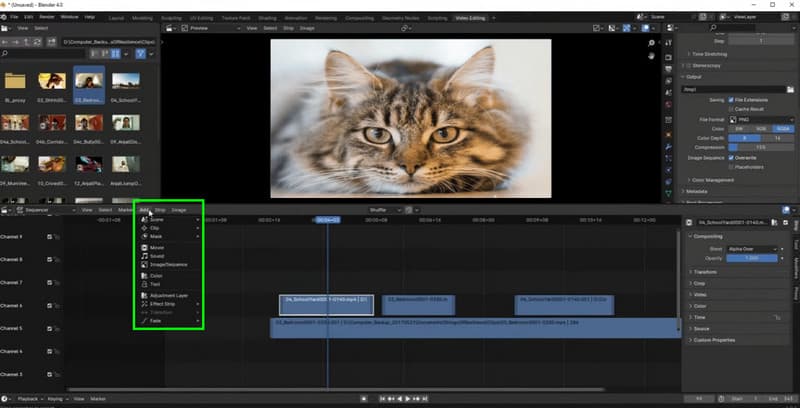
Step 1. Download and install the Blender software on your device. After that, launch it to start the editing process.
Step 2. Click File > Open options to start adding the video you want to edit. Once done, drag and drop the clip into the Timeline section below.
Step 3. You can start editing your videos. To trim the footage, use the shortcut key: 'G'. To split and cut the video, you can press the 'K' key.
Step 4. You can also go to the Add section and click Effect Strip to add more flavor to your video, like adjusting the playback speed, adding effects, and more.
Step 5. Once you are satisfied with the result, you can start the export process.
With this Blender tutorial, you can now edit your videos effectively. You can crop, trim, split, and add effects to your video. Thus, consider using this software for a better video editing experience.
Part 5. The Best Alternative to Blender
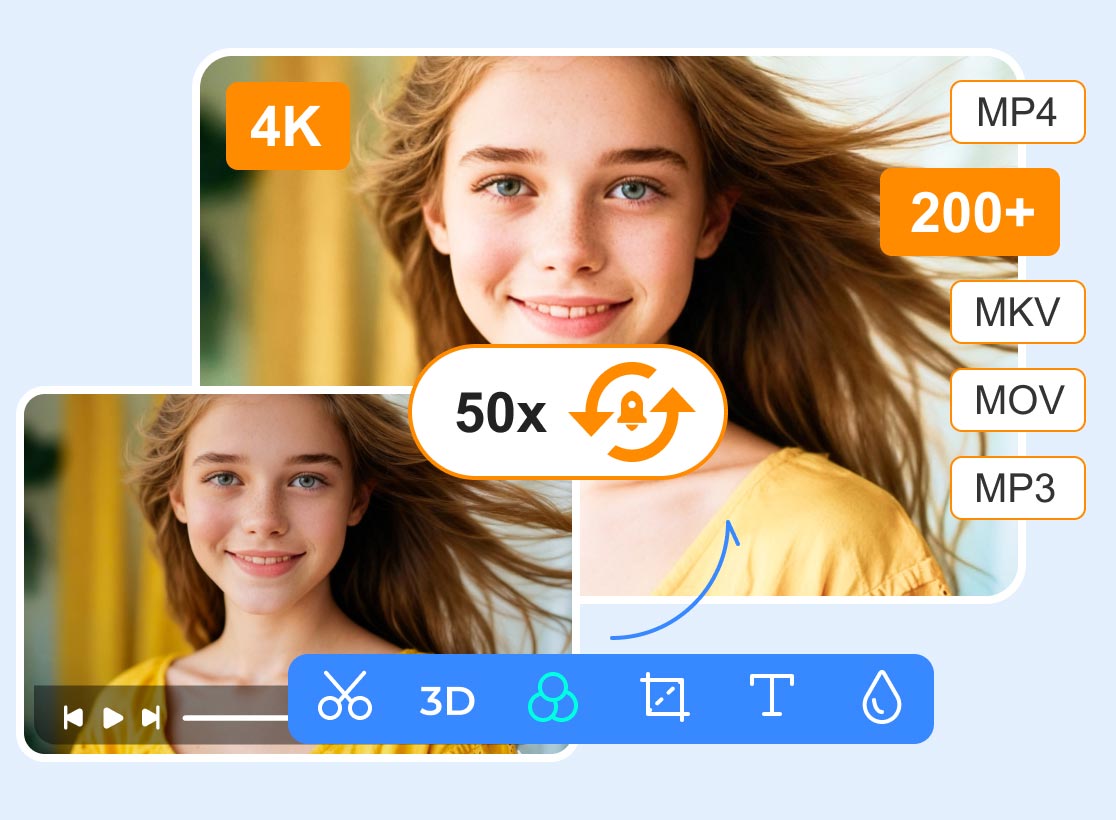
Blender is an ideal tool for basic video editing. However, it lacks several video editing tools, such as video enhancement, a watermark remover, filters, a built-in compressor, and more. So, if you are looking for the best replacement, we suggest Vidmore Video Converter. This software offers features Blender doesn't. It also has a more comprehensive interface, making video editing easier. What we like most here is that it can let you edit your videos in many ways. You can adjust the playback speed, edit metadata, add and remove watermarks, attach filters and effects, crop, trim, merge, insert text, and more. You can also convert your videos to hundreds of formats, including MP4, MKV, FLV, AVI, MOV, WMV, etc. So, if you need the best alternative to Blender, look no further than Vidmore Video Converter.
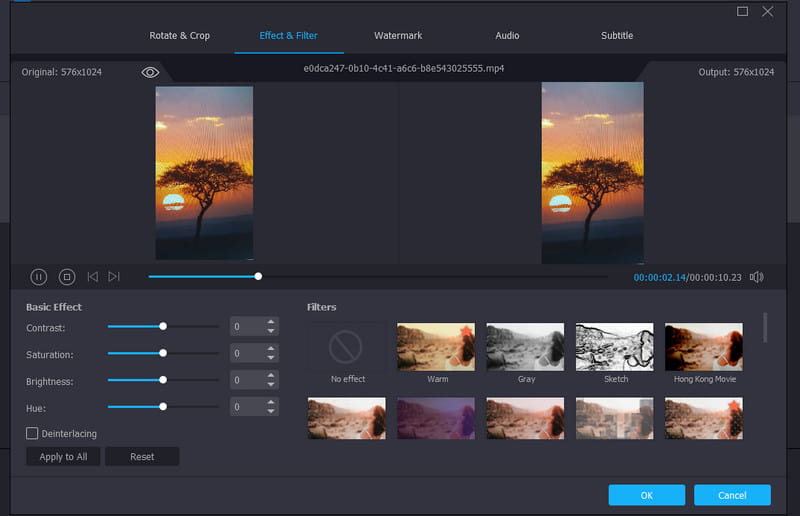
More Features
- The video editor can save the video up to 4K resolution.
- The converter feature has a super-fast conversion process.
- It can offer various templates for creating MC and collages.
- The program supports AI-powered technology for accurate video enhancement.
Pros
- It can provide both basic and advanced video editing features.
- The program can offer a smooth export process.
- It is the best video editing software for beginners.
- It can also convert image files.
- It is available on both Mac and Windows.
Cons
- For more features, you can try using the paid version of the program.
Part 6. FAQs about Blender Review
Is Blender ideal for non-professional users?
Actually, no. The program's main interface has many tools, tabs, and options, which can be overwhelming for novices. Blender is more ideal for skilled users who want to create 3D models and edit videos.
Can Blender replace some paid video editors like Premiere Pro?
The answer is no. Blender can only offer basic video editing tools, such as trimming, splitting, transitions, and audio mixing. On the other hand, Premiere Pro can offer both basic and advanced video editing features, like, color grading, cropping, trimming, enhancement, and more.
What are the video editors that can replace Blender?
You can use various video editors to edit videos that can surpass Blender. Some include Vidmore Video Converter, CapCut, DaVinci Resolve, Premiere Pro, and more. These editors offer more features, helping you improve your videos.
Conclusion
Thanks to this review, you've learned what Blender is, along with its features, limitations, and how to use it. Plus, if you are looking for another video editor that can guide you through many editing options, you can use Vidmore Video Converter as an alternative. This software offers more features, helping you achieve your desired result. It can even convert your videos to numerous formats with the best output quality, making it the best video editor and converter.