How can I Lighten A Video Using Windows Movie Maker
The brightness has a significant impact on the video. It makes it livelier, and the clarity can satisfy the viewers. The brightness sets a mood for anyone. If you have a dark video, it is possible that viewers won't be happy and will feel annoyed. So, it is necessary to lighten up your dark video, especially if you plan to share it on your social media. Then, if that is the case, We will introduce you to the most effective procedures using trustworthy applications you can use. This article will help and provide simple guides on how to brighten a dark video in Windows Movie Maker. You will also discover another more straightforward method of making your dark video brighter.

PAGE CONTENT
Part 1: Method on How to Lighten A Video in Windows Movie Maker
Windows Movie Maker can edit media files like video. This application is also capable of changing the brightness of your video. It can make your dark video brighter and vice versa. Additionally, it offers a wide range of audio, image, and video editing options. Also, Windows Movie Maker offers a simple interface, making the procedure easier and perfect for non-professional users. However, there are some instances when this offline software lags and doesn't perform well. It also lacks advanced editing tools.
Use the simple process below to learn how to lighten a video in Windows Movie Maker effectively.
Step 1: First, please download the Windows Movie Maker on your computer. Then, after you install the application, launch it.
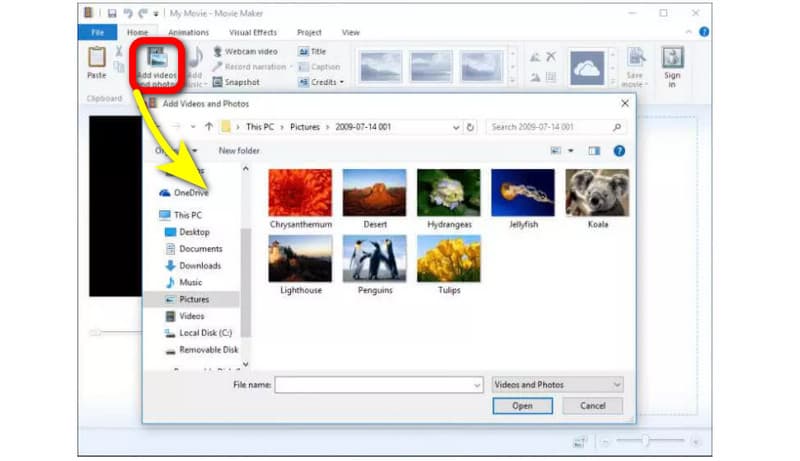
Step 2: Click the Add videos and Photos icon. Your file folder will pop up on the screen, and choose the video you desire to brighten.
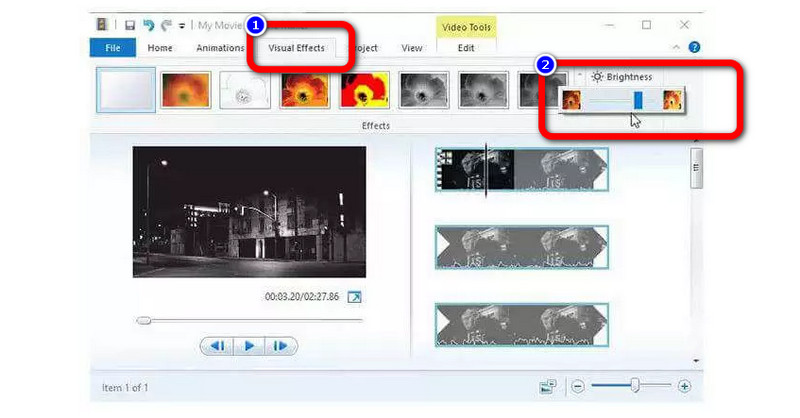
Step 3: To brighten your video, proceed to the Visual Effects menu on the upper part of the interface. Then click Brightness. Afterward, adjust the brightness by controlling the sliding bar.
Step 4: Lastly, after adjusting the brightness of your video, navigate to the File option to save your final video on your computer.
 VidHex Video Enhancer
- Support brightening video in just 1 click with AI.
- Advanced AI models to adjust contrast, hue, saturation, etc. automatically.
- Export video resolution up to 4K and 8K.
- Support cloud acceleration to improve the brightening process.
Part 2: Much Easier Way to Brighten A Dark Video
If you think the method above is still complicated to follow, you can try a much easier tool to make your video brighter - VidHex, which is a powerful AI video enhancer to improve the dark, blurry, pixelated, or shaky videos.
VidHex can brighten your video more manageable and simpler. With just 3 steps, its built-in AI tech will automatically modify the brightness, contrast, and hue of your low-light videos. You will get a result with more natural color. In addition, this application has an intuitive interface, so you can easily understand the layout. It also has the most straightforward operations, making it more suitable for all professional users or beginners.
Here are the detailed instructions to brighten your video on Mac and Windows using VidHex.
Step 1. First, download VidHex on your Mac or Windows computer. You can click the download button above or visit the website to learn more and download it.
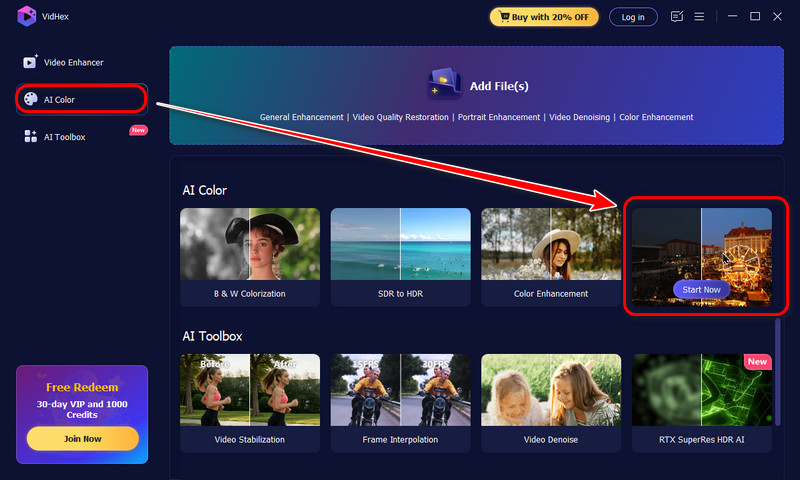
Step 2. In the left modes, click AI Color section. And then, hover your mouse on Low-light Enhancement and click the Start Now button. Now, you can choose the video file that you want to brighten.
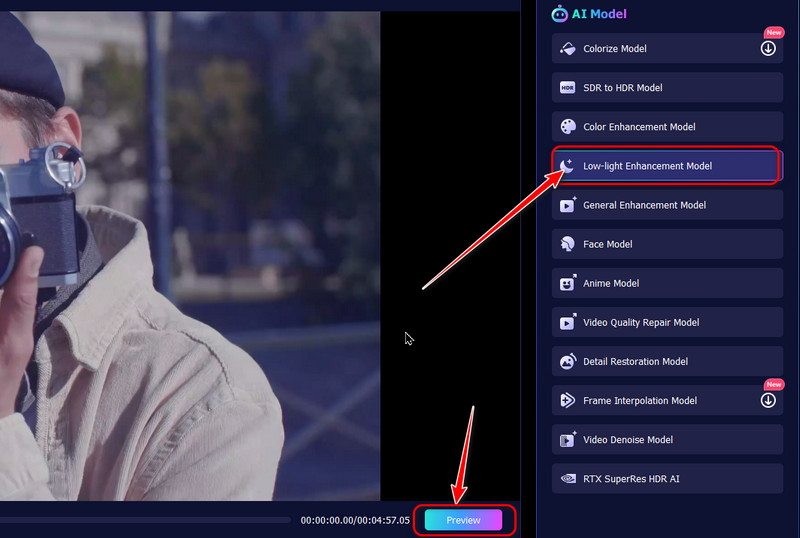
Step 3. Next, you will enter another page and you can see the Low-light Enhancement Model has been chosen in the right AI Model list. VidHex will automatically improve your video’s brightness. You can click the Preview button to see the brightening effects.
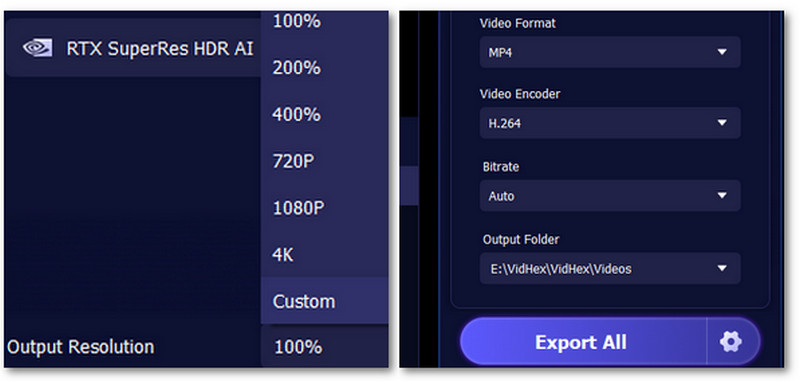
Step 4. Finally, adjust your desired resolution, output format, bitrates, and saving path. And then, click Enhance Full Video to save the brightened video.
Part 3: FAQs about How to Lighten A Video in Windows Movie Maker
1. Is there a Color Correction tool in Windows Movie Maker?
Windows Movie Maker has no tone, contrast, or color adjustments. In version 6, there is no color correction. But you can add color correction plug-ins from a third-party app. If you want an application with a color correction tool, utilize VidHex. It enables you to adjust your video's brightness, saturation, contrast, and hue.
2. Can I enhance the quality of my videos on Windows Movie Maker?
Of course, you can. Windows Movie Maker offers some features that allow you to increase video quality. Under the “Best quality playback for my computer,” click “show more options.” Then, press the “other setting” button to choose the desired quality level. You can choose the “High-quality video (NTSC)” option to export high-resolution videos.
3. What best application can I use to brighten my video?
There are many great applications you can use to brighten your video. One example is VidHex. This application lets you adjust your video’s brightness effortlessly.
Conclusion
Changing the brightness of your video has an impact on the viewers. It enhances the clarity of the video, making it more satisfying to watch. That's why this article shows you the methods on how to lighten a video in Windows Movie Maker. You also discovered a much easier process for making your video brighter, using VidHex. So try this application to experience its outstanding performance.