Change FPS of MP4: Ways to Adjust the Video Frame Rate
Want to change the FPS of MP4? Adjusting the frame rate is an ideal technique for video editors, casual users, and content creators who want to optimize playback quality. FPS determines how smooth or cinematic footage appears, and changing it can help match the project requirements. It can even improve compatibility with other devices. In this guide, we will share the best methods to effectively change the frame rate of your MP4 files. That way, you can get the result you need. Read on to learn more about the best FPS-changing methods.

PAGE CONTENT
Part 1. What is FPS
FPS, or frames per second, is simply the count of how many individual images are shown in one second of the video. It means that a higher FPS generally results in smoother motion. On the other hand, a lower FPS can make the clip choppier or more cinematic,c depending on the content. Thus, FPS is a key factor in determining how fluid and natural a video looks to the audience/viewer.
Part 2. How to Change FPS of MP4 on Desktop
Interested in learning how to change the FPS of an MP4? Then, you can read this part as we offer all the most reliable methods to change your MP4 FPS on desktop.
1. Change FPS of MP4 Using VidHex Video Enhancer
Do you need the best tool to help you change MP4 FPS easily and effectively? In that case, we suggest using VidHex Video Enhancer. This is an exceptional program for changing the FPS of MP4 files with its Frame Interpolation Model feature, offering both simplicity and professional-grade results. What's more, with its comprehensive UI, even non-professionals can change the FPS without encountering any technical hassle, while skilled users benefit from precise customization. Most importantly, the program can enhance overall video quality with the General Enhancement Model feature, making it more than just an FPS changer. It is even powered by artificial intelligence, ensuring accurate results. So, consider using this software if you want a powerful and reliable MP4 FPS changer.
AI Enhancement Models
- General Enhancement Model
- Face Model
- Video Denoise Model
- Color Enhancement Model
- Video Quality Repair Model
- Colorize Model
- Low-Light Enhancement Model
- SDR to HDR Model
- Frame Interpolation Model
- Detail Restoration Model
- Anime Model
To adjust the FPS of an MP4, you can follow the steps below.
Step 1. Download VidHex Video Enhancer on your desktop. Then. launch it to see its primary user interface.
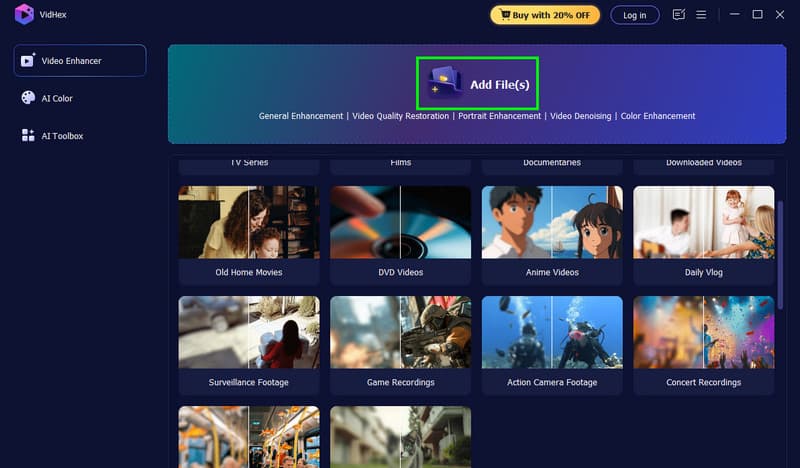
Step 2. Tap the Add Files button to start adding the MP4 file you want to edit. You can add more than one file since it supports batch processing.
Step 3. After that, click the Frame Interpolation Model feature. You can increase the FPS of the MP4 up to 2× and 4×.
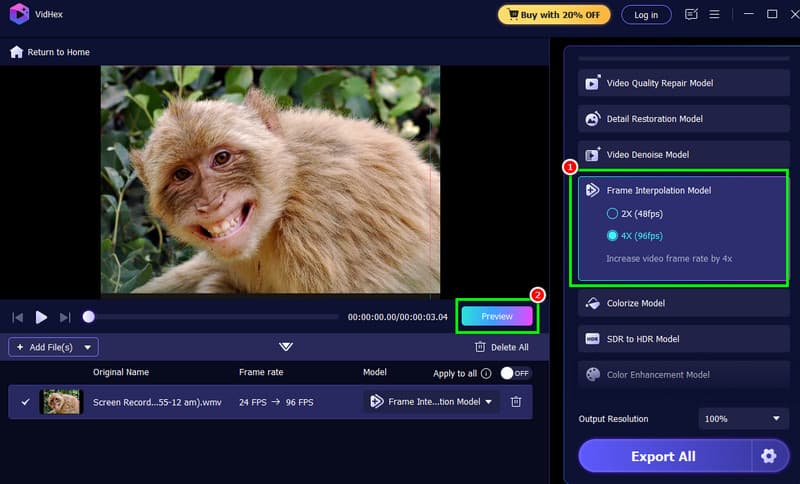
To check the result, you can click the Preview button.
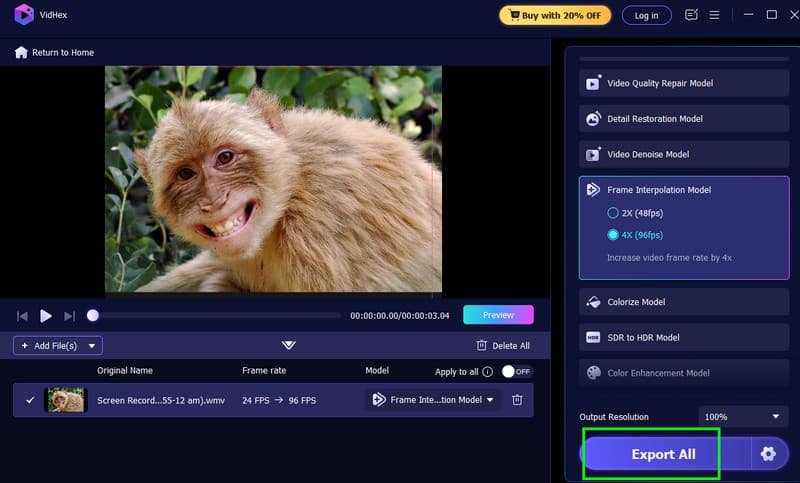
Step 4. Once satisfied with the result, click the Export All button below.
Ready to make your MP4 files smoother and more professional? Try VidHex Video Enhancer and transform your video with just a few clicks!
2. Change FPS of MP4 Using HandBrake
Another MP4 FPS changer you can use on your desktop is HandBrake. It is an open-source video transcoder that also works well for changing video FPS. The good part here is that it lets users adjust the FPS with precision, making it suitable for creating smoother video playback or achieving cinematic content. It can also offer basic editing features. You can flip video in HandBrake, rotate it, add effects, and more. With its capabilities, we can tell that HandBrake is a versatile tool for video optimization and conversion.
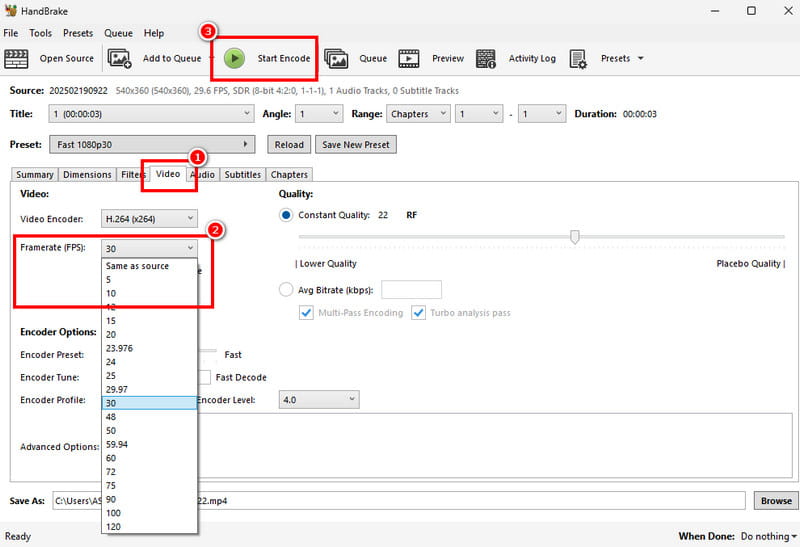
Step 1. Download and install the HandBrake program on your desktop. After that, open it to start the editing process.
Step 2. Click the File option to start adding the MP4 file from your computer folder. The drag-and-drop method is also workable.
Step 3. From the main interface, go to the Video tab. Then, navigate to the Framerate section and select your preferred frames per second for your MP4 file.
Step 4. For the final step, click the Start Encode button above. Once the process is done, you can start watching the video.
Limitations of HandBrake
- The main interface might be confusing to some beginners.
- The software doesn't have AI-powered enhancement features.
- The editing process can be slower at times.
Part 3. How to Change FPS of MP4 on Mobile
Do you want to change the MP4 FPS on your mobile device? In that case, you can try using the CapCut app. It is a versatile editing app that can help you adjust the FPS of your MP4 videos. The good thing is that it lets you change the FPS directly within the editing interface, making it easy to achieve smoother playback and cinematic effects. The interface is also user-friendly, which makes it accessible to all users. Plus, it can offer more editing features. You can blur a video on CapCut, crop, trim, insert text, and more. Thus, if you want to change the FPS and edit your MP4 files, always rely on this app.
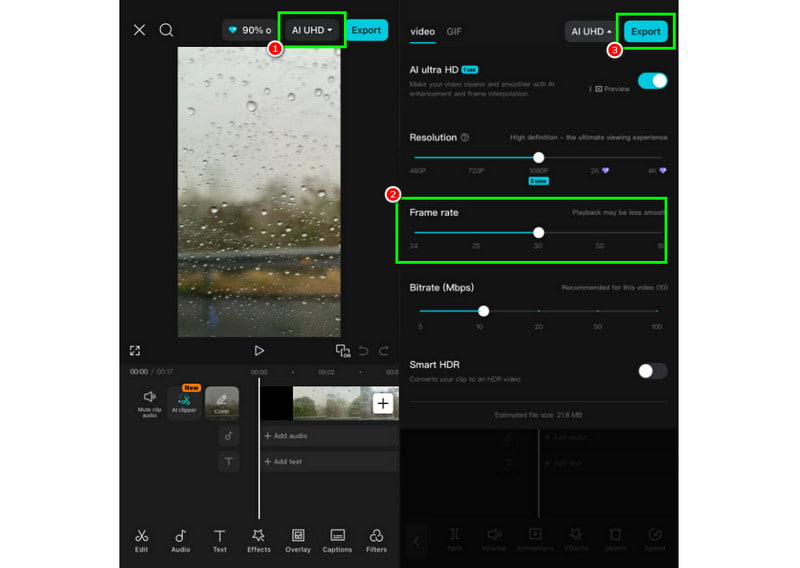
Step 1. Download and install the CapCut app on your iOS or Android device. Then, launch it to begin the process.
Step 2. Press the New Video button to add the MP4 video from your device.
Step 3. Then, tap the drop-down button above. Then, go to the Frame rate section to start adjusting the FPS of your MP4 file. Press Export to save the final result.
Part 4. FAQs about Changing FPS of MP4
Can the quality be affected when changing the FPS of an MP4?
Not directly. However, mismatched FPS settings can result in stuttering or unnatural playback. So, always remember to change the FPS appropriately for better and smoother video playback.
Does increasing FPS also change the file size?
Definitely, yes. A higher frame rate can increase the file size of the videos. This is because more frames will be processed. On the other hand, the file size might become smaller when reducing the FPS.
What is the best tool to change the video FPS?
If you want an exceptional video FPS changer, rely on VidHex Video Enhancer. This program offers a simple and powerful tool that can help you change the FPS of the video based on your needs perfectly.
Conclusion
To change the FPS of an MP4, you can use all the methods we have provided in this tutorial. That way, you can get smoother playback or cinematic content. Plus, if you want to increase the FPS of your videos up to 4×, it is best to use VidHex Video Enhancer. This software ensures you get the best results for a satisfying viewing experience.