A Complete Guide to ComfyUI Video Upscaler - Video Upscaling in ComfyUI
Is ComfyUI video upscaler worth trying?
You may notice that video upscaling has become an essential part of modern content creation, whether for social posts or serious works. When you look for a quick way to increase your video resolution with enhanced quality, you may get the ComfyUI recommendation. It has emerged as a powerful, node-based solution for AI-driven video enhancement.
However, while ComfyUI offers advanced models like SeedVR2 and FlashVSR, it may not suit many users because of its temporal instability and steep learning curve. This article gives a comprehensive guide to the ComfyUI Video Upscaler, covering its key features, limitations, pricing plans, and step-by-step usage. We also introduce VidHex Video Enhancer as an alternative for users who want high-quality upscaling without the complexity.

PAGE CONTENT
Part 1. Overview of ComfyUI Video Upscaler
ComfyUI is a node-based workflow tool that can help you enhance and generate videos using AI. Unlike standalone video upscalers, ComfyUI requires users to build custom pipelines by connecting nodes. The platform supports several powerful models, such as SeedVR2, FlashVSR, HitPaw, and Topaz Astra.
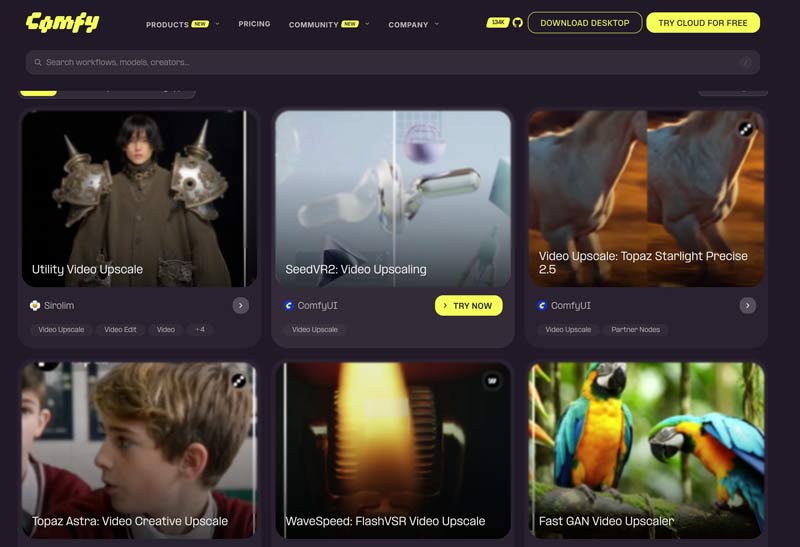
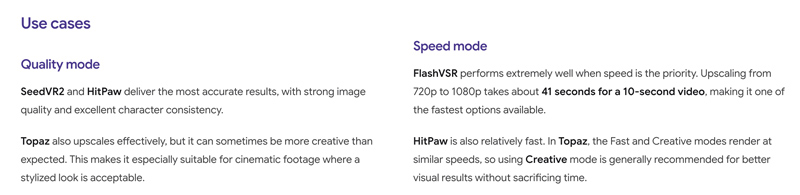
SeedVR2 is known for the strongest restoration of badly degraded or AI-generated footage. Like SeedVR2, HitPaw delivers the most accurate results. FlashVSR prioritizes speed for long clips. Topaz Astra Creative offers fast video upscaling to Full HD or 4K with creative enhancement capabilities.
Part 2. Limitations of the ComfyUI Video Upscale Workflow
Despite its flexibility, the ComfyUI video upscaler is not an ideal choice for most general users. Its video upscaling workflow comes with notable drawbacks.
1. The node-based workflow has a steep learning curve. You must install ComfyUI Manager, custom nodes, and learn model parameters. The upscaling can be too complex.
2. Users have reported VRAM consumption issues, particularly with newer versions of SeedVR2. Constant out-of-memory errors keep data in VRAM throughout processing.
3. Temporal instability. Video upscaling in ComfyUI can produce jittery videos. Aggressive downscaling may also cause detail loss. Some users also face significant brightness or color flickering.
Part 3. ComfyUI Video Upscaler Pricing Plans
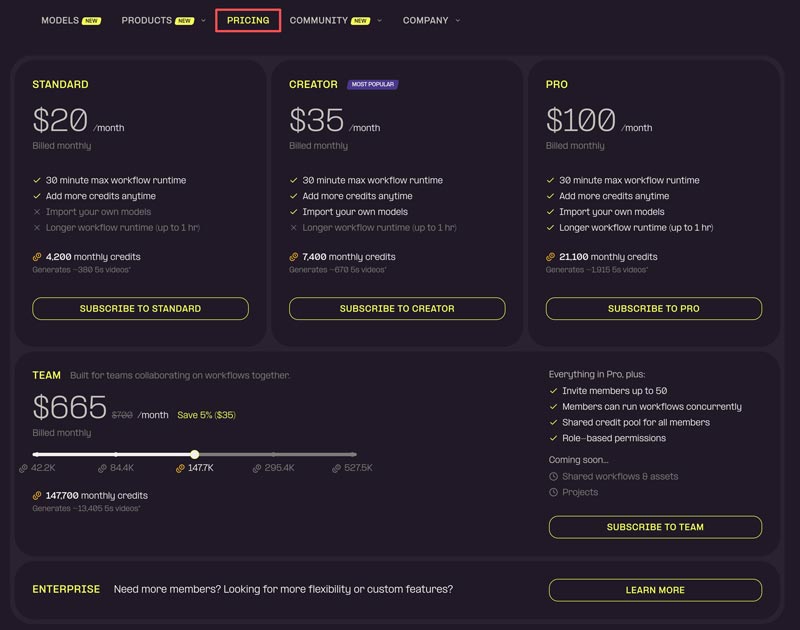
ComfyUI is an open-source platform that you can access for free for local installation. However, its cloud-based usage requires a subscription. Comfy Cloud currently offers 5 main tiers: Standard, Creator, Pro, Team, and Enterprise. Visit the Pricing page for details.
Part 4. How to Use ComfyUI Video Upscaler
Upscaling a video in ComfyUI isn’t straightforward. Generally, setting up a video upscaling workflow in ComfyUI requires several preparatory steps.
As mentioned above, you should install ComfyUI Manager first to add custom nodes. After that, you need to install video-handling nodes like “ComfyUI-VideoHelperSuite (VHS)” to load, combine, and export video files.
1. When you want to upscale or enhance a low-resolution video, load it using a “VHS_LoadVideo” node.
2. Apply an “ImageUpscaleWithModel” node with a RealESRGAN model to double or quadruple the source resolution quickly.
3. Pass the upscaled frames via a diffusion-based node, such as UltimateSDUpscaleNoUpscale. This adds high-frequency detail and sharpness.
4. After that, you can use a “VHS_VideoCombine” node to compile the frames into a single file.
Part 5. A Great Alternative to ComfyUI Video Upscaler: VidHex
Again, ComfyUI video upscaling can be complex for many users. If you prefer a streamlined, one-click solution without the complexity of node-based workflows, VidHex Video Enhancer can be a compelling alternative. Compared to ComfyUI, it provides more advanced AI models for certain enhancement needs. It lets you easily upscale low-resolution videos to high resolution while adjusting brightness and contrast and reducing shake and noise.
Steps to Upscale a Video Using VidHex
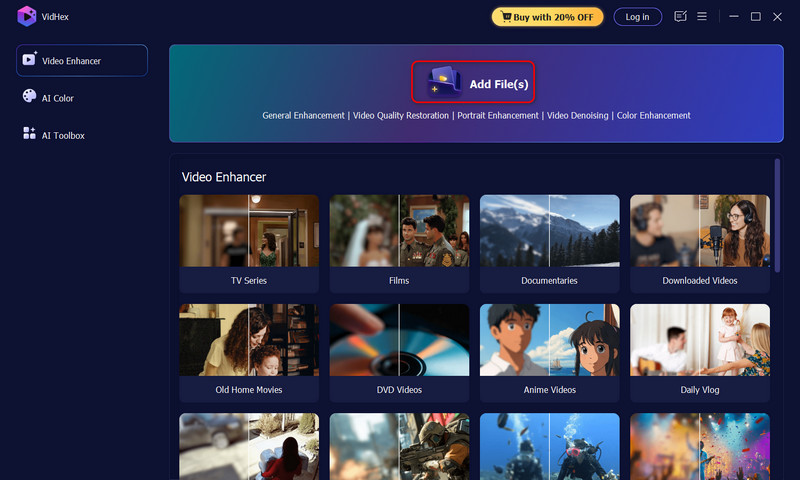
Step 1. Download and launch the latest version of this ComfyUI video upscaler alternative on your computer. Add your file by clicking the Add File(s) button to import your low-quality video.
Step 2. VidHex includes multiple AI models for different scenarios. Select the one you want from the right-side list based on your needs. You can start with the first General Enhancement Model.

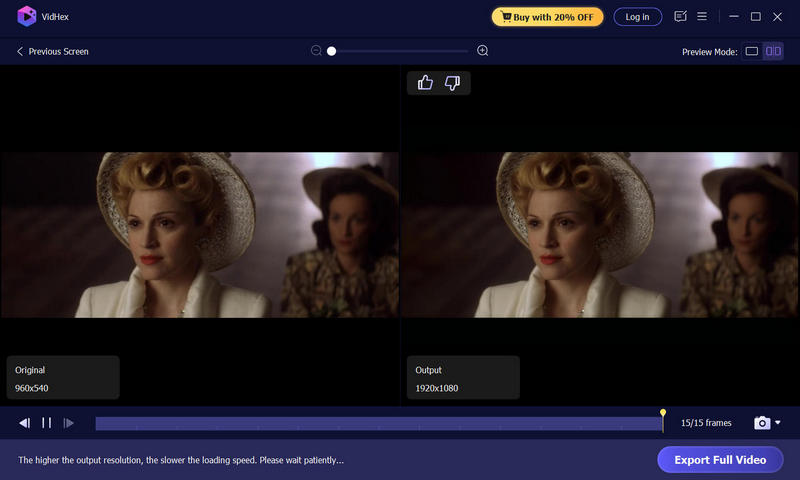
Step 3. Set output resolution. VidHex can upscale to 720P, 1080P, 4K, or even 8K. Preview the effect by clicking the Preview button. If you are happy with the upscaled footage, click the Export button. You can also enable hardware acceleration for faster processing and export.
You may also like
5 Best Video Upscalers to Enhance Video Quality
Part 6. FAQs of ComfyUI Video Upscaler
Question 1. Is ComfyUI video upscaler totally free?
ComfyUI itself is an open-source video upscaling and enhancement tool that is free for local use. However, as mentioned, its cloud subscriptions start around $20 per month for credit-based plans.
Question 2. Can VidHex upscale a video to 8K?
Yes, VidHex supports upscaling to 720P, 1080P, 4K, and even higher resolutions like 8K with its AI models.
Question 3. Does ComfyUI video upscaler keep the audio intact?
Yes, ComfyUI video upscaler can keep audio intact, but it depends on the workflow you build. By default, it splits video into frames and audio, then reassembles them after upscaling. Using nodes like VHS_LoadVideo and VHS_VideoCombine, the original audio track passes through unchanged.
Conclusion
This post reviews the ComfyUI video enhancer to help you learn more about the node-based workflow. It offers powerful upscaling and restoration capabilities. However, ComfyUI requires significant technical knowledge and hardware resources. If you prefer a dedicated video upscaler, VidHex provides an accessible alternative with multiple AI models.