Detailed Review of DaVinci Resolve Video Enhancer [2026]
DaVinci Resolve Video Enhancer has instantly become a go-to tool for creators who want to make their videos sharper and more professional-looking. It is also designed to reduce the video noise, improve clarity, and upscale resolution. So, do you want to learn more about DaVinci Resolve? In this review, we will provide all the information you need about the program, including its key features, limitations, pricing, and methods for enhancing your videos. So, if you want to learn more, feel free to read this detailed review.

PAGE CONTENT
Part 1. Overview of DaVinci Resolve Video Enhancer
DaVinci Resolve Video Enhancer is among the advanced, professional-grade tools in the built-in Resolve ecosystem. It focuses on improving the video quality through AI-powered upscaling, detail refinement, and noise reduction. Additionally, it is designed to assist content creators and editors in transforming lower-resolution, noisy clips into sharper and more cinematic ones without relying on any third-party plug-ins. It also works seamlessly within Resolve's workflow, allowing users to apply improvements directly on the timeline while maintaining full control over parameters such as texture, motion consistency, and sharpness.
Want to learn more about the capabilities of the tool? In that case, you can check its key features below.
AI Upscaling
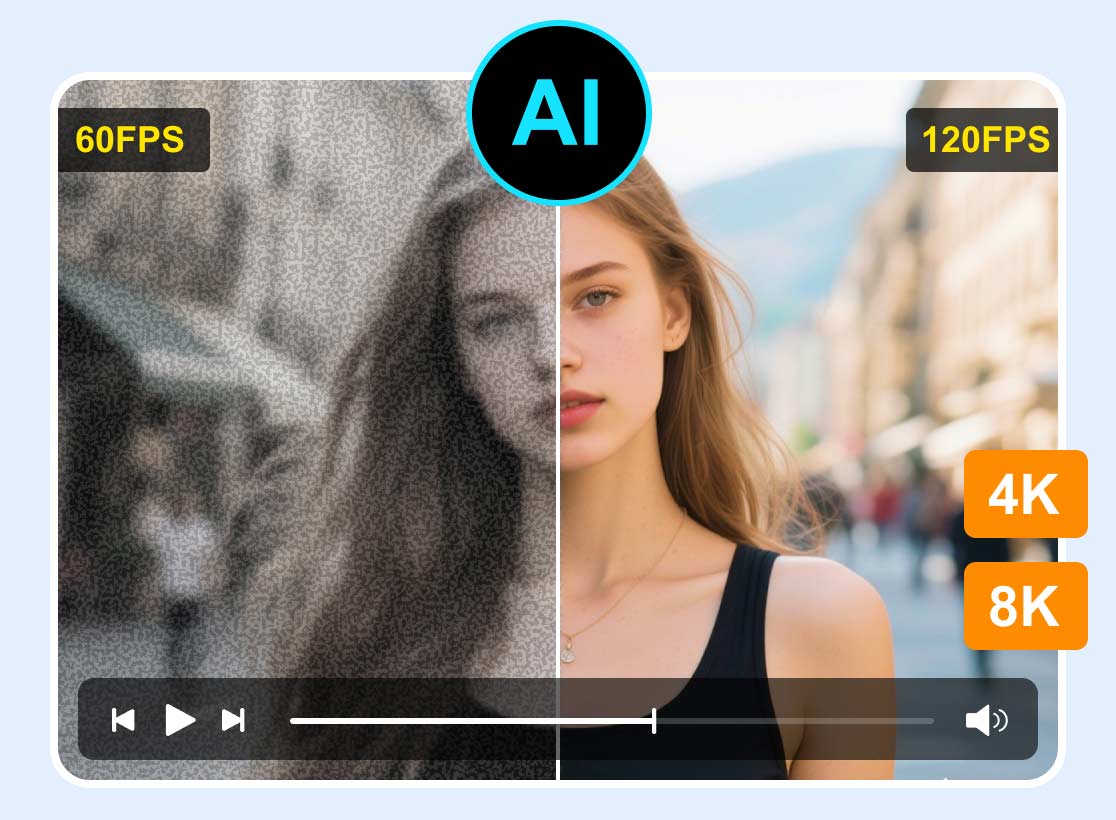
The core feature of the tool is to upscale videos using artificial intelligence. It uses machine learning to reconstruct missing details in lower-resolution clips. The tool analyzes patterns and textures to improve and upscale the video into a higher resolution without introducing additional artifacts. You can even upscale the video up to 8K for better video playback.
Noise Reduction
Another feature you can use is its noise reduction. With this feature, you can reduce grain in the video, making your file cleaner and more satisfying to watch.
Detail Refinement
By improving the edges, micro-details, and contrast, this helpful feature makes the footage appear more professional and vivid. It can also sharpen subtle elements, such as fabric textures, hair strands, and architectural lines. Additionally, it can add depth and clarity, making the footage stand out with a cinematic finish.
Customizable Controls
The good thing about the tool is that it lets users fine-tune parameters. You can adjust the smoothness, sharpness, and enhancement intensity to match the creative vision. By letting creators take control, you can achieve the result you need.
Limitations of DaVinci Resolve Video Enhancer
- • Hardware Demands – The tool is not a lightweight video enhancer. It requires a powerful GPU for smoother performance.
- • Not a Magic Fix – The tool’s capability is to improve the video. However, it cannot fully restore severely damaged or extremely low-resolution clips.
- • Limited Format Flexibility – The tool supports standard professional formats, including MXF, MP4, and MOV. Using other unpopular formats can affect the video enhancement process.
- • Processing Time – Upscaling video, especially to a higher resolution, is time-consuming.
- • Learning Curve – Its main user interface might be confusing to non-professional users. It may take time to experiment and explore all the features, so guidance from professionals is recommended.
You can also check: Detailed review of AirVid video enhancer.
Part 2. How to Use DaVinci Resolve Video Enhancer
Want to use DaVinci Resolve AI Video Enhancer to upscale your videos? Follow/check the steps below to start improving your video's resolution.
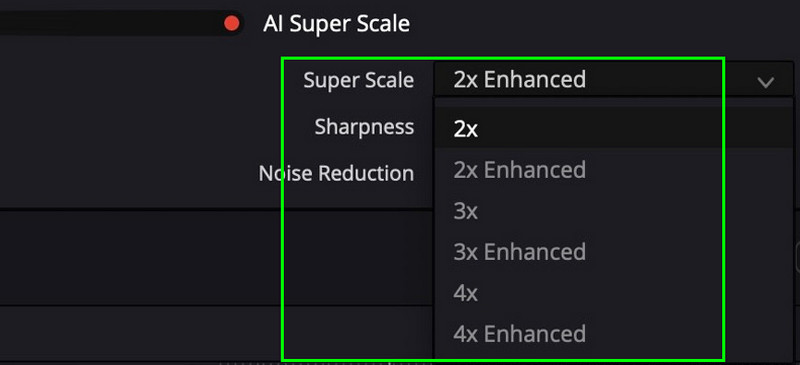
Step 1. Download DaVinci Resolve and launch it on your desktop. After that, add the video you want to enhance to the Timeline section.
Step 2. After that, right-click the video in the Timeline and select Clip Attributes.
Step 3. Navigate to the Super Scale option and start upscaling your video by choosing your desired upscale option. You can upscale the video up to 2×, 4×, and even 4× better.
Step 4. You can also adjust the Sharpness and Noise Reduction settings to Low, Medium, and High. After enhancing your videos, you can export them to your device.
Pay a visit: Best ways to upscale anime to 4K successfully.
Part 3. Pricing Plans of DaVinci Resolve Video Enhancer
Check this part and get more insights about the pricing plans of DaVinci Resolve Video Enhancer.
| Plan | Free | Studio |
| Pricing | $0 | $295.00 – One-time payment |
| Inclusions | • 8-bit video up to 60fps • Ultra HD resolution • Multi-user collaboration • HDR grading • Core editing tools | • Perpetual license • 10-bit video up to 120fps • Beyond 4K resolution • DaVinci AI Neural Engine • Magic Mask • Film grain effects |
Part 4. Best Alternative to DaVinci Resolve Video Enhancer
Are you a beginner and can't operate DaVinci Resolve to enhance and upscale videos? In that case, we suggest using Vidmore Video Enhancer as an excellent alternative. This software offers an intuitive user interface, allowing you to upscale your videos with ease. Plus, it can offer numerous upscaling options, such as 100%, 200%, 400%, 1080p, and even 4K. In addition, the upscaling process is fast and smooth, making it ideal for all users. You can also choose your desired enhancement model. Lastly, you can enhance any type of video. You can enhance old, blurry, and animated videos, as well as documentation, vlogs, and more. With that, if you need an ideal replacement for DaVinci Resolve, consider using Vidmore Video Enhancer.
AI Enhancement Modelss
Some of the AI enhancement models you can access are:
- • General Enhancement Model
- • Detail Restoration Model
- • Video Quality Repair Model
- • Frame Interpolation Model
- • Face Model
- • Low-Light Enhancement Model
- • Colorize Model
- • Color Enhancement Model
- • SDR to HDR Model
- • Video Denoise Model
- • Anime Model
To start enhancing your videos, use the instructions below.
Step 1. Download Vidmore Video Converter on your Mac or Windows computer. Then, run it to start enhancing your videos.
Step 2. From the primary interface, tap the Add Files button to insert the video you want to enhance.
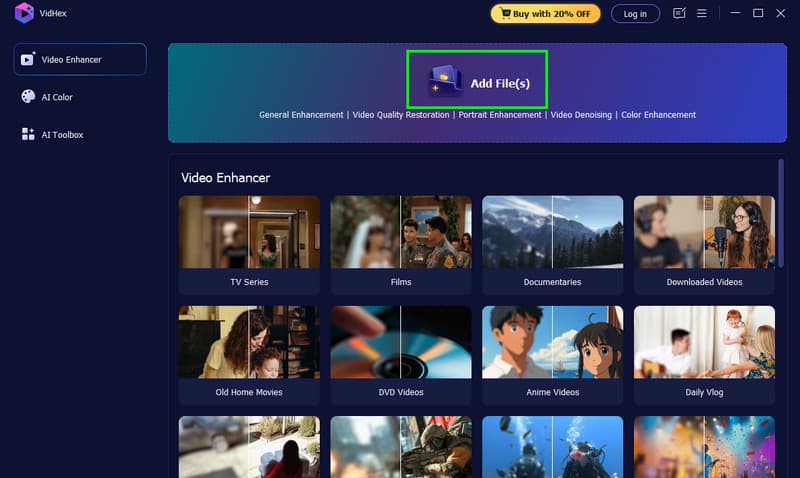
Step 3. You can now go to the AI Model section and choose the General Enhancement Model. Then, select your preferred resolution under the Output Resolution section.
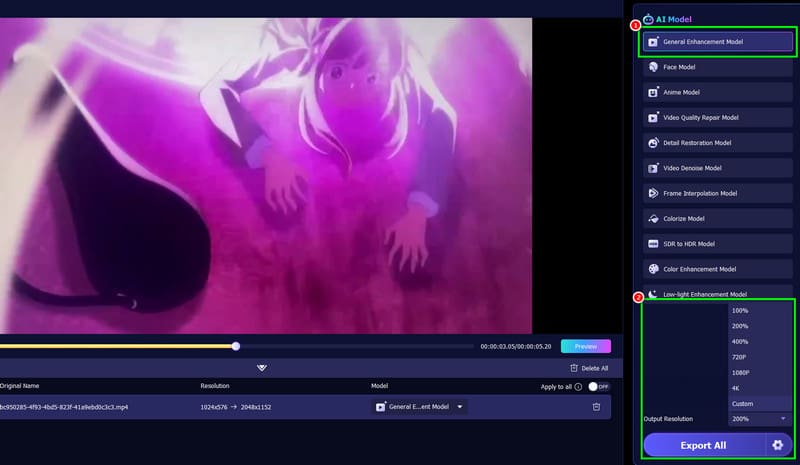
Step 4. For the final process, hit the Export All button below. After that, you can watch the video on your computer with the best resolution.
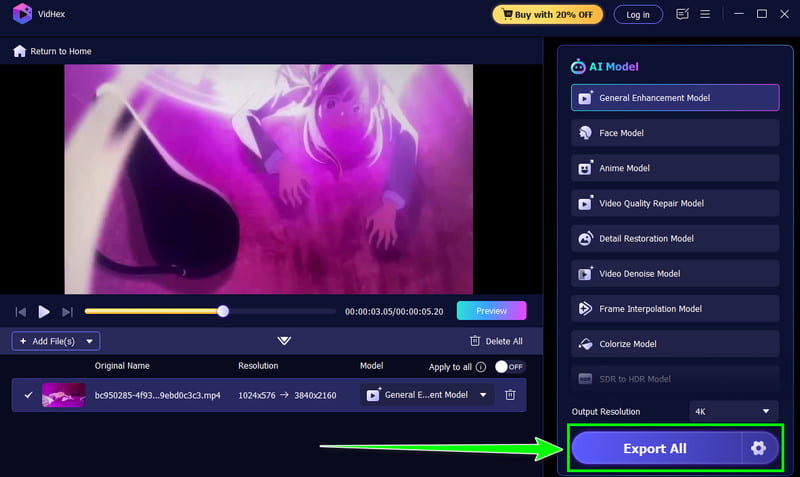
With this method, you can upscale and enhance your videos more easily compared to DaVinci Resolve. So, if you want a smoother, simpler process for upscaling your videos, start downloading Vidmore Video Converter on your desktop!
Part 5. FAQs about DaVinci Resolve Video Enhancer
Is DaVinci Resolve Video Enhancer free?
The software can offer a free version. However, if you plan to upscale your videos to 8K resolution, you must have the premium version.
Is the enhancement customizable or automatic?
The good thing about the program is that it can offer a customizable enhancement. You can adjust the sharpness, smoothness, and noise reduction level based on your preferences.
Can the program fix very low-quality videos?
Even though the tool is ideal for improving the resolution and clarity of a video, it cannot fully restore severely damaged or extremely low-resolution video.
Conclusion
Thanks to this detailed review of DaVinci Resolve Video Enhancer, you have explored the program's key features, limitations, pricing, and ways to enhance videos. However, since it has a steep learning curve, it might be complicated for beginners. With that, if you need the best alternative for easily and smoothly enhancing and upscaling videos, try Vidmore Video Enhancer. This program lets you improve your video to suit your needs, making it the best tool on your computer.