A Full Guide of Changing Colors of Videos: Why & How
Creating a video takes immense effort—from shooting and organizing footage to editing everything into a smooth final cut. Yet due to varying lighting conditions, locations, and shooting times, your clips often end up with inconsistent tones and color temperatures. Even if you manage to keep them visually aligned, you may still need to apply specific color effects to match the story's timeline or enhance emotional impact.
That brings us to the key topic of this guide: changing colors of videos. Manually adjusting colors frame by frame can be extremely challenging, which is why professional tools are essential for fine-tuning parameters efficiently and achieving cinematic results.
Since you're already here, you're one step away from discovering the right solution. This guide introduces 4 powerful video color changers, complete with detailed tutorials and step-by-step instructions. Simply choose the tool that fits your needs and follow along with the illustrated guide.

PAGE CONTENT
Part 1. Why Change Colors in Videos?
Yes, we can all agree that changing colors of videos is important—but what exactly makes it so essential? Why does color grading have such a massive impact on the final result that every filmmaker and content creator spends so much time mastering it?
Let's begin with a general overview:
• Effectively Conveying Information
Every element in a video communicates emotions and messages to the audience—not only visuals and sound, but also color. Professional productions often use different shades and tones to create specific visual effects. Warm colors can evoke relaxation, safety, comfort, or nostalgia, while cool colors may represent danger, loneliness, or emotional distance. High-contrast visuals can also enhance artistic expression. In short, color helps you tell your story better.
• Maintaining Consistent Visual Effects
Video creators need to keep a consistent color style throughout their work. This ensures the final production delivers stable and accurate visual results across different devices and screens.
• Fixing Existing Problems
While filming, you may accidentally capture footage that is too dark or overexposed. This is where changing colors of videos during post-production becomes essential. Proper color correction helps your video look polished, cinematic, and far more professional.
Part 2. How to Change Video Color: 4 Methods
So, have you realized just how important changing color in video really is?
From here on, let's officially dive into how to do it with professional video editing software.
Method 1. Vidmore Video Enhancer
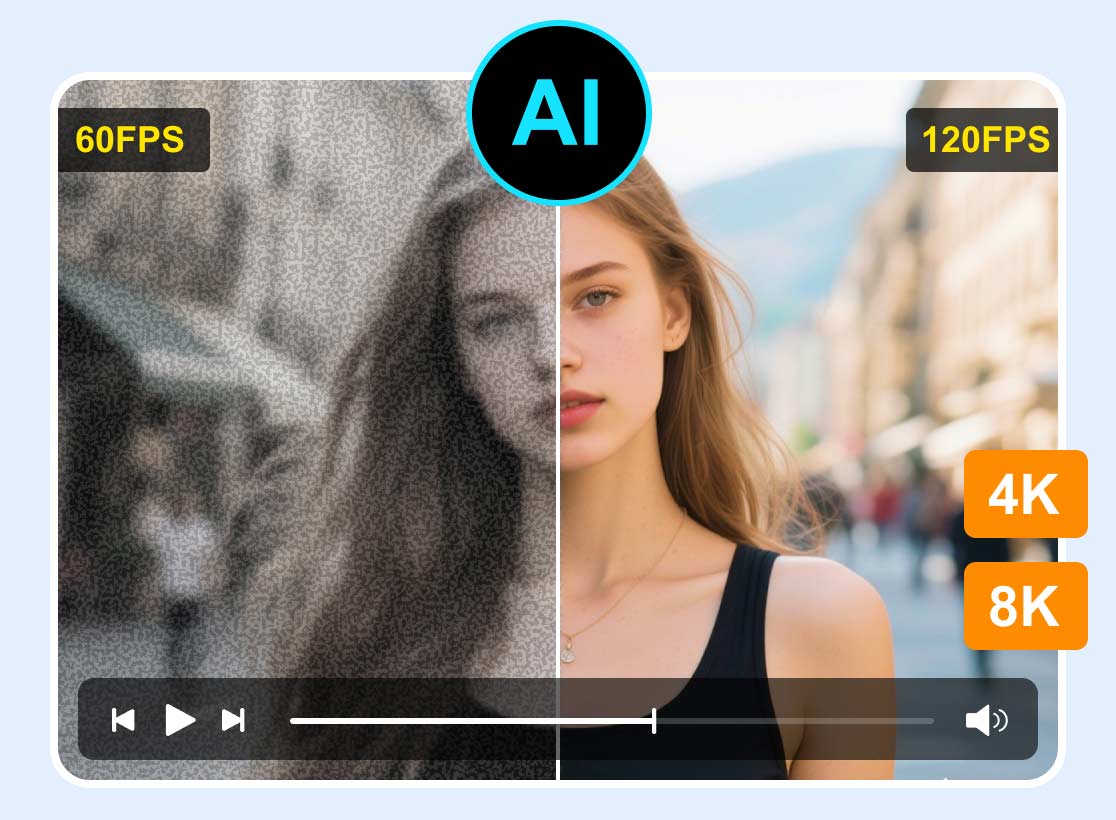
The first professional color correction tool we'd like to recommend is Vidmore Video Enhancer. It is an all-in-one video enhancement and post-production program whose core features include improving video resolution, removing visual noise, fixing shaky footage, and optimizing color, brightness, contrast, and more.
What makes Vidmore Video Enhancer stand out is that it doesn't simply apply one rigid formula to every project. Instead, it offers tailored enhancement solutions for different video styles, such as cartoons, movies, TV dramas, vintage films, everyday recordings, gameplay footage, and more. You can first choose the category that best matches your content and then begin enhancing your video accordingly.
In addition, Vidmore Video Enhancer is powered by built-in AI models. This means that even if you have no editing experience, you can still complete complex tasks automatically by selecting the right feature. For color-related adjustments, available models include Colorize Model, Color Enhancement Model, Low-light Enhancement Model, and more.
Key Features
- Upscale low-resolution videos to HD 720p/1080p/4K
- Automatically adjust tone, brightness, and contrast to improve color balance
- Colorize black-and-white videos with one click
- Detect and remove background noise from videos
- Fix shaky footage for smoother and more stable playback
Here is how to change color in video using Vidmore Video Enhancer.
Step 1. First, download and install Vidmore Video Enhancer on your computer.
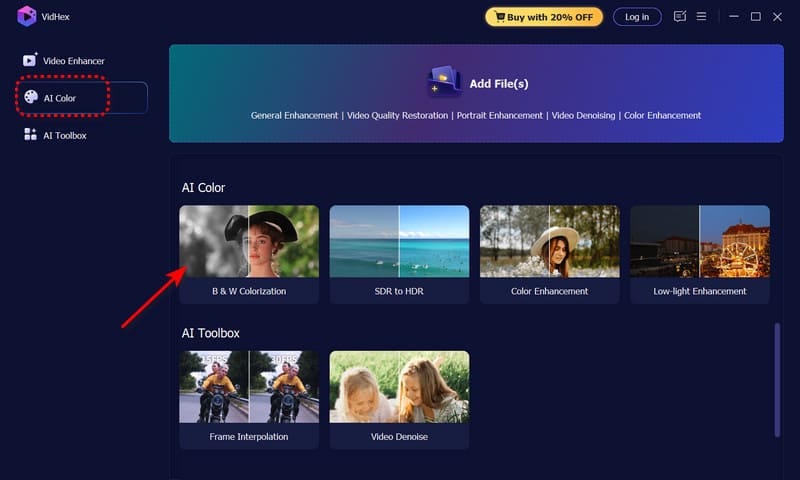
Step 2. Launch the software and click AI Color on the left side of the interface. Here, you will find multiple color repair and enhancement options. Choose the feature you need, hover your mouse over it, and click Start Now when it appears.
The application will then prompt you to upload the video you want to edit.
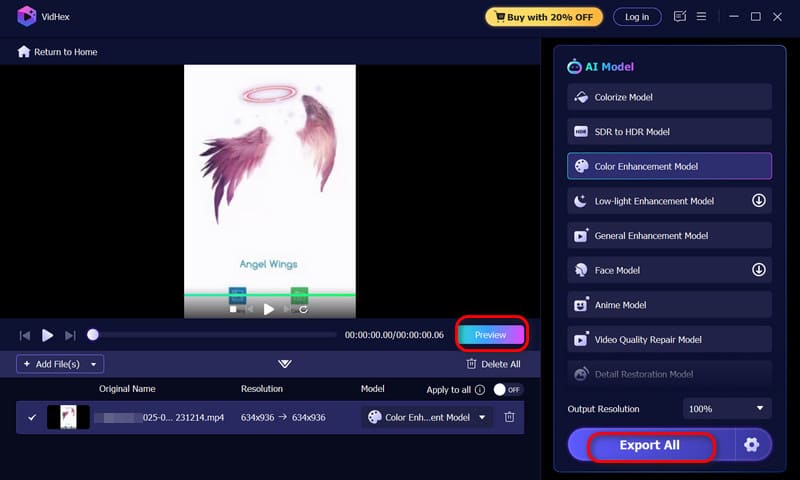
Step 3. Once you enter the next window, click Preview to check the editing result.
If you are satisfied with the outcome, click Export All to save the processed video.
Method 2. DaVinci Resolve
Among all the well-known video editing software available today, DaVinci Resolve is widely considered the most powerful when it comes to color grading. Its professional color correction tools are highly recognized throughout the editing industry. Although the software once had a reputation for being difficult to learn and use, continuous updates along with the growing number of tutorials and community discussions have made it much more accessible for everyday users who want to experience its impressive capabilities.
Here is a simple guide on how to change video color using DaVinci Resolve.
Step 1. First, download and install DaVinci Resolve on your computer.
Step 2. After entering the homepage, go to the Media section and follow the instructions to import your footage into the software. Then drag the clip onto the timeline to begin editing.
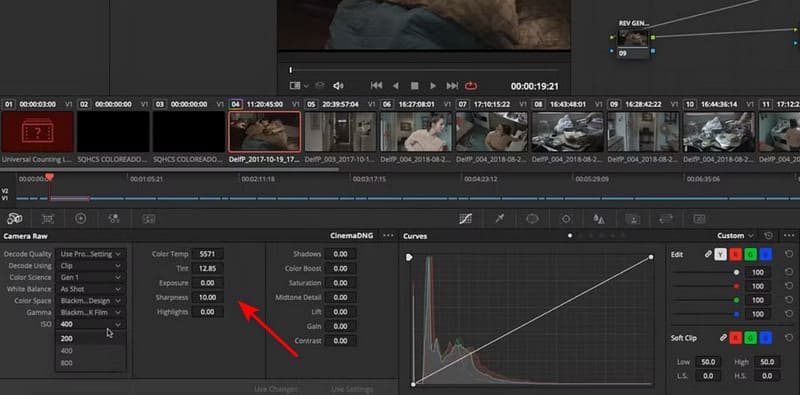
Step 3. Below the timeline, you will find all the tools that can help you adjust colors.
You can start with the Camera Raw section, where you can modify various parameters provided by the software to change colors, such as tone, color temperature, and more.
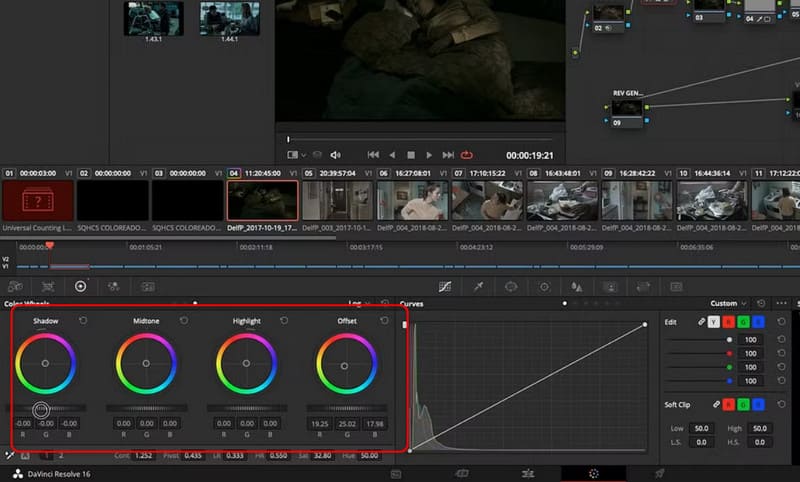
Step 4. Another section worth trying is the Color Wheels panel.
You will see four different color wheels:
- • Lift: Adjusts the intensity of shadows
- • Gamma: Adjusts the intensity of midtones
- • Gain: Adjusts the intensity of highlights
- • Offset: Adjusts the overall image
Around each color wheel, you will also find additional options such as white balance, contrast, color boost, hue, and more for further customization and color correction.
Method 3. InShot
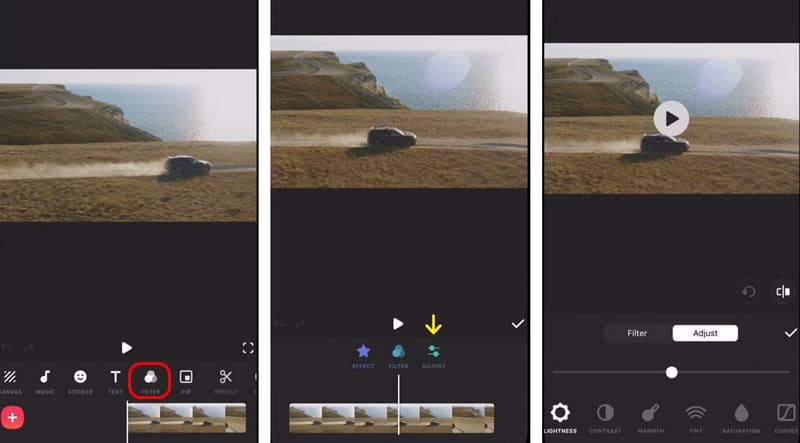
In fact, adjusting video colors doesn't necessarily have to be done on a computer. You can also complete the process on mobile devices with the help of InShot. As an app that combines many trendy video editing features, InShot also provides tools for changing video tones by adjusting various color parameters.
Here is how to change video color using InShot.
Step 1. Make sure InShot is installed on your phone.
Step 2. Open the app and tap Video > +New to upload your video.
Step 3. You will see multiple video editing options below the preview window. Find FILTER > ADJUST.
Step 4. Now, you can change the video colors by dragging the sliders to adjust parameters such as brightness, contrast, saturation, and more.
Method 4. VEED
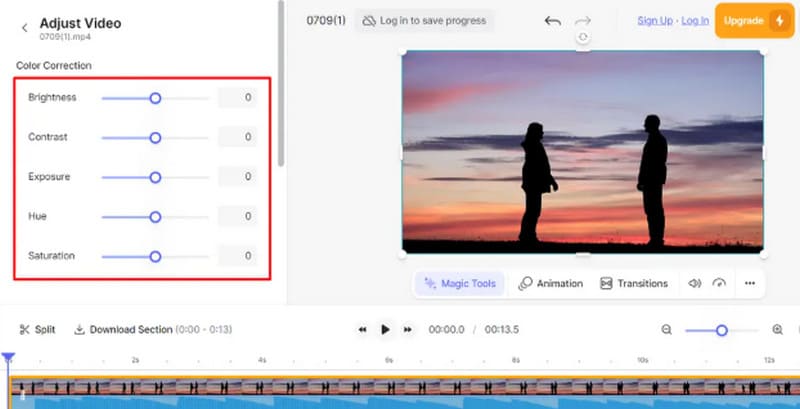
If you prefer a lightweight solution and want to avoid lengthy third-party software downloads and installations, then we recommend using the popular online video editor VEED.io. When it comes to basic video editing and color correction, it performs surprisingly well compared to desktop software.
Another advantage is that its adjustment settings are very intuitive. You don't need to understand any complicated configurations. Once you enter the editing interface, you can immediately find sliders for adjusting brightness, contrast, and many other visual elements.
Step 1. Open the official VEED.io website in your browser. Then follow the on-screen instructions to upload your video footage.
Step 2. Click Adjust Video. You will now see parameters such as Brightness, Contrast, Exposure, Hue, and more. Drag the sliders beside them to complete your color editing.
Step 3. After finishing the editing process, click Done in the upper-right corner, then export your video.
Part 3. Comparison Among 4 Methods
| Method | Best For | Ease Of Use | Speed | Precision | Cost |
| Vidmore Video Enhancer | Beginners and users who want AI-powered color correction and video enhancement | Very Easy | Fast | High | Paid (Free Trial Available) |
| DaVinci Resolve | Professional filmmakers, advanced color grading, cinematic projects | Moderate to Difficult | Moderate | Very High | Free & Paid Studio Version |
| InShot | Mobile users, social media videos, quick color adjustments | Easy | Very Fast | Medium | Free with In-App Purchases |
| VEED.io | Users who prefer online editing without downloading software | Very Easy | Fast | Medium | Free & Subscription Plans |
Part 4. FAQs About Changing Colors of Videos
How do I change a color in a video?
You can use Vidmore Video Enhancer or other third-party video editing tools. Generally, the process involves uploading your video and then adjusting parameters such as brightness, contrast, and similar settings to achieve the desired color effect.
Can you color on a video?
Yes, absolutely. Vidmore Video Enhancer can help you colorize video. It includes built-in AI color enhancement tools as well as a black-and-white video colorization feature. You can not only add color but also further fine-tune the results according to your preferences.
How to edit video colors on iPhone?
You can download InShot on your phone. This app supports both video editing and color adjustment features, making it easy to modify video tones directly on mobile devices.
Conclusion
This guide provides methods for changing colors of videos across desktop, online, and mobile platforms, covering four professional tools for your reference. Among them, InShot and VEED.io are the most lightweight and convenient options. DaVinci Resolve offers very strong professional capabilities but comes with a steeper learning curve. Overall, the most balanced solution is Vidmore Video Enhancer, which uses AI to save you the most time while delivering high-quality results.