Review Krea Video Upscaler: Discover What Makes It Stand Out
You may be frustrated after downloading a blurry video. So you open your browser and start searching for a tool that can help - and among the results, you come across Krea Video Upscaler.
If you've never used this type of software before, or have never tried this particular product, you may wonder: Is it really worth spending time on? Will I run into technical difficulties during the process? If these questions are bothering you, then this review is exactly what you need.
In this article, we will provide a complete overview of Krea Video Upscaler, including its concept, features, pricing, tutorial, advantages, and disadvantages. If you are also interested in exploring similar services, we have prepared one of the best alternatives for you. Hopefully, with this information, you'll finally achieve the clear, high-quality video you want.

PAGE CONTENT
Part 1. What is Krea Video Upscaler?
Now, let's dive straight into Krea Video Upscaler and gradually explore what kind of product it really is.
Let's begin with the basics.
Introduction
Krea Video Upscaler is an AI-powered tool whose core function is to enlarge video footage to a selected scale while simultaneously improving video resolution and clarity during the process. It provides its services through an online platform, meaning users do not need to download or install any third-party software. Everything is available instantly through the browser.
Here is a quick overview of its main features:
Key Features
- Built-in upscaling technology enhances video clarity and resolution by enlarging footage
- Advanced AI models help maintain smooth and natural motion consistency in videos
- A simple workflow makes it beginner-friendly and easy for all users to operate
Tip
Pros & Cons
Now let's move from the basic concept to evaluating Krea AI Upscaler's actual performance—what advantages it offers compared to similar products, and what limitations still exist.
Pros
• Extremely Simple Workflow
Krea Video Upscaler features a clean interface and a very straightforward process. Users only need to upload a video, choose the upscale ratio, and export the final result.
• Free Trial Opportunities
Krea Video Upscaler offers generous trial access for free users. After signing in, each user can enhance up to 4 videos per day for free.
• Natural-Looking Output Quality
Videos processed by Krea Video Upscaler retain a good amount of detail. While improving sharpness and clarity, it also avoids overly artificial or distorted visual results.
• Additional Creative Features
The Krea Video Upscaler platform also includes more tools for video editing, AI generation, and creative media processing.
Cons
• Limited Options in the Free Version
If you are using the free version, you can only upscale videos up to 2×.
• Very Limited Format Support
Currently, the platform mainly supports MP4 videos. If your footage is in another common format such as MOV, you may first need to convert MOV to MP4 before uploading.
• Average Processing Speed
Krea Video Upscaler's processing speed is fairly average, and sometimes the progress bar may freeze or become temporarily stuck during rendering.
Price
Now let's move on to another question that many users care about most: how much does Krea Video Upscaler cost?
First of all, Krea AI Upscaler offers every user a chance to try the service for free. Each user can upscale up to 4 videos for free every 24 hours. If you need additional usage opportunities, you will need to upgrade to one of its paid plans.
Currently, Krea AI Video Upscaling Software provides two subscription options:
• Basic
This plan costs $9 per month. With it, you can unlock more advanced AI models and receive 5,000 compute credits. Your exported videos can be enhanced up to 4K resolution, and you will also receive a commercial usage license.
• Pro
This plan costs $35 per month. It includes 60,000 compute credits and allows you to upscale videos up to 8K resolution.
In addition, this plan is much better suited to professional creators because it offers features that automate parts of your workflow.
Part 2. How to Use Krea AI Upscaler?
Now that we've finished discussing the theory and evaluation, it's time to move on to the practical part. Earlier in this review, we repeatedly mentioned that Krea Video Upscaler has a very simple workflow. In this section, you will see exactly how it works in practice.
Here is how to upscale videos using Krea Video Upscaler.
Step 1. Use your browser to search for and open Krea Video Upscaler.
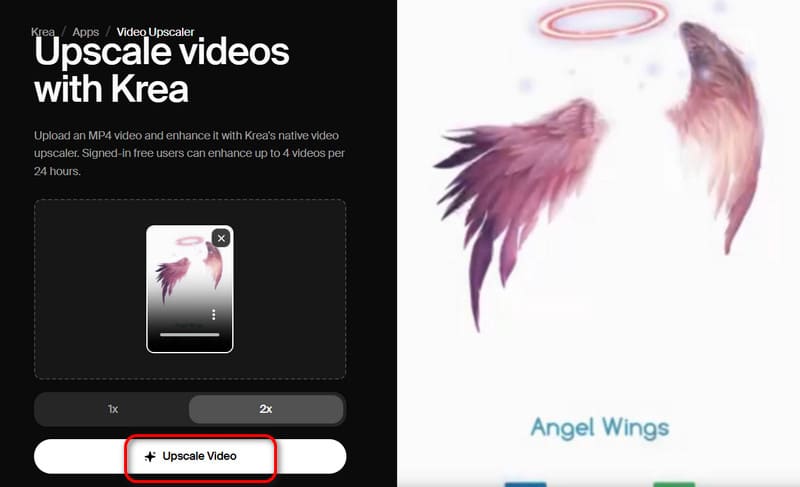
Step 2. Click Upload Video, then upload your video file. Keep in mind that the video must be in MP4 format.
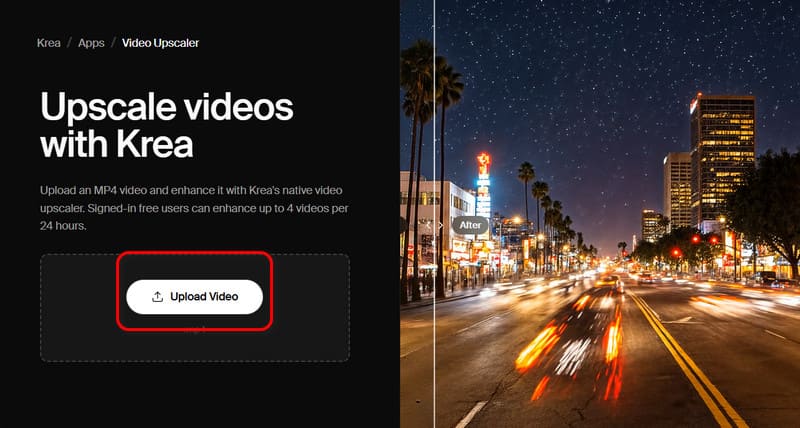
Step 3. After the video is uploaded successfully, choose the upscale ratio you want to apply. Then click Upscale Video.
Part 3. Best Krea Video Upscaler Alternative
If you feel limited by the restrictions of Krea Video Upscaler, or if you want an alternative with more enhancement options, then this review highly recommends trying Vidmore Video Enhancer.
Vidmore Video Enhancer is a desktop-based video enhancement program powered by AI technology. Not only can it upscale videos and improve video quality up to 4K, but it also supports advanced features such as video colorization, color enhancement, and shaky footage repair. More importantly, you still don't need to deal with complicated parameter adjustments. Simply upload your video and wait for the AI-generated results.
Key Features
- ·Upscale video quality from 480p/720p to 4K
- ·Enhance video color, brightness, and contrast comprehensively for better visual quality
- ·Remove video noise with one click
- ·Stabilize shaky footage automatically
- ·Trim, crop, and merge videos
- ·Add watermarks and special effects to videos
Here is how to upscale video with Vidmore Video Enhancer.
Step 1. Download and install Vidmore Video Enhancer on your computer.
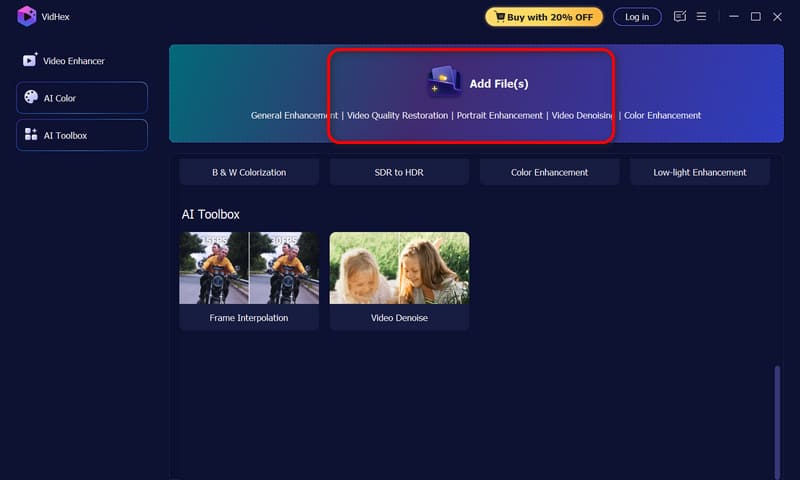
Step 2. Click the Add Files button at the top of the homepage to upload the file you want to process.
Step 3. After the video is uploaded successfully, locate the Output Resolution option in the lower-right corner of the interface. Open the menu beside it and choose the upscale percentage you want to apply to the video.
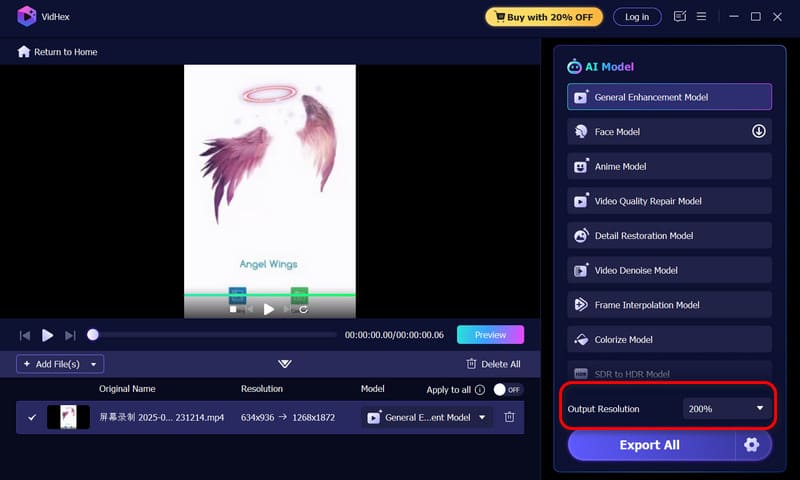
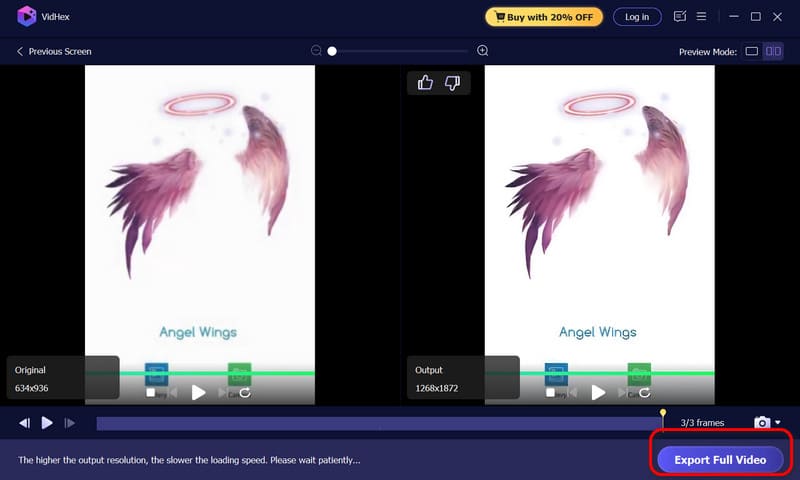
Then click Preview to check the final result. If you are satisfied with the outcome, click Export Full Video.
Click here to learn more ways to upscale your videos.
Part 4. Comparison: Krea VS Vidmore Video Enhancer
| Feature | Krea Video Upscaler | Vidmore Video Enhancer |
| Output Quality | Produces natural-looking results with preserved details and smooth motion | Delivers sharper AI-enhanced results with additional color, noise, and stabilization improvements |
| Processing Speed | Average speed; occasional lag or stuck progress during rendering | Faster and more stable desktop processing performance |
| Price | Free plan available; Paid plans start at $9/month | Paid desktop software with free trial available |
| Best For | Users who want quick online upscaling without installing software | Users who need professional video enhancement and more advanced editing features |
| Ease Of Use | Extremely beginner-friendly with a simple upload-and-upscale workflow | Easy to use with AI automation, while offering more professional controls |
Part 5. FAQs About Krea Video Upscaler
Can Krea upscale video?
Yes, absolutely. Krea Video Upscaler includes a built-in video upscaling feature that supports enhancing MP4 videos to 2×, 4×, and more. You can use it directly through your browser without downloading additional software.
How to upscale video quality?
You can use Krea Video Upscaler. Simply upload your video, choose the upscale ratio you want, and then export the enhanced result.
Is there an AI video upscaler?
If you prefer a quick and lightweight solution, you can use Krea Video Upscaler. However, if you want more features, faster performance, and more stable results, we recommend Vidmore Video Enhancer.
Conclusion
Overall, Krea Video Upscaler is an excellent choice for users who need quick results or are just beginning to experiment with video enhancement. It launches instantly in the browser, requires no installation, and offers a very simple workflow where you can obtain the final result in just a few clicks. In addition, every user receives the opportunity to process up to 4 videos for free every 24 hours.
However, if you are looking for more advanced features, faster processing speed, and more stable performance, then Vidmore Video Enhancer is a strong alternative worth trying.