Nero AI Video Upscaler Review: Are the Results Satisfactory?
If you've been following developments in video enhancement tools recently, you may have noticed that Nero AI Video Upscaler has received another major update. For those who haven't tried it yet, the key question is whether this tool truly meets their needs. Existing users, on the other hand, may be curious about what changes and improvements have been introduced in the latest version.
That's exactly what this Nero AI Video Upscaler review aims to explore. Drawing on information from the official website, insights from review platforms, feedback from real users, and our own hands-on experience, we've compiled a comprehensive overview of its features, usability, pricing, and limitations. By the end of this review, you'll have a clear understanding of what Nero AI Video Upscaler offers and whether it's worth giving a try.

PAGE CONTENT
Part 1. Features & Benefits Of Nero AI Video Upscaler
Without further preamble, let's start with a brief overview of what Nero AI Video Upscaler is.
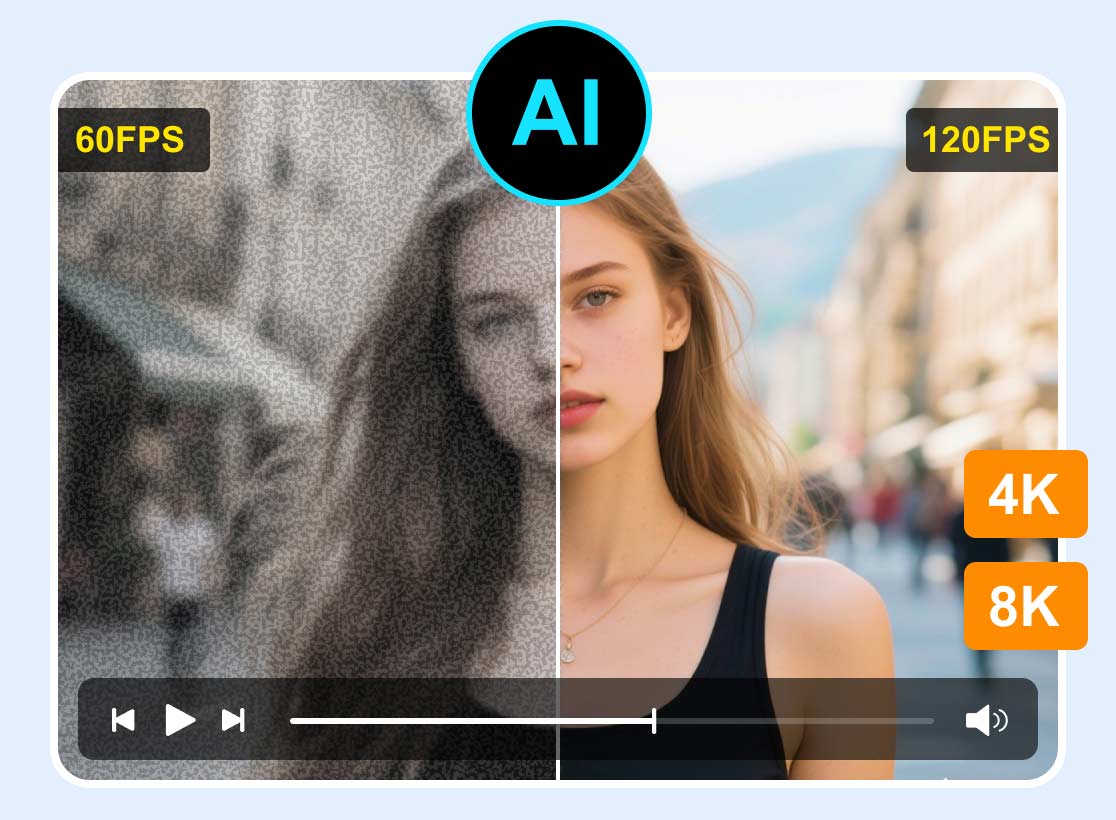
Nero AI Video Upscaler is a desktop application developed by Nero AG that leverages AI technology to enhance and restore low-resolution, poor-quality videos. Its primary purpose is to transform blurry or outdated footage into sharper, smoother, and more visually appealing content. For example, it can upscale standard-definition (SD) or high-definition (HD) videos to 4K or even 8K resolution, reduce noise and compression artifacts, and recover lost details to produce cleaner, more refined results.
One of Nero AI Video Upscaler's biggest advantages is its accessibility. The software is designed to be user-friendly for both beginners and experienced users. Rather than requiring manual adjustments to blurry areas or complex parameter tuning, users can simply select the appropriate enhancement features and let the AI handle the process.
It's worth noting, however, that Nero AI Video Upscaler is currently available only for Windows.
Of course, this overview only scratches the surface. To better understand what the software can do, let's take a closer look at its key features.
Key Features
1. Multiple AI Enhancement Models
Nero AI Video Upscaler offers six AI-powered models tailored to different types of content and restoration needs:
- Fast: Designed for urgent tasks where processing speed is the top priority.
- Animation: Optimized for animated videos and cartoons.
- Realistic: Excels at preserving natural textures, details, and real-world visual fidelity.
- Versatile: A well-rounded model suitable for a wide variety of everyday video content.
- Face Enhancement: Specialized in improving facial details and portrait footage.
- Restoration: Built for restoring old, low-resolution, or degraded videos.
2. AI-Powered Frame Rate Enhancement
The software can increase video frame rates up to 120 FPS, helping eliminate stuttering, frame drops, and choppy playback while delivering smoother motion.
3. Professional Color Adjustments
Nero AI Video Upscaler is also a color enhancer, which provides fine-grained controls for video appearance, including brightness, contrast, sharpness, white balance, and saturation. These tools enable users to achieve more realistic, visually pleasing results after enhancement.
4. Customizable Presets
Users can quickly get started with built-in presets or create and save their own custom model configurations and parameter settings for future projects.
5. Convenient Workflow Features
The software supports batch processing, allowing multiple videos to be enhanced simultaneously. It also offers broad compatibility with popular formats such as MP4, MOV, and AVI. In addition, users can freely customize output settings to suit their specific requirements.
Part 2. How to Use Nero AI Video Upscaler
As we've mentioned several times throughout this review, Nero AI Video Upscaler is remarkably easy to use and highly accessible for beginners. To demonstrate this point, we'll walk through the workflow and provide a quick reference guide to get started.
If you're interested in learning more about video upscaling techniques, you can also check out this guide:
How to Use Nero AI Video Upscaler to upscale a video
Step 1. Download and install Nero AI Video Upscaler on your computer.
Step 2. Launch the software and click the Import Video button on the home screen to upload your video footage.
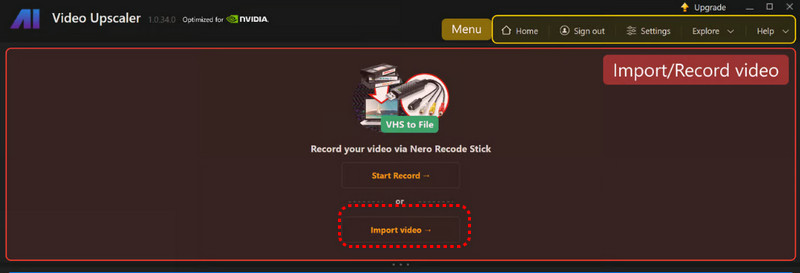
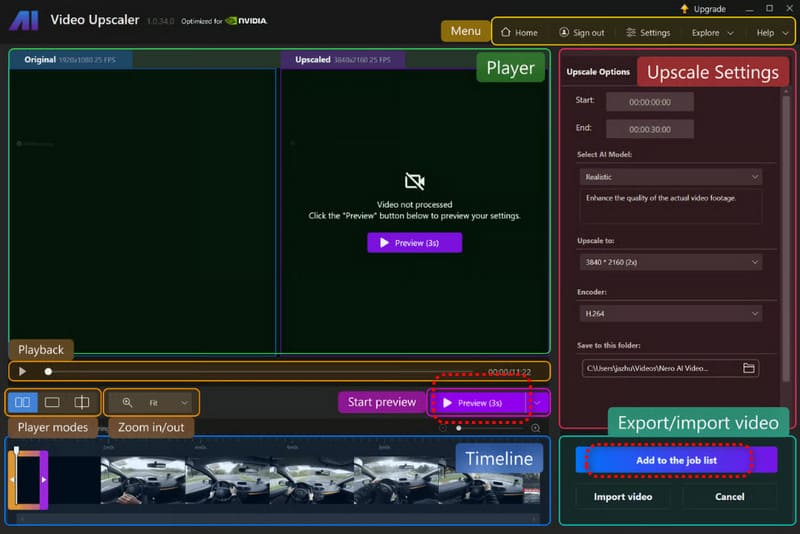
Step 3. Once your video has been imported, choose the AI model that best suits your needs. You can also use the Upscale Options panel on the right side of the interface to configure output settings and perform basic video cropping if necessary.
Step 4. After completing the settings, click Preview to review the enhancement results. If you're satisfied with the output, click Add to the Job List to begin the upscaling process.
Part 3. Limitations of Nero AI Video Upscaler
Very few tools are perfect, and even a product as capable as Nero AI Video Upscaler has its drawbacks. In this section, we'll highlight some of the limitations that users may encounter, helping you make a more informed decision before using the software.
• Over-Enhancement Issues
Nero AI Video Upscaler includes a dedicated model for facial enhancement. However, some users have reported that the software can occasionally over-sharpen certain areas of a video. As a result, textures may appear overly processed or less natural than intended.
• Limited Editing Features
While Nero AI Video Upscaler provides basic video editing options, its editing capabilities are relatively limited. In addition, some users may find the interface and editing workflow less intuitive than those offered by dedicated video editing software.
• High Hardware Requirements
Nero AI Video Upscaler performs smoothly on computers with powerful hardware. However, users with entry-level or mid-range systems may experience slow processing speeds, lag, or reduced overall performance, particularly when working with high-resolution videos or advanced AI models.
Part 4. Pricing Plans
Whenever you're considering a software product - especially a desktop application - pricing is inevitably one of the most important factors. That's why it's worth taking a close look at Nero AI Video Upscaler's pricing options before making a decision.
Currently, Nero AI Video Upscaler offers two licensing plans: an annual subscription and a lifetime license.
Annual Subscription: $84.95 per year
Lifetime License: A one-time payment of $195
The annual plan may be suitable for users who only need the software for occasional projects, while the lifetime license offers better long-term value for those who expect to use AI video enhancement regularly.
Part 5. The Great Alternative - Vidhex Video Enhancer
If there are aspects of Nero AI Video Upscaler that make you hesitate, you may want to consider an alternative that offers similar AI-powered video enhancement capabilities.
One option worth exploring is Vidhex Video Enhancer. Like Nero AI Video Upscaler, it is a desktop application, but it also offers a dedicated version for Mac users. Powered by advanced AI technology, Vidhex Video Enhancer can upscale videos to resolutions as high as 8K. Whether you're working with realistic footage or animated content, the software provides optimized enhancement models for both styles.
In addition to video upscaling, Vidhex Video Enhancer excels at color restoration and correction. It is particularly effective at restoring faded visuals and colorizing old photos, making it a versatile solution for a wide range of enhancement projects. If you're looking for an alternative to Nero AI Video Upscaler, it's certainly worth trying.
How to Use Vidhex Video Enhancer
Step 1. Download and install Vidhex Video Enhancer on your computer.
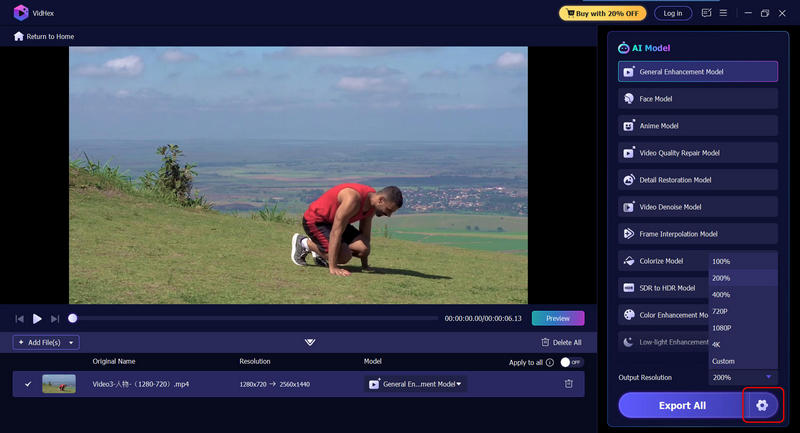
Step 2. Click the file upload area to import your video.

Step 3. Locate the Output Resolution section and select your desired output resolution.
Once everything is set up, click Export Full Video to begin the enhancement process.
Part 6. FAQs of Nero AI Video Upscaler Review
Which AI Can Upscale a Video?
Nero AI Video Upscaler is certainly a strong candidate. Not only is it easy to use, but it also leverages advanced AI technology to upscale videos to 4K resolution and beyond. In addition, it offers a range of quality enhancement features to improve the overall appearance of your footage.
Can AI Upscaling Fix Blurry Videos?
Yes. Nero AI Video Upscaler, for example, can enhance video resolution while simultaneously recovering lost details, reducing noise, and improving texture quality. As a result, blurry footage can appear noticeably sharper and more refined.
Is Nero Video Upscaler Free?
The software is available as a free download. However, to unlock its full functionality and use it without restrictions, you will likely need to purchase a license.
Final Verdict
After completing this Nero AI Video Upscaler review, it's clear that the software stands out for its frequent updates and continuous improvements. Its wide selection of AI enhancement models, each designed for different types of content, demonstrates a high level of specialization and attention to detail in video enhancement.
That said, the software currently supports only Windows devices, and users must purchase either an annual subscription or a lifetime license to access its full capabilities. Additionally, those using lower-end hardware may experience slower processing speeds or performance issues when handling demanding tasks.
If you're looking for a more versatile alternative - particularly one that also supports macOS - we recommend giving Vidhex Video Enhancer a try. It offers powerful AI-driven upscaling and restoration features while maintaining a user-friendly experience across different platforms.