YouTube Video Upscaler Google Extensions: Proven & Tested
Are you a casual viewer on YouTube and want to make the video sharper and more satisfying to watch? Then, the best solution is to use a browser extension. With these Google upscalers, you can work directly inside YouTube, enhancing the resolution and clarity with minimal effort. Instead of installing separate software, you can improve the video quality instantly while streaming. So, if you are looking for the best YouTube video upscaler Google extensions, read everything in this post. We will let you discover all the helpful extensions you can use to effectively upscale your videos. Thus, check this article and learn more.

PAGE CONTENT
Part 1. Top 5 YouTube Enhancer Extensions
Check here and explore all the most reliable Google extensions you can access to effectively upscale the YouTube videos. You can also see the table below to take a peek at the best extensions and get more insights.
| YouTube Video Upscaler Google Extension | Enhancer for YouTube | NVIDIA RTX Video Super Resolution | NexVid | Video Experience Enhancer | Magic Actions for YouTube |
| AI Capability | No AI Upscaling | AI-driven GPU Upscaling | No AI | No AI | No AI |
| Performance | Strong usability features and smooth | Excellent, real-time 1080p > 4K boost | Smoothly enhancing and upscaling video | Smooth playback, auto-HD, and can reduce buffering | Reliable and lightweight |
| Platform Support | Google and Firefox | Chrome and Edge (RTX GPUs) | Chrome | Google and Firefox | |
| Limits | Focuses on controls, not video quality | Requires RTX GPU, higher power use | Limited upscaling quality | Improves usability and not raw resolution | Limited visual enhancement, occasional ads |
| Extra Features | ●Cinema mode ●Volume wheel control ●Theme customization | ●Hardware-accelerated scaling ●Seamless integration with GPU drivers | ●One-click activation ●Minimal resource usage | ●Auto-play toggle ●Memory-efficient streaming | ●Day/Night mode ●Screenshot capture ●Instant replay |
1. Enhancer for YouTube
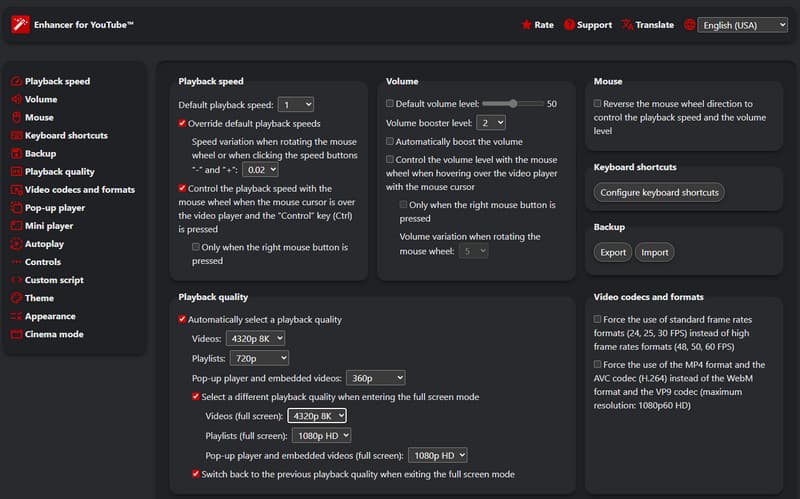
One of the most reliable Google extensions you can use to effectively upscale and enhance the video from YouTube is Enhancer for YouTube. With this extension, you can play your video for up to 8K. The best part here is that it can give you a comprehensive interface, allowing you to access all the necessary features. Aside from that, in addition to upscaling the video, you can also adjust the playback speed, use a volume booster, and access more controls. With that, we can tell that this extension is helpful for all video enthusiasts.
Pros
- The extension is easy to navigate, thanks to its understandable UI.
- It offers shortcut keys for smoother control.
- It is free to access and utilize.
Cons
- There are times when you can't use the extension after YouTube updates.
2. NVIDIA RTX Video Super Resolution
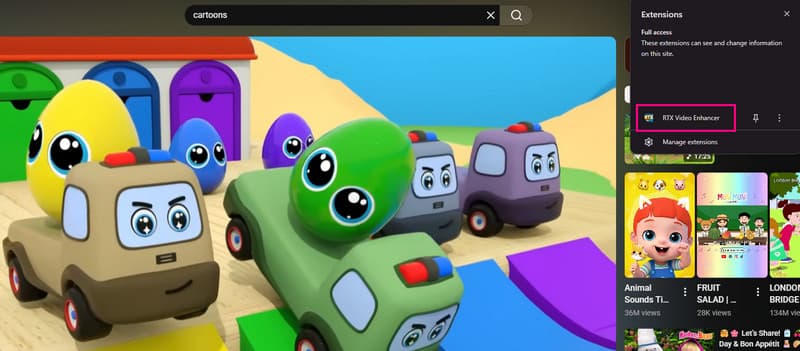
NVIDIA RTX Video Super Resolution is another Google extension you can use to enhance and upscale the video from YouTube, especially in full-screen mode. Plus, with its AI-powered technology, you can ensure getting the result you need, giving you a satisfying and better video playback. The best part here is that using this extension is simple since all you need to do is toggle it on and off. It even works on various major streaming services worldwide, making it a powerful and accessible tool for all users.
Pros
- The extension doesn't require any configuration.
- There is no data tracking or collection.
- It is simple to utilize and free to use.
Cons
- The extension requires an RTX GPU.
- It is only accessible to Edge and Chrome.
- It has a high power consumption.
3. NexVid
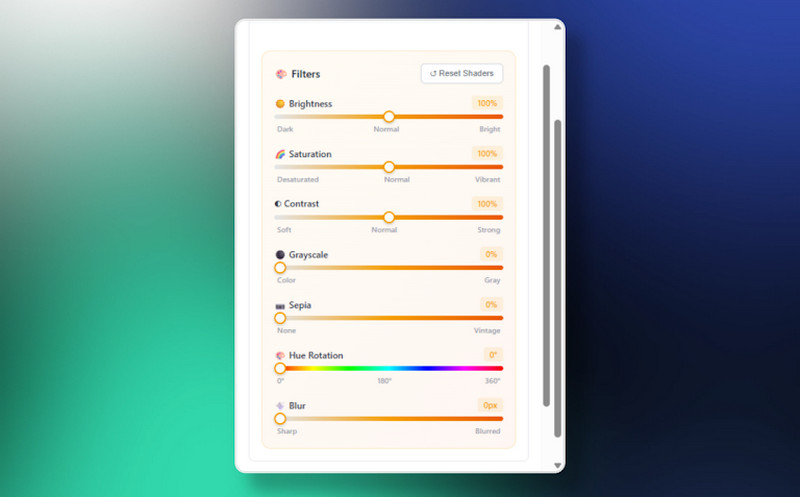
If you are searching for an ideal and real-time video upscaler and enhancer, look no further than NexVid. With this extension, you can ensure to upscale your video on YouTube. What makes it more ideal is that its interface is simple to navigate. It can even give you all the functions you need. You can choose your preferred presets, add effects, and more. The good thing here is that you can manually adjust various parameters to enhance your videos. You can change the brightness, hue rotation, contrast, saturation, blur, and more. Thus, if you want a better viewing experience, always consider accessing this extension on your browser.
Pros
- It can offer multiple quality performances that can match and align with any device.
- It can offer a filter control with preset management.
- The extension has a dynamic user interface with built-in language support (EN, ES, FR, and ZH).
- This extension is perfect for users who want a sharper, clearer, and more cinematic playback.
Cons
- There are times when the extension is not performing well.
- The tool's upscaling capability is not as strong as the AI-based tools.
4. Video Experience Enhancer
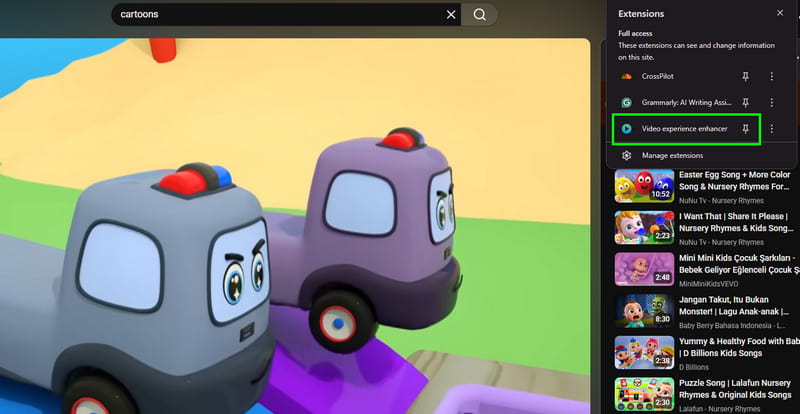
For casual users who desire clearer videos without the need for additional programs, use Video Experience Enhancer. It is a great Google Chrome extension that enhances and optimizes YouTube playback. Videos appear crisper and more immersive thanks to its automated resolution improvement, buffering reduction, and smoother streaming. In order to provide users with a more consistent viewing experience, the plugin also provides useful playback features like auto-HD and speed changes.
Pros
- The extension supports auto-HD playback.
- It is lightweight and easy to operate, ideal for non-professional users.
- The good part here is that the extension allows you to change the video speed based on your needs.
Cons
- The extension doesn't provide an advanced AI-driven upscaling like GPU-based tools.
- The extension mainly improves usability over raw video resolution.
5. Magic Actions for YouTube
A flexible Google Chrome add-on/extension, Magic Actions for YouTube, adds intelligent playback capabilities and graphic enhancements to enhance the viewing experience. This extension provides easy-to-use mouse wheel volume control, auto-HD playback to guarantee videos always stream in the optimum definition. It can even offer a theatrical mode for immersive viewing. In addition, its lightweight design and simple setup make it an easy solution for casual users to enhance and improve YouTube visuals without the need for additional programs.
Pros
- It can offer a smooth volume control.
- The extension has a cinematic mode feature, ideal for enjoying the video from YouTube.
- It is lightweight and simple to operate.
Cons
- The extension has limited visual enhancements.
- There are some occasional ads in the extension itself.
Part 2. Exceptional Desktop-Based YouTube Video Upscaler
Besides extensions, you can also use an exceptional desktop-based video upscaler to enhance and upscale your YouTube videos. One of the best programs you can rely on is Vidmore Video Enhancer. This software is perfect since it can give you all the features you need. You can even upscale the video for up to 4K. Moreover, you can use the General Enhancement Model to enhance the overall video or the Face Model to enhance the facial features from the video. What we like about this software is that it is simple to use, making it suitable for all types of users. It can even offer the Preview feature, allowing you to see the final result before the saving process. Thus, to effectively upscale and enhance your videos, always consider using Vidmore Video Enhancer.
AI Models
Another AI models you can access are:
- • General Enhancement Model
- • Face Model
- • Anime Model
- • Video Quality Repair Model
- • Detail Restoration Model
- • Video Denoise Model
- • Frame Interpolation Model
- • Colorize Model
- • SDR to HDR Model
- • Color Enhancement Model
- • Low-Light Enhancement Model
Pros
- The video upscaler is simple to use.
- It supports batch processing.
- It can support numerous upscaling options, such as 720p, 1080p, and even 4K.
Cons
- To get more advanced features, you must access the program's premium version.
To start upscaling your YouTube videos, you can follow and check the steps below.
Step 1. Download and run Vidmore Video Enhancer on your desktop. You can use the buttons below to easily access the video upscaler.
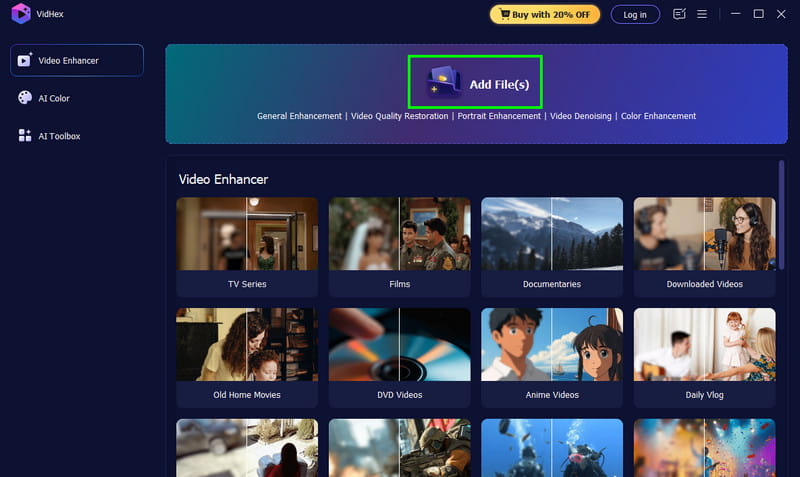
Step 2. After you launch the layout, go to the Add Files button to add the YouTube video that you want to upscale.
Step 3. From the right interface, select your preferred AI model. You can also choose the General Enhancement Model to upscale your overall video.
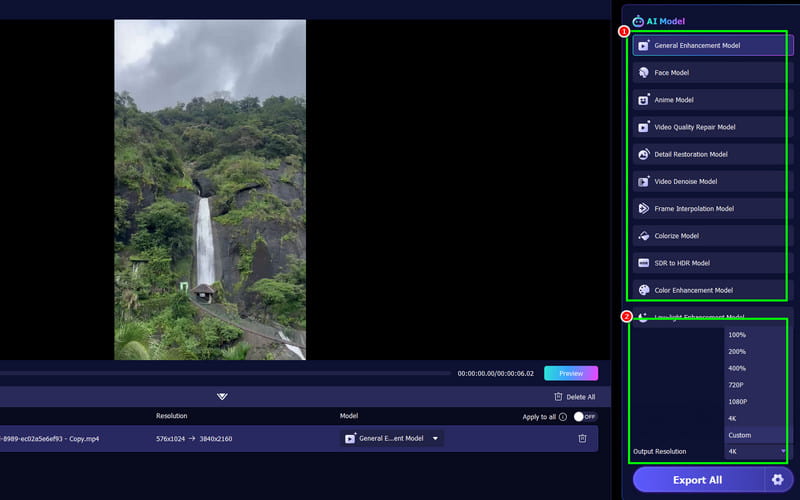
You can also go to the Output Resolution section to select 4K.
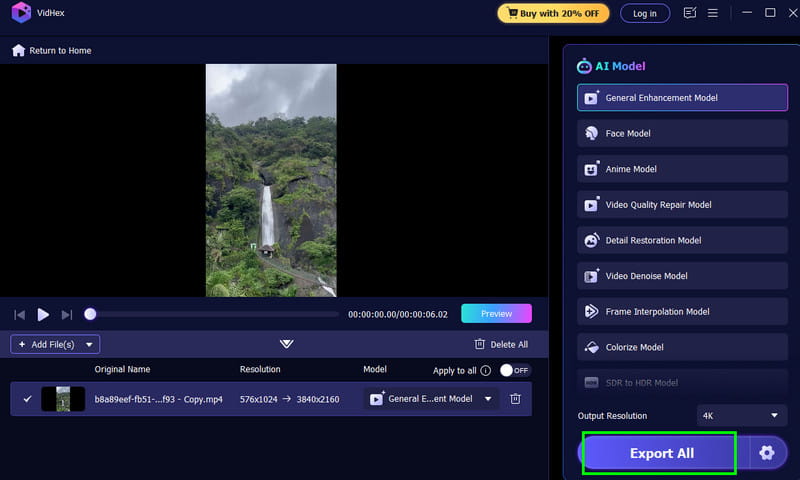
Step 4. Lastly, tap the Export All button to begin upscaling your YouTube video.
With this method, you can smoothly upscale your YouTube videos for a better viewing experience. Thus, always use this program for an effective and successful video upscaling process.
Part 3. FAQs about YouTube Video Upscaler Google Extensions
Is it safe to use YouTube video upscaler extensions?
There are some extensions that are safe to use, and some are not. To ensure that the extension you use is safe, always search on your browser and look for reviews.
Is special hardware required?
It depends on the extension you use. If you use the NVIDIA RTX Video Super Resolution, you must have an RTX GPU.
Can I use the extensions on my phone?
Absolutely, no. Extensions are designed for desktop browsers. Thus, always use your computer when using extensions to upscale videos.
Conclusion
Using the YouTube video upscaler Google extension is ideal if you want to upscale videos without installing any third-party software. Thanks to this article, you have explored all the best extensions you can use to improve the video while streaming. Plus, if you want to use a desktop-based video upscaler, you can use Vidmore Video Enhancer. It helps you to upscale your videos for up to 4K, resulting in a better and more satisfying video playback.