Top 3 Methods to Convert F4V to MP4 with Best Quality
Do you still have a video that was saved in F4V format? Well, this format has been playable before since it can offer smooth video playback. However, F4V files are not playable on some devices and video players, especially on modern ones. With that, if you still want to play your videos, the best solution you can do is to convert F4V to the MP4 format. This way, you can use any platform to play your video. Thankfully, this guide will assist you in transcoding your files. Thus, read this tutorial and explore the best F4V to MP4 conversion process.

PAGE CONTENT
Part 1. What is F4V, and Reasons to Change it to MP4
The F4V format is a multimedia container format developed by Adobe Systems. It is primarily for delivering high-quality video over the internet using Adobe Flash Player. Plus, this format succeeded the older FLV (Flash Video) format and is closely associated with the H.264 video codec and AAC audio codec, which are also used in the popular MP4 format. In addition, F4V was Adobe's answer to supporting modern, efficient video standards within its Flash ecosystem before the decline of Flash.
Why Convert F4V to MP4?
Want to learn the reasons why it is necessary to convert F4V to MP4? See the information below.
Universal Playback
F4V is an excellent container format that can offer good quality. However, it is not supported by some of the media players and devices. With that, for a better viewing experience, changing F4V to MP4 is ideal since MP4 is the most supported format.
For Editing Purposes
If you plan to edit your videos, using MP4 is perfect. It is because almost all the video editing software supports MP4 rather than F4V.
Preservation
The F4V format is considered a dying format. With that, if you want to preserve your video, turning it into the MP4 format is better. Plus, MP4 is an international format, ensuring that it will be supported for decades.
Reduce File Size
Both F4V and MP4 can offer an excellent video quality. However, in terms of file size, F4V has a larger size compared with MP4. If you don't have enough storage space on your device, then using F4V is not a wise choice. Turning F4V to MP4 is helpful since MP4 contains a smaller file size.
Part 2. How to Convert F4V to MP4 Easily and Quickly
Want to learn how to convert F4V to MP4? Then, see all the methods we have provided in this section.
Method 1. Convert F4V to MP4 using VLC
One of the reliable converters you can use to transcode your F4V files into MP4 format is VLC Media Player. Well, this program is not just an effective audio and video player. You can also access its video converter feature to transcode files. Thanks to this feature, you can get the result you need after the conversion process. What makes it ideal is that the software has a fast conversion process. Thus, to check this program, you can follow the instructions below.
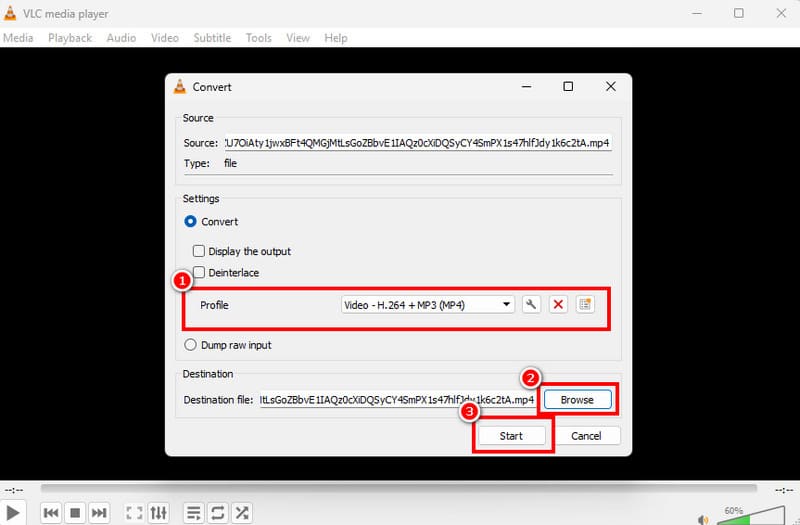
Step 1. Access VLC Media Player on your computer and proceed to the Media > Convert / Save options.
Step 2. Then, hit the Add button to insert the F4V file you want to convert. After that, tap the Convert / Save button below.
Step 3. Navigate to the Profile section and select the MP4 format. Go to the Browse options and choose your preferred folder. Hit Start for the final conversion process.
Limitations of VLC
• The software has an outdated-looking layout.
• It lacks video editing functions.
• Sometimes the program is not performing well.
Method 2. Convert F4V to MP4 using Vidmore Video Converter
Do you want another F4V to MP4 converter? If so, we suggest using Vidmore Video Converter. In terms of converting F4V to MP4, you can get the result you want since it has all the features you need. It can offer a neat and simple user interface, a fast conversion process, and good output quality. The best part here is that it can support the batch conversion feature, allowing you to convert multiple F4V files simultaneously. It also supports various output formats, including MKV, WMV, FLV, M4V, AVI, and more.
Core Features
• The video converter can offer 50 times conversion speed.
• The program can offer various video editing functions to enhance the video.
• It supports various qualities, such as 720p, 10800p, and 4K.
• It is available for Mac and Windows.
To convert an F4V file into MP4 format, see the instructions below.
Step 1. Download Vidmore Video Converter on your computer. After that, run it to start the F4V to MP4 conversion process.
Step 2. After you launch the interface, proceed to the Converter section and hit the Add Files button to insert the F4V file that you want to convert.

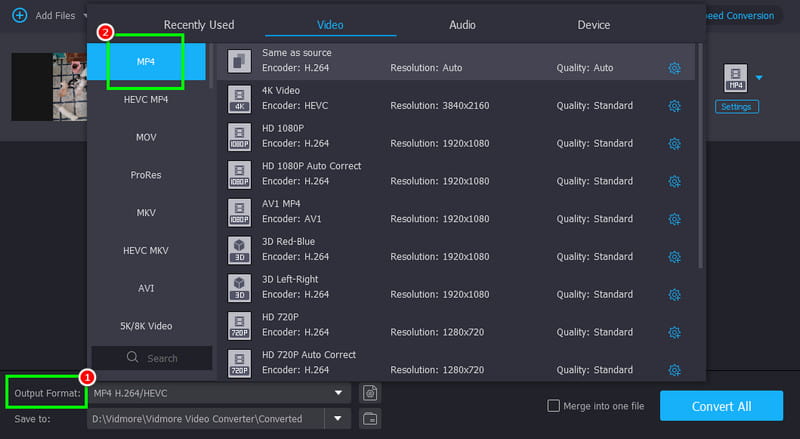
Step 3. Go to the Output Format section and select the MP4 format. Then, you can also choose your desired video quality.
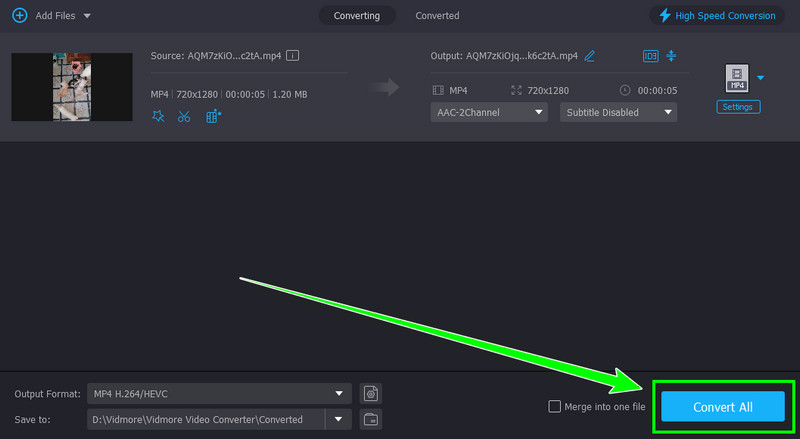
Step 4. Finally, tap the Convert All button to start the F4V to MP4 conversion process.
Method 3. Convert F4V to MP4 using FreeConvert
If you want to convert F4V to MP4 online, you can access FreeConvert. This web-based converter is ideal for non-professional users, thanks to its simple layout and fast conversion process. Plus, you can access this tool on various browsers, which is good news for everyone. The best part here is that you can convert various videos. You can transcode AVI to MP4, MP4 to F4V, FLV to MP4, and more. So, if you want to try this tool, you can check the steps below.
Step 1. Proceed to the main website of FreeConvert. Tap the Choose Files button to upload the F4V files from your device.
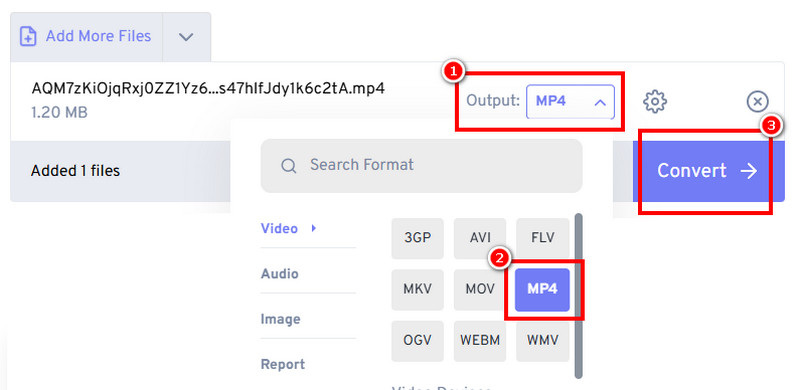
Step 2. Then, navigate to the output section and choose MP4 format. Then, you can tap the Convert button to begin the conversion process.
Step 3. Finally, tick the Download button to save the converted video on your device.
Limitations of FreeConvert
• It requires a fast conversion process.
• The tool has various ads showing up on the screen.
• To access more features, use the tool's paid version.
Part 3. Bonus: Best Video Player to Play F4V Files
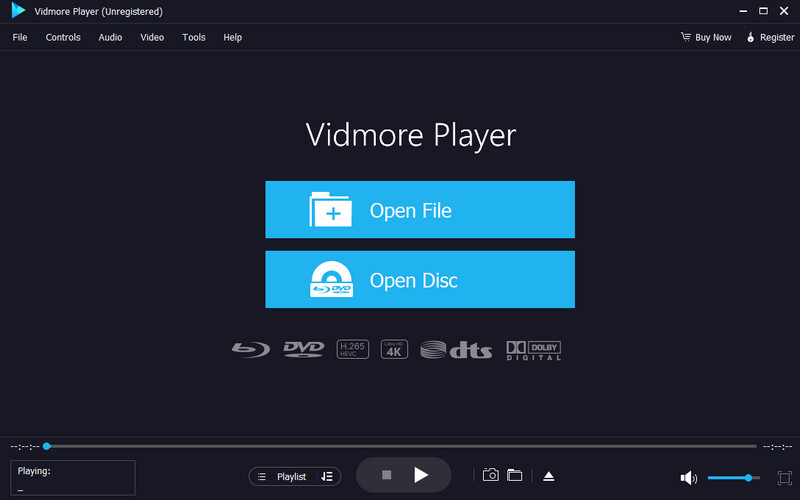
Are you looking for the best video player that can play F4V files? In that case, look no further than Vidmore Video Player. This program is perfect if you want to have a smooth video playback. It can even give you its simple user interface for easier navigation. What we like here is that it can handle high-quality videos, making it the best media player for all users. It also supports various formats, such as MP4, WMV, AVI, FLV, AVI, MKV, and more. Plus, software can offer video editing tools you can use to improve your video. It includes a video cropper, speed adjuster, filters, and more. Thus, if you need an excellent video player, feel free to access this program.
Part 4. FAQs about F4V to MP4
What is the quickest way to convert F4V to MP4?
If you want the quickest method to convert your video files, it is best to use Vidmore Video Converter. It can offer a fast conversion process, making it an ideal video converter.
Can I convert multiple F4V files into MP4?
Definitely, yes. However, you just take note that not all converters can convert multiple files. With that, for a batch conversion process, we suggest using Vidmore Video Converter since it can offer its batch conversion feature.
Is it legal to convert F4V to MP4?
Absolutely, yes. If you want to convert your videos for personal use, then it is legal to convert your files.
Conclusion
Converting F4V to MP4 is an ideal process if you want to play your videos on various platforms. You can even expect a satisfying video playback, making MP4 a better video format. With that, if you want to convert your files while preserving the quality, access Vidmore Video Converter. This converter ensures that you can achieve the result you want after the conversion process.