How to Screen Record on PowerPoint: Easy Procedure
Microsoft PowerPoint is an excellent software for creating the best presentation you can deliver in lectures, discussions, meetings, and various events. It can even offer features to help ensure an excellent final output. The good thing is that if you dig deeper into this software's features, you will find it can also let you record your screen. With this feature, you can effectively capture your screen and save it for later use. So, do you want to learn how to screen record on PowerPoint? Worry no more. This guide will provide the best instructions for recording your screen. You will also discover the best alternative for recording your screen successfully.

PAGE CONTENT
Part 1. How to Use the PowerPoint Screen Recorder
Want the best process to screen records on PowerPoint? Well, as mentioned, MS PowerPoint is not an excellent presentation maker. With its screen recorder feature, you can record your screen effectively. The best part is that capturing your screen is a piece of cake. You can even deal with your video after the process. You can trim the video based on your preferences. You can also capture the screen in various formats, such as MP4 and MOV. If you want to start recording your screen in PowerPoint, follow the steps below.
Step 1. First, download Microsoft PowerPoint on your computer. You must have a subscription plan to access all features.
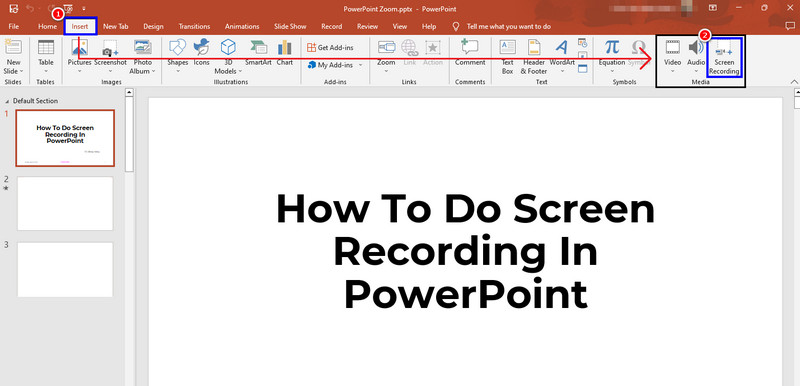
Step 2. Then launch the program and select the Insert section from the top menu. Once done, tap the Screen Recording Button.
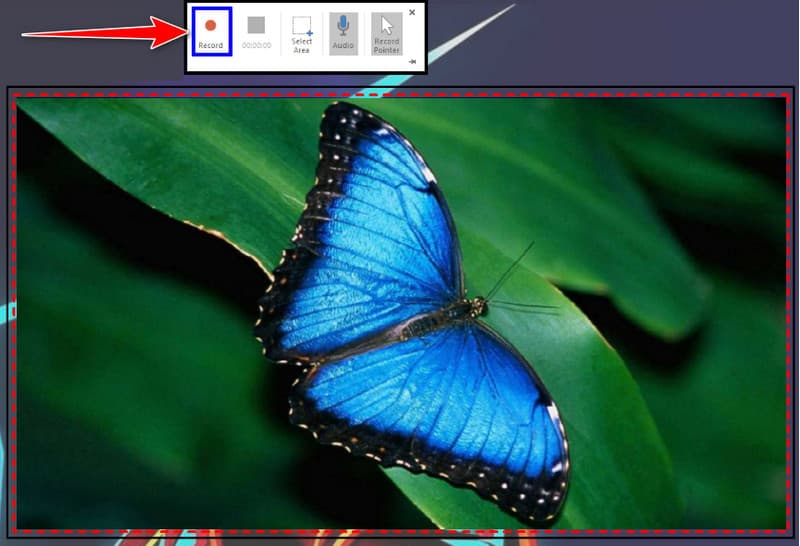
Step 3. Once the Dock Controls appear, click the Screen Area function and select the area you want to record on your screen.
Step 4. You can now tap the Record symbol to start recording your screen. After recording, tap the Stop button. Once the recording process is done, you can begin saving your final video.
With this method, you can start recording your PowerPoint presentation and other content from your screen. Always follow the instructions below to learn the effective recording process.
Part 2. Common Limitations of PowerPoint's Recorder
Although the screen recording feature in PowerPoint is effective, there are still some limitations you might encounter. To explore some of them, you can check the details below.
Limited Editing Features
The program is lacking basic and advanced editing tools. It only records both video and audio. If you want to improve the video, you can only use the trimmer function.
No Webcam Integration
The PowerPoint tool can only record your screen. It doesn't allow you to record your webcam, which makes it less ideal for capturing tutorial-type content.
Limited Output Formats
When saving your captured screen, you can only save it as MP4 or MOV. If you want to save them in various formats, you must convert them using a video converter.
No Audio Control
PowerPoint can capture audio, but it does not offer basic or advanced audio settings. You cannot adjust the volume, remove audio noise, or attach additional audio tracks.
Part 3. Best Alternative to Record Screen on Windows and Mac
PowerPoint is an excellent tool for capturing the screen. However, we can't ignore the limitations you may encounter during the recording process. Plus, the software is not free to access. If you are looking for the best alternative to screen recording, we recommend Vidmore Screen Recorder. This program is better because it offers all the features you need, unlike PowerPoint. You can even use some annotation tools, cropper, trimmer, add effects, and more. You can even save the captured screen in various formats, including MP4, MKV, VOB, MOV, AVI, FLV, and more. The good thing about this recorder is that you can capture/record your screen in many ways. You can select the area of the screen you want to record, or capture the entire screen. Plus, you can also open your webcam, making the recorder ideal for making review and tutorial videos. If you need a better recorder than MS PowerPoint, Vidmore Screen Recorder is a good choice.
To start recording your screen, follow the steps below.
Step 1. Download Vidmore Screen Recorder on your Windows or Mac computer. After that, install it to start the screen recording process.
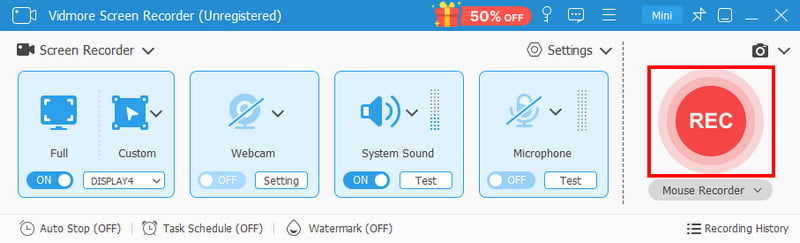
Step 2. From the user interface, click the Screen Recorder feature and choose between Full and Custom, based on how you want to record your screen.
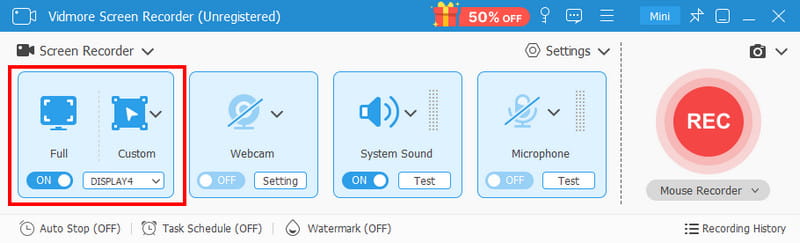
Step 3. Now, start the screen recording by clicking the REC button in the interface on the right. Tap Stop to finish recording.
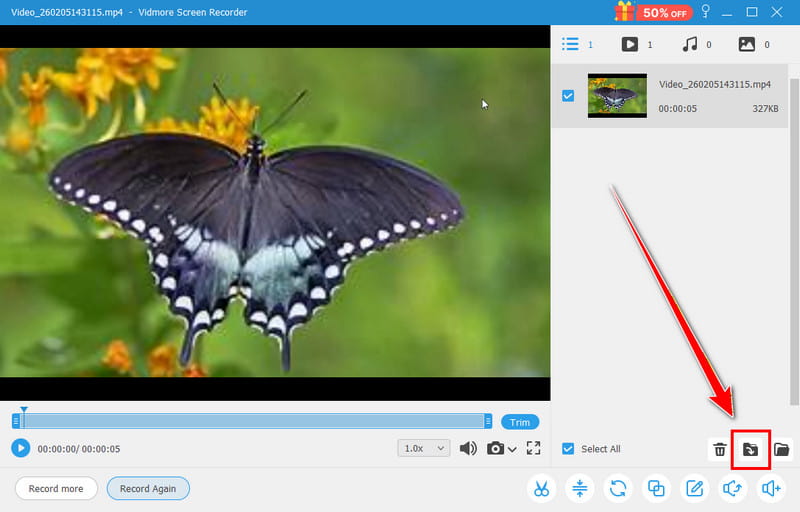
Step 4. Finally, hit the Export button to save/keep the captured screen on your computer.
This procedure is ideal if you need a better screen recorder than PowerPoint. The best part is that you can record various types of content. You can record Zoom meetings, gameplays, webinars, videos, and more, making it an ideal screen recorder for all users.
Part 4. PowerPoint vs. Vidmore Screen Recorder: Which Should You Choose
Do you want to know more about the two screen recorders? You can check the table below.
| Vidmore Screen Recorder | vs. | MS PowerPoint |
| Simple to Utilize | User Interface | Simple to Utilize |
| Scheduled recording, task management, mouse effects, and real-time drawing. | Advanced Features | None (basic capture only). |
| MP4, MOV, MKV, AVI, FLV, and more. | Supported Output Formats | MP4 and MOV |
| Records screen, audio, webcam, and gameplay with flexible options | Recording Options | Records screen area + audio; no webcam support. |
| Optimized for long recordings; handles HD/4K smoothly. | Performance | Lightweight, but large recordings may lag PowerPoint. |
After reviewing the table, we can conclude that the best screen recorder is Vidmore Screen Recorder. This program offers various features that help you get the results you want. You can even save the captured screen in various formats, making it more ideal. Lastly, you can use the recorder for free. Thus, use Vidmore for an effective screen recording process.
Part 5. FAQs about How to Screen Record on PowerPoint
Is PowerPoint an ideal screen recorder?
The recorder feature of PowerPoint is ideal if you only want to record your screen. However, you might experience limitations, such as a lack of video and audio editing, no webcam, limited format options, and more.
Where does the recording go after recording the screen on PowerPoint?
The captured screen will automatically be inserted on a certain slide. With that, you can choose where you want to save your video.
Can you record audio on PowerPoint?
Definitely, yes. You can also record your audio along with your screen. It is an ideal solution if you want to record your discussion while showing your screen.
Conclusion
To learn how to screen record on PowerPoint, there is no doubt that this tutorial can give you the methods you need. If you encounter any limitations with the software, you can use Vidmore Screen Recorder as an alternative. This program ensures you can record your screen in the best possible quality. You can even access various features, perfect for enhancing your captured screen.