4 Easy Methods to Convert Your AAC Files to MP3
As an Apple user, you may be familiar with the AAC format. Compared with MP3, it offers better audio quality at the same file size. So, it seems confusing or meaningless to downgrade your audio from Apple’s AAC format to MP3.
The single driving reason to convert AAC to MP3 is compatibility. The conversion is a straightforward process that ensures your audio files can be played virtually on any device. Follow the four methods in this guide to transform AAC into MP3 for non-Apple devices.

PAGE CONTENT
Part 1. AAC vs. MP3: Does Quality Drop During Conversion?
AAC (Advanced Audio Coding) is the default audio format for the Apple ecosystem. Apple widely uses it for iTunes and Apple Music. As mentioned above, this format is designed to be the successor to MP3. At the same file size, it offers better sound quality.
MP3, on the other hand, is the most popular audio format. It can be widely supported by almost every device, system, software, and platform. Like MP4 for video, MP3 is the undisputed king of universal compatibility. So, in many cases, users choose to convert files to MP3 to fix playback issues.
Does Quality Drop During AAC to MP3 Conversion
Before the AAC to MP3 conversion, you may worry about the quality loss. The question is: will the audio conversion really lose quality?
Yes, technically. AAC will deliver a higher sound quality at the same file size. When you convert the original AAC to MP3, the encoding process will delete certain audio frequencies. That typically causes some data to be lost. However, both AAC and MP3 are compressed, lossy formats. Generally, the loss of quality is beyond the range of human hearing. For everyday listening, you will not notice the difference.
Part 2. Quick Check: 4 Efficient Ways to Convert AAC to MP3
If you are ready to convert audio from AAC to MP3, there are several recommended tools to choose from. Below is a quick comparison of the top four methods.
| AAC to MP3 Converter | Platform | Quality Control | Batch Conversion | Price | Best For |
| Vidmore Video Converter | Windows, macOS | Preset + full bitrate/sample rate | Yes | Freemium | High-quality, batch conversions with editing |
| CloudConvert | Web (any OS) | Preset + custom bitrate | Yes | Freemium | Quick conversions, no install |
| VLC Media Player | Windows, macOS, Linux | Custom bitrate, channels | No | Free, open-source | Free, already on your device |
| Apple Music App | macOS | Preset + custom bitrate | Yes | Free (built-in) | Mac users who prefer a built-in method |
Part 3. Learn 4 Top-Rated Methods of Converting AAC to MP3
When your device or player does not support AAC, you can convert it to the universally accepted MP3 format. Compare the four methods below and select your preferred method for converting AAC to MP3.
Method 1: Convert AAC to MP3 with Vidmore Video Converter
Vidmore Video Converter is a reputable desktop application designed to handle a wide range of video and audio formats. It supports all commonly used lossless/lossy audio formats, including AAC, AC3, ALAC, AIFF, MP3, WAV, M4A, and FLAC. It is a great choice for users who often need to convert multiple files. More importantly, Vidmore gives full output controls to keep the highest possible audio quality.
Step 1. Download and install this AAC to MP3 converter on your Windows or Mac computer. Launch the program and add your AAC files. You can drag and drop them directly into the main interface or click Add Files.
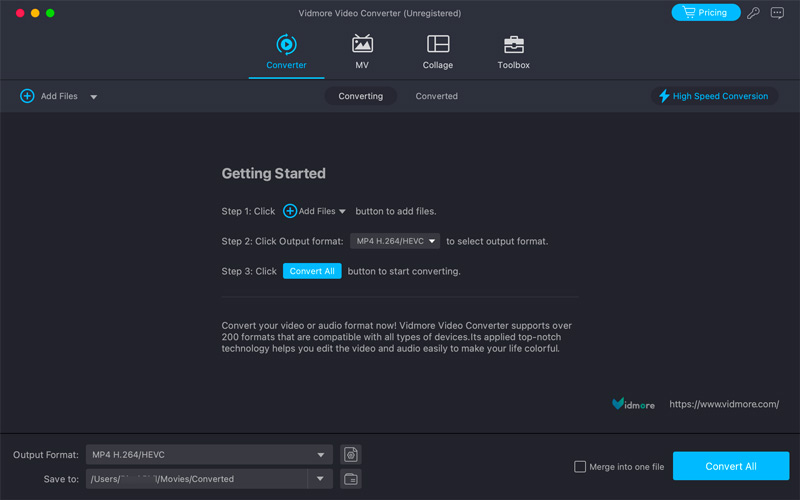
Step 2. Open the Output Format dropdown menu, go to the Audio tab, and select MP3. You can choose the desired quality level here, such as High Quality 320kbps. This AAC converter offers customizable bitrate and sample rate settings to minimize quality loss.
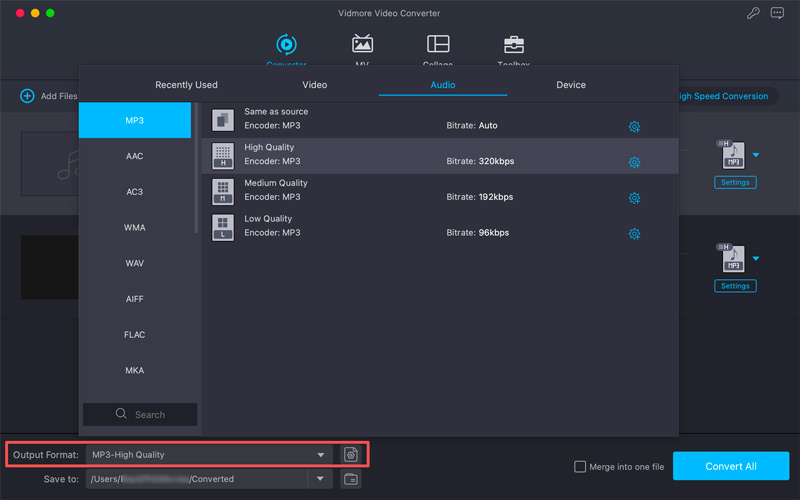
Step 3. Select a safe destination folder from the Save to menu. Before the final AAC-to-MP3 conversion, you can edit the audio as needed. Then, click the Convert All button.
Method 2: Change AAC to MP3 Online with CloudConvert
If you only have several AAC files to convert, a web-based audio conversion tool like CloudConvert is a good option. It lets you convert AAC to MP3 within your web browser.
Step 1. Open your browser and navigate to the dedicated CloudConvert AAC to MP3 Converter page.
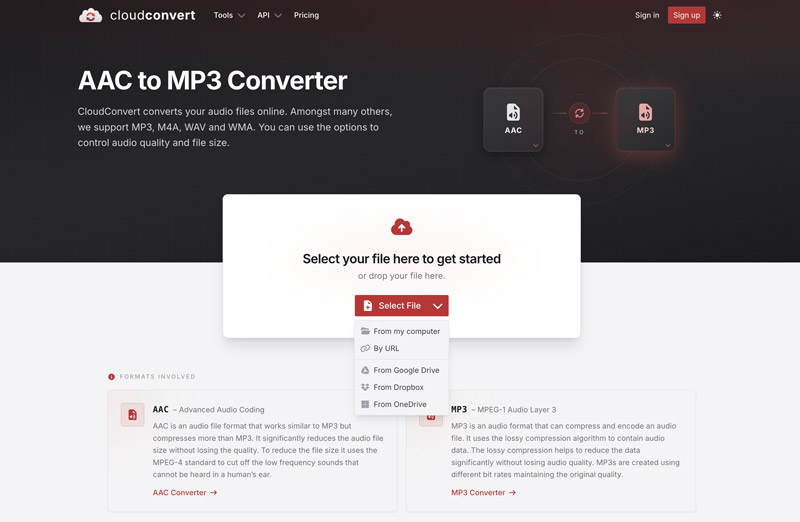
Step 2. Click Select File to browse and upload your AAC file. CloudConvert allows you to convert audio from your local hard drive, Google Drive, Dropbox, or via a URL.
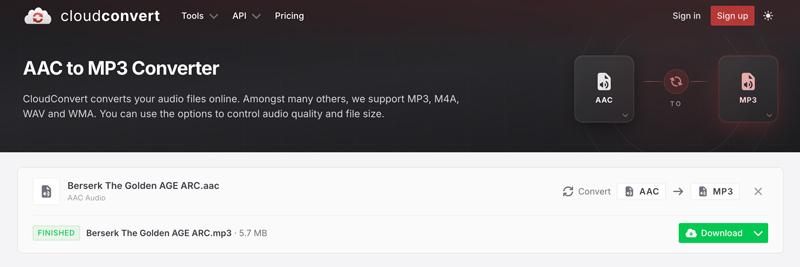
Step 3. Ensure the output format is MP3. Click Convert to process. Once converted, click Download to save your new MP3 file.
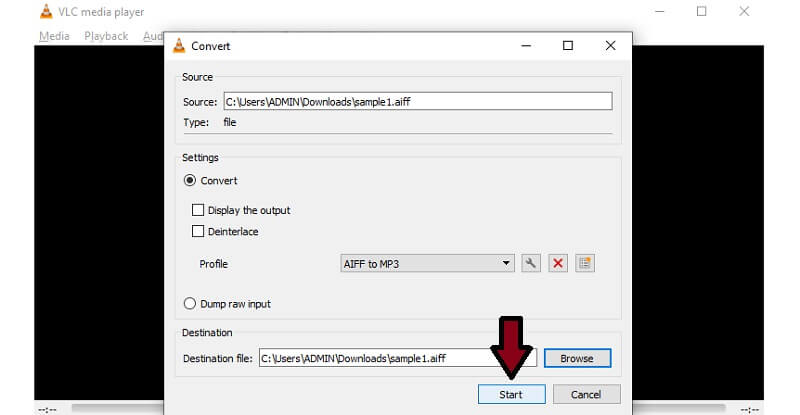
Method 3: Transform AAC into MP3 for Free Using VLC
If you already have VLC Media Player on your computer and don’t have many AAC files to convert, you can use it to transcode your audio. VLC is not a dedicated MP3 converter. But it supports basic conversion needs.
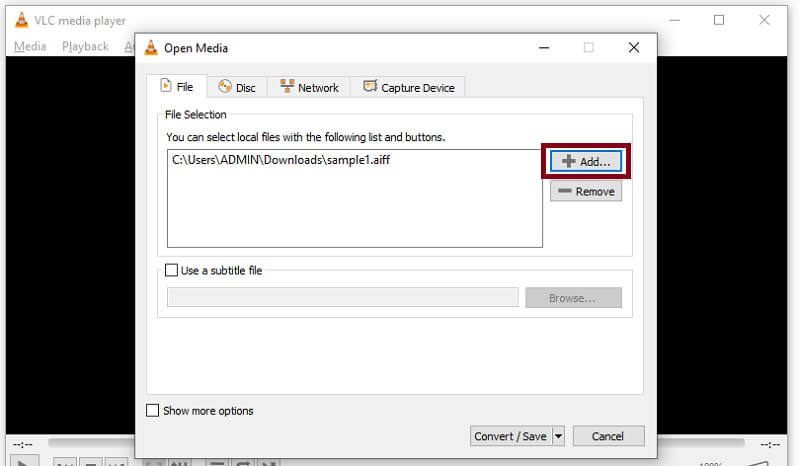
Step 1. Open VLC Media Player, click Media in the top menu bar, then choose Convert/Save. In the Open Media window, click Add to select the AAC file.
Step 2. Click the Convert/Save button and choose Audio - MP3 from the Profile dropdown. Click Start and give VLC a few moments to process the audio in the background.
Method 4: Convert AAC to MP3 in the Apple Music App
If all your AAC files are purchased from the iTunes Store or already in your Apple Music library on a Mac, you can use the built-in method to convert your audio tracks natively.
Step 1. Open the Apple Music app on your Mac. Go to the top Music menu and enter Settings.
Step 2. Click the Files tab, then click Import Settings. Choose MP3 Encoder in the dropdown menu of Import Using. Then select a desired quality in the Setting menu and click OK.
Step 3. When you want to perform an AAC to MP3 conversion, go to File > Convert > Create MP3 Version. The Apple Music app will generate a new MP3 copy of the original AAC file in your library.
Part 4. FAQs of Converting AAC to MP3
Question 1. Is AAC higher quality than MP3?
Yes, AAC has a technically higher sound quality than MP3. The AAC format is primarily developed as the successor to MP3. It uses a more advanced and efficient compression algorithm than MP3. At lower bitrates like 128 kbps, an AAC file often sounds cleaner than an MP3 file. In addition, AAC can better deal with complex audio frequencies above 16 kHz.
Question 2. Is it legal to convert protected Apple Music songs?
It is illegal to convert copy‑protected AAC music. However, for DRM-free songs purchased in the iTunes Store or Apple Music, you can convert them to MP3 for personal use.
Question 3. Will converting AAC to MP3 make the file size larger?
The converted file size depends on the bitrate you select. For instance, if you choose to transform a 128 kbps AAC file into a 320 kbps MP3 file, the output file will be significantly larger. However, if you keep the same bitrate, the converted MP3 will have a similar file size.
Conclusion
Converting AAC to MP3 can efficiently handle various playback issues. You can use the Apple Music app to convert your AAC files to MP3. If you have only a few audio files, online converters like CloudConvert are also a good choice. However, if you often handle various audio and video conversions or want to process multiple files with surgical precision quickly, turn to the Vidmore converter. Choose the method that best matches your conversion and privacy needs.