How to Convert AVI to MP4 Formats: 8 Effective Methods
Do you have videos recorded on an older device or downloaded in outdated formats? If so, maybe you are encountering a playback issue, especially when using modern platforms. Well, AVI was once a popular format. However, it is now less compatible with streaming services, mobile devices, and other platforms. Converting AVI to MP4 is the best solution if you want a smoother and more effective playback across different platforms. Thus, read this tutorial and explore the best methods to transcode your AVI files to MP4 format successfully.

PAGE CONTENT
How We Test the Best AVI to MP4 Converters
See all the details below and know how we test the best AVI to MP4 converters.
- Conversion Speed - We ensure that each converter can offer a fast conversion speed, ideal for saving more time.
- Output Quality - We also test the output quality of the tools. Each tool can give you the best quality for satisfying playback.
- Ease of Use - We also evaluated the user interface of the converters, along with their setup process, and whether non-professionals can operate them easily.
- Compatibility - Since we introduced numerous converters, we ensure that you can access them on various platforms, such as Windows, Mac, browsers, and mobile devices.
- Features and Flexibility - Our teams also look for extra options such as batch conversion, compression settings, and format customization.
Part 1. Comparison of AVI and MP4 Formats
Want to see the differences between AVI and MP4 formats? In that case, you can check all the information below.
| MP4 | vs. | AVI |
| Widely supported across all modern devices and platforms | Compatibility | Limited to mobile devices and social media |
| Smaller, more efficient compression | File Size | Larger due to less compression |
| High quality with optimized compression | Quality | High quality but bulky |
| Balanced for editing, streaming, and sharing | Flexibility | Good for editing, less for sharing |
| Standard format for video distribution | Usage Today | Outdated, less common |
Why Convert AVI to MP4?
Though AVI files contain high video quality, they are too large and incompatible with some modern devices, social media platforms, and apps. So, for a better and smoother video playback, the best solution is to transcode AVI to MP4. Thus, MP4 can make your videos more accessible and versatile in the current digital ecosystem.
Part 2. Comparison of the Best AVI to MP4 Converters
If you want to check the best tools that can convert AVI to MP4 format, you can view the table below.
| AVI to MP4 Converters | Conversion Speed | Max Resolution | Best For | Platform |
| Vidmore Video Converter | Up to 50 times faster | Up to 4K UHD | Skilled and Non-professionals | Windows and Mac |
| Handbrake | Moderate | Up to 4K UHD | Skilled and Non-professionals | Windows and Mac |
| FFmpeg | Fast | Depends on the codec | Skilled Users | Windows and Mac |
| VLC | Moderate | Up to 1080p | Skilled and Non-professionals | Windows and Mac |
| CloudConvert | Depend on the internet | Up to 4K UHD | Skilled and Non-professionals | Browser |
| Convertio | Depend on the internet | Up to 4K UHD | Skilled and Non-professionals | Browser |
| iConv | Moderate | Up to 1080p | iOS Users | iOS |
| Canva Mobile App | Moderate | Up to 1080p | Skilled and Non-professionals | Android and iOS |
Part 3. How to Turn AVI to MP4 on Desktop
Want to convert AVI to MP4 on your Mac and Windows? In that case, you can follow all the methods we have provided in this part.
Method 1. Convert AVI to MP4 Using Vidmore Video Converter
If you want a smooth AVI to MP4 conversion process, then you can access Vidmore Video Converter. This program is helpful since it can give you all the features you need. You can even convert multiple AVIs, thanks to its batch conversion feature. Additionally, it can even convert your files 50× faster compared with other converters. It can even save the video with the best quality for up to 4K. With that, if you want a better AVI to MP4 converter, there is no doubt that Vidmore Video Converter is the best choice for you.
More Features
- The converter can offer a simple user interface.
- It supports various formats, including MKV, WMV, FLV, VOB, M4V, MOV, and more.
- The program can offer basic editing tools for improving videos before the saving process.
- The software can also offer its audio converter feature.
To change AVI to MP4, you can follow the process below.
Step 1. Install and run Vidmore Video Converter on your Windows or Mac. Then, start the conversion process.
Step 2. After you launch the UI, go to the Converter section and tap the Add Files option. You can add multiple AVI files if you want.
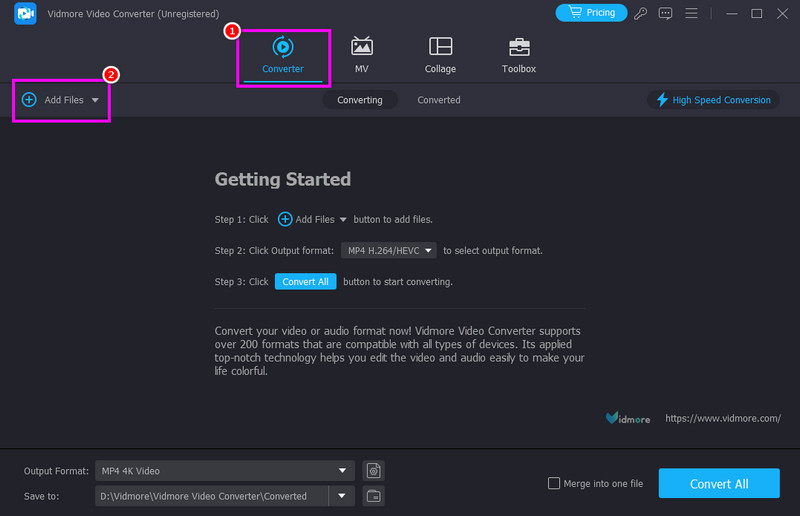
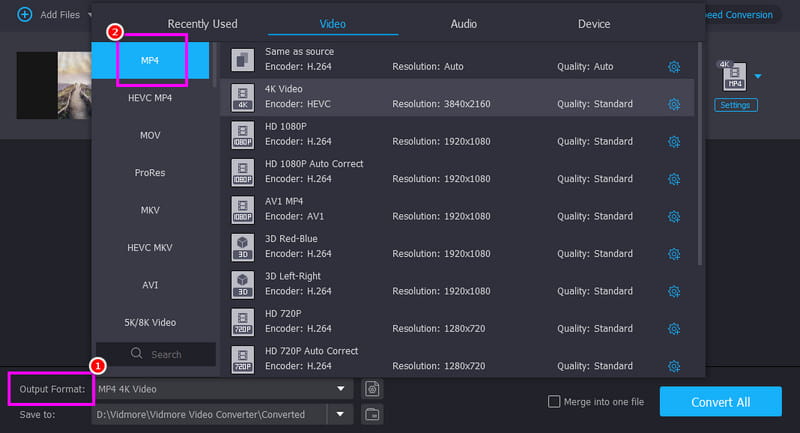
Step 3. Navigate to the Output Format section and choose the MP4 format. You can also pick your desired video quality.
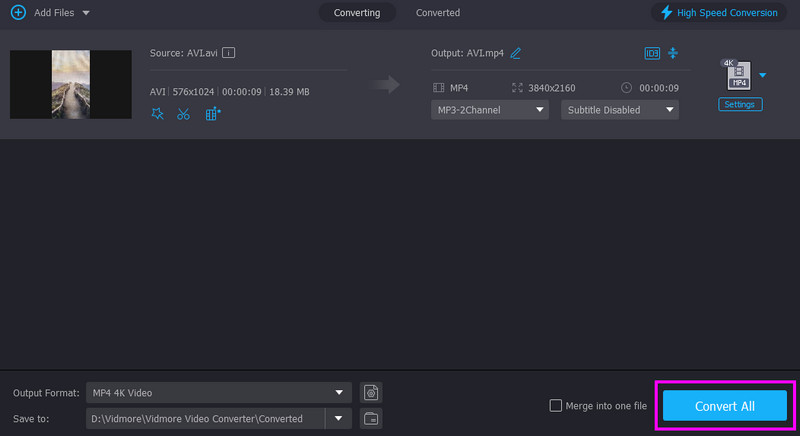
Step 4. Lastly, hit the Convert All button below to begin the AVI to MP4 conversion process.
Method 2. Change AVI to MP4 Using Handbrake
Handbrake is among the free converters you can access on your desktop. What we like here is that it has a simple conversion process, thanks to its easy-to-use user interface. It can even give you a fast conversion process, making it more ideal for users. Additionally, it lets you access more editing tools to improve the videos, such as video noise, filter, deinterlace, and more.
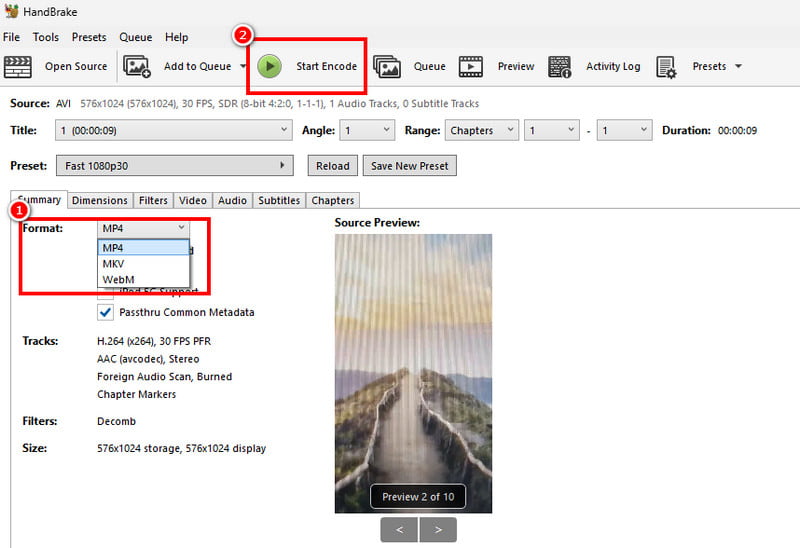
Step 1. Download Handbrake on your computer. After you launch the interface, go to the File section to add the AVI file.
Step 2. After that, proceed to the Format section and choose the MP4 format.
Step 3. For the final process, hit the Start Encode button above. With that, the AVI to MP4 conversion process will start.
Limitations
- The user interface of the converter is not appealing enough.
- It supports a few formats and editing functions.
Method 3. Transcode AVI to MP4 Using FFmpeg
If you want to change AVI to MP4 format for free, you can also access FFmpeg. This open-source command tool is perfect if you want to convert your files using commands. The best part here is that you can improve your videos based on your preferences. You can compress video on FFmpeg, crop, trim, adjust size, and more. You can even access it on both Mac and Windows, making it ideal for all users.
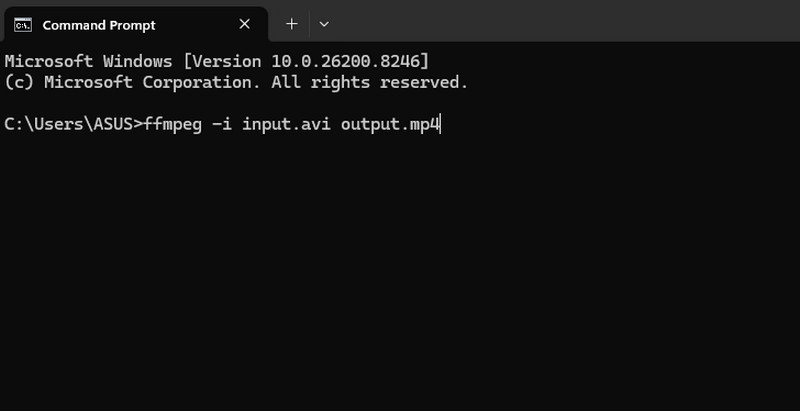
Step 1. Install and set up FFmpeg on your computer. After that, run the CMD.
Step 2. Then, type the command to start the conversion process. The command is ffmpeg -i input.avi output.mp4.
Step 3. Press the Enter key to start the conversion process. Once done, you can check the file in your folder.
Limitations
- It requires commands to convert files, which can be complicated for beginners.
- Setting up the tool is time-consuming.
Method 4. Convert AVI to MP4 Using VLC
Another converter you can use to convert your AVI file to MP4 format is VLC. Besides its capability to play media files, it can also offer its converter feature. What we like here is that it can smoothly convert your AVI file. You can even ensure that you get the best quality, resulting in a better video playback. Plus, the software can also offer basic editing features that can help you enhance your videos before saving them.
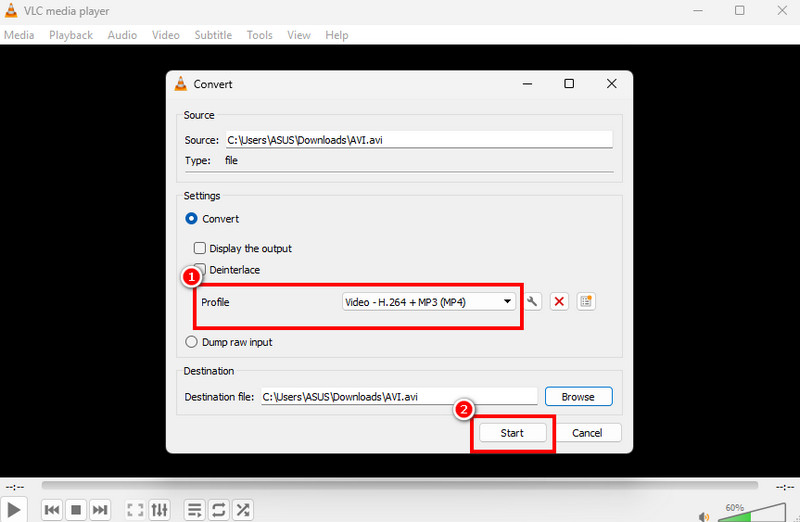
Step 1. Download and run VLC Media Player on your desktop. After that, go to the Media > Convert / Save options.
Step 2. Tap the Add button to start adding the AVI file you want to convert. Then hit the Convert / Save button below.
Step 3. You can now choose the MP4 from the Profile section. Lastly, hit the Start button below to start the conversion process.
Limitations
- The program's main interface looks outdated.
- Sometimes, the converter is crashing.
Part 4. Convert AVI to MP4 Online
Do you want an online way to convert AVI to MP4? In that case, you can use all the methods below to start the conversion procedure.
Method 1. Turn AVI to MP4 using CloudConvert
To convert AVI format to MP4 online, you can use CloudConvert. This tool ensures that you can transcode your files easily since it has a comprehensive user interface. You can even smoothly convert a field since there will be no annoying ads that will pop up on your screen. It can also convert more files, such as AVI to MKV, MP4 to FLV, WMV to MOV, and more, making it an ideal converter for users.
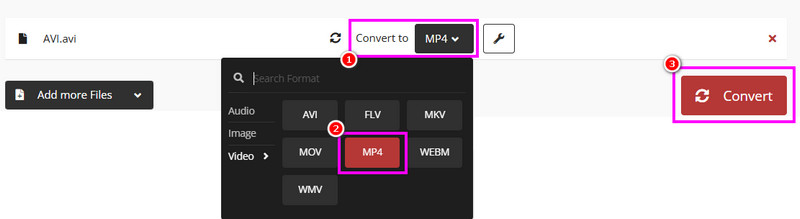
Step 1. Access CloudConvert on your browser. Click Choose Files to upload the AVI file from your device.
Step 2. From the Format section, select the MP4 format. Then, start the AVI to MP4 conversion process by clicking the 'Convert' button.
Step 3. Finally, to save the converter file, click the Download button.
Limitations
- It needs a fast internet connection to convert files smoothly.
- The free version has various restrictions.
Method 2. Convert AVI to MP4 Using Convertio
If you want another simple AVI to MP4 converter, you can try using Convertio. This converter has a comprehensive layout and a fast conversion process. The best part here is that it can convert more than one file. With that, you can convert files while saving time. It can also support various output formats, such as WMV, FLV, MKV, 3GP, and more.
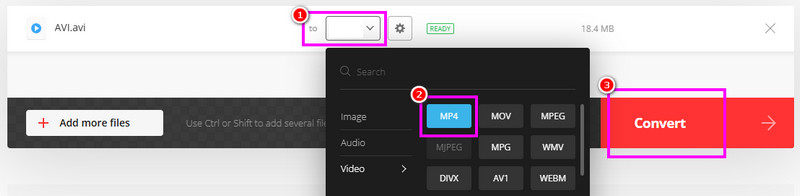
Step 1. Go to the main website of Convertio and upload the AVI file by clicking the Choose Files button.
Step 2. From the Format section, start selecting the MP4 format. Then, tap Convert to start the conversion process.
Step 3. Finally, save the MP4 file by tapping the Download button.
Limitations
- The free version can only convert two files at the same time.
- The tools cannot deal with a larger file size.
Part 5. Change AVI to MP4 on iOS and Android
If you are using your mobile devices, you can use the methods from this section to convert AVI to MP4 format.
Method 1. Convert AVI to MP4 Using iConv
If you are an iOS user, you can access iConv to convert your AVI file to MP4 format. It is also free to use with a simple interface, ensuring that you can achieve the result you need after the process.
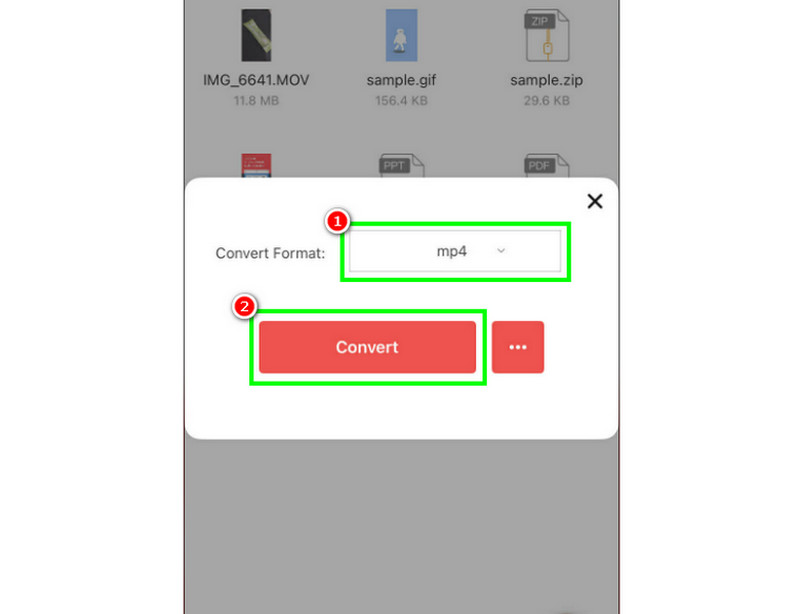
Step 1. Download iConv from your App Store. Then, launch it to start the process.
Step 2. Press the Plus sign to add the AVI file from your device.
Step 3. Now, select the MP4 format and tap the Convert button.
Limitations
- The app is only downloadable on iOS.
- There are times when it saves videos with poor quality.
Method 2. Transcode AVI to MP4 Using Canva App
The Canva app is also helpful for transcoding your AVI file to MP4 format. You can even save the video in the best quality without any watermark. Plus, you can access more editing functions that can enhance your videos effectively.
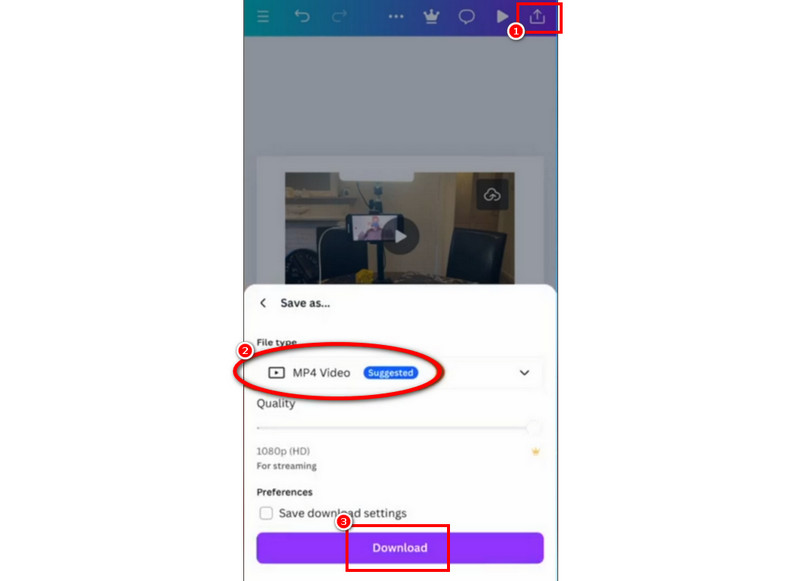
Step 1. Download Canva on your Android or iOS. Then, launch it and upload the AVI file you want to convert.
Step 2. After that, press the Share button above and tap the Download button.
Step 3. You can now select the MP4 as your output format. Lastly, hit the Download option to save the video on your device.
Limitations
- The app is not 100% free. You have to access its plan to get more features.
- The file size of the converter is a little bit large.
Part 6. FAQs about AVI to MP4
Which tool is best for beginners for converting AVI to MP4?
The best tools we can recommend for non-professional users are Vidmore Video Converter, CloudConvert, and Convertio. These converters are simple to navigate and free, making them accessible to users.
What is the maximum resolution supported when converting AVI to MP4?
It depends on the converters. If you want to save the video for up to 4K, you can use Vidmore Video Converter, Handbrake, Convertio, and more.
Is it safe to use online converters?
Definitely, yes. There are various tools that you can use to convert your files safely. Some of the tools are Convertio, CloudConvert, Zamzar, and more. So, if you are unsure about the tool, you can also read some reviews on the internet.
Conclusion
Thanks to this tutorial, you have explored the best methods to convert AVI to MP4 formats. With that, you can ensure better video playback. Plus, if you prefer using a powerful yet simple converter, we recommend using Vidmore Video Converter. This program is perfect if you want to convert a field instantly with the best video quality.