How to Convert MP4 to 3D: The Best Tool & Steps for You
Since the stunning debut of the movie Avatar, 3D has gained popularity as a special effect that immerses audiences in the action. While many studios release official versions with both 2D and 3D visuals, some films are only available in 2D-does that mean we're stuck with flat viewing experiences?
Not at all! Since its inception, 3D technology has become increasingly accessible to the general public. Today, individual users can convert MP4 to 3D using video editing software alone.
This article will detail the MP4-to-3D conversion process, including available tools, step-by-step instructions, and key considerations during conversion. Follow the demonstration here to create your own 3D movie!

PAGE CONTENT
Part 1. The Difference Of 2D And 3D
Through your own visual experience, you'll find the most noticeable difference between 2D and 3D lies in the flat versus three-dimensional visual effects. But that's not the whole story.
To help you grasp the concept of converting MP4 to 3D video, we'll first explain more about the distinctions between 2D and 3D in this section.
Conceptually, 2D refers to two-dimensional graphics, meaning only two dimensions: length + width. The entire image is as flat as a sheet of paper. Real-world examples include photographs, 2D animations, and videos.
It's important to note that 2D lacks width and depth, resulting in no sense of three-dimensionality.
Conversely, 3D effect, or three-dimensional graphics, possesses three dimensions: length + width + height. It possesses volume and depth, creating a visual effect of front-back and near-far distances, appearing as real as objects seen by the human eye. Common applications include 3D movies, VR environments, and game models.
To illustrate, 2D is like a square, while 3D is like a cube.
Part 2. Why Convert MP4 to 3D?
In fact, converting 2D to 3D is a fairly large market. Many video editing software programs have long competed to launch their own MP4 to 3D converters.
Why is this feature so highly demanded? Is it just for people to experience 3D effects for fun? Obviously not. Considering both personal and commercial needs, this process is especially necessary in the following scenarios:
• Make VR Content
Converting 2D to 3D allows existing videos to be used on VR devices, enabling viewers to experience immersive environments with real depth and visual distance.
Common applications include creating VR games and educational scenes, virtual travel experiences, and immersive storytelling content.
• Create 3D Videos For YouTube
To keep audiences engaged on platforms such as YouTube and other video-sharing websites, creators need to use innovative visual effects-such as 3D.
3D videos that showcase real streets, landscapes, space, and planetary scenes deliver powerful visual impact, encouraging viewers to keep watching with strong interest.
• Build 3D Demo Videos For Presentation
Many industries rely on 3D formats to demonstrate product performance, such as visualizing internal structures, architectural designs, and spatial layouts.
Three-dimensional visuals help audiences better understand complex concepts and make communication clearer and more effective.
Part 3. How to Convert MP4 To 3D Video via A Desktop-Based Tool
The preceding sections have provided ample theoretical grounding-it's time to see the real deal.
We'd like to add that with professional tools, converting 2D to 3D isn't complicated. The basic workflow involves uploading your source video, configuring the parameters that define the 3D effect, and finally exporting the result.
Speaking of professional tools, we recommend trying a versatile, beginner-friendly all-in-one solution: Vidmore Video Converter. It encompasses all common video editing functions you need, such as format conversion, length trimming, aspect ratio adjustment, adding subtitles, effects, audio tracks, and more-including the 3D converter we require for this task.
- Add 3D effects to videos with real-time preview support.
- Perform video editing, format conversion, cropping, merging, enhancement, and other tasks.
- Supports conversion between over 200 formats.
- Faster speed, higher quality.
In this section, we'll use Vidmore Video Converter as an example to show you how to convert MP4 to 3D.
Step 1. Download and install Vidmore Video Converter on your computer.
Then, switch the interface to Toolbox. Scroll down the menu to find the 3D Maker feature and click it.

Step 2. Click the + icon in the new window to upload your prepared video.
Then adjust parameters like Anaglyph, Split Screen, Depth, Format, and Quality to your preference.
Changes will be displayed in the preview window.
Step 3. Once everything is set, select the folder where you want to save the video under the Save to directory. Finally, click Generate 3D.

Part 4. Bonus: MP4 to 3D Conversion Tips for Best Results
Some users and viewers have noted that after converting 2D to 3D, the overall image quality feels slightly degraded.
To minimize this issue's impact on the converted video's appearance, we recommend preparing from the outset by providing source footage with the highest possible clarity.
Another key point is that since depth effects are added to the converted video, severe camera shake in the original footage may cause the converter to misidentify shots. This can result in an uncomfortably jarring final video. Therefore, it is essential to select footage with stable motion. If your source material exhibits significant shaking, apply stabilization processing beforehand.
The most reliable approach is to obtain Vidmore Video Enhancer. This professional video enhancement software offers core features including resolution upscaling, brightness/contrast adjustment, noise reduction, and shaky video stabilization.
We recommend following this guide to preprocess your video assets:
Step 1. Download and install Vidmore Video Enhancer on your computer.
After launching the interface, click the Add Files button to upload your videos.
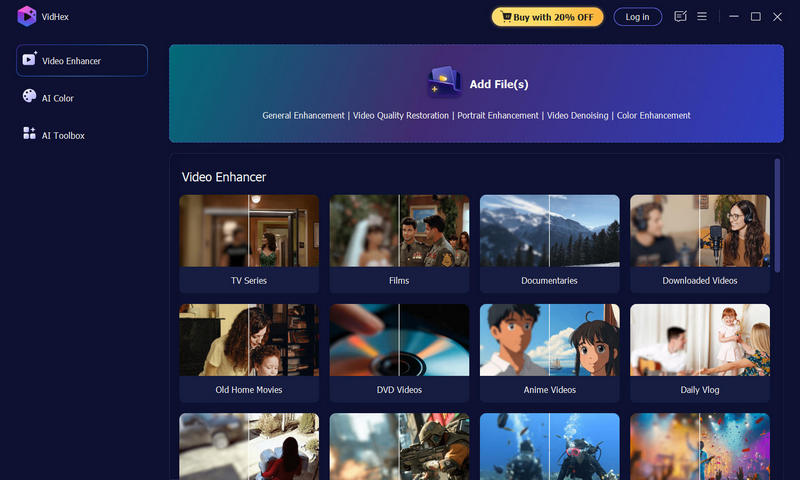
Step 2. Upon successful upload, you'll enter a new page. On the right side of the preview window, you'll see various video enhancement options. Click the ones you need to apply them to your video.
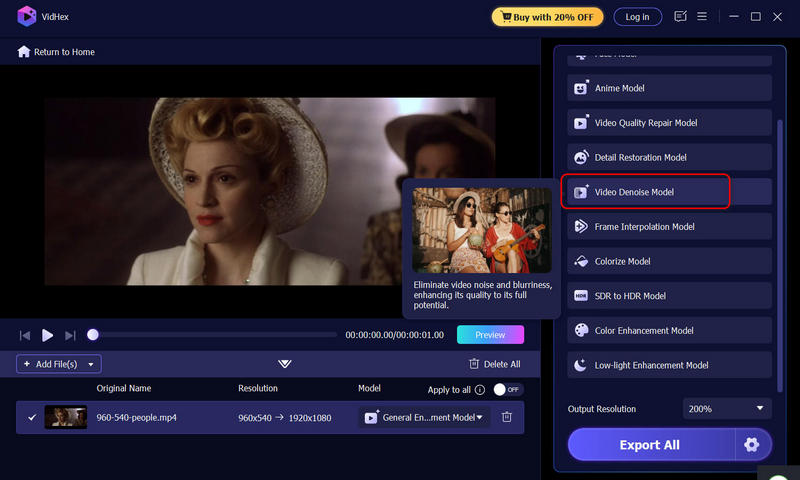
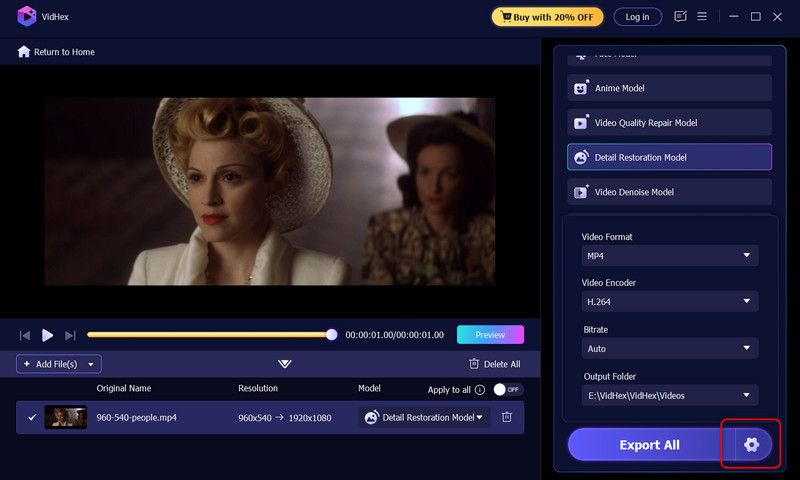
Step 3. After adjustments, select the output video quality at the bottom right.
Finally, click Export All to output your video.
Part 5. FAQs of Converting MP4 to 3D
How to convert MP4 to 3D video?
You'll need professional 3D effect software, either online or desktop-based, to assist you. Typically, you upload your file, select the desired 3D mode or stereoscopic settings, adjust depth of field and other parameters, apply them to the video, and finally output the result.
Can MP4 files be VR?
Yes. As long as your MP4 video content meets VR or 3D playback standards, you can view it on VR devices.
Can I convert MP4 to 3D online?
Yes. Several online MP4 to 3D video converters are available, such as Convert 3D and 3Dpresso. Simply upload your file to the official platform in your browser to begin conversion.
Conclusion
If you're seeking ways to convert MP4 to 3D, this guide is exactly what you need. It provides detailed theoretical groundwork: the differences between 2D and 3D, and when conversion is necessary; tools available for conversion and step-by-step instructions; plus, guidance on selecting or preparing suitable source videos.
No matter your application, Vidmore software has you covered for everything.