How to Convert WEBM to MOV: 4 Ways On Desktop & Online
When downloading or watching videos on certain platforms, you might encounter an unfamiliar format: WEBM. It commonly appears on Chrome web pages or Android mobile devices. Here, you might notice a potential issue: if you're using an iPhone or iPad, how do you handle this video format that isn't compatible with iOS?
No need to panic - simply convert WEBM to MOV. In fact, MOV offers superior compatibility compared to WEBM, making this conversion a common requirement. Consequently, numerous user-friendly converters have been developed for this purpose.
This guide is designed precisely for that. It presents four conversion methods, including desktop software and online tools. Regardless of your preferred approach, you'll find suitable steps tailored to your needs.

PAGE CONTENT
Part 1. WEBM VS. MOV
The proliferation of video formats on the market demonstrates that each has its specific use cases. Beyond device incompatibility, you might wonder: why would I need to convert WEBM to MOV?
Read this section for an explanation of both formats' concepts and applications - it may answer your questions.
· WEBM
Developed by Google, WEBM primarily consists of VP8 video and Vorbis audio. It is primarily designed for web video streaming (supported by HTML5 standards), ensuring compatibility with most major browsers. Key advantages include being open-source and free, along with smaller file sizes.
· MOV
Developed by Apple, MOV is the company's proprietary format. While inherently compatible with QuickTime and Apple systems, it is now also usable on Windows. MOV files are larger but preserve higher video quality, making them ideal for professional video editing or production. It is not open-source.
In summary:
· For videos intended for easy website uploads and online streaming, use WEBM.
· For higher-quality video, professional applications, or primarily iOS devices, MOV is the better choice.
In such cases, you would need to change WEBM to MOV.
Part 2. Easy Way to Convert WEBM to MOV
Once you've identified your needs, it's time to start converting. First, let's look at the most reliable, stable, and feature-rich desktop WEBM to MOV converter.
Vidmore Video Converter
The name Vidmore Video Converter already signals its expertise in format conversion. Let's dive into its capabilities: Vidmore Video Converter supports converting between over 200 video formats, including the MOV and WEBM formats discussed here. Furthermore, its conversion speed has been iteratively optimized, achieving up to 50X faster performance. You'll never face lengthy waits - processed videos are ready instantly. Its intuitive interface and excellent beginner guidance ensure seamless operation for any novice. Here's a summary of its multifunctional capabilities:
Main Features
- • Supports conversion between hundreds of video, audio, image, and file formats.
- • Dedicated options for popular devices like iPad, iPhone, TV, and Samsung.
- • Offers a comprehensive suite of audio/video and image editing, enhancement, and compression tools.
- • Enables you to create music videos or professional-grade films using your own materials.
Here's how to convert from WEBM to MOV using Vidmore Video Converter.
Step 1. Download and install Vidmore Video Converter on your device. Launch it to access the main interface, then click Add Files to import the video files you wish to convert.
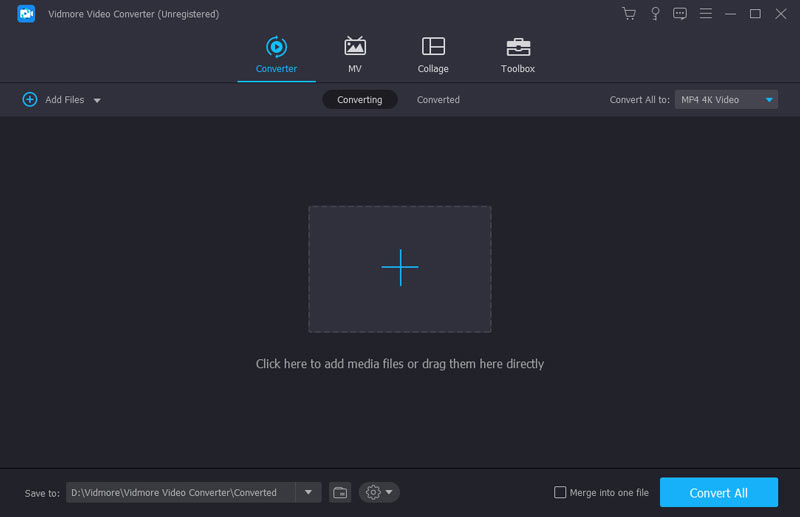
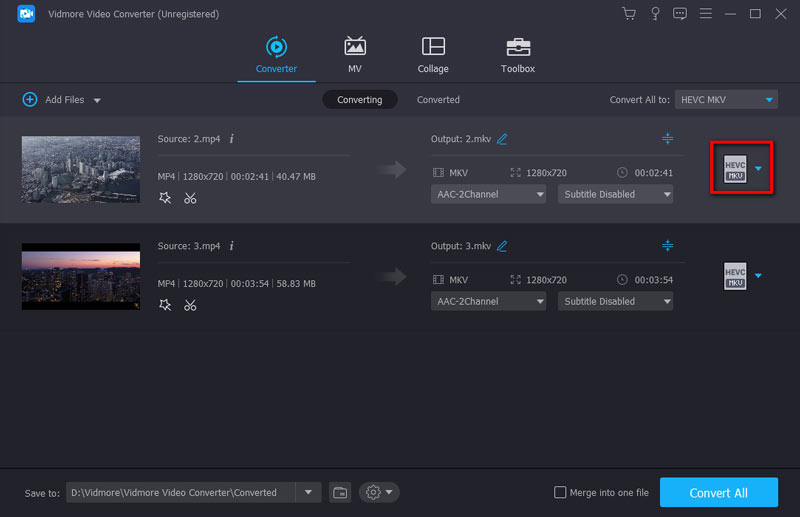
Step 2. After uploading the video project, click the format icon and select Video > MOV.
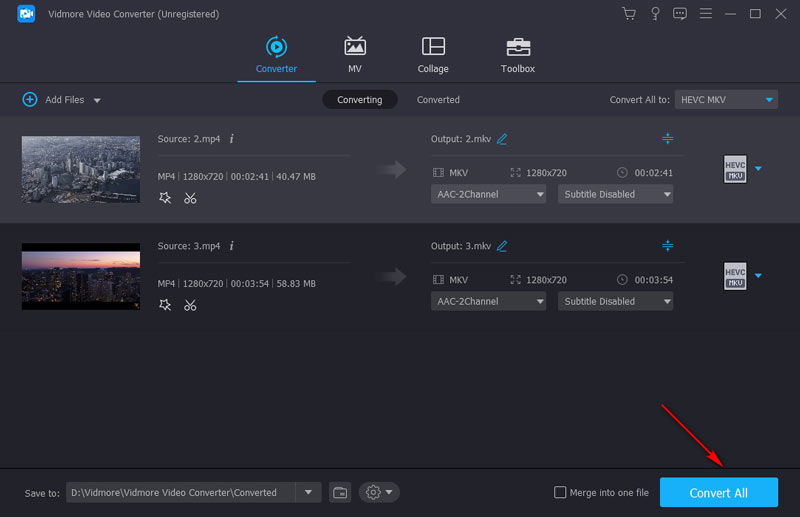
Step 3. Click the option next to Save to choose the save path for the converted file. Finally, click Convert All.
Part 3. Free Way to Change WEBM to MOV via Handbrake
Next, let's introduce a classic product in the format conversion world: Handbrake. Its most appealing features are its consistent free availability and excellent compatibility with Mac, Windows, and Linux. It also offers numerous customizable settings, paired with a well-organized interface and categorized options, making it undoubtedly one of the simplest converters you can find.
Here's how to convert WEBM to MOV using Handbrake.
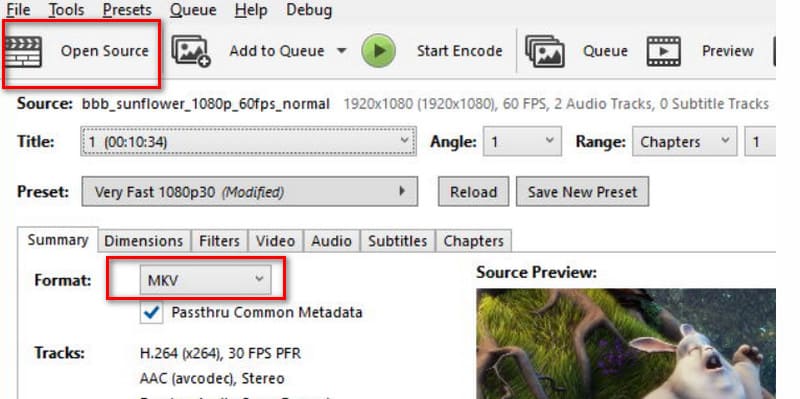
Step 1. Visit Handbrake's official website and download the version compatible with your operating system. After launching the software, click the Open Source button in the top-left corner and select the WEBM file you wish to convert.
Step 2. Once the video is loaded, navigate to Summary > Format. From the dropdown menu, locate and select the MOV option.
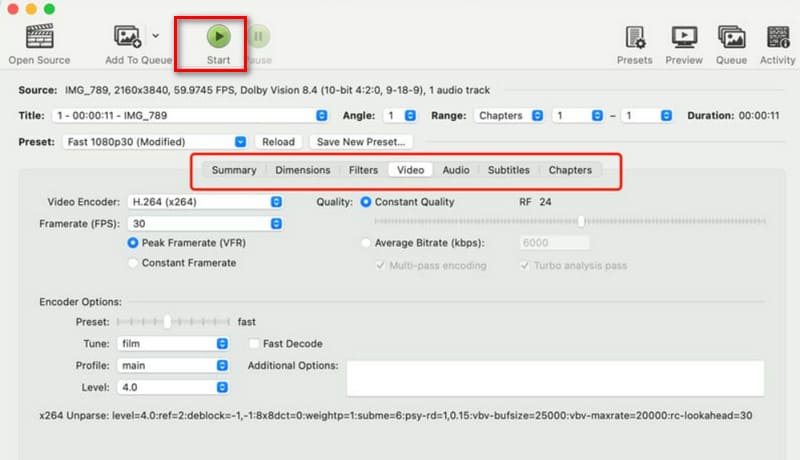
Step 3. Customize output parameters as needed, such as quality, resolution, playback speed, frame rate, etc.
Finally, click the green Start button to begin conversion.
Cons:
- Limited advanced features.
- Outdated interface design.
Part 4. Convert from WEBM to MOV Online for Free
I'm in a hurry and really don't want to go through the lengthy process of downloading and installing software!
No worries - there are plenty of online format converters ready to serve you. In this section, this guide has handpicked two excellent options for you, complete with their respective usage steps. Just follow our instructions, and you'll be able to start converting immediately.
Vidmore Free Video Converter Online
First up is Vidmore Free Video Converter Online. Yes, Vidmore offers features that rival desktop software while maintaining lightning-fast conversion speeds and a smooth user experience. Whether you're on Windows or Mac, as long as you can open a browser, you can launch Vidmore Free Video Converter Online anytime.
But that's not all. Vidmore Free Video Converter Online even provides settings options, allowing you to adjust video codecs, resolution, bitrate, frame rate, and more.
Here's how to convert WEBM to MOV using Vidmore Free Video Converter Online.
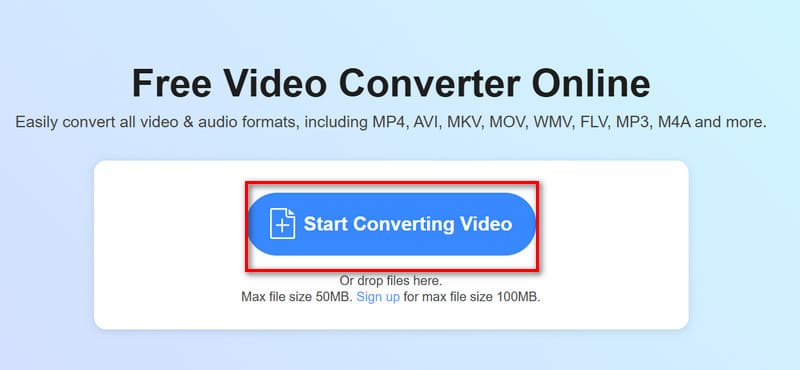
Step 1. Visit the Vidmore Free Video Converter Online page in your browser.
Click Start Converting Video to upload your video.
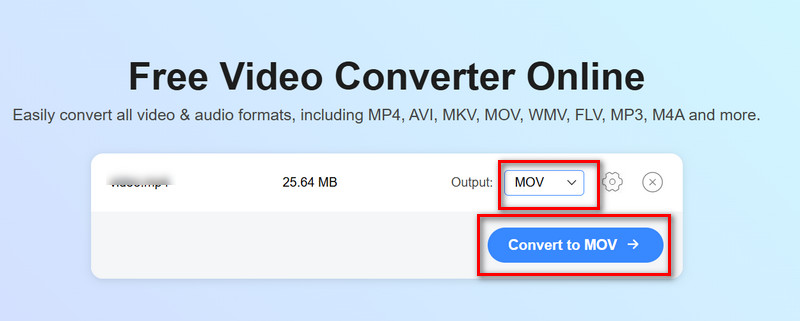
Step 2. After successful upload, expand the Output menu and select Video > MOV.
Finally, click Convert to MOV.
FreeConvert
When it comes to a lightweight user experience, FreeConvert is also a standout performer. It's free, easy to use, and supports conversion between over 1,500 formats - including video, audio, images, and e-books - while offering numerous advanced options. Naturally, it retains the advantages of an online tool, running not only on Windows, Mac, and Linux devices but also accessible on mobile platforms.
Rest assured your uploaded files won't be compromised. FreeConvert states they encrypt your files during transmission and delete them within hours after conversion.
Here's how to convert WEBM to MOV using FreeConvert:
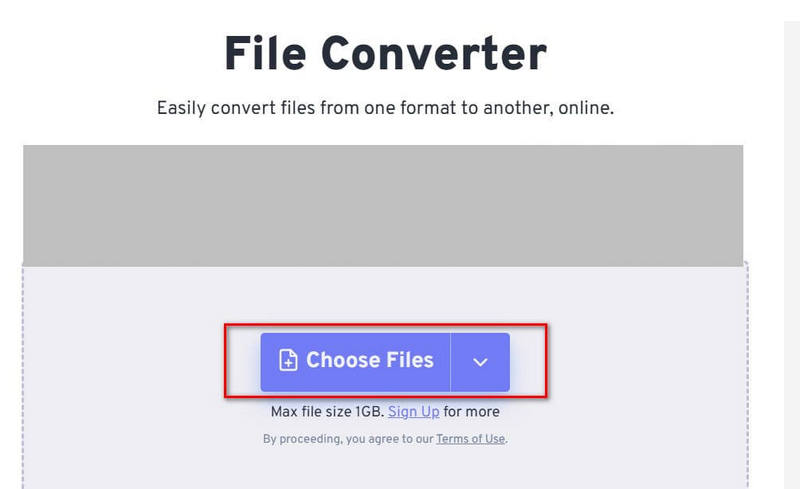
Step 1. Open FreeConvert in your browser. Click Choose Files to upload your WEBM file.
Step 2. After uploading your file, expand the menu next to the Output option and select Video > MOV.
Step 3. Click Convert.
Part 5. FAQs of WEBM to MOV
How to convert WEBM files to MOV?
At this point, we recommend using format conversion services provided by reputable websites or software. Recommended tools include Vidmore Converter, Vidmore Free Video Converter Online, and Handbrake.
Simply upload your video, select the output format, and click Convert.
Is WebM the same as MOV?
No. While both are video formats, WebM is designed for online video streaming, whereas MOV was developed by Apple and is optimized for QuickTime MOV Player and other Apple ecosystem products. Generally, WEBM files are smaller, transmit faster, and are free and open-source, while MOV files are larger but offer superior video quality.
What is the best format to convert MOV to?
MP4. MP4 offers broader compatibility and distribution, working seamlessly across nearly all platforms and players. Converting MOV to MP4 is the more practical choice.
Conclusion
This guide presents four simple, highly efficient tools to assist you in converting WEBM to MP4. It also includes a brief overview of both formats to help you understand the purpose of conversion. MOV offers superior video quality and is better suited for professional video editing. Additionally, it boasts stronger software and device compatibility than WEBM. If you're looking to overcome the limitations of the WEBM format, refer to this guide.