How to Convert WLMP to MP4: 2 tools & Steps for You
When searching for older videos online, you might encounter a file extension: .wlmp. This indicates a WLMP file - note that WLMP isn't a video format, but rather a project file. You can edit it, but it won't open in standard video players.
To play such videos, you must first convert WLMP to MP4 or another popular video format.
Feeling a bit confused? Don't worry - this guide provides everything you need: a detailed explanation of WLMP files; two tools for converting WLMP format to MP4 along with step-by-step instructions; and a software solution for converting videos to any other format, complete with usage guidance.

PAGE CONTENT
Part 1. What Is the WLMP Format
First, let's examine what WLMP actually stands for and how it differs from conventional video formats.
WLMP is a project file, fully known as Windows Live Movie Project, created by Microsoft Windows Movie Maker (Windows Live Movie Maker).
It can store elements like special effects, transitions, background music, and photo slideshows. However, this file essentially functions as a blueprint and doesn't contain any media content itself. In other words, WLMP files cannot be played directly. You can only open and edit them using Windows Live Movie Maker.
If you want to obtain a genuine video file that can be played, shared, and uploaded, you must export it to another popular video format like MP4.
Part 2. How to Change WLMP to MP4 with Movie Maker?
The solution to many puzzles lies right on the surface: since you can only open WLMP files with Windows Live Movie Maker, why not use this software to change WLMP to MP4?
Yes, Windows Live Movie Maker does indeed support this feature. It's an excellent video editing and creation tool that offers multiple output formats.
However, you should be aware that only the Windows Live Movie Maker 2012 version supports exporting videos in MP4 format. Therefore, before proceeding, please check your software version.
Here's how to convert WLMP to MP4 using Windows Live Movie Maker.
Step 1. Ensure Windows Live Movie Maker is installed on your computer. You can find it in your application list. Launch the software.
Step 2. Once in the interface, click Open project in the top-left corner. Upload your prepared WLMP file to the platform.

Step 3. After the file uploads, click Save movie > For computer in the left menu.

Step 4. A file save dialog will appear. Rename your video file, then expand the options under Save as type and select MPEG-4/H.264 Video File.

The conversion process is now complete. You can preview the exported MP4 file to check for any issues.
Cons:
- Software version restrictions apply; only Windows Live Movie Maker 2012 supports MP4 output.
- This software is no longer widely used. You may not find it on your computer.
- The interface is outdated with limited options.
Part 3. How to Convert WLMP to MP4 without Movie Maker?
If you find that Windows Live Movie Maker is not installed on your computer, or if you have a version other than 2012, we recommend seeking alternatives to help you complete your tasks.
Convert.Guru is an excellent choice. It supports converting WLMP to MP4 online without requiring any additional software installation or downloads - the entire process is completed in the cloud. This also saves significant resources on your computer.
Additionally, Convert.Guru boasts impressive compatibility. Accessible not only on desktops but also via tablets and smartphones, it supports Windows, macOS, Android, and iOS systems while working with any browser.
Last but not least, Convert.Guru handles over 2000 video, audio, image, document, and spreadsheet formats, making it exceptionally versatile.
Here's how to convert from WLMP to MP4 online with Convert.Guru:
Step 1. Visit Convert.Guru's official website via your browser. You'll land directly on the workspace.
Step 2. Click Select File to upload your WLMP file.

Step 3. After successful upload, you'll see the video's parameters in the preview window.
Click Convert file to at the bottom of the page, then select your desired format.
Once selected, your video will automatically begin converting. The converted file will start downloading automatically.

Cons:
- The page is cluttered with ads, making it difficult to select the output format.
- Video upload speeds are somewhat slow.
Part 4. Bonus: A Great Video Converter for Almost All Digital Formats
When saving, sharing, and playing videos, you'll encounter numerous formats. Sometimes, due to compatibility issues, you must convert video formats to meet the requirements of your current platform.
It's too cumbersome to search for conversion methods each time. Why not choose a universal video format converter to solve this once and for all?
Vidmore Video Converter is the perfect solution to meet your needs. It supports over 200 multimedia formats, excelling at converting videos, audio, images, and files. With conversion speeds up to 50X faster, you won't be stuck waiting endlessly in front of your computer.
Beyond that, Vidmore Video Converter is a comprehensive video editor. It lets you trim, enhance, crop, reverse, merge, and split files. It also supports adding subtitles, effects, filters, watermarks, and even 3D effects.
- Supports conversion between 200+ formats.
- Creates music videos using images and video clips.
- Includes all essential features for basic video editing.
- Converts 2D videos to 3D.
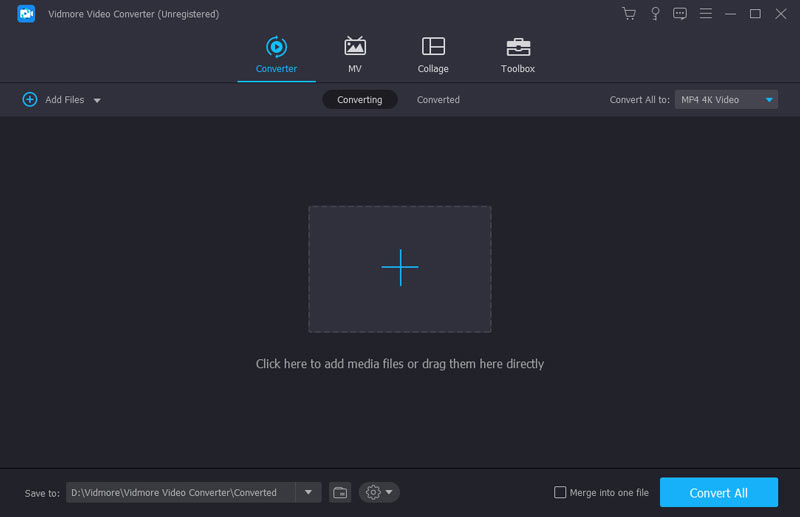
Next, we'll demonstrate how to use Vidmore Video Converter by converting a video.
Step 1. Download and install Vidmore Video Converter on your computer.
Launch it, then click Add Files to upload the files you wish to convert.
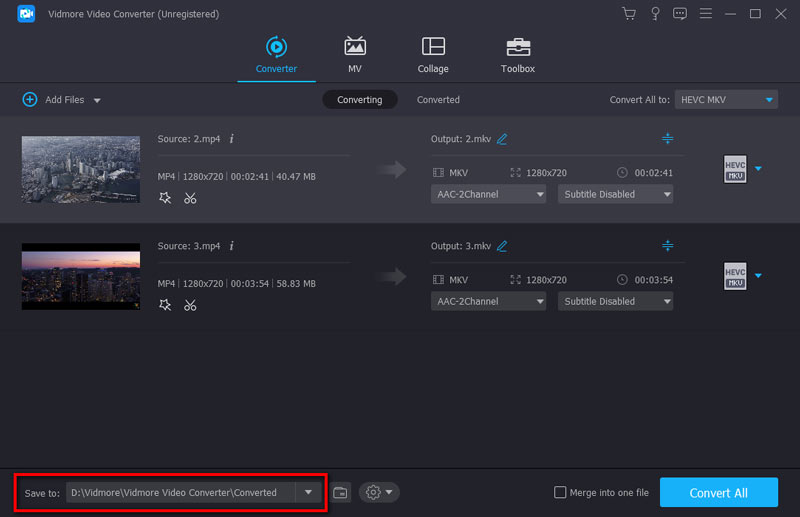
Step 2. Click the format icon next to the uploaded file to expand the selection menu. Choose your target output format.
Step 3. Under Save to, select the destination folder for your output files. Finally, click Convert All to apply this 4K converter.
Part 5. FAQs of Converting WLMP to MP4
How to convert WLMP file to MP4?
The most reliable method is to use Windows Live Movie Maker. Open your WLMP file with it, then select Save As and choose MPEG-4 as the output format.
If you don't have this software, you can opt for an online tool like Convert.Guru.
Read this article to learn the differences of MPEG-4 and MP4.
How do I open a WLMP file?
You need Windows Live Movie Maker to open WLMP files. Note that you can only edit the file there - you cannot play the video unless you export it as MP4 format.
What is a WLMP file?
WLMP stands for Windows Live Movie Project. It's a video project file containing videos, photos, effects, music, subtitles, etc., but it's not a playable video file.
Conclusion
Got a WLMP file but can't play it? Try converting WLMP to MP4.
The most basic method is to use Windows Live Movie Maker to change the file's output format. But considering this software is outdated, we recommend using Convert.Guru as an alternative to get the job done.
If you have more video or audio format conversion needs later, go ahead and get Vidmore Video Converter! It's even a versatile editor.