How to Post GIF to Instagram: 4 Solutions for You to Try
GIFs, this versatile multimedia format, are most commonly found in your chats with friends and across major social media platforms. Everyone shares their own funny animated memes to get more likes, shares, and followers.
If you've recently captured a funny video of a friend or saved a celebrity's animated expression and want to share it on Instagram, don't miss this guide on how to post GIFs to Instagram. We've compiled four best methods, complete with detailed step-by-step instructions, ensuring you can accomplish this task on any device.

PAGE CONTENT
Bonus: Best GIF Maker for Instagram
Since we're talking about sharing GIFs, you might also be interested in a tool that lets you create GIFs with just one click?
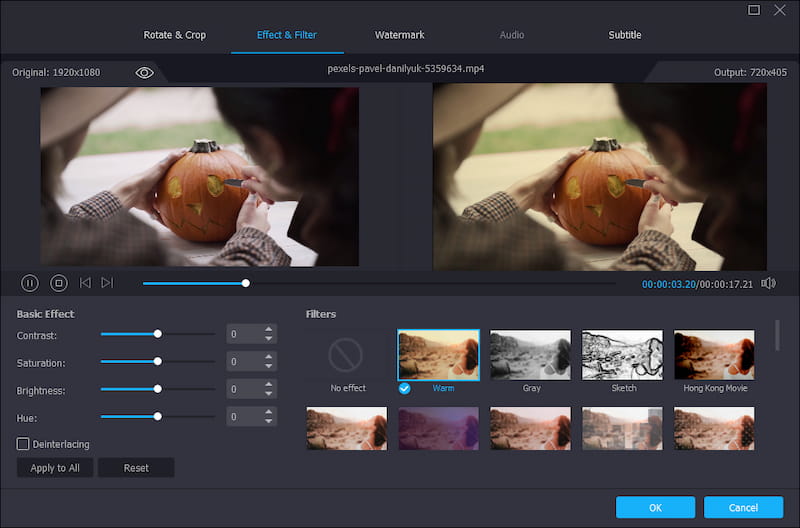
Vidmore Video Converter is absolutely perfect for any beginner to try. First, within the software's Toolbox, you'll find the GIF Maker - designed specifically for creating animated images. You can upload your own images or video clips and let it generate a GIF for you. More importantly, Vidmore Video Converter also offers corresponding editing features, allowing you to rotate and crop your freshly created images. You can even add new watermarks, effects, filters, and more to your visuals.
If your prepared video footage is too long and you want to do some rough trimming, no problem. Vidmore Video Converter is a highly versatile video editing platform. You can first process your clips in the Converter section before switching to the GIF Maker for further operations.
Here's a quick guide on using Vidmore Video Converter to create GIFs:
Step 1. Download and install Vidmore Video Converter on your device.
Once in the main interface, select Toolbox from the top menu and locate GIF Maker.
Step 2. Import your video footage into the platform, then use the interface features to edit and customize your desired effect. After making changes, remember to click OK to save.
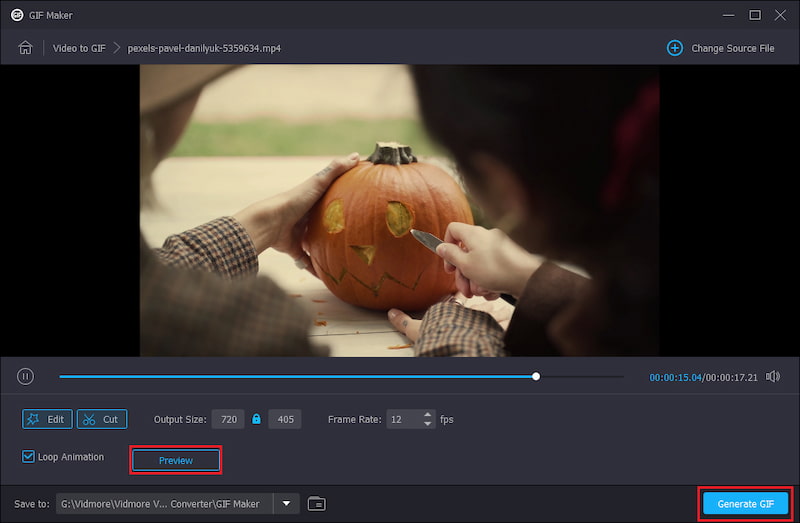
Step 3. Click Preview to check the results. If everything looks good, select Generate GIF.
Part 1. How to Post GIF to Instagram
If you're ready to publish your GIF, you can skip directly to this section. This guide explains how to publish GIFs via GIPHY on mobile devices and computers, as well as how to share GIFs using Instagram's Boomerang feature and GIF Stickers.
Regardless of your GIF's source file or creation method, you'll find clear, step-by-step instructions tailored to your needs here.
Tips:
Can you post GIFs in Instagram?
Before we begin, we want to remind you that Instagram doesn't actually support GIF format. That's why you need to choose another platform as an intermediary - convert your GIF to an MP4 file, then upload it to Instagram.
By GIPHY From iPhone/Android
Posting GIFs through the GIPHY app is arguably the simplest and most direct method. Just make sure you have this app installed on your iOS or Android mobile device.
Here's the complete process for how to post animated GIFs on Instagram:
Step 1. Open the GIPHY app on your phone and log in.
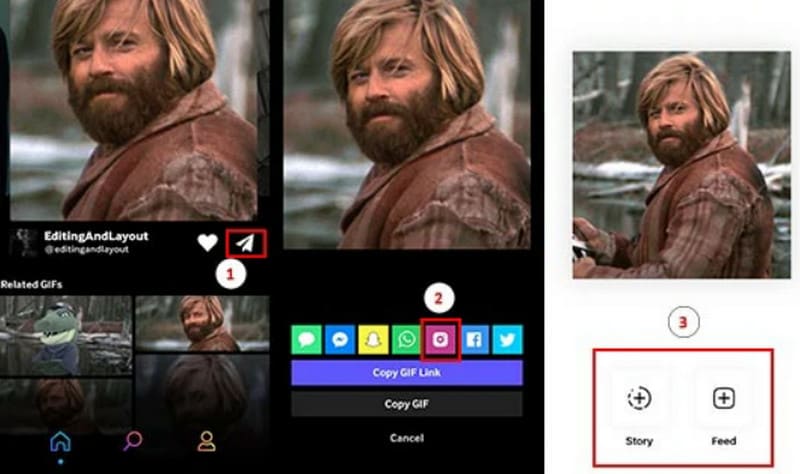
Step 2. Select the GIF image on your phone, then tap the paper airplane-shaped share button. You'll see multiple sharing platform options - choose the Instagram icon, and the Instagram app will launch automatically.
Step 3. You're now ready to post. The exact process depends on what type of content you choose to share.
If you want to post to an Instagram Story, select Story > Your Story. Your GIF will appear in your story as an MP4 file (the GIF animation will loop).
If you want to post to your feed, tap Feed. Your GIF will appear as a 15-second looping MP4 video (the GIF animation will play in a loop). Next, select this video locally, tap Next, choose a frame as the cover photo, and finally select Share to complete the post.
From PC
If you choose to post from your desktop, you can still use GIPHY. This time, there's no need to download additional software - simply log in to GIPHY's official website to get started.
Here's how to add GIFs on Instagram from your desktop:
Step 1. First, open your computer browser and go to giphy.com. Then log in to your account.
Step 2. Select the GIF file you want to post via the webpage. You'll then enter the details page.
Step 3. On the right side of the GIF, you'll find the Copy Link icon. Click it, then open Instagram, paste your content, and you're done posting.
By Boomerang Feature
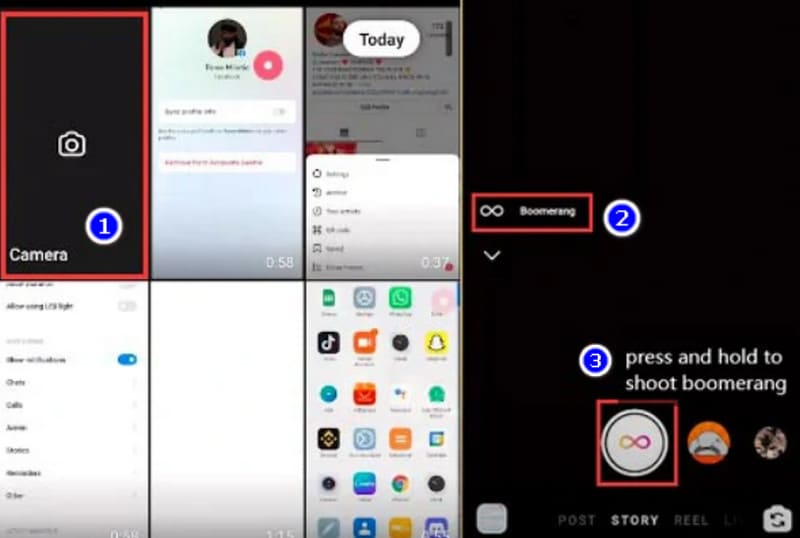
In addition to posting GIFs to Instagram via third-party platforms, you can also try Instagram's built-in Boomerang feature. This tool helps you create and publish a 6-second looping animated video using GIFs, which can then be shared to your Instagram Stories.
Here's how to post GIFs on IG using Boomerang:
Step 1. Open Instagram on your phone and select Your Story in the top-left corner.
Step 2. Tap Camera, then locate the Boomerang feature in the second section and enable it.
Next, press and hold the camera shutter icon for a few seconds.
The platform will automatically capture multiple consecutive photos and compile them into a looping video.
Step 3. Once created, tap the Your Story button in the bottom-left corner again. This will share your GIF to your Instagram Stories.
By GIF Stickers
Regarding the question How can I post a GIF to Instagram, another solution is to use the GIF Stickers feature. This works by adding the GIF to your photo or video before sharing it.
Here are the detailed steps:
Step 1. Open the Instagram app and tap your profile photo in the top-left corner of the home screen to start creating a Story.
Step 2. Choose a photo or video from your gallery that you want to share in your Story.
Step 3. Tap the sticker icon at the top of the editing screen, then select GIF. Search for or browse a GIF you like and place it onto your photo or video.
Step 4. Resize, reposition, or rotate the GIF as needed. You can also add text, drawings, or other stickers to make your Story more engaging.
Step 5. When everything looks right, tap Your Story to publish the Story with GIFs to your Instagram profile.
Part 2. FAQs of How to Post GIF to Instagram
Can you post a GIF on an Instagram post?
First off, GIF format on Instagram isn't currently supported. However, you can use other features to convert your GIF into an MP4 video and post it as a looping video on Instagram.
Why won't Instagram let me post a GIF?
Ensure you're using the correct upload method, such as GIPHY. If it still fails, it might be due to poor network connectivity or minor app glitches. Try updating the app or restarting your device to resolve the issue.
How to post GIFs on Instagram without GIPHY?
Use a file converter to transform your GIF into a video format like MP4 before posting your content.
Conclusion
This guide offers four solutions for how to post GIFs to Instagram: using the external GIPHY app on mobile, posting from a computer, and utilizing Instagram's built-in Boomerang and GIF Stickers.
All methods are relatively simple, but they essentially involve posting GIFs as videos. Choose the approach based on your device's capabilities and the desired presentation style for your GIF.