How to Fix Snapchat Camera Quality: Best Actions for You
When chatting with friends on Snapchat, you tap the camera icon to capture something around you. But after focusing, you suddenly realize: why does the image look so blurry?
You're probably not the first person to encounter this problem. Snapchat Camera Look So Bad has long been a highly discussed topic on Reddit. People rely on Snapchat's camera to take photos, record videos, share moments, and create memes or GIFs, but the app has consistently been criticized for poor photo and video quality, as well as low-quality downloaded videos.
This guide combines advice from users across major forums, real-world experience, and information from authoritative tech websites to create a practical how to fix Snapchat camera quality guide for you.
Here, you'll first learn why Snapchat's camera quality may appear low, and then discover how to improve it through proper settings and adjustments. In addition, for photos or videos you've already captured, we've also prepared some post-processing solutions to help improve the final result.

PAGE CONTENT
Part 1. Why Does My Snapchat Camera Look So Bad?
To figure out how to fix Snapchat camera quality, you first need to understand the root causes of the problem.
You might be thinking: Since I'm using my phone's camera to take photos, how could there be any difference in image quality between the Snapchat camera and the system ?
Here's the bad news: The image quality produced by the Snapchat camera may never match that of your device's built-in camera, and there are generally two main factors contributing to this: app defaults and external conditions.
First, let's talk about app settings:
After all, Snapchat is just an app designed for efficient communication, so it sacrifices some quality to ensure faster message and photo delivery. In other words, it compresses the photos you take, which results in a loss of detail and quality. As a result, your photos do appear slightly blurrier to the naked eye.
Now let's look at external factors, which are a bit more complex:
• Failure to Update Promptly
Snapchat's performance improves with each update, including its photo-taking and transmission features. If you haven't updated the app to the latest version or accidentally uninstalled an update, you may encounter blurry photos.
• Poor Network Quality
If your device is connected to a slow or unstable network, the issue of blurry photos on Snapchat may be exacerbated. This is because the platform further compresses photos during upload.
• System Issues
Of course, the cause may also lie outside of Snapchat. If the device you're using to take photos has system malfunctions or errors, this can also lead to a decline in photo quality.
Finally, you can also check your device model. If it's an older model, it most likely isn't equipped with the latest high-definition camera, so it naturally won't be able to capture clear videos.
Part 2. Quick Actions to Fix Snapchat Camera Quality
Once you have a general idea of the possible causes, you can start trying these iOS and Android Snapchat camera quality fix methods. In this section, we'll build on the issues discussed above and combine them with other situations you may encounter in daily use to provide the most practical solutions.
Clean Lens
Sometimes the problem is caused by the most basic - and easiest to overlook - factor. If your phone can't capture clear photos on Snapchat, take a moment to check the camera lens. There may simply be dirt or smudges blocking it.
We recommend using a dedicated lens cleaner with a soft microfiber cloth to clean the lens. For dirt trapped in small gaps or stubborn stains, you can gently wipe them away with a cotton swab lightly dipped in rubbing alcohol. Just make sure your device is completely dry before using it again.
Update Snapchat
As mentioned earlier, Snapchat is constantly being updated. New features are introduced regularly, and its camera performance continues to improve with each release. That's why we don't recommend skipping updates. Using an outdated version may significantly affect your overall experience.
To stay up to date, enable Snapchat notifications so you'll be alerted whenever a new version is available.
Alternatively, you can regularly check Google Play or the App Store to see whether a newer version of Snapchat is available for your device.
Restart
Your device - or certain apps - may occasionally slow down or stop working because of unexpected glitches. In many cases, the quickest way to resolve the issue is simply to restart.
If your Snapchat camera is blurry, first try restarting the app itself. Here's how to fix bad camera quality on Snapchat by restarting the app.
Step 1. Close the Snapchat app and wait for a few minutes.
Step 2. Close all apps running in the background on your device.
Step 3. Reopen Snapchat and check whether the blurry camera issue has been resolved.
If that doesn't work, we recommend trying a more thorough solution: restarting your device.
Simply close all running apps, press the power button, and select Restart. Once your device powers back on, open Snapchat again.
If the issue still persists, uninstall your current version of Snapchat, then download and install it again from the App Store.
Part 3. Best Snapchat Camera Settings for High Quality
Changing Snapchat's internal settings is also an effective way to fix Snapchat camera quality on Android and iOS.
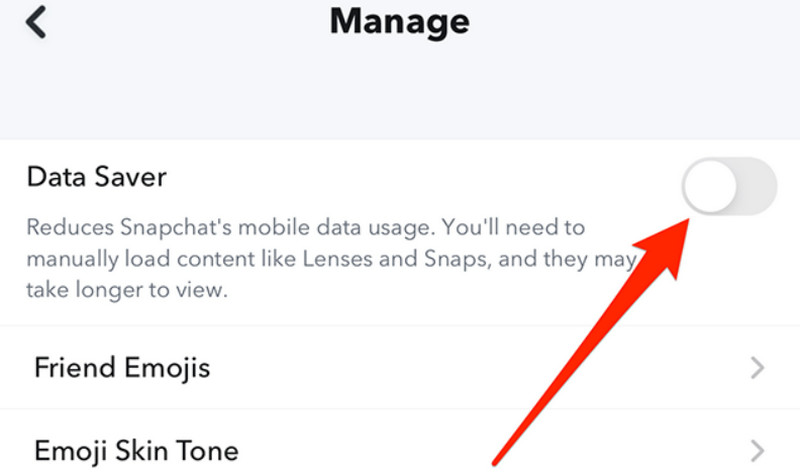
First, you need to understand that Snapchat has a feature called Data Saver. When enabled, it helps reduce the amount of data Snapchat uses while running, but it also further compresses the photos you send and upload, making them blurrier.
If you want to improve the quality of videos you take and download on Snapchat, we recommend turning off Data Saver.
Here's how to do it.
Step 1. Open Snapchat and tap your profile picture to go to the Profile screen.
Step 2. On the Profile screen, tap the Settings icon.
Step 3. Scroll down in the new menu to find App & Privacy > My Privacy & Data.
Step 4. Locate the Manage My Data option, and you'll see Data Saver.
Step 5. Uncheck the box to turn off Data Saver.
Snapchat also offers settings to change the camera resolution. You can check these to ensure you're always taking photos at Standard clarity.
Part 4. Tips: How to Improve Blurry Videos Captured by Snapchat
All right, I'm sure you now know how to deal with blurry photos taken on Snapchat, which should at least ensure you get clear photos for the foreseeable future. But don't forget about a problem you might have encountered in the past: what if the Snapchat videos you've taken and saved are blurry - is there a way to fix them?
Of course! We've got the perfect solution for this - Vidhex.
Vidhex is a product specifically designed to enhance video quality. It can fix blurry videos, restore distorted colors, and even upscale video footage N times without any loss of quality. It can also handle issues like shaky footage or excessive noise with ease.
Here's how to fix blurry videos captured by Snapchat.
Step 1. Download and install Vidhex on your computer.
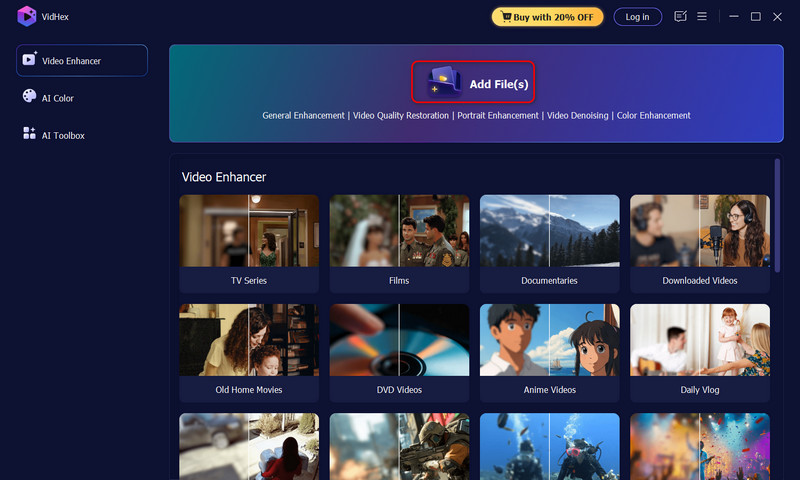
Step 2. Click the Add Files button on the home page to upload the video you want to enhance.
Step 3. On the new page, select the model you want to use for this enhancement on the right side. Then, select the output resolution and magnification factor in the bottom-right corner.
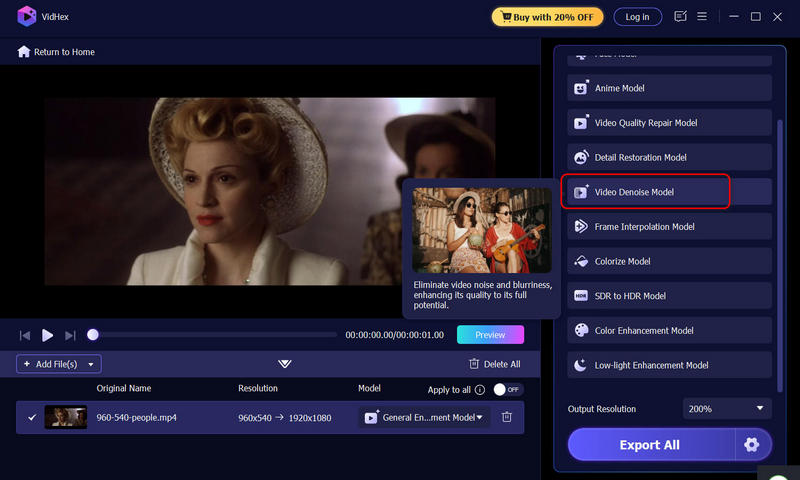
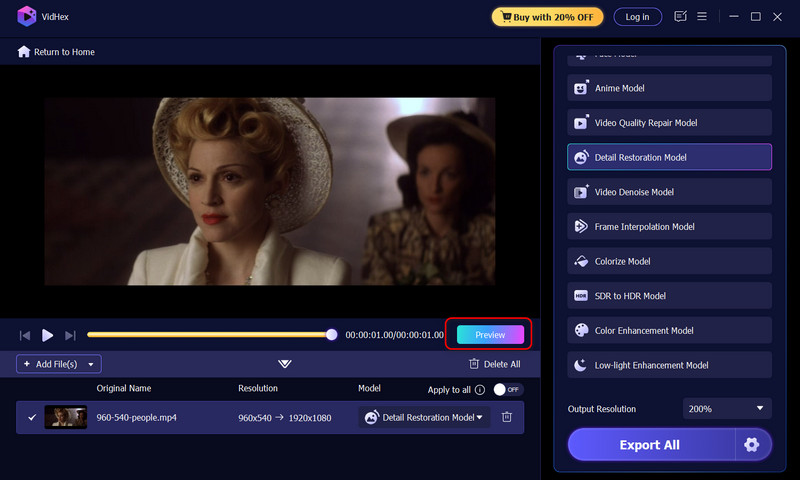
Step 4. Click Preview to see the results. Finally, click Export All to export your videos.
Part 5. FAQs of Fixing Snapchat Camera Quality
Why is my Snapchat camera suddenly blurry?
Check to see if there's any dirt on your device's camera lens, which could be causing your photos to come out particularly blurry. You can also check whether you've enabled the app's Data Saver mode, which might be compressing your photos.
How do I fix camera settings in Snapchat?
First, go to your profile page, turn off Data Saver in Settings, and then change the camera output quality to Standard. Finally, be sure to update Snapchat regularly.
Why are my Snaps grainy?
To speed up data transmission, Snapchat compresses the photos you take and download, which makes them appear less clear than the originals.
Conclusion
This guide on how to improve Snapchat camera quality covers three areas: the Snapchat platform, your recording device, and physical conditions. You can follow the step-by-step instructions to troubleshoot the issue, ensuring that your future recordings show a significant improvement in clarity. If you've already recorded a video, you can also use Vidhex - recommended in this guide - to enhance its quality.