3 Best Video Color Inverters: Creating Accessible Content
The footage you originally captured or produced may be very realistic, but its colors seem to be missing something - perhaps it lacks impact, or perhaps objects, text, and the background are too similar, making it difficult to see all the details. In this case, you may need the help of a professional video color inverter to transform the colors of your footage into a different style.
If you're looking to achieve this on your own device, read this guide. It will first cover the basics, such as the concept and significance of video color inversion, as well as the core methods for doing it. Three recommended video color inverters will be featured here.

PAGE CONTENT
Part 1. What is Color Inversion?
Before getting started, it is helpful to first understand the concept behind this process.
Color inversion refers to an operation that completely changes the colors of an image or video. More specifically, it transforms dark backgrounds into light ones and light elements into dark ones. Common real-world examples include turning black-and-white negatives into normal photos with natural brightness, or converting realistic colors into a negative film effect.
As for the purpose of this technique, the next section will explain it in more detail.
Part 2. Why Invert Video Color?
Wouldn't it be best for videos to simply keep their original realistic colors? Why go through the effort to invert video color?
In fact, this technique is widely used for several practical purposes today:
1. Create Striking Artistic Effects
After reversing normal video colors, the result often looks unconventional and visually dramatic. Adding these effects to your projects can create a futuristic or avant-garde artistic style. In some cases, inverted colors can also symbolize sudden changes in a scene, a character's emotions, or psychological state.
2. Adjust Visual Details More Precisely
Sometimes problems with brightness, color balance, or contrast are difficult to notice at first glance. By inverting the colors, imperfections often become much easier to identify. This allows you to make more accurate adjustments to brightness, color, contrast, and shadows in the original footage.
3. Create Content That Is Easier for Color-Sensitive Viewers to Watch
Visually impaired users or people with color sensitivity may not perceive colors the same way as most viewers. In these cases, creators can try reversing or adjusting colors into combinations that are easier for them to recognize and view comfortably.
In addition, performing video color correction can sometimes make text inside images easier to read - for example, converting white text on a black background into the more common black text on a white background.
Part 3. 3 Useful Methods to Invert Video Colors
Now that the basics have been covered, it is time to move on to the actual tools. If you have decided to invert the colors of your videos, the following video color inverter tools can definitely help. This section includes some of the most versatile, professional, and widely compatible options available today.
Method 1. Vidmore Video Enhancer
When it comes to video color adjustment and enhancement, there is one all-in-one tool that can fully meet your needs: Vidmore Video Enhancer. Besides automatically adjusting saturation and tone, it can also restore black-and-white videos to color with one click, enhance video colors, and improve dark footage.
With Vidmore Video Enhancer, all you need to do is upload your video, choose a feature, apply the effect, and preview the result. There is no need for complicated manual parameter adjustments in the process.
Key Features
- ·Enhance blurry videos up to 720p, 1080p, or even 4K resolution.
- ·Automatically adjust video colors, contrast, brightness, and shadows.
- ·Includes tools for reducing background noise in videos.
- ·Restore black-and-white videos to natural, vivid colors.
Here is how to invert video colors using the black-and-white feature for color conversion.
Step 1. Download and install Vidmore Video Enhancer on your computer.
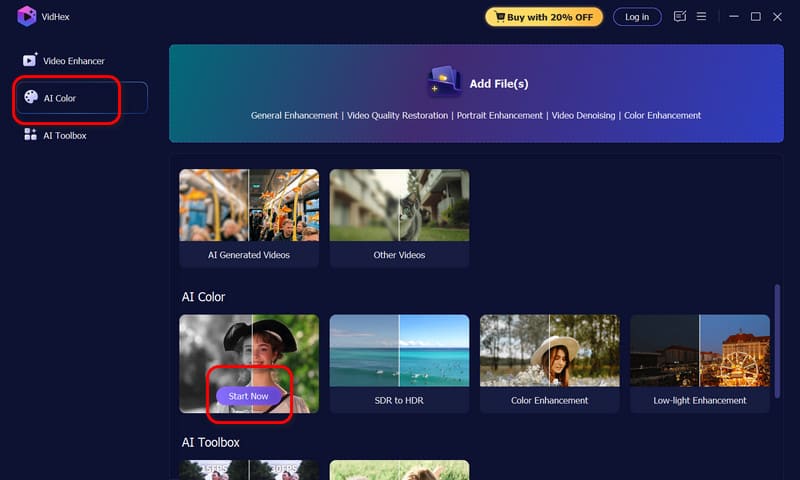
Step 2. Find the AI Color tab, then select B & W Colorization > Start Now to upload your video.
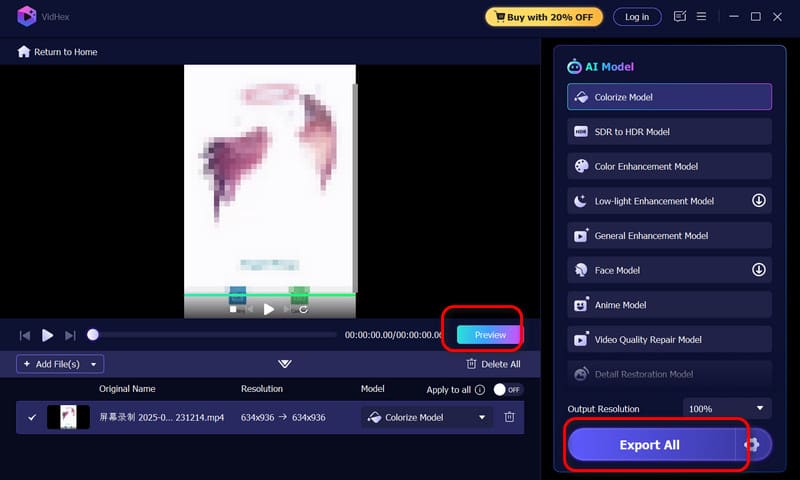
Step 3. Enter the preview window and click Preview to check the result. Finally, click Export All to save your video.
Method 2. Premiere Pro
When it comes to professional video editing - especially video color correction - Adobe Premiere Pro is often considered one of the industry’s top choices. Inside the software, you can directly find a built-in feature called Invert, which allows you to reverse video colors easily. In addition, Premiere Pro also offers a Blend with Original option that helps create a more balanced visual effect.
However, one of the biggest challenges with Adobe Premiere Pro is that the editing process can feel complicated for beginners, and the software itself requires a paid subscription. To make things easier, this guide provides a detailed step-by-step tutorial below.
Here is how to adjust video color using Adobe Premiere Pro.
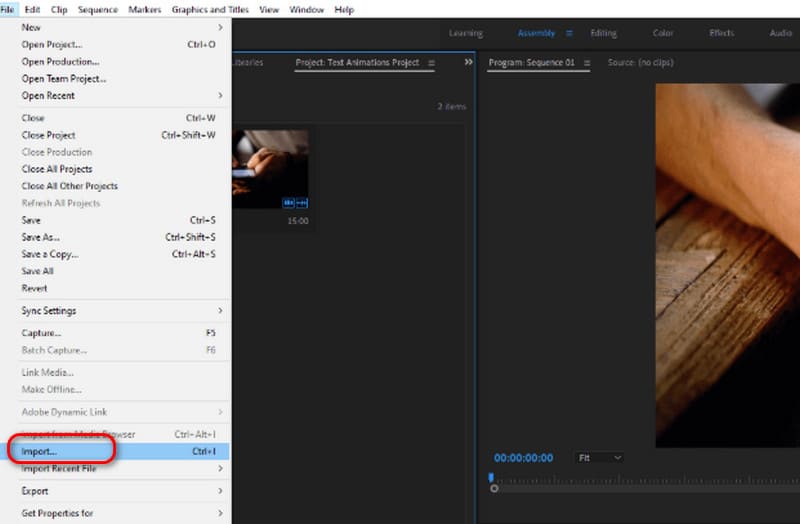
Step 1. Launch Adobe Premiere Pro on your computer. Then click File > Import in the top-left corner to upload the video you want to edit.
Step 2. Select your file and drag it onto the timeline.
Now you can begin editing.
Step 3. Open the Effects tab and select Video Effects > Channel. In this menu, you will find the Invert effect.
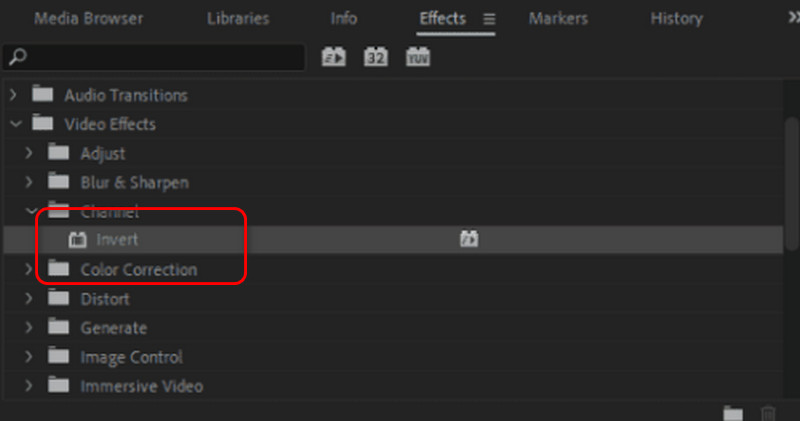
Next, drag the Invert effect onto the timeline to apply it to your video.
Step 4. Finally, you can fine-tune the visual result.
Go to the Effects Controls panel and adjust the options you need.
Method 3. VLC Player
If you're concerned about having to pay to reverse colors in other video editing software, this guide recommends trying the free VLC Player. It includes a feature for changing video color effects. To learn how to do this, follow the steps below:
Step 1. Launch VLC media player on your computer and open the video you want to edit.
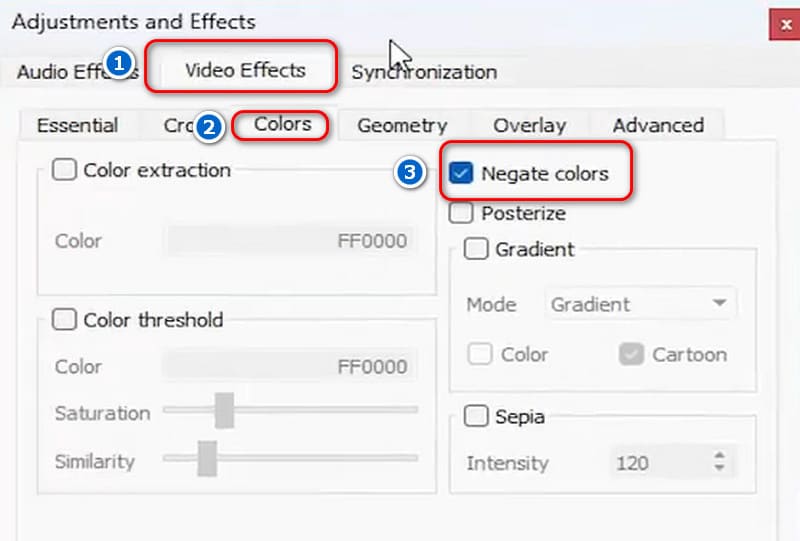
Step 2. Click Tools > Effects and Filters from the top menu bar.
Step 3. In the pop-up window, switch to the Video Effects tab.
Step 4. Open the Colors section and check the Invert colors option.
Part 4. FAQs About Video Color Inversion
Is there a way to invert colors?
Absolutely. In fact, color inversion is a fairly common editing operation. You can choose professional tools like Adobe Premiere Pro to help you, or use VLC media player instead. Both tools include features for reversing colors.
How to invert colors on iPhone?
You can change the video color directly on your device. First, open the Settings app, then go to Accessibility > Display & Text Size. After that, turn on Classic Invert.
Is there a free way to reverse a video?
Yes. You can use VLC media player to invert video colors. The application is completely free to use.
Conclusion
This guide introduced three different video color inverter tools. Among them, Vidmore Video Enhancer stands out for offering the most complete feature set while remaining beginner-friendly and easy to use. Meanwhile, Adobe Premiere Pro excels in professional-level color processing and includes blending options that can make inverted footage look more natural. If speed and free access matter most, VLC media player is likely the better choice.
For all three methods, this guide also provided detailed step-by-step instructions. Hopefully, these tools and tutorials will help make your video editing process easier and more creative.