3 Best Ways to Upscale Video to 8K with Video Upscalers
In this modern era where fidelity reigns supreme, a leap from standard definition to 8K is more than just a jump in pixel count. Enhancing your favorite clips to 8K is not a dream. It has become an accessible gateway to resurrecting beautiful moments, preserving video, and revealing all the details invisible to the naked eye in lower resolutions. Well, turning your video to 8K is a process that is powered by AI and advanced algorithms. It can intelligently reconstruct and enhance the overall aspect of your video to make it better. Thus, if you want to learn how to turn your clips into 8K resolution, see this tutorial, as we offer all the best methods you can use and follow to achieve your desired outcome.

PAGE CONTENT
Part 1. What is 8K Resolution
8K resolution refers to a display or video format with a pixel count of approximately 8,000 pixels. The standard and specific resolution is 7680 x 4320 pixels. This resolution equates to over 33 million total pixels on screen, which is exactly four times the pixel count of 4K UHD (3840 x 2160) and sixteen times that of Full HD (1920 x 1080). In addition, this massive pixel density allows for an image of exceptional sharpness and detail, creating a viewing experience with a level of clarity that can appear immersive and hyper-realistic, especially on larger screens.
Part 2. Differences Between 4K and 8K
4K and 8K resolutions have their differences. To get more insights about these two resolutions, you can use the comparison table below.
| 4K | Comparison Aspect | 8K |
| 3840 x 2160 pixels | Resolution | 7680 x 4320 pixels |
| 8.3 million | Total Pixels | 33.2 million |
| High | Pixel Density | Extremely High |
| Extremely sharp and detailed. Visible pixelation is virtually absent on typical living room screens. | Clarity and Detail | Hyper-realistic detail. Reveals textures and fine elements (such as individual hairs, fabric weaves, distant objects) with incredible precision. |
| A 4K stream can require 25+ Mbps. File sizes for raw footage are large. | Bandwidth and Storage Demand | An 8K stream or file can easily demand 4x the data of its 4K equivalent, pushing the limits of current internet and storage technology. |
| The jump from HD or Full HD to 4K is instantly noticeable and impactful for movies, sports, and gaming. | Primary Benefit | The current main benefit is superior upscaling of 4K/HD content via potent processors and the ‘headroom’ for a display to last for the next decade. |
Part 3. How to Upscale Video to 8K
Want the best 8K upscalers? In that case, check this section as we offer the best video upscalers you can use, along with the methods to obtain your main goal.
Method 1. Upscale Video to 8K Using Vidmore Video Enhancer
If you are looking for exceptional software that allows you to turn your video into 8K, look no further than Vidmore Video Enhancer. This program is perfect since it can offer all the features you need during the process. You can smoothly enhance the video to achieve its better version. Plus, you won't encounter any struggle since it has a simple UI, making it suitable for all types of users. What we like here is that you can deal with different types of videos. You can enhance vlogs, anime, documentaries, old videos, and more. You can also remove the video noise, correct the color, and much more. Thus, if you want an excellent video enhancer, try using Vidmore Video Enhancer.
More Features
- The program is powered by AI, which can give an accurate result.
- It can offer various enhancement models.
- It supports multiple output formats, such as MOV, MP4, MKV, and more.
- The video enhancer can offer its batch processing feature.
To convert video to 8K, you can use the detailed tutorial below.
Step 1. Download Vidmore Video Enhancer on your computer. Then, run it to start the upscaling process.
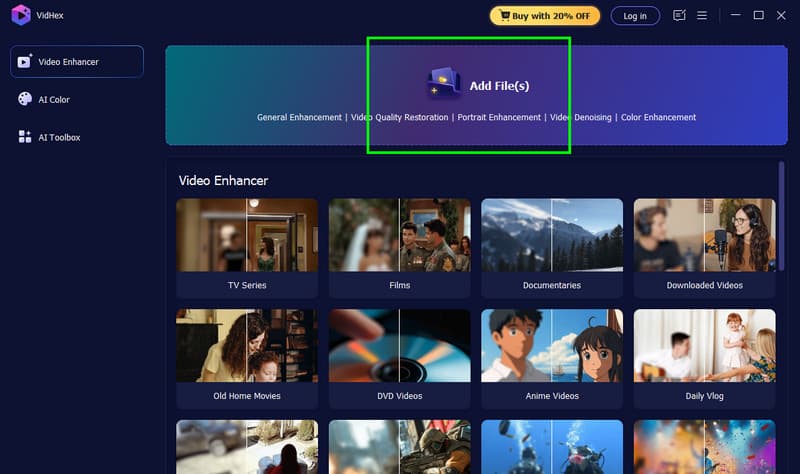
Step 2. From the interface, click the Add Files option to add the video you want to upscale. You add multiple videos if you want to.
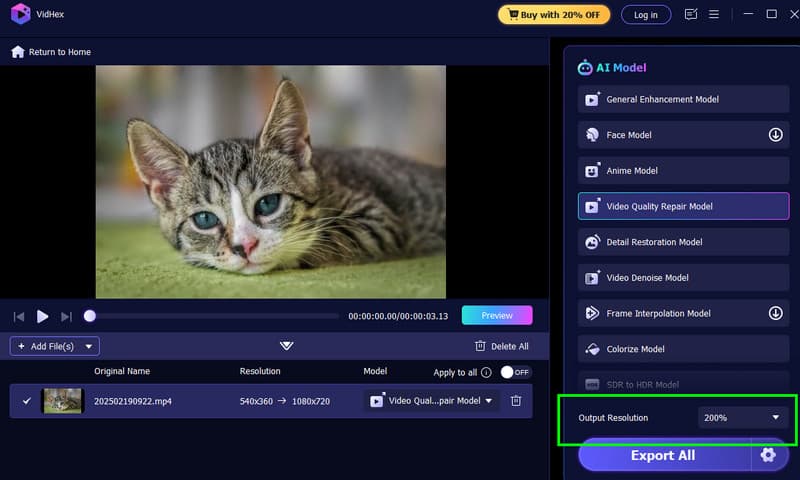
Step 3. You can now go to the Output Resolution section and select the 8K. You can click the Preview feature to check the possible result.
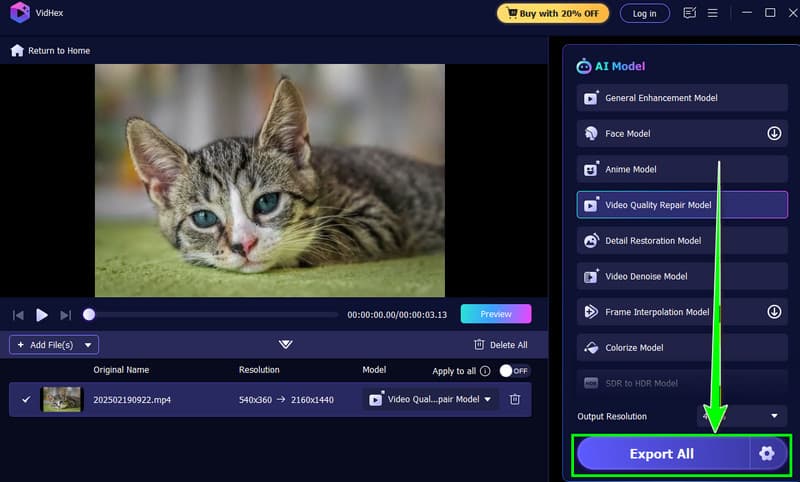
Step 4. Once satisfied, you can start clicking the Export button below to save the enhanced video on your device.
Method 2. Upscale Video to 8K Using Topaz Video AI
Topaz Video AI is another AI-powered tool you can use on your desktop to effectively upscale your video to 8K. What makes it ideal is its fast upscaling process. Plus, you can modify some parameters. You can change the frame rate, stabilization, and more. You can also use its video crop editor to resize your video based on your needs. The only drawback here is that it has a complicated user interface, making it confusing to some users. It also inserts a watermark into the video when using the program's free version. But still, if you want to check its capability, see the steps below.
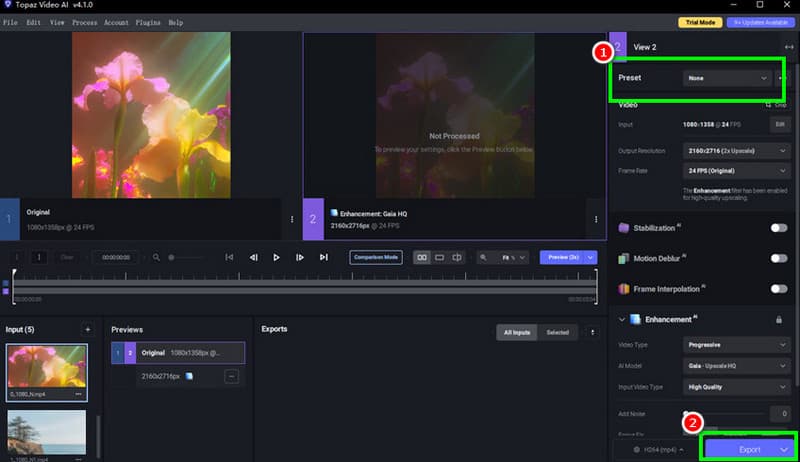
Step 1. Download and install Topaz Video AI on your computer. Then, launch it to start the procedure.
Step 2. Add the video and insert it into the Timeline section. After that, proceed to the Presets section to select the 8K resolution.
Step 3. Finally, tap the Export function below to instantly save your upscaled video on your computer.
Method 3. Upscale Video to 8K Using HitPaw Video Enhancer
For our last 8K upscaling software, we suggest using HitPaw Video Enhancer. This program is ideal if you want a simple video enhancer with an understandable layout. The good thing about this program is that you can access various enhancement models, allowing you to get your desired result instantly. The only problem here is that installing the program is time-consuming. It also has a large file size, so ensure that you have enough space when downloading it on your computer. If you want to use HitPaw to upscale your videos, see the steps below.
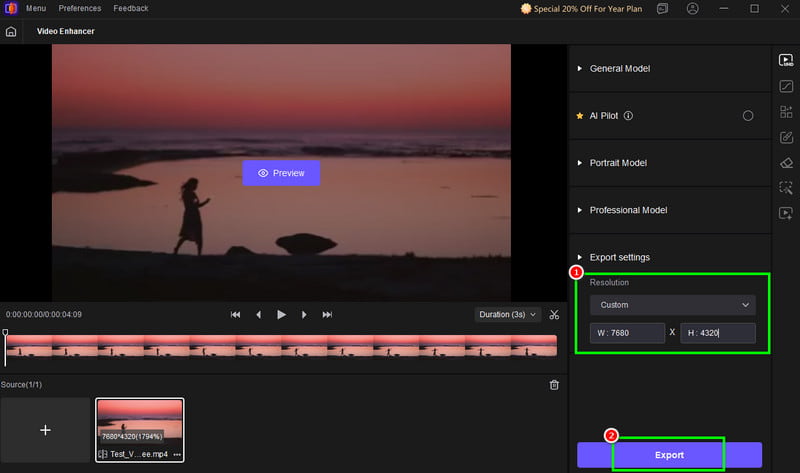
Step 1. After you download the HitPaw Video Enhancer, launch it to begin the upscaling process.
Step 2. From the primary interface, click the Video Enhancer feature. Then, tap the Browse Video button to add the video you need to enhance.
Step 3. After you add the video, go to the Resolution and insert the pixel under the Custom option. After that, you can start clicking the Export function to save your final video.
With these methods, upscaling your video to 8K is a possible task. With that, use the recommended video enhancers to achieve your desired output.
Part 4. Comparison of the Best Video Upscalers
Do you want to learn about the differences between the video enhancers in terms of their performance? You can check the details below.
| Feature | Vidmore Video Enhancer | Topaz Video AI | HitPaw Video Enhancer |
| Upscaling Performance | Good for upscaling (video to 8K). Effective for high-resolution boosts with noise reduction. | Excels at recovering realistic detail, textures, and film grain while minimizing artifacts. | Provides clean results, especially with its tailored models for faces or cartoons. |
| Speed | Offers a super-fast processing speed while maintaining the quality. | Processing is slower but yields the highest quality. | It can offer a fast processing speed with good results. |
| Primary limitation | For unlimited processing, access the subscription plan. | It has a steep learning curve. | Less manual control and fine-tuning compared to other video enhancers. |
Part 5. FAQs about 8K Upscaling
Does Upscaling improve the quality?
Definitely, yes. When upscaling your videos, especially to 8K, the pixel count will increase, resulting in cleared details on the videos. Thus, when upscaling your video, expect that the quality will improve and provide a better viewing experience.
What is the advantage of 8K resolution?
There are various benefits you can get if you have a video with 8K resolution. You can get a better video quality, a detailed visual, and crisp output. In addition to that, you can also play the video on a larger monitor or TV without any problem. With that, if you want to get a satisfying viewing experience, try upscaling your videos.
Is upscaling video to 8K recommended?
Not every time. There are some devices that are incapable of dealing with 8K videos. So, if you want to upscale your videos to 8K, ensure that your device and video players support it. If not, using a video with standard quality is ideal.
Conclusion
Well, there you have it. If you want to upscale video to 8K, we suggest using all the methods from this article. Also, if you are unsure what tool to utilize, we recommend using Vidmore Video Enhancer. Compared with other video enhancers, this program can offer a comprehensive layout, allowing you to upscale your videos easily. Thus, use this software and get your video with 8K resolution.