4 Top-Notching Video FPS Increasers to Upscale Videos
Smooth video playback is necessary for an appealing and engaging viewing experience. But you must know that not all video is recorded at the same frame rate. Videos like game highlights, cinematic projects, and professional content contain different frame rates, making them look more fluid, reducing stutter, and improving compatibility on various platforms. So, if you want to change the frame rate of your videos for better playback, read this post. We are here to introduce various video FPS increasers you can use to boost the frame rate of your videos. We will also include their features, pros, cons, and other details. Thus, read on here to get more information about the discussion.

PAGE CONTENT
Part 1. How to Choose the Best Video FPS Increaser
As we all know, FPS can play a vital role when playing different types of videos. So, do you wonder how to choose the best video FPS increaser that can help you boost the frame rate and upscale your videos? Then, you can check the guide we have provided in this section.
- Processing Speed and Hardware Requirements - Some FPS increasers rely heavily on GPU acceleration, which speeds up processing but requires decent hardware. Always check your FPS booster to see if it supports GPU and how long it can process your videos.
- Output Resolution and Format Support - When choosing an FPS increaser, always check the supported output resolution and format. This helps you save your videos without encountering any compatibility issues in the future.
- Offers AI Technology - Nowadays, there are various AI-powered tools you can rely on to increase the FPS of your videos. You can choose those tools for a smoother and faster process.
- Comprehensive User Interface - Select a video FPS increaser based on your capabilities. If you are a beginner, use the tool that is simple to use. This way, you can increase the video FPS without any hassle.
Part 2. Comparison of the Best FPS Increasers
You can also check this section to take a peek at the best video FPS increasers.
| Video FPS Increasers | Vidmore Video Enhancer | Topaz Video AI | DaVinci Resolve | Flowframes |
| FPS Supported | Up to 60 FPS via 2× and 4× interpolation | Up to 240 FPS (multiple interpolation models: Apollo, Chronos, Apo-8) | Optical Flow retiming, flexible, tied to project frame rate settings | Depends on model (RIFE/DAIN), typically 2× and 4× multiplier, so up to ~120 FPS+ |
| Platform | Windows and Mac | Windows and Mac | Windows and Mac | Windows and Mac |
| Speed | Fast for casual clips; cloud acceleration available | Slower per-clip (quality-first), but scales well with a strong GPU | Fast if using GPU acceleration; integrated into timeline (no export/import step) | Moderate to slow depending on GPU/model chosen |
| Offer Batch Processing | Yes | Yes | No | Limited |
| Other Features | Upscaling to 4K/8K, denoising, colorization, low-light brightening, face enhancement | 4K/8K upscaling, motion deblur, stabilization, noise reduction | Full NLE (editing, color grading, audio), Speed Warp retiming (Studio/paid version) | Model switching (RIFE, DAIN, etc.), loop/dedupe handling, free & open-source |
Part 3. Top 4 Video FPS Increasers
To explore all the video FPS increasers you can access, you can start reading everything in this part.
1. Vidmore Video Enhancer
Best for: Beginners and professionals who need an all-in-one enhancer.
Score: 9.5 / 10
Platform: Windows and Mac
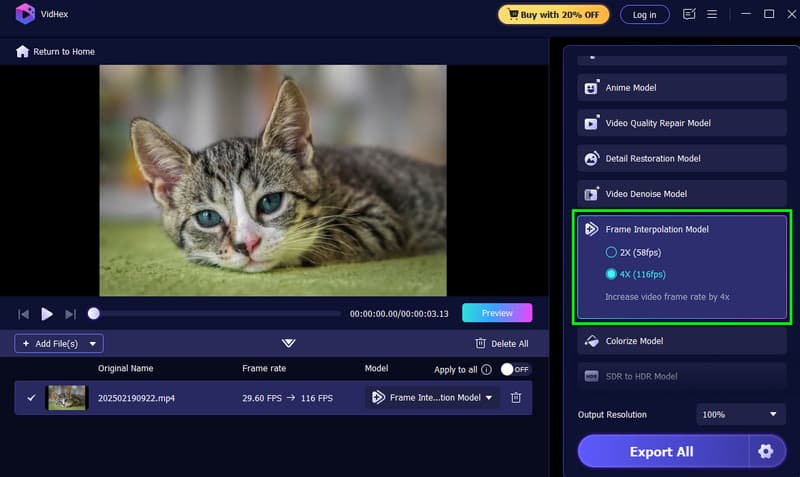
Looking for an AI FPS Increaser? If so, you can try using Vidmore Video Enhancer, also known as VidHex. This program can offer its Frame Interpolation Model feature, allowing you to boost the FPS of your video up to 2× or 4×. The good thing about this software is that it can easily and automatically boost the frame rate, making it an ideal option for non-professional users. It can also offer more AI video enhancement features for improving your overall videos, which makes it the best AI-driven video enhancement program for Windows and Mac.
Features
- It can offer numerous video enhancement features, such as General Enhancement, Video Denoise, Detail Restoration, and more.
- The program supports batch processing.
- It supports a wide range of output video formats, including MP4, MKV, M4V, AVI, FLV, etc.
Pros
- Using the program is easy with its comprehensive layout.
- It can offer a smooth export process.
- It can deal with various video types.
Cons
- To access more engaging features, you can try using the paid version.
2. Topaz Video AI
Best for: Professionals who want to increase the FPS and save with the best quality.
Score: 9 / 10
Platform: Windows and Mac
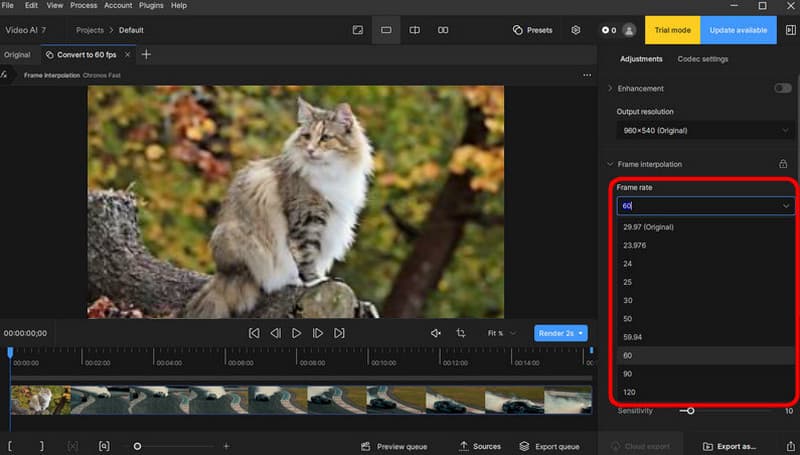
To improve the frame rate of the video, you can also use Topaz Video AI. It can also offer AI models, like Chronos and Apollo, for motion interpolation, stabilization, and upscaling. It is also a go-to video enhancer for those who need to achieve a neat output after enhancement.
Features
- It offers multiple interpolation models.
- The Motion Deblur feature is available.
- It can support 4K upscaling.
Pros
- It can smoothly handle complex motions.
- The update is consistent.
Cons
- The price is high.
- It requires a high-end GPU.
3. DaVinci Resolve
Best for: Beginners and professional editors who need frame interpolation built into a full NLE workflow.
Score: 8.5 / 10
Platform: Windows and Mac
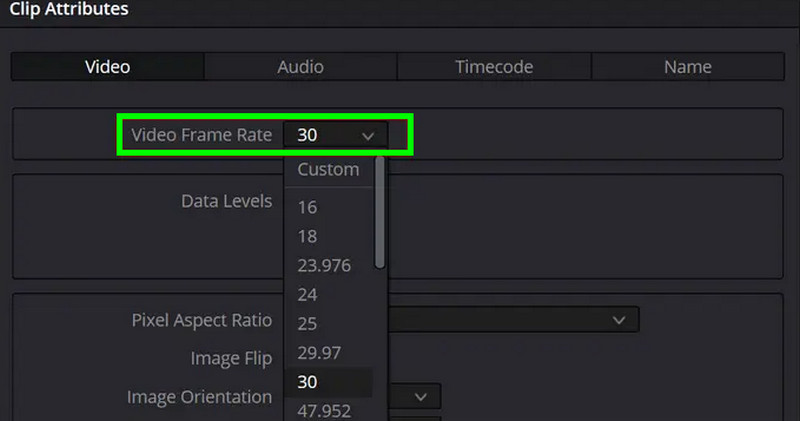
DaVinci Resolve also stands out as an ideal video FPS increaser. With its Optical Flow feature, you can expect a smooth frame-rate conversion without exporting to another tool. It is also easy to operate, making it an ideal frame interpolation software for all users.
Features
- The editor can offer Speed Warp Retiming.
- It can offer more advanced editing tools.
Pros
- It offers a free version to show its capabilities.
- The program ensures the edited video is saved with the best output quality.
Cons
- There are times when the program lags.
- Some of the advanced editing features are available on the paid version.
4. Flowframes
Best for: Hobbyists who need a free tool to boost video FPS.
Score: 8.5 / 10
Platform: Windows
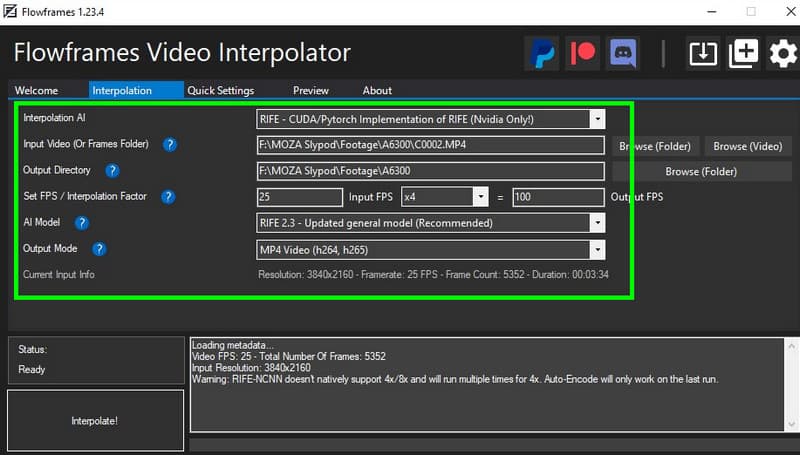
Want a free video FPS increaser? In that case, you can use Flowframes. It is an open-source interpolation tool that can offer models like RIFE and DAIN, popular for upscaling anime. It is also simple to use, making it ideal for novices.
Features
- It can offer numerous AI models, like DAIN, RIFE, and more.
Pros
- It is free to access and use.
- It can also offer its loop and duplication options.
Cons
- The tool is only available on Windows.
- It doesn't offer a batch processing feature.
Part 4. FAQs about Video FPS Increaser
What is the best video FPS increaser for beginners?
If you are a beginner and want to boost the frame rate of your video, you can always use Vidmore Video Enhancer. With its simple user interface and smooth processing, you can achieve the result you need without any struggle.
Does a higher output frame rate mean a bigger file size?
Technically, yes. Since there are more frames, there will be more data to encode, resulting in a larger video file size.
Do I need a powerful GPU to access FPS increasers?
Practically, yes. If you are using AI-powered programs, like VidHex and Topaz, you must have a decent GPU for a smoother and more stable process.
Conclusion
With these video FPS increasers, you can ensure you enjoy your favorite videos without any problems. So, check all the programs and choose your best tool. Also, if you need the best program that can give you a smoother process, good output quality, and can offer simple editing, look no further than Vidmore Video Enhancer. It is capable of offering all the features you need, making it a go-to software for all users.