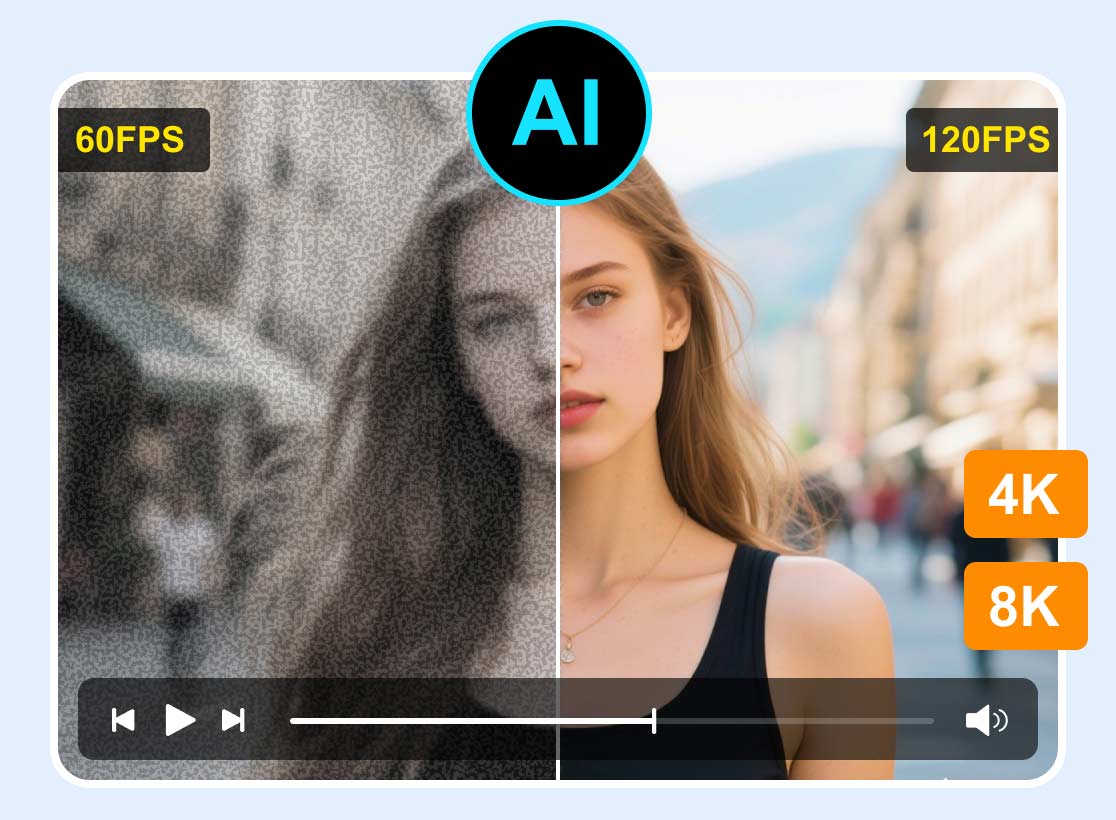
Video Quality Enhancer Chrome Extension: 5 Tested Picks for Improved Streaming
Can a Chrome extension really sharpen a common 1080p stream on a laptop screen?
If you often watch videos in your browser and want to improve the whole experience or need more control over how they look, sound, or play, you may look for a video quality enhancer Chrome extension. These browser extensions can directly enhance the video quality in real time. You don’t need to download editing software or re-encode files. This article gives you five top recommendations to choose from.

How to Choose a Video Quality Enhancer Chrome Extension
Before installing an extension, consider what you actually need. Some tools focus on speed control, while others offer more advanced enhancements. Look for these key factors:
Features: Decide whether you need basic controls (speed, brightness, contrast) or advanced tools.
Compatibility: Does it work only on YouTube, or across Netflix, Vimeo, Twitch, and TikTok?
Performance impact: Some Chrome extensions can cause lag, freezes, and high memory usage.
Ease of use: Some can automatically force the highest available quality, while others may require manual controls each time.
Update reliability: Select a video enhancer extension with active maintainers and responsive support.
PAGE CONTENT
Part 1. Quick Comparison of 5 Video Enhancer Chrome Extensions
You may need a video quality enhancer Chrome extension for better brightness, sharper playback, faster speed control, or a more immersive viewing experience. To help you find the right extension quickly, the table below puts the essentials in one place.
| Video Quality Enhancer Chrome Extension | Best For | Main Limitation | Ease of Use | Core Features |
| Enhancer for YouTube | Quick YouTube customization | Primarily YouTube-focused | Moderate | Force HD, playback control, ad removal, audio boost, keyboard shortcuts |
| Improve YouTube! | YouTube optimization Power users wanting 170+ features | Works only on YouTube Performance issues on some systems | Moderate | Auto choose the best quality, playback speed, content blocking, force 60fps playback |
| Video Enhancer for YouTube | Quick visual and audio adjustments | YouTube-focused Simple feature set | Easy | Brightness, contrast, 7 filters, audio boost, 16x speed |
| Video Speed Controller | Playback speed control across all sites | Speed only No visual enhancement | Very Easy | 0.07x–16x speed, keyboard shortcuts, per-site rules |
| Turn Off the Lights | Immersive cinema-style viewing | No color or sharpness adjustment | Very Easy | Page dimming, Auto HD up to 8K, night mode, atmosphere lighting |
Part 2. Review Top 5 Video Quality Enhancer Chrome Extensions
A video quality enhancer Chrome extension can perform real-time adjustments to brightness, contrast, sharpness, and playback quality. This section provides more details on each tool.
1. Enhancer for YouTube
Best for: Users who want deep, reliable control over their YouTube experience.
Score: 4.7/5
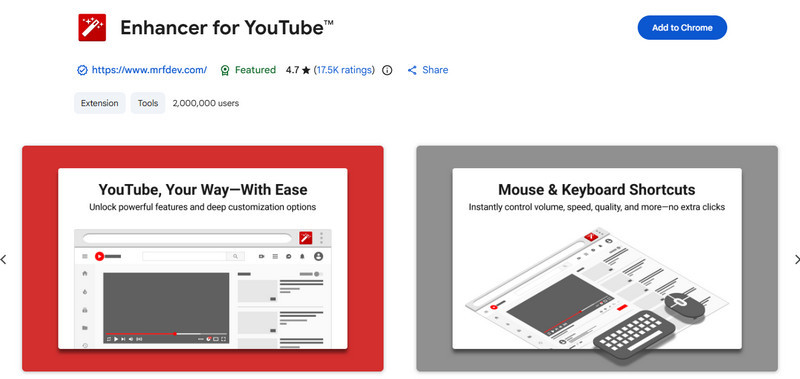
Enhancer for YouTube is a popular Chrome extension that enhances and smooths your YouTube experience. It offers a customizable toolbar in the YouTube player, enabling you to easily adjust playback quality, volume, speed, and more. It supports forced HD playback, ad removal, cinema mode, a popup player, and more.
2. Improve YouTube!
Best for: Power users who want to overhaul YouTube’s interface and functionality.
Score: 4.5/5
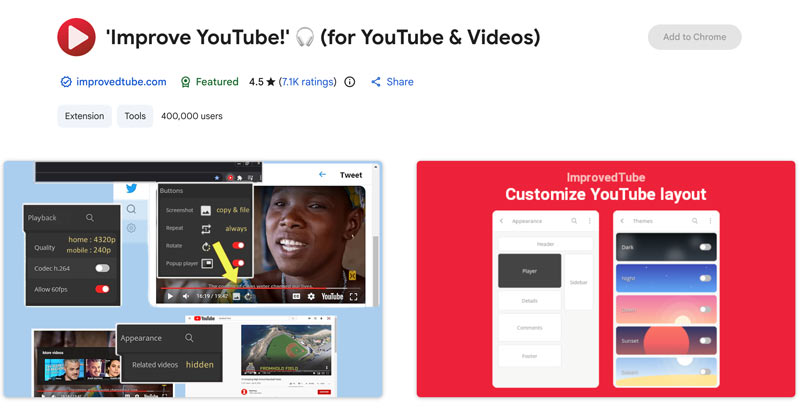
Improve YouTube! claims to offer over 170 useful and unique features, including themes, layout tweaks, content filtering, playback speed defaults, and PIP mode. It is open-source and applies most settings without page reloads. The Chrome extension also extends basic playback features to embedded videos on Facebook, Netflix, Twitch, and Vimeo.
3. Video Enhancer for YouTube
Best for: YouTube users who want simple, effective brightness, contrast, and filter controls without complexity.
Score: 4.4/5
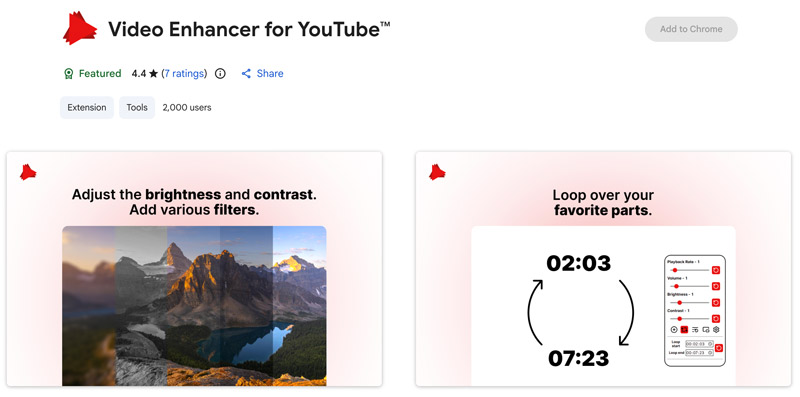
Video Enhancer for YouTube focuses on the essentials: playback rate up to 16x, brightness adjustment up to 5x, contrast up to 5x, and seven additional filters for color grading. It offers helpful options and filters to adjust brightness and contrast, boost the audio, and improve your video quality.
4. Video Speed Controller
Best for: Students, professionals, and anyone who needs granular playback speed control everywhere.
Score: 4.5/5
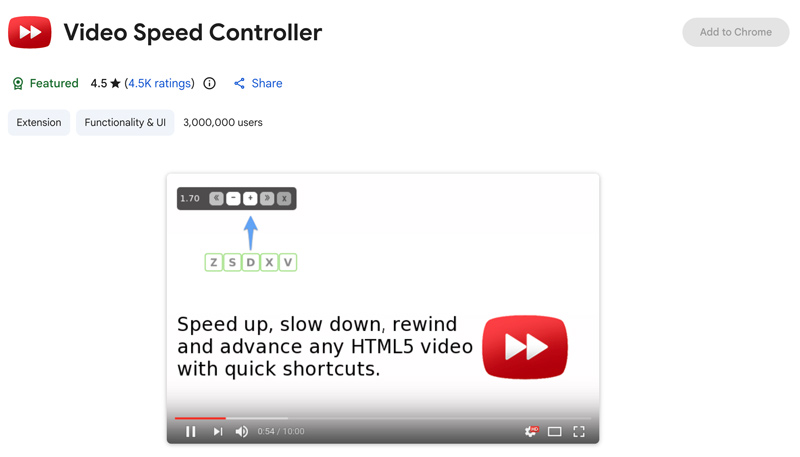
Video Speed Controller is the gold standard for managing streaming video playback speed. It works on any HTML5 video or audio, including YouTube, Netflix, local files, and even audio streams. You can freely adjust speed from 0.07x to 16x in configurable increments. This video quality enhancer extension optimizes your video viewing by letting you make quick playback speed adjustments.
5. Turn Off the Lights
Best for: Users who want a cinema-like viewing environment with automatic HD playback.
Score: 4.6/5
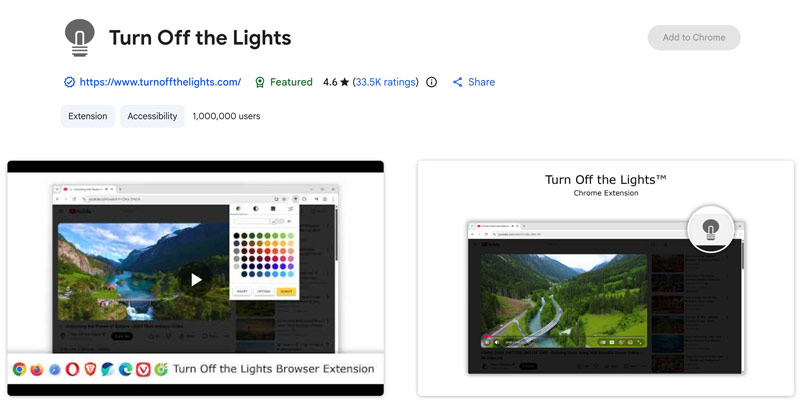
Turn Off the Lights is widely used to create a focused viewing experience while watching videos online. It fades the entire page to dark so you can watch videos as if you were in the cinema. Beyond dimming, this extension offers Auto HD playback up to 8K resolution, 60FPS locking, mouse-wheel volume control, dark/night mode for blue-light reduction, and atmosphere lighting that projects dynamic colors around the player.
You can also access more related extensions in the Chrome Web Store to improve your streaming video quality. Select and install one to get a more visually pleasing online viewing experience.
Part 3. Bonus: A Desktop Video Quality Enhancer with More Stable Performance
Browser extensions are convenient, but they can often introduce performance issues. For stable and true video quality enhancement, especially for upscaling old footage, removing noise, sharpening details, or converting SDR to HDR, a dedicated desktop application delivers higher-quality results.
VidHex Video Enhancer is a standalone desktop tool designed specifically for video enhancement needs. It offers multiple AI models to enhance video quality. The software lets you upscale SD and 480p footage to 720p, 1080p, 4K, or higher, with added detail and improved clarity.
Its main AI models include: General Enhancement Model, Video Quality Repair Model, Face Model, Anime Model, Frame Interpolation Model, Detail Restoration Model, SDR to HDR Model, and more. Based on the model you select, the AI will intelligently correct color, remove noise, adjust brightness, or stabilize shaky footage.

Steps to Use VidHex to Enhance Video Quality
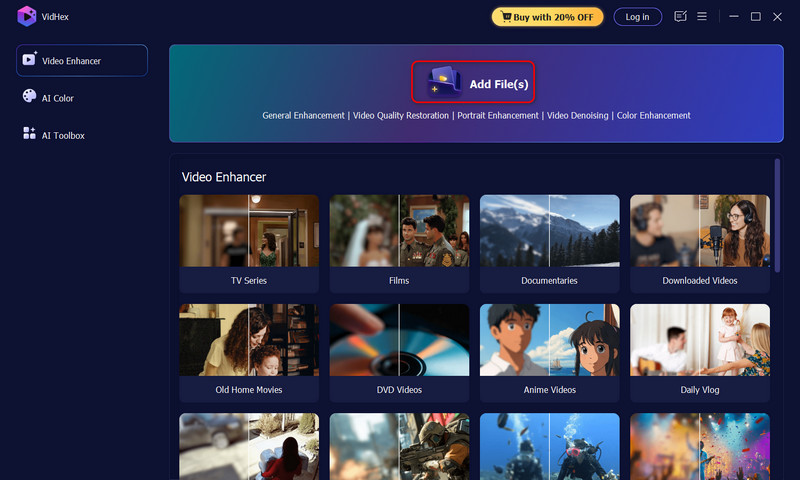
Step 1. Download and open VidHex on your computer. Add the video file you want to enhance or upscale.
Step 2. Select a suitable AI model that matches your content. Adjust other output parameters as needed.
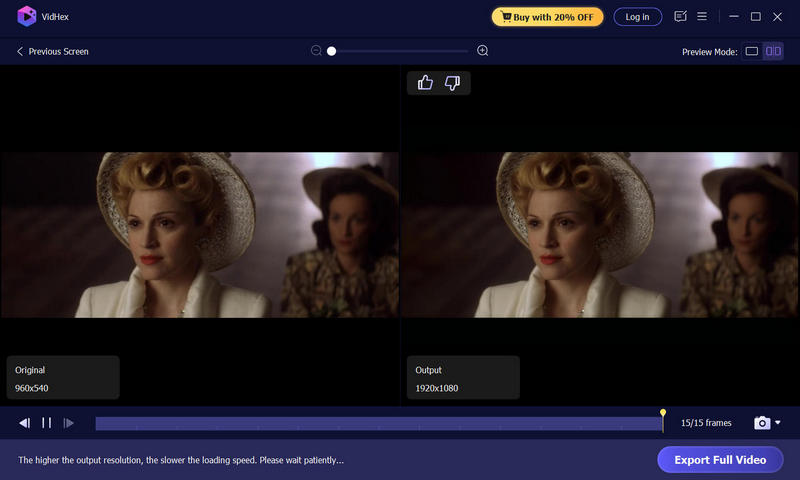
Step 3. Click Preview to view the enhanced result, then export the processed video.
Part 4. FAQs About Video Quality Enhancer Chrome Extensions
Question 1. Do video enhancer Chrome extensions actually improve video quality?
Most video quality enhancer extensions are designed to improve the streaming experience. They can improve perceived quality by adjusting brightness, contrast, sharpness, and color. They can also force higher streaming resolutions to deliver the highest possible quality. However, these tools cannot handle heavily compressed footage or restore detail that was never captured.
Question 2. Will these extensions slow down my browser?
Most won’t, but some can. Lighter extensions like Video Speed Controller and Enhancer for YouTube generally have minimal performance impact. However, Improve YouTube! has been repeatedly reported to cause severe lag and freezes.
Question 3. Can a Chrome extension upscale a 720p video to 4K or 8K?
No. Browser extensions can only force the website or player to request a higher resolution from the streaming service. True AI-based upscaling from lower resolutions needs a dedicated tool like VidHex.
Conclusion
Choose a video quality enhancer Chrome extension based on your priorities, then start a trial. You can easily locate and install them in the Chrome Web Store. These extensions can enhance your viewing experience with ease. If you need AI-powered upscaling, noise removal, and color correction, try using the introduced VidHex.