4 Tested Methods to Record on Roblox
Whether you are recording a tutorial for your latest build in Roblox Studio, capturing a clutch moment in a tycoon game, or sharing highlights with friends, knowing how to record on Roblox is essential. But with so many recording options, which should you choose?
In this guide, I will break down four proven methods for recording Roblox gameplay, compare their strengths and weaknesses, and help you find the perfect solution for your needs.

How I Tested These Roblox Recording Methods
I have spent a week testing the following four recording methods. To keep the comparison fair, I used the same test method across all four methods, then evaluated each output for resolution stability, frame pacing, and audio sync.
PAGE CONTENT
A Quick Comparison Table of 4 Roblox Recording Ways
To help you quickly find the best way to record Roblox in high quality, this comparison table compares recording quality, performance, editing features, pricing, and more.
| Feature | Built-in Recorder | Vidmore Game Recorder | OBS Studio | Xbox Game Bar |
| Ease of Use | Very easy | Easy | Complex | Easy |
| Recording Quality | Basic | High (4K or higher) | High (up to 4K) | Good (1080p) |
| System Performance | Low impact | Low impact | Can be heavy | Low impact |
| Audio Options | Limited | System + Mic | System + Mic | System + Mic |
| Editing Features | None | All the basics | None | None |
| Price | Free | Free trial | Free | Free |
Method 1: How to Record Roblox with Built-in Recording Features
If you want to record directly inside Roblox Studio, start with the native recording feature. It is perfect for beginners who want to capture quick clips without installing any additional software.
Step 1. When you want to record in Roblox Studio while playing a gaming, open the in-game menu by clicking the Roblox logo in the top-left corner or pressing the Esc key. Navigate to the Captures tab (formerly known as “Record”).
Step 2. Click the record icon on the right side of the screen to start recording. Alternatively, you can press F12 (Windows) or Ctrl + F12/Cmd + F12 (Mac) to display the Record Video dialog.

Step 3. When you want to stop recording, click the icon again. Your captured video will automatically save to your computer’s Videos folder. To preview your recordings, click the Roblox logo, select Captures, and then click the Captures option to view and download your clips.
Method 2: How to Record Roblox Using Vidmore Game Recorder
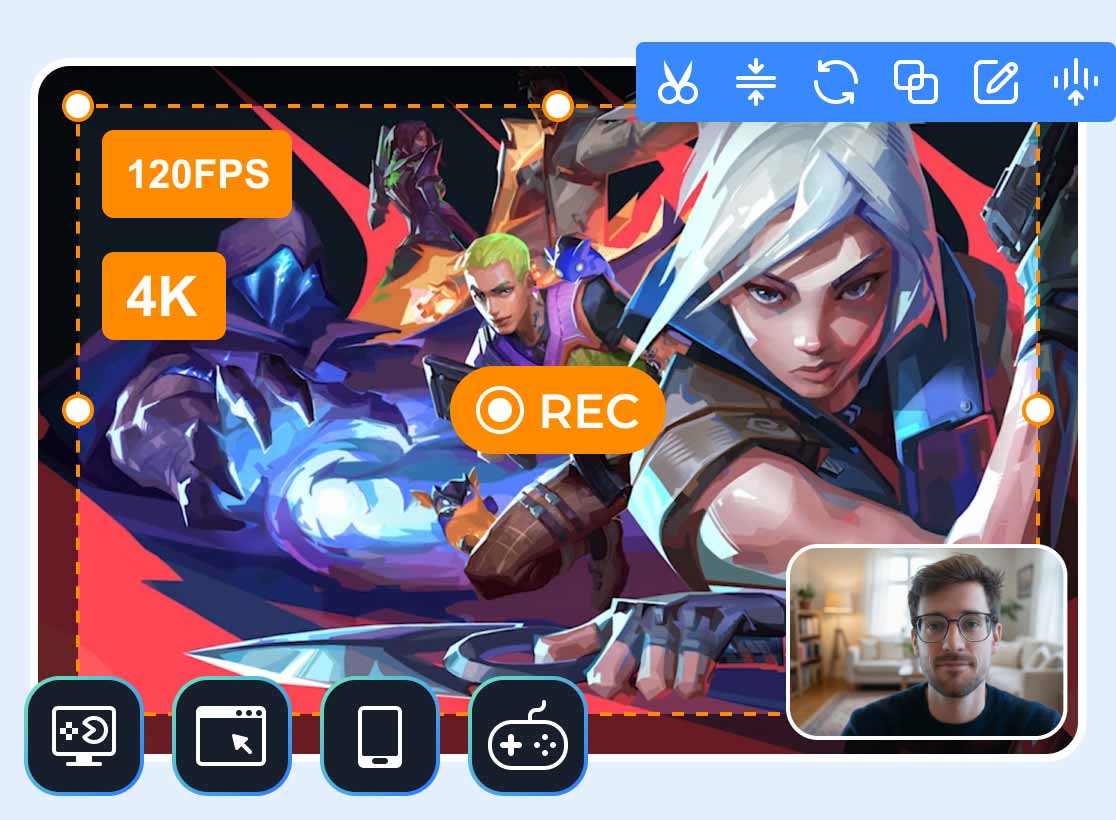
If you need higher quality than the built-in Roblox Studio offers, Vidmore Game Recorder is a great choice. It has various dedicated game-recording modes to adapt to different platforms. With it, you can capture up to 120 FPS Roblox gameplay with ease. Plus, it can retain the high quality of your recording up to 720p, 1080p, and even 4K.
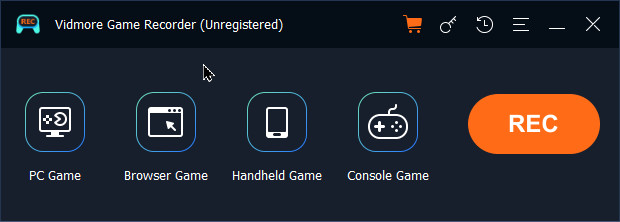
Step 1. Download and install Vidmore Game Recorder. Launch it and select the Browser Game mode.
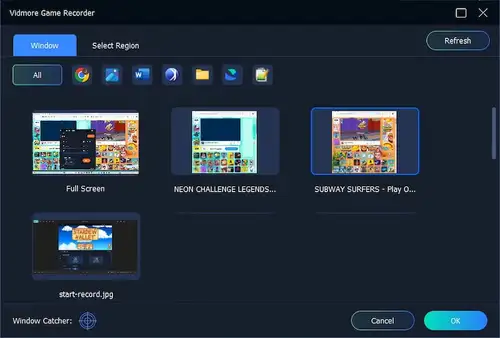
Step 2. Then, select the game recording window or area. Vidmore will detect the open windows, and you can directly choose the needed one from them. Or click Select Region to customize a special area. To capture Roblox gameplay, Full Screen is the safest choice since the game runs in its own window.
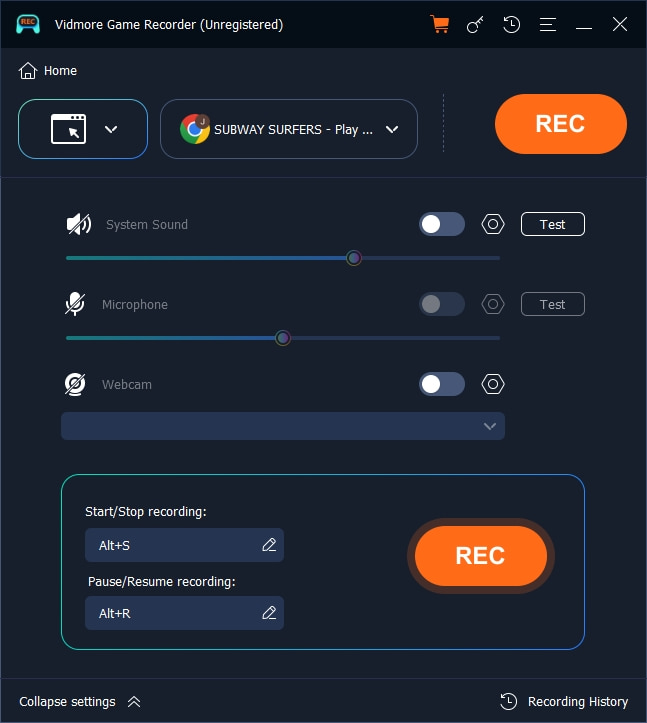
Step 3. Vidmore lets you record system sound, your microphone, or both at the same time. The Microphone option supports advanced microphone enhancement and noise-reduction features. You can also customize hotkeys for flexible control.
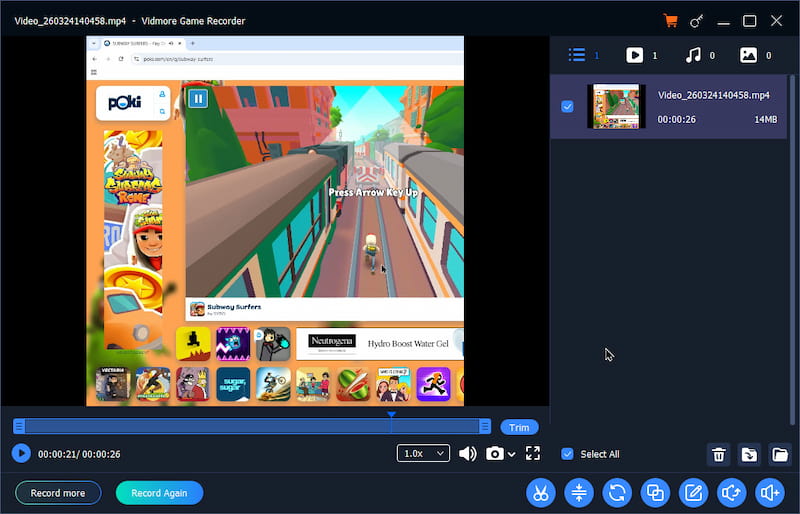
Step 4. Then, click REC to start capturing your Roblox gameplay. When you are done, stop the recording. You will enter the Preview window where you can trim the video or other edits.
Step 5. Finally, click the Share button on the right side of the file to export and save your Roblox screen recording to your computer.
In my tests, this Roblox recorder captured 4K or 1080p footage with smooth 120/60fps playback. What’s more, the built-in editor lets you freely trim clips, add text overlays, and do other edits without opening a separate video editor.
Method 3: How to Capture Roblox Gameplay on OBS Studio
OBS Studio can be the golden standard for live streaming and screen recording. This free, open-source tool is widely used by professionals and general users. However, this recorder demands patience. If you want to record Roblox in high quality and are willing to learn, this is the method to master.
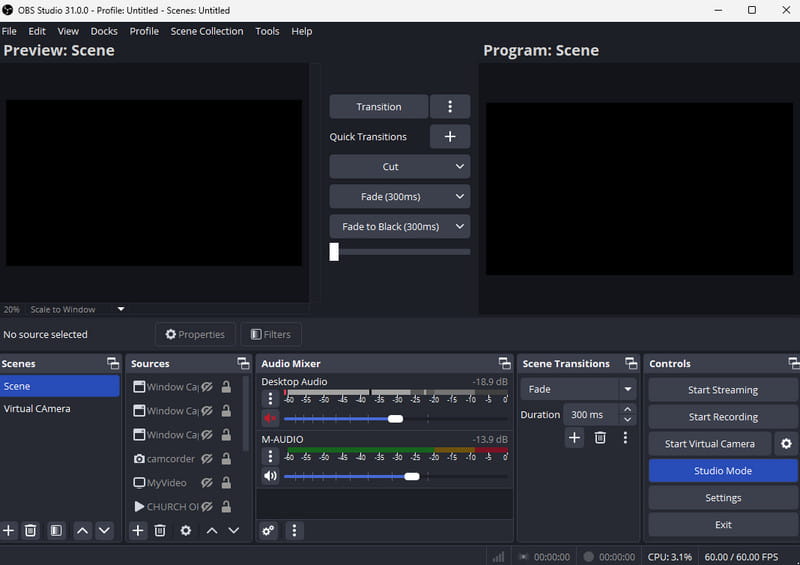
Step 1. Download OBS from the official site and install it. On first launch, the Auto-Configuration Wizard will ask about your primary use case. Select Recording and choose your resolution and frame rate.
Step 2. Add Roblox as a capture source. Click the + under the Sources panel and choose Game Capture. Select Capture specific window and pick Roblox from the dropdown. If that fails, use Display Capture instead.
Step 3. By default, OBS routes your desktop audio and microphone separately. In the Mixer panel, you can adjust each volume independently and add filters like noise suppression and gain.
Step 4. Go to Settings > Output and set your Roblox recording preferences, such as the video bitrate, recording quality, and more. After that, press Start Recording to record on Roblox in high quality. OBS saves your gameplay video as an MP4 or MKV depending on your settings.
You may also need:
Where Do My OBS Recordings Go?
Method 4: Record Roblox Gameplay with Xbox Game Bar (Windows)
To record Roblox gameplay on Windows 10 or 11, Xbox Game Bar is a great option. It offers the easiest way to record gameplay without installing anything.
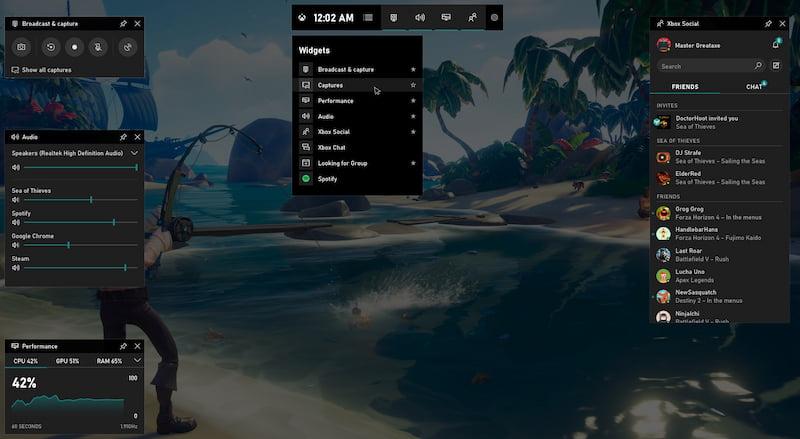
Step 1. Press Windows + G at the same time when you want to record Roblox. This shows the Game Bar overlay.
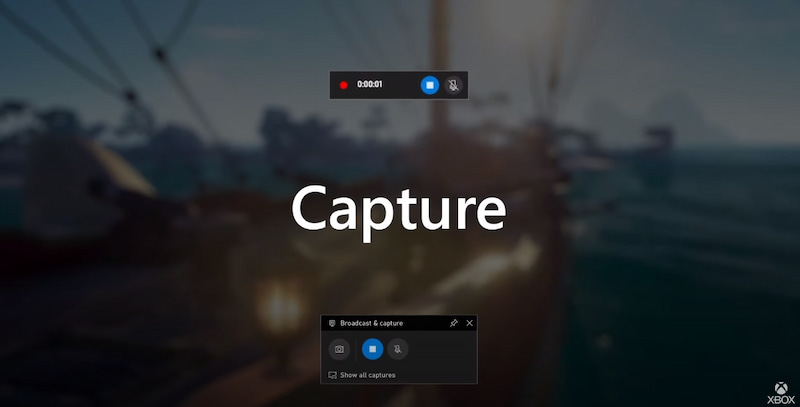
Step 2. Click Record, or press Windows + Alt + R to start capturing your Roblox game immediately. You can see a small timer appear.
Step 3. When you are done, press the same shortcut or click the stop button. Your clip is saved automatically to the VideosCaptures folder.
Note that Game Bar captures Roblox at 1080p. It cannot record 4K or high frame rates. Moreover, it only records the active game window, and it can occasionally fail to detect Roblox as a game.
FAQs on How to Record on Roblox
Question 1. Can I record Roblox on a Mac?
Yes. You can record Roblox on a Mac using QuickTime Player, OBS Studio, or a dedicated screen recorder. For better gameplay performance and audio control, OBS Studio is a popular choice.
Question 2. Is recording Roblox gameplay allowed?
Yes. Roblox allows you to record and monetize gameplay footage, as long as you follow their community guidelines.
Question 3. Can I record Roblox with audio?
Yes. The built-in recorder in Roblox Studio can capture the internal game audio. But it cannot record your microphone. If you need to add your own voice to the Roblox recording, you should turn to a third-party tool like Vidmore Game Recorder, OBS, or Game Bar.
Conclusion
The right way to record on Roblox depends on your needs and experience level. You can start with the Xbox Game Bar to capture Roblox footage right away. If you hit its limits, turn to the powerful Vidmore Game Recorder. If you are working in Roblox Studio, the built-in recorder is also a good choice. For professional content creators, OBS Studio is the ultimate free tool with unlimited customization.